Windows 11 update problems follow a monthly rhythm. Microsoft ships a security update on the second Tuesday, an optional preview later in the month, and sometimes an emergency fix in between. Each one can fix old bugs and introduce new ones.
This hub tracks the current Windows 11 updates, the known issues Microsoft has confirmed, and the fix guide for each common problem. It is updated every month, so bookmark it and check here first when something breaks after an update.
Most Windows 11 update problems are fixed by installing the newest cumulative update, not by removing the old one. Check the open known issues below, match your symptom to a fix guide, and follow the safe troubleshooting order. Status checked October 19, 2026: the three current KB5127648 issues are Smart App Control being grayed out, Remote Desktop error 0xC000000D, and partly resolved USB Audio Class 1.0 failures.
Table of Contents
ToggleCurrent Windows 11 Updates (October 2026)
Windows 11 24H2, 25H2 and 26H2 share one servicing branch, so they receive the same monthly fixes. Only the build number prefix differs: 26100 for 24H2, 26200 for 25H2 and 26300 for 26H2.
| Date | Update | Type | Builds | Guide |
|---|---|---|---|---|
| Aug 11, 2026 | KB5121003 | Security update | 26100.9168 / 26200.9168 | KB5121003 problems |
| Aug 27, 2026 | KB5120998 | Optional preview | 26100.9278 / 26200.9278 | Black wallpaper fix |
| Sept 8, 2026 | KB5124008 | Security update | 26100.9445 / 26200.9445 | KB5124008 guide |
| Sept 14, 2026 | KB5129195 | Emergency (out-of-band) | 26100.9457 / 26200.9457 | KB5129195 guide |
| Sept 22, 2026 | KB5124010 | Optional preview | 26100.9550 / 26200.9550 | KB5124010 section |
| Sept 29, 2026 | KB5121794 | 26H2 enablement package | 26300 series | 26H2 install guide |
| Oct 13, 2026 | KB5127648 | Security update | 26100.9711 / 26200.9711 / 26300.9711 | KB5127648 guide |
Microsoft lists every release on its Windows 11 release information page.
Open Known Issues Right Now
These are the problems Microsoft lists on its Windows release health dashboard as of October 6, 2026. Resolved issues stay in the table for one month so you can confirm a fix.
| Problem | Started with | Status | What to do |
|---|---|---|---|
| Smart App Control cannot be turned on because the option is grayed out | KB5127648 | Open | Already-enabled devices are unaffected. Use only Microsoft’s registry or enterprise Group Policy workaround, then restart. |
| Remote Desktop fails for non-admin users with error 0xC000000D when Administrator protection is enabled | KB5124010 or later | Open | IT can temporarily disable Administrator protection; Microsoft is working on a fix. |
| USB Audio Class 1.0 devices show Code 10 or produce no sound | KB5124008 | Partly resolved | USB audio fixes |
| Apps that use AC-3 (Dolby Digital) audio close unexpectedly | KB5124010 | Resolved by KB5127648 | Install the October security update. |
| Black screen or File Explorer failure after sign-in on virtual desktops | KB5120998 | Resolved by KB5127648 | Install the October security update. |
| Domain-joined PCs lose their trust relationship | KB5124008 | Resolved by KB5124010 | Install KB5124010 or a later cumulative update. |
| File History fails to back up or restore | KB5124008 | Resolved by KB5124010 | File History fix |
| Earlier Remote Desktop sessions stop responding | KB5124008 | Resolved by KB5129195 | Remote Desktop fixes |
Common Problems After a Windows 11 Update
Find your symptom below. Each guide starts with the safest checks and explains whether Microsoft has confirmed the problem.
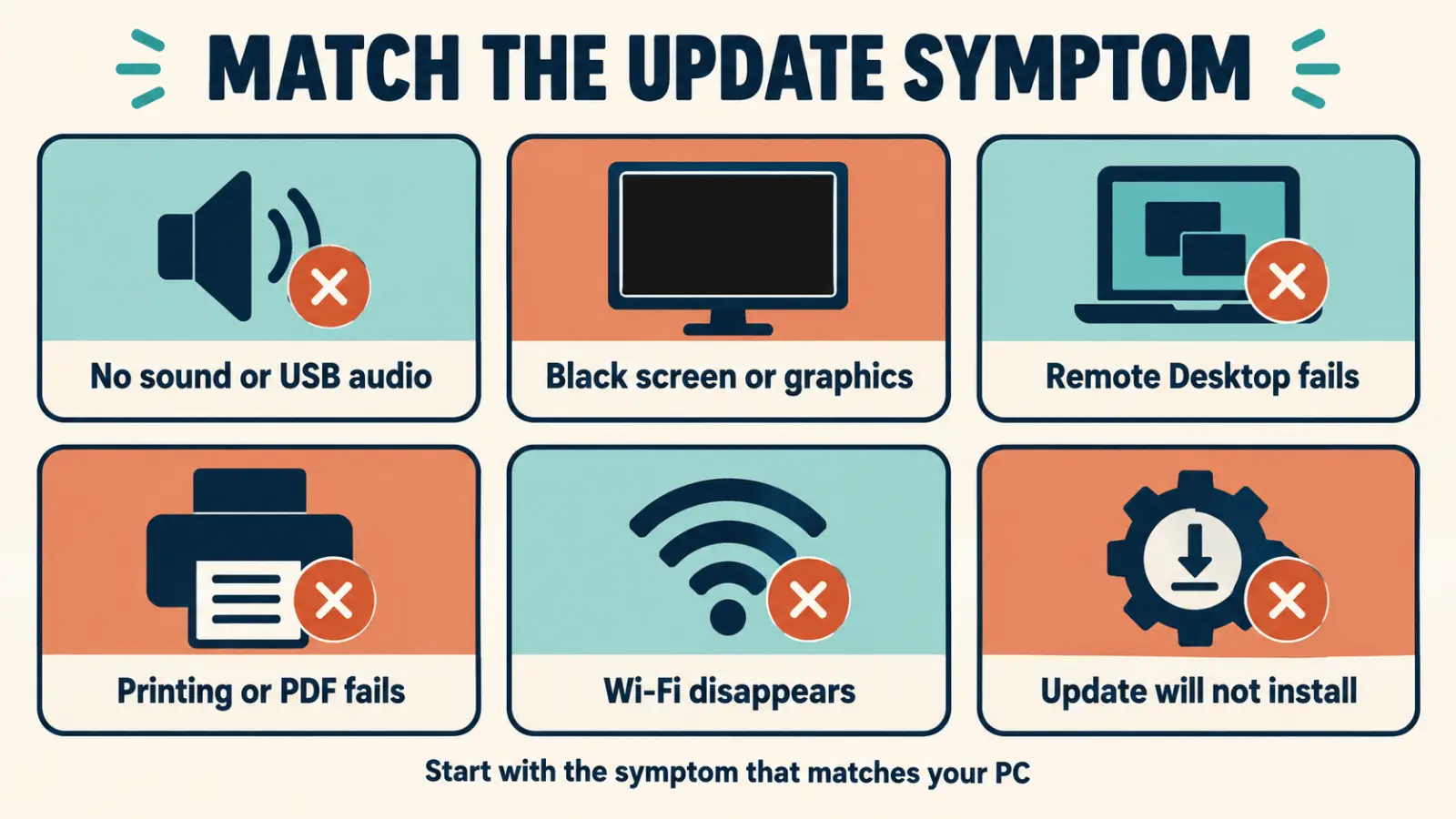
No Sound or USB Audio Not Working
USB Audio Class 1.0 failures remain partly resolved. KB5129195 fixed the 8-channel and 3D audio-mode symptoms, but some devices can still show Code 10, no sound, a stuck volume control or unavailable Sound settings. The separate AC-3 app-crash issue was resolved by KB5127648.
Fix guide: USB Audio Not Working After Update.
File History or Backups Stopped Working
File History failing with a “reconnect your drive” message was caused by KB5124008 and fixed by KB5124010 and later updates.
Fix guide: File History Not Working After Update.
Black Desktop Wallpaper or Lost Personalisation
A black background or reset cursor settings after the August preview update is fixed by KB5124008 and later.
Fix guide: Windows 11 Wallpaper Black After Update.
Remote Desktop Will Not Connect
The earlier Remote Desktop hang introduced by KB5124008 was fixed by KB5129195. A newer issue is still open: after KB5124010 or later, non-admin users can receive error 0xC000000D when connecting to hosts with Administrator protection enabled. IT can temporarily disable Administrator protection while Microsoft works on a fix.
Fix guide: Remote Desktop Not Connecting.
Graphics Problems, Black Screens or Driver Timeouts
AMD graphics users have reported black screens and driver resets after recent updates. Update the driver from AMD before rolling anything back.
Fix guide: AMD Graphics Issues After Windows Update.
Cannot Print or Save PDFs
Printing to PDF failing after the August .NET update has its own fix path.
Fix guide: Can’t Print or Save PDFs After Update.
Games Crashing After an Update
The August game-crash issue and the later AC-3 (Dolby Digital) app crashes have both been resolved by subsequent updates. Install KB5127648 or a later cumulative update before trying app-specific fixes.
Fix guide: KB5121003 Problems and Game Crashes.
The Update Will Not Install
Errors such as 0x80073712 usually point to damaged update components and can be repaired without reinstalling Windows.
Fix guide: Windows Update Error 0x80073712.
Blue Screen After an Update
A stop error after an update is most often a driver problem. Use the stop code to find the cause.
Fix guide: How to Fix Blue Screen of Death.
Wi-Fi Adapter Disappeared
A missing wireless adapter after an update is usually a driver or power-management issue.
Fix guide: Wireless Adapter Disappeared After Update.
Microsoft Store Not Working
Store apps that will not open or update after a Windows update can usually be fixed with a reset or cache repair.
Fix guide: Windows Store Not Working After Update.
Safe Troubleshooting Order for Update Problems
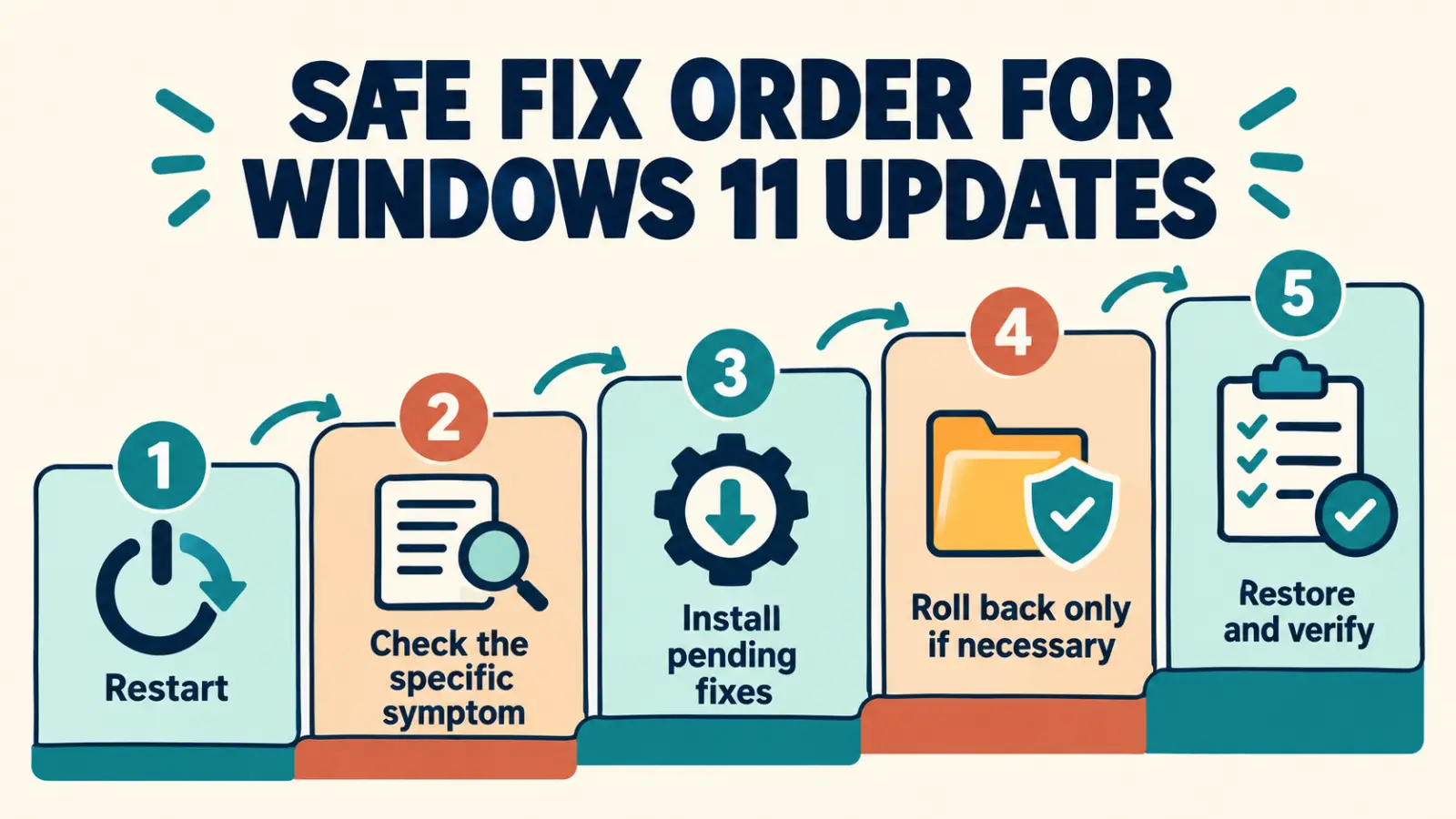
Work through these steps in order. The early steps are quick and reversible, and they solve most problems.
- Restart the PC once, then run Settings > Windows Update > Check for updates. A newer update may already contain the fix.
- Check the open known issues table above and Microsoft’s release health page for your symptom.
- Update the affected driver from the PC or component manufacturer, especially graphics, audio and Wi-Fi.
- Run Settings > System > Troubleshoot > Other troubleshooters for Windows Update, audio or network problems.
- Repair system files: open Terminal as administrator and run
DISM /Online /Cleanup-Image /RestoreHealth, thensfc /scannow. - Only if a confirmed issue blocks essential work, uninstall the specific update temporarily and reinstall it when Microsoft ships a fix.
Do not uninstall a security update as a first step, disable Windows Update permanently, or download “fix tools” and codec packs from unofficial websites. Removing a security update reopens the vulnerabilities it fixed.
Should You Pause or Uninstall an Update?
Pausing is reasonable for a week or two if you depend on hardware or a connection affected by a current open issue, such as an affected USB Audio Class 1.0 device or enterprise Remote Desktop host. Use Settings > Windows Update > Pause updates, then resume once the fix ships.
Uninstalling is a last resort. Go to Settings > Windows Update > Update history > Uninstall updates, remove only the update linked to your problem, and plan to reinstall it. Many issues are later fixed in a newer cumulative update, which contains every earlier fix.
Feature Updates and Windows 11 Versions
Monthly updates are different from the yearly feature update. Windows 11 26H2 became available on September 29, 2026, and 24H2 Home and Pro reached end of support on October 13, 2026. If your PC is on 24H2, moving to 25H2 or 26H2 keeps it receiving the fixes on this page.
Install the latest Windows 11 version with one restart and check the rollout status.
What changes after the deadline and the safest upgrade path for Home and Pro PCs.
How to Stay Ahead of Windows Update Problems
- Keep a current backup before Patch Tuesday, ideally with one copy disconnected from the PC.
- Skip optional preview updates on PCs you rely on unless a preview fixes a problem you have.
- Wait a few days before installing a feature update on a work PC, while early issues surface.
- Check this page or Microsoft’s release health dashboard after each Patch Tuesday.
Build a backup routine that protects you from bad updates and ransomware.
Frequently Asked Questions
Why do Windows 11 updates cause problems?
Updates change drivers, security components and system files across millions of different hardware and software combinations. Microsoft tests widely, but some combinations only fail after release, which is why it publishes known issues and follow-up fixes.
Should I stop Windows 11 updates?
No. Updates contain security fixes. If a confirmed issue affects you, pause updates for a short time and resume when the fix is released, rather than turning updates off permanently.
How do I uninstall a Windows 11 update?
Open Settings, go to Windows Update, select Update history, then Uninstall updates. Remove only the specific update linked to your problem and reinstall it when Microsoft releases a fix.
What are the current Windows 11 known issues?
Status checked October 19, 2026: Microsoft lists Smart App Control being grayed out and Remote Desktop error 0xC000000D as open, while USB Audio Class 1.0 failures are partly resolved. AC-3 crashes, virtual-desktop Explorer failures and the earlier domain-trust issue are resolved. See the table above for details.
When is the next Windows 11 update?
Microsoft releases security updates on the second Tuesday of each month. The next one is due on November 10, 2026.
How do I check which Windows 11 build I have?
Press Windows + R, type winver and press Enter. The build number after the dot shows which monthly update is installed.