Record the stop code and any “What failed” name. Remove newly added hardware, then use Safe Mode if Windows will not start normally. Check Device Manager and Windows Update before running memory, system-file, and disk checks. Back up files before recovery or reinstall steps.
Table of Contents
ToggleWhat Causes a Blue Screen of Death?
A Blue Screen of Death (BSOD), also called a stop error, appears when Windows encounters a serious problem and shuts down or restarts unexpectedly to protect against data loss. Hardware, a device driver, or software may be responsible. Record the stop code and any “What failed” module name, then compare them with Microsoft’s official blue-screen troubleshooting guidance.
How to Read Your Stop Code
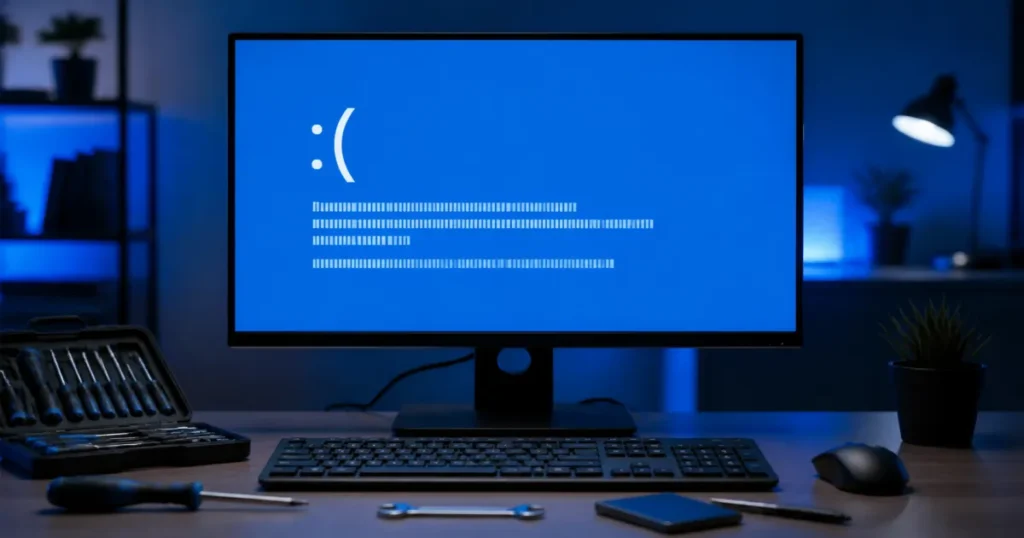
A stop code narrows the investigation, but it does not prove which component failed. Write down the exact code and the module shown after “What failed,” or photograph the screen before the PC restarts.
- Search the exact code in Microsoft’s Bug Check Code Reference.
- Match the crash time with recent hardware, driver, app, or Windows changes.
- If different codes keep appearing, test memory and storage instead of assuming one code identifies the cause.
Getting Into Safe Mode First
If the PC crashes repeatedly and will not boot normally, use Safe Mode to test with a limited set of drivers and services:
- From the sign-in screen, hold Shift while selecting Power > Restart. Then choose Troubleshoot > Advanced options > Startup Settings > Restart and press F5 for Safe Mode with Networking.
- If Windows cannot start, Windows Recovery Environment may open automatically after repeated failed starts. If it does not, use Windows installation or recovery media and select Repair your computer.
Microsoft documents these options in Windows Startup Settings.

Fix 1: Check Recent Drivers or Hardware
A driver or newly added device can trigger a blue-screen error. Focus here first when the crashes began immediately after a hardware or driver change.
- Disconnect newly added nonessential hardware, then restart.
- Open Device Manager and check for devices marked with an exclamation point.
- Right-click the affected device and select Update driver.
- If the crashes began after a driver update, open Properties > Driver and select Roll Back Driver when available.
Fix 2: Run a Memory Diagnostic
Memory errors can cause blue-screen crashes, but the crash pattern alone cannot confirm faulty RAM. Use Windows Memory Diagnostic to test it.
- Press Windows key + R, type
mdsched.exe, and press Enter. - Select Restart now and check for problems. Save open work first because the PC will restart.
- After Windows loads, check Event Viewer for the MemoryDiagnostics-Results entry if no result appears automatically.
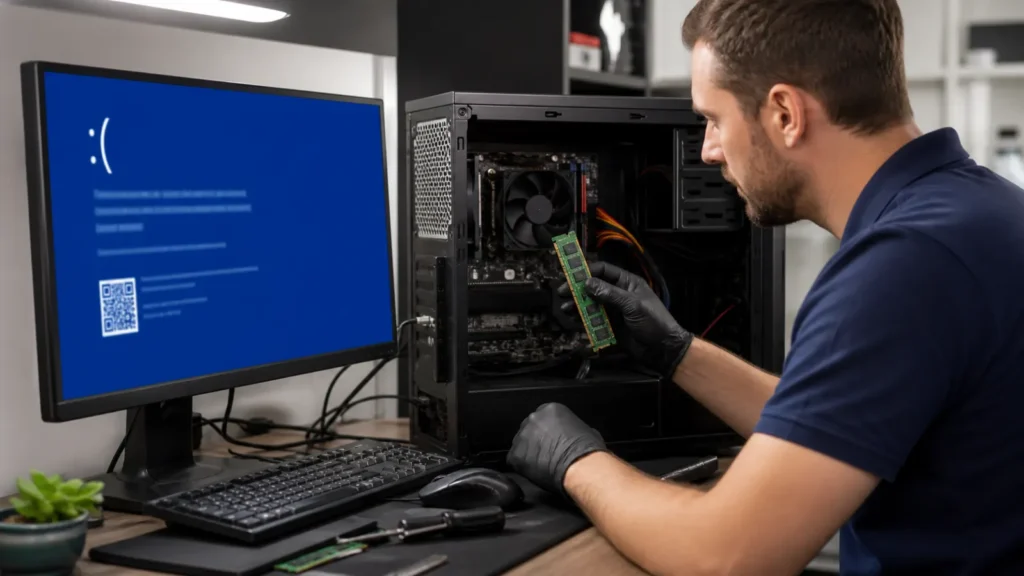
- If the test reports errors, back up important files and follow the PC or motherboard maker’s service guidance before reseating or replacing memory.
Fix 3: Check Your Disk and System Files
Corrupted system files or file-system errors can contribute to crashes. Open Command Prompt as administrator and use the least disruptive checks first:
- Run
DISM.exe /Online /Cleanup-image /Restorehealth. - When DISM finishes successfully, run
sfc /scannow. Microsoft recommends this order in its System File Checker instructions. - Run
chkdsk C: /scanto check the Windows volume without immediately scheduling an offline repair. If it reports file-system errors, back up important files before usingchkdsk C: /f, which may require a restart.
If you are also seeing high disk usage, use our separate 100% disk usage guide.
Fix 4: Consider Removing a Recent Windows Update
If blue-screen errors began immediately after a Windows update, the update is one possible trigger. First check newly added hardware and drivers. On Windows 11, Microsoft recommends trying Fix problems using Windows Update before removing an update when that recovery option is available.
- Go to Settings > Windows Update > Update history > Uninstall updates.
- Select only the update installed just before the crashes began.
- Removing a security update reduces protection, so treat this as a temporary troubleshooting step and install the corrected update when available.
See Microsoft’s Windows Update removal guidance.
Fix 5: Check for Overheating
CPUs and GPUs have thermal protection that can force a crash rather than risk physical damage when they run too hot. If your BSODs happen during gaming or heavy tasks specifically (rather than at random), overheating is worth ruling out — check that vents aren’t blocked, fans are spinning, and consider reapplying thermal paste on an older PC.
Fix Operating System Not Found — solve another serious boot error.
When to Consider a Reinstall
If the crashes continue, back up important files before using recovery tools. Try Startup Repair or System Restore first. On supported Windows 11 systems, Fix problems using Windows Update can reinstall the current Windows version while preserving apps, files, and settings. Use a clean installation only after less disruptive options fail. Microsoft’s Windows recovery guide explains the order and data-loss risks.
Preventing Future BSODs
Once you’re past the current crash, a little maintenance goes a long way:
- Keep Windows and drivers updated, but don’t install updates the moment they drop — waiting a few days lets known issues surface first
- Run periodic
sfc /scannowchecks, especially after a rough shutdown - Keep an eye on drive health and free space
- If you’re also dealing with general sluggishness, see our guide to fixing a slow computer
Windows Data Recovery Techniques can help you recover files after a crash.
Frequently Asked Questions
Is a Blue Screen of Death dangerous to my files?
Not directly. A BSOD stops Windows before a critical error causes more damage. The main risk is losing unsaved work during the sudden restart.
Why do I get a different stop code every time?
This is common with RAM problems and failing drives. Corrupted data can appear in different places, producing different stop codes with the same underlying cause.
Do I need to reinstall Windows to fix a BSOD?
Usually not. Most BSODs trace back to a driver, update, or system file issue. Reinstall only after ruling out hardware and software causes.
My PC will not boot after a BSOD. What now?
Force a shutdown three times to trigger Windows Automatic Repair, then use Troubleshoot to reach Safe Mode or System Restore.
Final Takeaway
A BSOD is a symptom, not a diagnosis. Record the stop code, undo the most recent hardware or driver change, and use Safe Mode if Windows will not start normally. Then test memory, system files, and the disk. Back up important files before repair or reinstall steps.