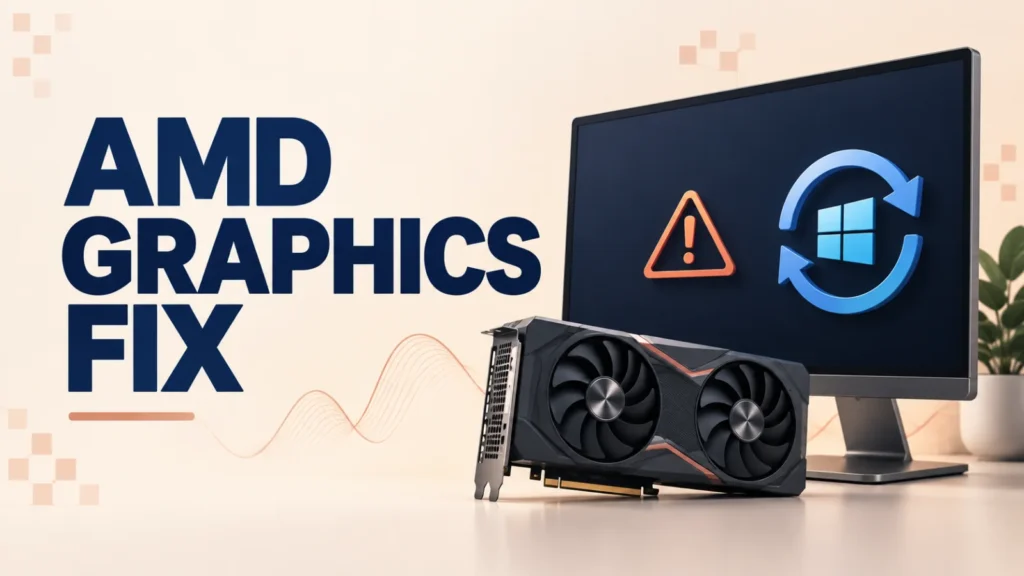
AMD graphics issues after a Windows update can appear as a black screen, driver timeout, display flicker, low resolution, or AMD Software failing to open. These symptoms do not automatically prove that Windows caused the problem.
Microsoft’s current KB5124008 release-health information does not list a general AMD Radeon compatibility issue, and AMD has not published a matching advisory. Use the steps below to identify the cause safely before uninstalling a security update.
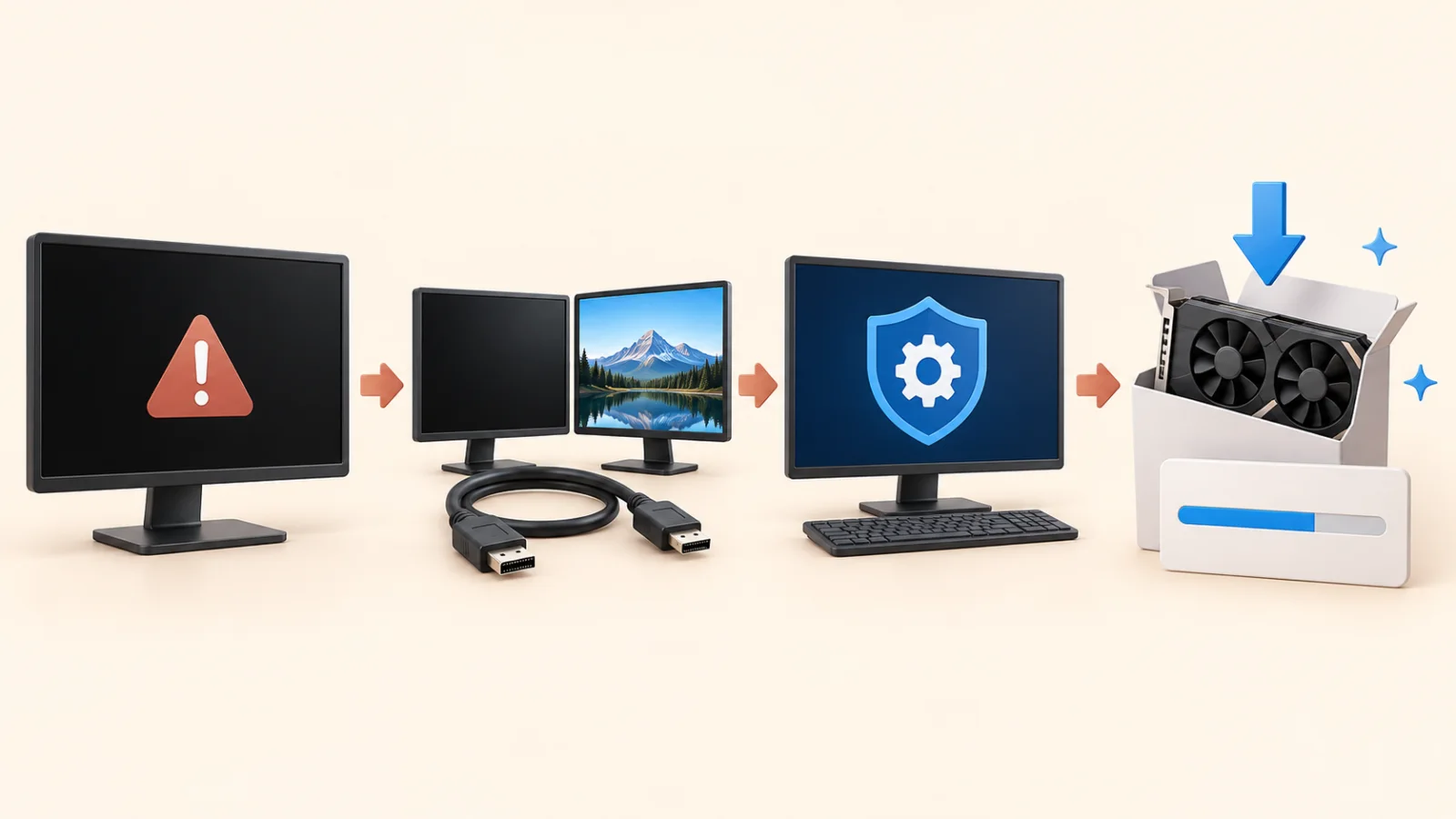
For AMD graphics issues after a Windows update, restart once, check the monitor and cable, then open Device Manager to confirm the AMD adapter is detected. If the problem remains, install the correct driver from your PC maker or AMD. Use AMD Cleanup Utility in Safe Mode only when a normal reinstall fails. Treat uninstalling KB5124008 as a short diagnostic step, not a confirmed fix.
Table of Contents
ToggleAre AMD Graphics Issues After KB5124008 Confirmed?
No official source currently confirms a broad AMD Radeon problem caused by KB5124008. Microsoft lists other known issues for the September 2026 update, including USB Audio Class 1.0 failures, Remote Desktop instability, and Plan9 shared-folder problems, but not a general AMD display-driver issue.
This distinction matters: timing can suggest a link without proving one. Windows Update, an AMD driver update, an OEM driver replacement, a loose display connection, unstable overclocking, or a failing cable can produce similar symptoms.
Do not download a driver or cleanup tool from a third-party driver site. Use your laptop or PC manufacturer first for systems with customized graphics, or use AMD’s official support site for compatible reference drivers.
Check Simple Causes of AMD Graphics Issues
- Restart the PC once and wait for Windows to finish pending updates.
- Turn the monitor off and on, reseat the video cable, and try another port or cable if available.
- Disconnect docks, adapters, or a second monitor temporarily.
- Press Windows + Ctrl + Shift + B to request a graphics-driver reset. The screen may briefly flicker or beep.
- If you recently changed GPU tuning, undervolting, or overclocking, restore default settings before testing.
If the PC shows no image before Windows starts, the problem is less likely to be a Windows display driver. Check the monitor input, cable, power, and hardware connection first.
Confirm the AMD Adapter and Driver
- Right-click Start and open Device Manager.
- Expand Display adapters.
- Open the AMD adapter’s properties and check Device status.
- On the Driver tab, note the provider, date, and version before changing anything.
A Microsoft Basic Display Adapter entry usually means the AMD driver is missing or failed to load. A warning icon or error code provides a stronger clue than the date when the symptom began.
Reinstall the Correct AMD Graphics Driver
Start With the PC Manufacturer on Laptops
For a laptop, all-in-one PC, or prebuilt desktop, check the manufacturer’s support page for your exact model first. AMD notes that its reference drivers have broad compatibility but may not include every vendor-specific feature.
Use AMD Software for Supported Desktop Graphics
- Identify the exact Radeon model in Device Manager.
- Open AMD Drivers and Support.
- Select the correct product and Windows version, then review the release notes.
- Close running applications and install the driver.
- Restart and test the same display, game, or application again.
Use AMD Cleanup Utility Only When Needed
AMD Cleanup Utility removes installed AMD graphics and audio driver software so you can start with a clean driver installation. AMD recommends Safe Mode for the best results and states that the tool creates a System Restore point before cleanup.
- Download AMD Cleanup Utility from AMD.
- Save work and close Windows Update if it is running.
- Launch the utility and accept the Safe Mode restart when offered.
- Let cleanup finish, restart, and install the chosen official driver.
The display may flicker or go blank during cleanup. Do not interrupt the process. AMD says it can require 15–20 minutes when substantial cleanup is needed.
Try an Earlier Driver When the Problem Started After a Driver Update
If AMD graphics issues began immediately after an AMD driver change, test the last version that worked on this PC. AMD’s product pages provide a Previous Drivers section for supported hardware.
Change one variable at a time. Record the driver version, restart, and repeat the same test. Avoid repeatedly switching between drivers and Windows builds without noting which combination was stable.
Should You Uninstall KB5124008?
Because Microsoft and AMD have not confirmed KB5124008 as the cause, uninstalling it should be a last, temporary diagnostic step after checking the display path and driver. Removing a cumulative update also removes its security fixes.
- Open Settings > Windows Update > Update history > Uninstall updates.
- Select KB5124008 if Windows offers an uninstall option.
- Restart and test the exact symptom.
- Reinstall the latest cumulative update after the test unless Microsoft or your device maker publishes guidance saying otherwise.
How to Collect Useful Evidence
- Record the GPU model and AMD driver version.
- Note whether the screen fails before sign-in, after sign-in, or only in one application.
- Open Reliability Monitor and look for a hardware error or AMD Software failure at the same time.
- Report reproducible driver problems through AMD Software’s Bug Report Tool.
- Use Windows Feedback Hub for behavior that began after a Windows update.
Specific evidence is more useful than assuming every black screen has the same cause.
Use this broader Windows troubleshooting guide when the display issue is part of repeated freezes, startup failures, or other system instability.
AMD Graphics Issues After Windows Update FAQs
Does KB5124008 officially cause AMD black screens?
No. Microsoft currently lists other KB5124008 issues but not a general AMD Radeon black-screen problem, and AMD has not published a matching advisory.
Should I use AMD Cleanup Utility for every update?
No. Try a normal restart and correct driver installation first. Use cleanup when the existing package is corrupted or a standard reinstall fails.
Should laptop users install AMD or OEM drivers?
Start with the laptop manufacturer because its package may include device-specific power, display, or switching features. Use AMD reference drivers when the manufacturer supports that route or its package is outdated and testing is appropriate.
Can Windows Update replace an AMD driver?
Yes, Windows can supply display drivers. Record the current version in Device Manager so you can tell whether it changed.
What if the screen is black before Windows loads?
A pre-boot black screen points more strongly to the monitor, cable, selected input, GPU seating, firmware, or hardware than to the Windows display driver.
Fix the Driver Before Blaming the Update
For AMD graphics issues after a Windows update, verify the display connection and adapter status, then reinstall the correct official driver. Use cleanup or an older driver only when the simpler steps fail, and remove KB5124008 only as a controlled test.
Check Microsoft’s Windows 11 release-health page and AMD’s system-stability guidance for new confirmed information.