Windows 11 24H2 end of support is now close for Home and Pro users. Microsoft says these editions stop receiving updates on October 13, 2026. After that date, a PC that remains on 24H2 will no longer receive monthly security updates, fixes for known problems, time-zone updates, or normal technical support.
The recommended path for an ordinary existing PC is the stable Windows 11 version 25H2 update. Version 26H1 is intended for newer hardware and is not an in-place upgrade from 24H2. Version 26H2 is currently in the Windows Insider Release Preview Channel, so most people should not join the Insider Program simply to avoid the 24H2 deadline.
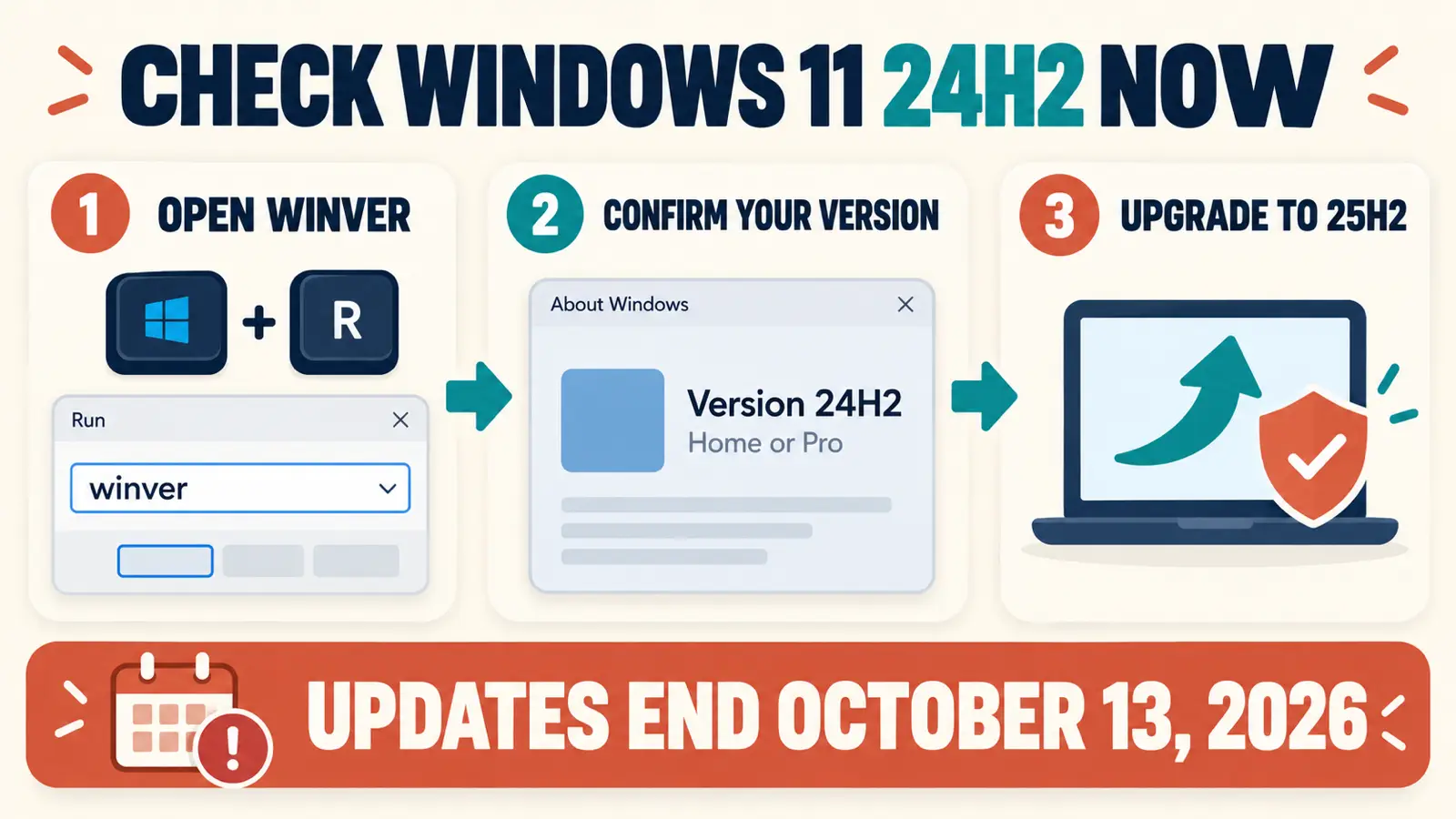
Press Windows key + R, type winver, and press Enter. If it shows Windows 11 version 24H2 Home or Pro, back up important files and install the stable 25H2 update through Settings > Windows Update when Microsoft offers it. Do not bypass a compatibility safeguard or install 26H2 preview software just to meet the deadline.
Table of Contents
ToggleWindows 11 24H2 End of Support: Exact Deadline
Microsoft’s supported Windows client versions table lists October 13, 2026 as the end-of-updates date for Windows 11 24H2 Home, Pro, Pro Education, and Pro for Workstations. The same deadline applies to Pro Education and Pro for Workstations in Microsoft’s release-information table.
Enterprise, Education, IoT Enterprise, and Enterprise multi-session editions remain supported through October 12, 2027. Enterprise LTSC 2024 reaches end of servicing on October 9, 2029, while IoT Enterprise LTSC 2024 has extended support through October 10, 2034. Check the exact edition instead of applying the Home and Pro deadline to every 24H2 device.
Deadline status — updated September 28, 2026: Windows 11 24H2 Home, Pro, Pro Education, and Pro for Workstations reach end of updates on October 13, 2026. Enterprise, Education, IoT Enterprise, and Enterprise multi-session remain supported until October 12, 2027. The computer will not stop working on October 14, but unsupported Home and Pro installations will no longer receive normal monthly security and quality updates.
Upgrade to Windows 11 25H2 or Wait for 26H2?
For an existing Windows 11 24H2 PC, the normal upgrade is Windows 11 version 25H2. It is the stable broadly available release, and Microsoft offers it in stages when device data shows that a PC is ready.
Windows 11 version 26H1 is different. Microsoft says it is scoped to new devices introduced in early 2026 and is not offered as an in-place feature update from 24H2 or 25H2. Do not download unofficial installers that promise to force an existing PC from 24H2 to 26H1.
Microsoft lists October 12, 2027 as the end-of-updates date for Windows 11 25H2 Home and Pro. Windows 11 26H2 entered Release Preview on August 27, 2026 and is expected to become generally available later in 2026. Until then, ordinary users should choose stable 25H2 rather than enrolling in Windows Insider for 26H2.
How to Check Whether Your PC Runs 24H2
- Press Windows key + R to open Run.
- Type
winverand select OK. - Read the version and OS build shown in the About Windows window.
- Open Settings > System > About and check Windows specifications if you also need the edition.
A standard Windows 11 24H2 system uses the 26100 build family. Version 25H2 uses the 26200 build family. The edition matters because Home and Pro have an earlier servicing deadline than Enterprise and Education.
Prepare Before Upgrading From 24H2
A feature update is designed to keep your files and apps, but preparation makes recovery easier if power, storage, a driver, or an application causes trouble.
- Back up irreplaceable files. Copy important documents and photos to a separate drive or a trusted cloud location.
- Install current 24H2 updates. Open Windows Update, install available security and servicing updates, and restart.
- Free storage space. Open Settings > System > Storage. Remove temporary files you recognize and keep comfortable working space on the system drive.
- Connect power. Keep a laptop plugged in throughout the download and installation.
- Disconnect nonessential hardware. Remove spare USB drives, printers, docks, and adapters that are not needed during the upgrade.
- Check critical software. Update security software, VPN clients, disk-encryption tools, and hardware utilities from their official vendors.
- Know your recovery information. If Device Encryption or BitLocker is enabled, confirm that the recovery key is available before changing the operating system.

How to Upgrade Windows 11 24H2 to 25H2
- Open Settings.
- Select Windows Update.
- Select Check for updates.
- If Windows 11, version 25H2 appears, select Download and install.
- Continue using the PC while Windows downloads the update, but save open work before installation begins.
- Choose a suitable restart time when Windows prompts you.
- After the restart, run
winverand confirm that version 25H2 is installed. - Return to Windows Update and check once more for current cumulative and driver updates.
Microsoft uses a phased rollout. The option may not appear on every eligible PC at the same time. An unmanaged Home or Pro device can also receive 25H2 automatically as the 24H2 deadline approaches, although you retain control over the restart timing.
See what Windows 11 25H2 changes, how its enablement-package upgrade works, and whether your PC is ready to install it.
What If Windows 11 25H2 Is Not Offered?
A missing offer does not automatically mean the PC is unsupported. Microsoft can delay a feature update when a known driver, app, or hardware issue could create a poor upgrade experience. This is called a safeguard hold. Select Learn more in Windows Update when it appears to review the hold affecting your device.
- Install all available 24H2 updates and restart.
- Check that the system drive is not nearly full.
- Update firmware and drivers from the PC or component manufacturer.
- Remove an incompatible app only when Microsoft or its vendor identifies it.
- Run the Windows Update troubleshooter from Settings > System > Troubleshoot > Other troubleshooters.
- Check Windows Update again after Microsoft or the vendor resolves the hold.
Avoid registry bypasses and unofficial modified installers. Microsoft’s safeguard-hold guidance explains why an eligible PC can temporarily be blocked, while the Windows 11 25H2 update history lists current known issues.
The Windows 11 Installation Assistant and official installation media can help when Windows Update itself is damaged, but they should not be used to defeat a documented compatibility hold. Back up first and use downloads only from Microsoft.
Fix Common Upgrade Problems Safely
If the 25H2 upgrade starts but fails, write down the error code and the stage where it stopped. Restart once, disconnect nonessential hardware, run the Windows Update troubleshooter, and retry only after those basic checks.
Error 0x80073712 can point to missing or damaged servicing files. Our Windows Update error 0x80073712 guide explains the correct DISM and System File Checker order. If Windows shows a different code, use our common Windows errors guide to identify the symptom before running repair commands.
Do not repeatedly force the upgrade after a rollback. Check Microsoft’s Windows release-health dashboard and the PC maker’s support page for a known compatibility issue first.
What Happens After October 13?
After October 13, Windows 11 24H2 Home and Pro will not suddenly expire, delete files, or refuse to start. The desktop and installed applications can continue working. However, Home and Pro devices that remain on 24H2 after the deadline are outside their normal servicing window.
That means no routine security updates, quality fixes, time-zone updates, or standard support for that release. Browsers and other applications have separate lifecycles, so some may continue updating temporarily, but an updated browser cannot repair an unsupported Windows component underneath it.
If an essential app or device prevents the upgrade, keep reliable backups, minimize sensitive work on the affected PC, and pursue a vendor-supported compatibility fix. Replacing supported hardware is preferable to relying indefinitely on an unsupported operating-system release.
Review the built-in protections and account safeguards that keep a supported Windows 11 PC secure after the feature update.
Frequently Asked Questions
Does Windows 11 24H2 stop working after October 13, 2026?
No. The PC should continue starting and running, but Home and Pro editions will no longer receive normal security and quality updates for version 24H2.
Will Windows 11 24H2 upgrade automatically?
Microsoft says eligible Home and Pro devices not managed by an IT department will receive Windows 11 25H2 automatically. You can choose the restart time or postpone it temporarily.
Should I upgrade from 24H2 to 25H2 or wait for 26H2?
Existing 24H2 PCs should move to stable 25H2 when offered. Version 26H1 is intended for newer devices, while 26H2 is still in Release Preview as of September 2026. Most users should wait for general availability instead of joining Windows Insider.
Does the October 2026 deadline apply to Windows 11 Enterprise?
Not in the same way. Enterprise and Education 24H2 editions remain supported longer than Home and Pro. LTSC editions follow separate lifecycle dates. Check the exact edition in Settings or winver.
Will upgrading to 25H2 delete my files?
A normal feature update is designed to keep personal files, apps, and settings. A current backup is still essential because power loss, storage failure, incompatible drivers, or a failed upgrade can require recovery.
Move to a Supported Windows 11 Version
The Windows 11 24H2 end-of-support deadline is a servicing change, not a reason to panic or buy a new PC immediately. Confirm the edition and version, back up important files, install current 24H2 updates, and accept Windows 11 25H2 through Windows Update when Microsoft offers it.
If 25H2 is withheld, treat that as a compatibility signal rather than an obstacle to bypass. Keep 24H2 patched while it remains supported, check for driver and application updates, and complete the upgrade once the hold is resolved.