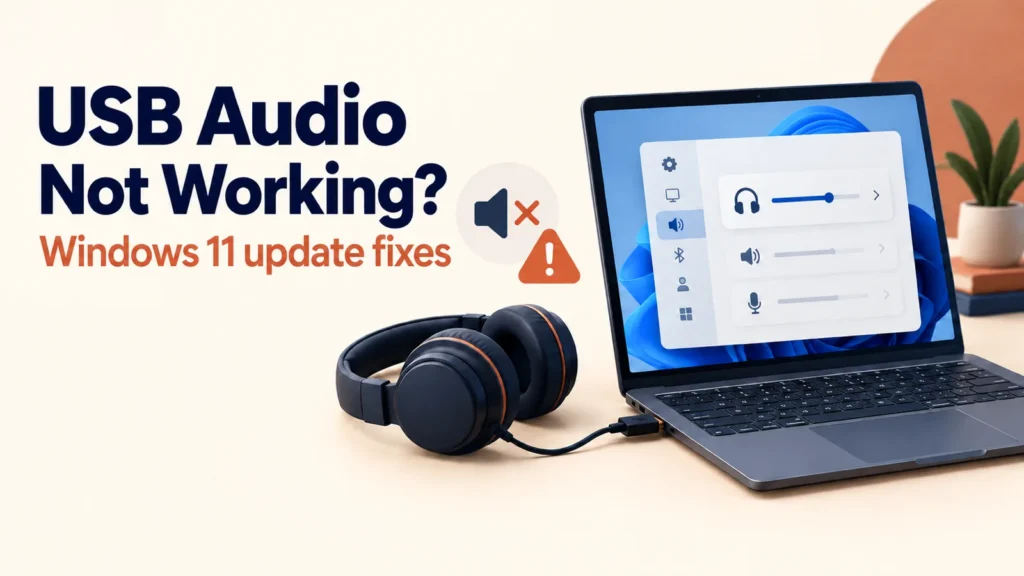
USB audio not working after update? First check whether Windows can still detect the device, especially if the problem began after a September 2026 Windows security update. Microsoft has confirmed a problem affecting some USB Audio Class 1.0 devices. The issue can cause Device Manager Code 10, no sound, frozen volume controls, or unavailable sound settings.
The fix depends on your symptoms. A September 14 out-of-band update addresses the 8-channel and 3D-audio cases, but Microsoft says other USB Audio Class 1.0 symptoms are still under investigation. Start with the safe checks below before changing drivers or updates.
If USB audio is not working after a Windows update, reconnect the device directly to the PC, restart Windows, and check Settings > System > Sound for the correct output or input device. Then check Windows Update for a newer update. Microsoft says KB5129195 fixes the 8-channel and 3D-audio symptoms; other USB Audio Class 1.0 failures may still need a later fix.
Table of Contents
ToggleWhat Changed After KB5124008
Microsoft lists USB Audio Class 1.0 failures among the known issues for the September 8, 2026 Windows 11 update. Its support page mentions KB5124012 in the USB-audio symptom text, even though that page is titled KB5124008 for Windows 11 24H2 and 25H2. Check your own Update history before assuming which update applies to your PC. See Microsoft’s KB5124008 release notes.
Microsoft lists four main symptoms: Code 10 in Device Manager, no audio, volume controls stuck or unresponsive, and sound settings that do not respond. Some devices work in ordinary stereo but fail in 8-channel or 3D-audio modes. Microsoft says switching those devices to 2-channel mode has helped some users.
What Microsoft Has and Has Not Explained
USB Audio Class 1.0 is a USB device standard, not simply a synonym for an old headset. Windows may use its built-in USB audio driver for compatible devices. Microsoft has not published a root-cause explanation for this particular September 2026 problem, so there is no basis yet to blame one specific Windows driver path.
If a device fails only after the update, that timing is useful evidence, but it does not prove the Microsoft-known issue is the cause. A bad cable, hub, selected output device, or manufacturer driver can produce similar symptoms. Check those possibilities before treating the update as the only explanation.
USB Audio Not Working After Update: Check the Symptoms
Match your symptoms against Microsoft’s list: Code 10, no output, frozen volume, unresponsive sound settings, or trouble in 8-channel/3D mode. If stereo works but multichannel fails, try 2-channel output temporarily.
To confirm the USB Audio Class version, use the device manufacturer’s specifications or ask its support team. A generic USB Audio Device label or Hardware IDs in Device Manager do not, by themselves, establish that a device uses Class 1.0. Note the exact device model and Windows build when seeking help.
Has Microsoft Confirmed This Issue?
Yes. Microsoft documents the symptoms and identifies USB Audio Class 1.0 devices as the affected group. It says the September 14 out-of-band update KB5129195 resolves the 8-channel and 3D-audio symptoms, while work continues on the remaining symptoms. This is a partial resolution, not a universal fix. See Microsoft’s current known-issue notice.
If your device works normally, do not change drivers or remove an update. If you use a managed work PC, ask your IT team before changing audio drivers or Windows updates.
Quick Fixes to Try First
Use these reversible checks first. They also help distinguish the documented USB Audio Class 1.0 issue from an ordinary connection or sound-selection problem.
- Unplug the USB device, reconnect it directly to the PC, and avoid a dock or hub for this test.
- Restart Windows fully.
- Open Settings > System > Sound and select the intended output and input devices.
- Open Device Manager and check whether the device shows Code 10.
- If only 8-channel or 3D output fails, switch to 2-channel/stereo mode and check for KB5129195 or a newer update.
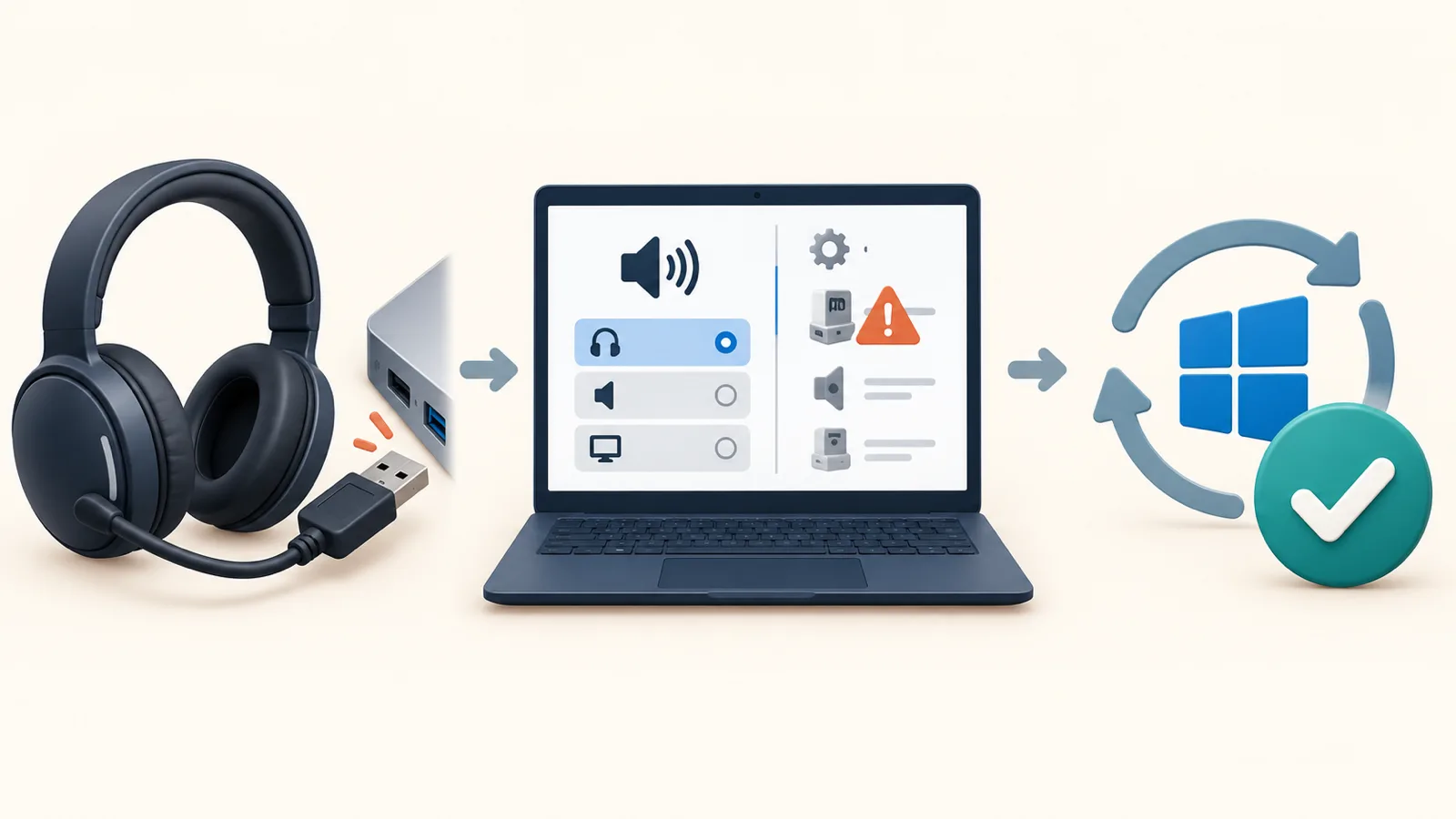
Test the same headset or interface on another computer if one is available. If it fails there too, investigate the device or cable; if it works there, record the Windows version and update history on the affected PC.
Fix 1: Update or Reinstall the USB Audio Driver
Only try a driver refresh if the device is missing, shows an error, or fails after the basic checks. It is a general troubleshooting step, not a Microsoft-confirmed fix for this known issue.
- Right-click Start and open Device Manager.
- Find the audio device under Sound, video and game controllers, Audio inputs and outputs, or Universal Serial Bus controllers.
- Right-click it and choose Update driver > Search automatically for drivers.
- If that does not help, use Uninstall device, restart Windows, and reconnect the device. Do not select an option to delete driver software unless the manufacturer directs you to do so.
Fix 2: Try a Different Cable, Port, or Hub
Connect the device directly to a built-in PC port instead of a dock or hub. If its cable is detachable, test another known-good cable of the correct type. These checks can reveal a separate connection problem; they do not repair the Windows known issue itself.
If the device works through one port but not another, document which port and hub arrangement fails. That detail can help the device manufacturer or Microsoft support narrow down the problem.
Fix 3: Install the Latest Applicable Update
Open Settings > Windows Update > Check for updates. Microsoft says the September 14, 2026 out-of-band update KB5129195 fixes the USB-audio symptoms involving 8-channel or 3D audio modes. It has not said that this update fixes Code 10, no audio, or unresponsive sound settings in every affected device. Install the latest applicable update offered to your PC, then retest. See Microsoft’s resolution status.
Fix 4: Get Help Before Considering an Update Rollback
Do not remove a security update as a routine audio fix. That would remove security protections and may not restore this device. If the audio device is essential and the checks above fail, ask your IT administrator or Microsoft Support about the correct path for your Windows version and hardware.
A Windows security update rollback can leave the PC exposed and can have servicing implications. Back up important work, verify the exact installed KB and Windows version, and get qualified support before considering a rollback.
For a managed or business PC, Microsoft explicitly advises IT administrators needing an immediate workaround for remaining symptoms to contact Microsoft Support. For a personal PC, record the device model, error code, Windows build, and steps already tried before contacting the device maker or Microsoft.
See the full list of changes and other reported problems in this update before deciding whether to uninstall it.
Temporary Workarounds for Essential Audio
If the headset supports a separate 3.5 mm analog connection, using that connection may let you keep working while the USB issue is unresolved. A new USB-to-3.5 mm sound adapter still uses USB audio and therefore is not a guaranteed bypass. A compatible Bluetooth headset may be another temporary option.
Prepare for Future Updates
Keep Windows security updates enabled. Before an important call or recording session, test the exact headset and input/output selection you plan to use, and keep a compatible backup audio device if practical. Check Microsoft’s release-health notes when a new update coincides with a hardware problem.
Frequently Asked Questions
Which devices are affected by the USB audio issue after KB5124008?
Microsoft identifies some USB Audio Class 1.0 devices. Match symptoms and check the manufacturer’s device specifications; a generic Windows device name alone does not prove the class version.
Will Microsoft fix this without me uninstalling the update?
Partially. Microsoft says KB5129195 fixes 8-channel and 3D-audio symptoms. It is still working on other symptoms, including Code 10 and no audio.
Is it safe to uninstall a security update to fix my headset?
Do not do this as a routine fix. Rolling back a security update removes protections and may not solve the problem. Check the exact installed update and seek support first.
Does this affect Bluetooth headsets too?
Microsoft’s specific known-issue notice concerns USB Audio Class 1.0 devices, not Bluetooth headsets. Bluetooth can still have unrelated audio problems.
Can a USB hub cause this same problem on its own?
Yes, a faulty hub or port can cause similar symptoms independently. Testing a direct PC connection helps separate that from the documented Windows issue.
My device still is not detected after these fixes. What now?
Test the device on another computer, note its model, Windows build, Device Manager code, and update history, then contact the manufacturer or Microsoft Support.