How to buy laptop is easier to understand when you start with the work it must do instead of comparing processor names in isolation. Write down your hardest regular task, the apps you depend on, how often you travel, and which accessories you connect. That short list matters more than a premium badge.
This laptop buying guide explains the choices that stay useful even when processor generations change: workload, memory, storage, display quality, battery behavior, ports, repairability, and total cost. It also shows where paying more helps and where it mostly buys thinner metal or a brighter logo.
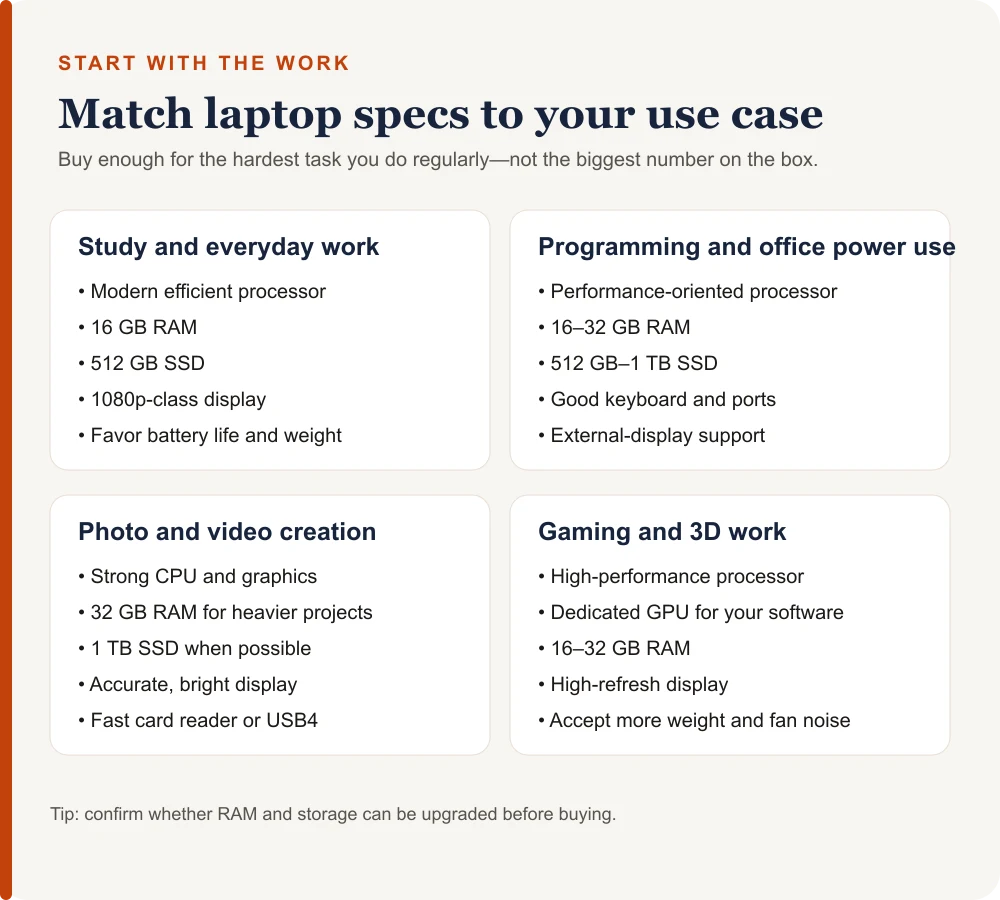
For most people, a balanced laptop has a modern efficient processor, 16 GB of RAM, a 512 GB SSD, a sharp 1080p-class display, a comfortable keyboard, and enough ports for daily use. Choose 32 GB of RAM, stronger graphics, or more storage only when your software and workload justify them.
Table of Contents
ToggleHow to buy laptop by starting with your use case
Begin with the most demanding thing you do every week. Email and browser tabs need far less hardware than editing 4K video, compiling a large project, running virtual machines, or playing recent games. Buying for an occasional fantasy workload wastes money; buying below a regular workload wastes time.
- Study and everyday work: favor battery life, weight, webcam quality, and a reliable keyboard.
- Programming and professional work: prioritize memory, sustained CPU performance, ports, and external-display support.
- Creative work: check display color, graphics performance, memory, and fast storage.
- Gaming and 3D: choose the GPU first, then make sure cooling and power limits let it perform.
See the priorities that matter most for schoolwork, portability, and a student budget.
Choose the right processor class, not just a brand
Intel, AMD, Apple, and Qualcomm all sell capable laptop processors. The brand and tier alone do not tell you how a complete laptop behaves. Cooling, power limits, memory configuration, and the manufacturer’s design can make two machines with similar chip names perform very differently.
Within a current family, low-power suffixes usually favor thin designs and battery life, while performance suffixes favor sustained speed and require more cooling. Intel’s processor naming guide, for example, describes U-class mobile chips as power efficient and H or HX chips as performance-oriented. Always look up the exact processor number rather than relying on “Core 7,” “Ryzen 7,” or another tier label.
Compare the exact laptop model in independent reviews. Short benchmark bursts do not reveal fan noise, heat, battery drain, or whether performance falls during a long export or compile.
RAM: 16 GB is the sensible starting point
Eight gigabytes can still handle a few browser tabs and simple documents, but it leaves little room for multitasking and future software. For a new general-purpose laptop, 16 GB is the practical baseline. It gives Windows, macOS, or ChromeOS enough breathing room while keeping many apps open.
Choose 32 GB for large development environments, virtual machines, high-resolution photo work, heavier video editing, engineering software, or projects that already approach 16 GB. More memory does not automatically make light work faster. It prevents slowdown when your active workload would otherwise exceed available RAM.
Many thin laptops use soldered memory that cannot be upgraded. If the RAM is fixed, buy the capacity you expect to need for the machine’s full life—not only today.
Storage: buy an SSD with enough working space
A solid-state drive is essential for a responsive modern laptop. A 512 GB SSD suits many students and office users. One terabyte is more comfortable for games, video, large photo libraries, virtual machines, or anyone who dislikes constantly moving files.
Check both capacity and upgradeability. Some laptops have a replaceable M.2 drive; others make storage difficult or impossible to replace. Keep free space for operating-system updates, temporary files, and application caches. Cloud storage can complement local storage, but it does not replace fast local space for active projects.
The display affects every minute you use the laptop
Resolution is only the beginning. Check brightness, color coverage, contrast, refresh rate, glare, and aspect ratio. A 1920×1080 or similarly sharp panel is adequate at common laptop sizes. A taller 16:10 display gives documents and websites more vertical room than a 16:9 panel.
For indoor office work, a usable anti-glare panel matters more than extreme resolution. Creators should look for independent measurements of color accuracy and gamut coverage. OLED provides deep blacks and strong contrast, but it can cost more, reflect more light, consume additional power with bright content, and carries different long-term tradeoffs than LCD.
Battery claims need independent verification
Manufacturer battery figures are useful for comparing models under the same test, not predicting your exact day. Screen brightness, video calls, gaming, background syncing, and performance mode can change runtime dramatically. Read reviews that test web browsing or video playback at a controlled brightness.
Also check charging. USB-C charging can reduce the number of adapters you carry, but not every USB-C port accepts power and not every charger supplies enough wattage. A gaming or workstation laptop may need its larger charger for full performance even if it accepts slower USB-C charging.
Integrated or dedicated graphics?
Modern integrated graphics are enough for office work, streaming, coding, photo adjustments, and some light games. They share system memory and usually support thinner, quieter laptops with longer battery life.
A dedicated GPU is useful for demanding games, 3D rendering, effects-heavy video work, machine-learning tools, and applications that explicitly accelerate on a supported graphics platform. The GPU name is not the whole story: laptop graphics power limits and cooling can change performance substantially. Verify the exact configuration in a review.
Windows, macOS, ChromeOS, or Windows on Arm
Choose the operating system around required software, not habit alone. Windows offers the widest hardware range and broad game support. macOS is closely integrated with Apple hardware and may fit people already using Apple services or Mac-only software. ChromeOS works well for browser-centered tasks and managed education environments.
Windows laptops using Arm processors can offer excellent efficiency, but buyers should confirm compatibility for specialized drivers, older utilities, games with anti-cheat systems, and niche professional software. Emulation helps with many applications, but “it installs” is not the same as full device or plug-in compatibility.
Compare the platform, software, repair, gaming, and ecosystem tradeoffs before choosing an operating system.
AI PC labels: pay only for a feature you will use
An NPU is a low-power processor for supported AI tasks such as camera effects, transcription, image tools, and local models. It is not a replacement for the CPU or GPU, and an “AI PC” label does not guarantee that your current apps use the NPU.
Microsoft’s Windows specifications define Copilot+ PCs as a specific class requiring a compatible NPU above 40 TOPS, at least 16 GB of DDR5 or LPDDR5 memory, and at least 256 GB of SSD or UFS storage. Those requirements describe eligibility for that feature class—not proof that a laptop is the best choice for your workload.
Check ports, wireless, keyboard, and webcam
List what you connect: external monitors, storage, wired networking, headphones, cameras, SD cards, docks, and charging cables. Then check the exact port capabilities. Two USB-C ports may look identical while only one supports charging or display output. “USB-C” describes the connector, not its speed or features.
Test the keyboard and trackpad if possible. Look for key travel, layout, backlighting, palm rejection, and a stable click. For frequent calls, check webcam resolution, microphone quality, privacy controls, and whether Windows Hello or another biometric sign-in method is included.
Build quality, weight, repairability, and warranty
A lighter laptop is not automatically better. Very thin designs may have fewer ports, soldered components, limited cooling, or a shallower keyboard. Inspect hinge movement, deck flex, lid rigidity, feet, and how the chassis feels when lifted from one corner.
Check whether the battery, SSD, memory, keyboard, and display can be serviced, and whether the manufacturer publishes repair information or sells parts. Read the warranty terms for your country. On-site service, accidental-damage coverage, and a good return window can be worth more than a small processor upgrade.
Set a budget around value, not a fixed price tier
Laptop prices vary by country, sales, memory configuration, and display. Instead of treating one price as universal, divide your budget into the parts that affect daily use. Protect money for adequate RAM and storage first, then a good display, keyboard, battery behavior, and warranty. Spend extra on a dedicated GPU or premium screen only when the workload benefits.
Last year’s model can be excellent value if it supports your software, receives operating-system updates, has a healthy new battery, and is sold with a real warranty. Avoid a deep discount on a configuration with 8 GB of soldered RAM, a 256 GB drive you cannot replace, or a dim low-quality panel. Those limitations remain after the sale ends.
Common laptop-buying mistakes
- Buying by processor tier alone: the exact chip, cooling, and power configuration matter.
- Ignoring the screen: poor brightness and glare affect every task.
- Assuming parts are upgradeable: verify memory and storage before purchase.
- Trusting advertised battery life literally: use controlled independent tests.
- Forgetting ports: docks and adapters add cost and clutter.
- Buying too much GPU: extra graphics power adds weight, heat, fan noise, and charger size.
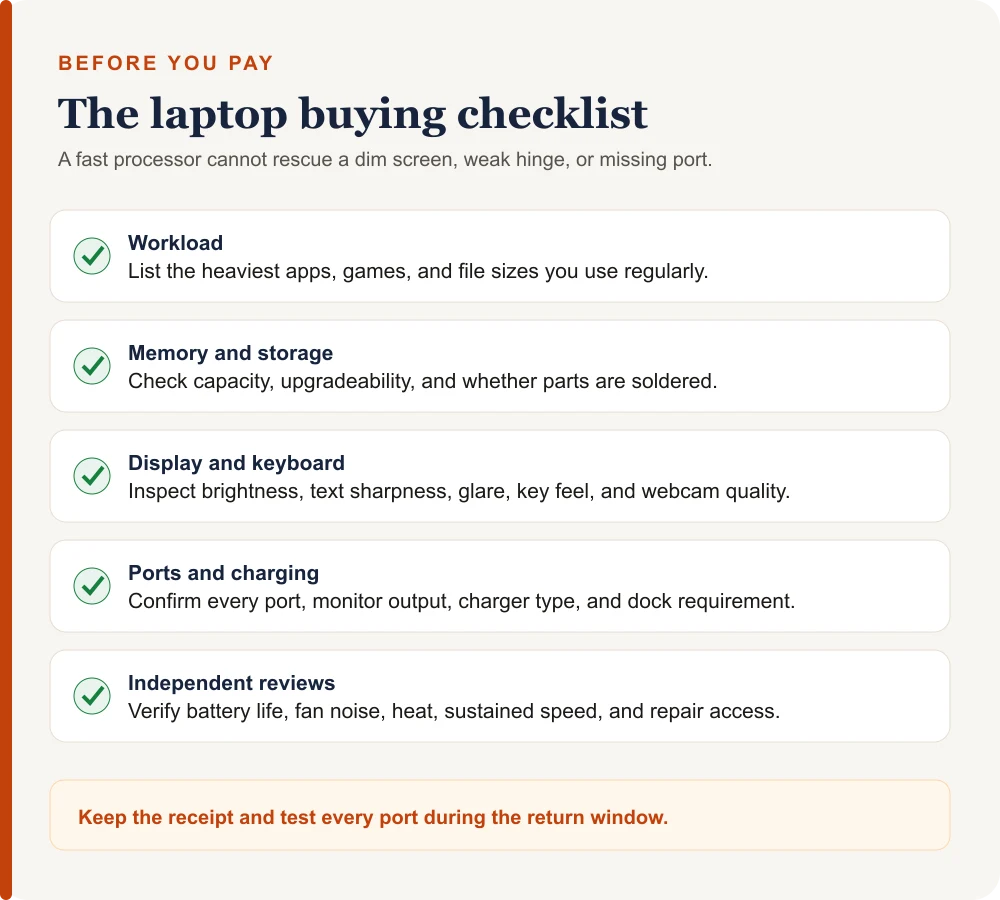
- Skipping the return policy: short hands-on testing reveals problems specifications cannot.
If programming is your primary workload, use this focused checklist for development tools and portability.
What to test during the return window
Install system updates, then test sleep and wake, Wi-Fi, Bluetooth, webcam, microphones, speakers, every port, charging, and any external display or dock you use. Run your real applications rather than a synthetic benchmark alone. Watch for fan behavior, heat near the keyboard, battery drain, display defects, and unexpected crashes.
Confirm the advertised memory, storage, display refresh rate, and warranty registration. Keep the packaging until you are sure the laptop fits. A return window is your best opportunity to correct a mismatch without turning it into a repair problem.
Laptop Buying Guide: Frequently Asked Questions
How much RAM should a new laptop have?
For most buyers, 16 GB is the sensible starting point. Choose 32 GB for virtual machines, heavier creative projects, engineering tools, or large development workloads. Avoid 8 GB of non-upgradeable RAM unless the use is genuinely light.
Is a more expensive processor always worth it?
No. A faster processor helps only when your workload can use it and the laptop can cool it. Many people benefit more from sufficient RAM, a better screen, a comfortable keyboard, or longer battery life.
Should I buy an OLED laptop?
OLED is valuable when you care about deep blacks, contrast, and rich media. It is not automatically best for every buyer because price, reflections, power use, and long-term panel behavior also matter.
Do I need an AI PC or Copilot+ PC?
Only if you want features that require that hardware class. An NPU can make supported AI tasks more efficient, but it does not make ordinary documents, browsing, or unsupported apps automatically faster.
Is it safe to buy an older laptop model?
Yes, when it still supports your operating system and apps, includes a new or verifiably healthy battery, and carries an acceptable warranty. Check upgrade limits and compare the complete configuration rather than the launch year alone.
Choose the laptop you will enjoy using
The best laptop is not the one with the longest specification sheet. It is the machine that runs your real work comfortably, travels as often as you do, connects to your equipment, and remains useful for years. Start with the workload, protect the non-upgradeable essentials, verify real-world behavior, and use the return window.