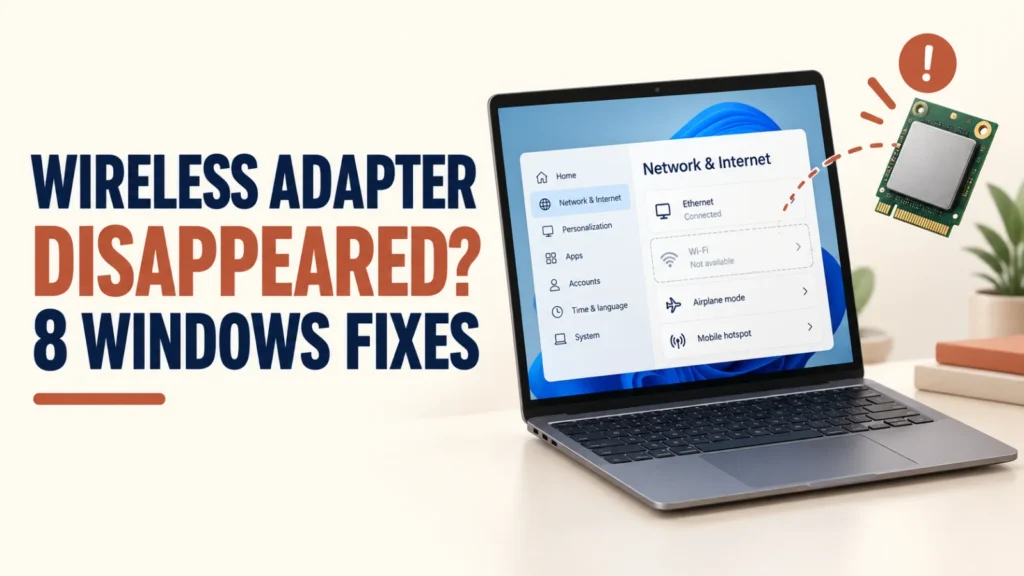
If your wireless adapter disappeared, restart and check the Wi-Fi switch, then open Device Manager. If the adapter is listed, enable it or repair its driver. If it is absent, scan for hardware changes and install the driver for your exact PC model. Use Network Reset only when Windows still detects the adapter but Wi-Fi remains broken.
These steps apply to Windows 11 and Windows 10. A missing Wi-Fi button does not always mean the wireless hardware is gone. Start by finding out whether Windows can see the adapter, then follow the matching fix.
Table of Contents
ToggleFirst, Check Whether Windows Detects It
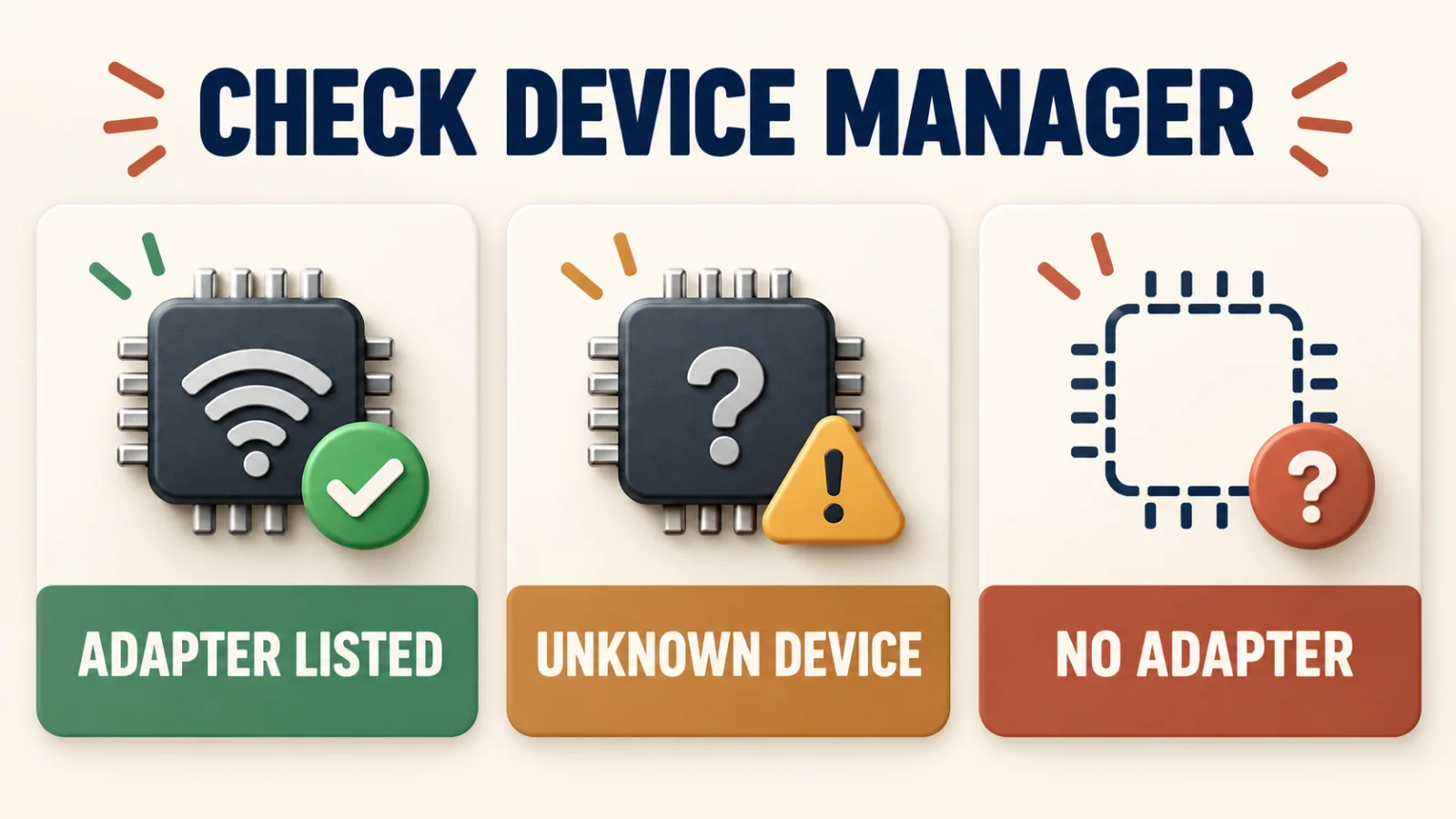
Right-click Start > Device Manager and expand Network adapters. If the wireless adapter is listed, look for a down-arrow or warning symbol. Choose View > Show hidden devices and check Other devices for an unknown device. If nothing appears, choose Action > Scan for hardware changes.
A listed adapter points to a driver or settings problem. An unknown device may need the correct driver. If Windows still detects no adapter, a network command cannot make missing hardware reappear; check the PC maker’s driver and, later, firmware or hardware.
Wireless Adapter Disappeared? Try These 8 Fixes
1. Restart and Check the Wi-Fi Switch
Save your work and choose Start > Power > Restart. Then turn off Airplane mode and check any physical wireless switch or keyboard Wi-Fi key. If the adapter returns, stop here.
2. Enable the Adapter in Device Manager
If the adapter appears under Network adapters with a down-arrow, right-click it and choose Enable device. If it was hidden, use Action > Scan for hardware changes and restart. A warning symbol usually means the driver needs attention.
3. Run the Network Troubleshooter
If Device Manager lists the adapter but the Wi-Fi option is missing, run the Network and Internet troubleshooter through Get Help or Settings > System > Troubleshoot > Other troubleshooters. Follow its result. If Wi-Fi still does not appear, press Windows + R, enter services.msc, and restart WLAN AutoConfig if it is stopped.
4. Install the Correct Driver from the PC Maker
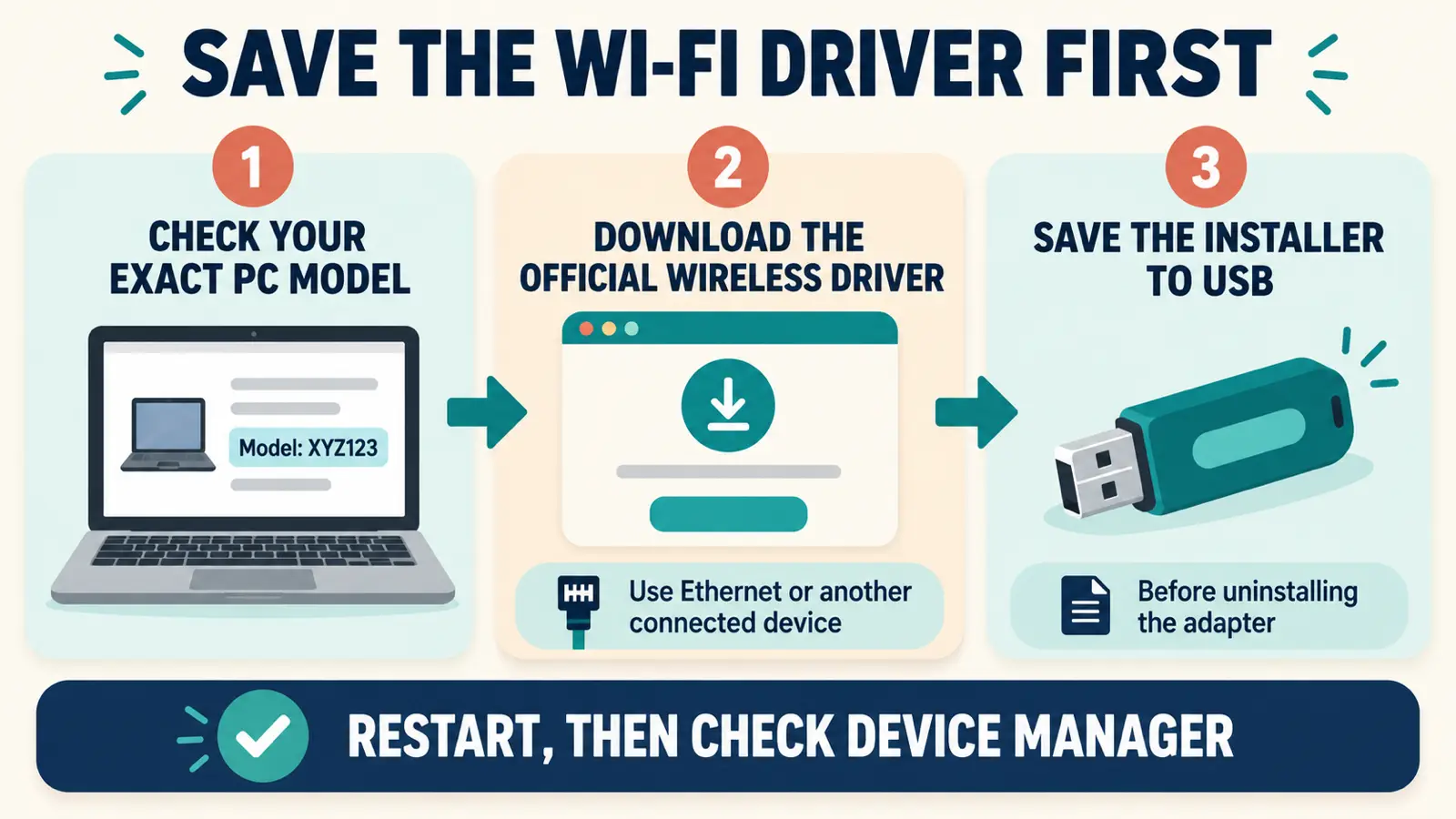
Find your laptop or motherboard model on the manufacturer’s official support site and download its wireless driver for your Windows version. If this PC has no internet, use Ethernet or another device and transfer the installer by USB.
Install it, restart, and check Device Manager again. This is especially useful when the adapter appears as an unknown device or Windows cannot find a driver.
5. Reinstall the Driver if the Adapter Is Listed
First save a copy of the correct driver. In Device Manager, right-click the listed wireless adapter, choose Uninstall device, and restart. Windows will look for the driver again. If it does not reinstall, use the manufacturer’s driver you saved. Do not uninstall a device you cannot identify.
Microsoft recommends having the network driver available before uninstalling it, especially when Wi-Fi is your only connection. Download it on another device if necessary.
6. Roll Back a Driver Changed by an Update
If the problem began immediately after a driver update and the adapter is listed, open its Properties > Driver tab in Device Manager. Choose Roll Back Driver if available, then restart. A greyed-out button means Windows has no previous driver version to restore.
7. Check Windows Update
If you can connect by Ethernet or a temporary USB Wi-Fi adapter, open Settings > Windows Update and install available fixes. Check optional driver updates only when they match your device. Restart, then compare the adapter’s driver version with the one on the PC maker’s support page.
8. Use Network Reset Only as a Last Step
If Windows recognizes the adapter but Wi-Fi or network settings remain broken, open Settings > Network & internet > Advanced network settings > Network reset in Windows 11, then choose Reset now. In Windows 10, open Settings > Network & Internet > Status > Network reset.
This reinstalls network adapters and restores their settings; it is not a reliable fix for an adapter Windows cannot detect. See Microsoft’s Wi-Fi troubleshooting guide.
Your personal files remain, but you may need to reconnect to Wi-Fi and set up VPN software, virtual switches, or custom network settings again.
If Windows Still Cannot Detect the Adapter
Install the correct driver for your exact model first. If the adapter stays absent, check the manufacturer’s manual for a wireless setting in BIOS or UEFI; only change that setting if it exists.
If it vanished right after an update and a suitable restore point is available, System Restore can undo recent system and driver changes without deleting personal files, though apps or updates added afterward may be removed.
If the device is still missing after those checks, hardware service may be needed. A USB Wi-Fi adapter can provide a temporary connection. If Wi-Fi returns but websites still do not load, use the related guide below.
Use this when the adapter is back but the PC still says it has no internet.
Frequently Asked Questions
Why did my wireless adapter disappear after a Windows update?
An update may change the driver or device settings, but that is not the only possibility. Check Device Manager first to see whether Windows lists the adapter, shows an unknown device, or detects nothing.
What if the adapter is not in Device Manager?
Show hidden devices, check Other devices, and scan for hardware changes. Then install the wireless driver for your exact PC model. If it remains undetected, check the manufacturer’s firmware guidance or seek hardware service.
Can I install a wireless driver without internet on this PC?
Yes. Download the driver from the PC maker’s official site on another device, copy it to a USB drive, and run the installer on the affected PC. Ethernet is another option.
Will Network Reset delete my files?
No. It resets network adapters and settings, not personal files. You may need to reconnect to Wi-Fi and reconfigure VPN or other networking software.