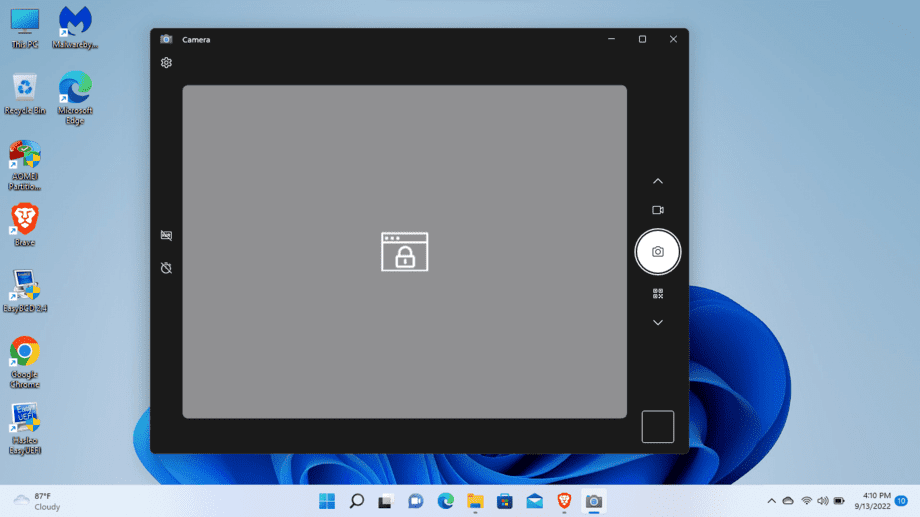
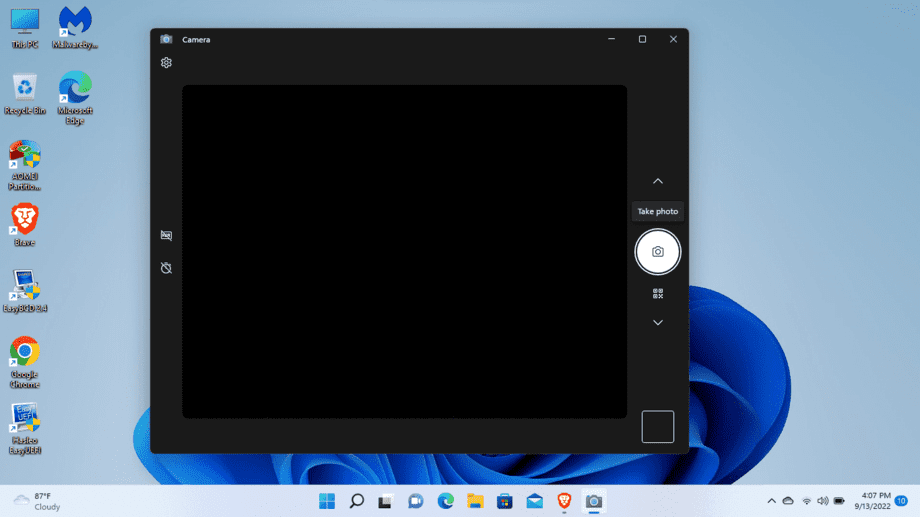
Lenovo IdeaPad camera problems do not always mean the webcam has failed. When it shows a black screen, a closed privacy shutter, disabled camera hotkey, blocked Windows permission, another app using the camera, or a damaged driver can all produce a blank preview.
Start with the physical controls because they take seconds and do not change Windows. Then test the Camera app so you can tell whether the problem affects the whole laptop or only one video app.
Open the privacy shutter beside the webcam and press the keyboard key with a camera icon, often F8 or F10 depending on the IdeaPad model. Test the Windows Camera app. If it remains black, enable camera access under Settings > Privacy & security > Camera, close competing apps, and then repair the app or reinstall the camera driver.
Table of Contents
ToggleWhy Is the Lenovo IdeaPad Camera Showing a Black Screen?
The black preview is a symptom, not a diagnosis. The quickest clue is whether the camera works in any other app.
- Black in every app: check the shutter, camera key, Windows permission, Device Manager, and driver.
- Works in Camera but not Teams, Zoom, or a browser: the webcam hardware and basic driver are probably working. Check that app’s selected camera and permission.
- Camera is missing from Device Manager: scan for hardware changes, check firmware or Lenovo diagnostics, and consider a hardware fault.
- The problem began after an update: a driver rollback may be more appropriate than installing another update.
1. Open the Camera Privacy Shutter
Look along the top display bezel beside the camera lens. Many IdeaPad models have a small sliding privacy shutter. Move it until the lens is fully exposed.
A closed shutter blocks the picture mechanically. Windows may still detect the camera, and the camera light may even turn on, but the preview stays dark. This is the most common low-risk check and should come before changing drivers.
The shutter location and appearance vary by IdeaPad model. Some laptops use an electronic camera privacy key instead of a physical slider, while others provide both.
2. Turn On the Camera with the Keyboard Key
Find the function-row key with a camera icon, sometimes shown with a slash through it. On many IdeaPads it is F8 or F10, but use the icon rather than assuming a fixed number.
Press the key once. If the function row controls media features directly, that is enough. If not, hold Fn while pressing it. Wait a few seconds and reopen the Camera app.
3. Test the Windows Camera App
Open Start, type Camera, and launch the built-in app. Accept the permission request if Windows displays one.
If Camera shows a live picture, the Lenovo webcam itself is working. Open the app that had the black screen, select the integrated camera in that app’s video settings, and close any other meeting or recording app that may be holding the camera.
If Camera is also black or reports that no camera is attached, continue with the system-wide checks below.
4. Allow Camera Access in Windows 11 or Windows 10
In Windows 11, open Settings > Privacy & security > Camera. Turn on Camera access and Let apps access your camera. Also enable Let desktop apps access your camera for browsers and traditional desktop meeting apps.
In Windows 10, open Settings > Privacy > Camera and enable the equivalent access controls. If the main Camera access switch is greyed out, an administrator or organization policy controls it.
Camera permission should be limited to apps you recognize and actually use. Do not disable security software permanently to test a webcam; check its privacy controls and restore protection after any brief diagnostic test.
5. Close Other Apps and Check the Selected Camera
Quit Teams, Zoom, Meet tabs, OBS, messaging apps, and any browser page that may be using the webcam. Then reopen only the app you want to test.
Inside that app, open its video or device settings and choose the integrated camera. A black screen can occur when the app remembers a disconnected USB webcam or a virtual camera. Restart the laptop if you cannot identify which process has control.
6. Repair or Reset the Camera App
If the problem appears only in the Windows Camera app, open Settings > Apps > Installed apps, find Camera, select the three-dot menu, and open Advanced options. Try Repair first.
If Repair does not help, use Reset. Reset clears the app’s local settings; it does not delete photos already saved in your Pictures folder. Reopen Camera and allow access when prompted.
7. Check, Roll Back, or Reinstall the Camera Driver
Right-click Start and open Device Manager. Expand Cameras or Imaging devices. If the integrated camera has a down-arrow icon, right-click it and choose Enable device.
If the problem started after an update, open Properties > Driver and try Roll Back Driver when that button is available. Restart and test again.
To reinstall the device, choose Uninstall device, confirm the removal, then select Action > Scan for hardware changes or restart Windows. Windows should detect the webcam again.
Do not install the old model-specific driver linked in the previous version of this article. Use Windows Update or Lenovo Support for your laptop’s exact serial number and operating system so the driver matches the hardware.
8. Use Lenovo Vantage and Lenovo Hardware Support
Open Lenovo Vantage if it is installed and check device settings, system updates, and hardware diagnostics. A camera privacy mode or model-specific update may be available there.
You can also visit Lenovo Support, identify the laptop by serial number, and download only the camera, chipset, BIOS, or firmware updates listed for that exact model. Connect the charger and follow Lenovo’s instructions before any BIOS update.
How to Tell Whether the Webcam Has a Hardware Fault
Hardware service becomes more likely when the camera is absent from Device Manager after scanning for changes, Lenovo diagnostics cannot detect it, the image cuts in and out when the display angle changes, or the webcam fails in another operating environment.
Before arranging service, record the exact IdeaPad model, Windows version, Device Manager status, and any error code. Contact Lenovo while the laptop is under warranty. Avoid opening the display bezel yourself because the camera cable and panel are easy to damage.
Use this guide if Bluetooth devices are also missing, disconnecting, or failing to pair in Windows.
Frequently Asked Questions
Why is my Lenovo camera detected but showing only black?
The privacy shutter may be closed, the electronic camera key may be off, another app may control the webcam, or the selected app may be using the wrong camera. Check those items before reinstalling the driver.
Which key turns on the camera on a Lenovo IdeaPad?
Use the function-row key marked with a camera icon. It is often F8 or F10, but the position varies by model. Press it directly or with Fn depending on the laptop’s function-key mode.
Why does the camera work in Camera but not Zoom or Teams?
That usually points to an app-specific setting. Close other camera apps, allow desktop-app camera access in Windows, and select the integrated webcam in the meeting app’s video settings.
Should I update or roll back the Lenovo camera driver?
Update when the driver is missing, old, or listed for your exact model. Roll back when the black screen began immediately after a driver update and Device Manager offers the Roll Back Driver option.
What should I do if the Lenovo camera is missing from Device Manager?
Select Action > Scan for hardware changes, restart the laptop, check Lenovo Vantage and model-specific updates, and run Lenovo diagnostics. If it remains absent, contact Lenovo because the camera or display cable may need service.
Get the Lenovo Camera Working Again
Work through the fixes in order and test the Camera app after each meaningful change. Most black-screen cases are resolved by opening the shutter, enabling the camera key, correcting Windows permissions, or repairing the driver.
For Microsoft’s current system-wide steps, see Camera does not work in Windows. If Windows cannot detect the webcam after the software checks, stop repeating resets and move to Lenovo diagnostics or hardware support.