To prevent accidental browser closure from costing you your work, you need two things: a fast way to get tabs back and a setup that makes losing them unlikely. Closing a window by mistake can wipe dozens of tabs from view, but in most cases they are recoverable in seconds.
The best protection is layered. Know the restore shortcut, set the browser to reopen your last session, and save the pages that matter as bookmarks.
If Edge itself keeps crashing, freezing or refusing to open, use the Microsoft Edge troubleshooting guide before relying on session restore.
Press Ctrl + Shift + T on Windows or Linux, or Command + Shift + T on a Mac, to reopen the last closed tab or window in Chrome, Edge, Firefox, and Safari. Then turn on the setting that reopens your previous session at startup, and bookmark important tab sets with Ctrl + Shift + D.
Table of Contents
Toggle1. Restore the Last Closed Tab or Window
- Windows and Linux: Ctrl + Shift + T
- Mac: Command + Shift + T
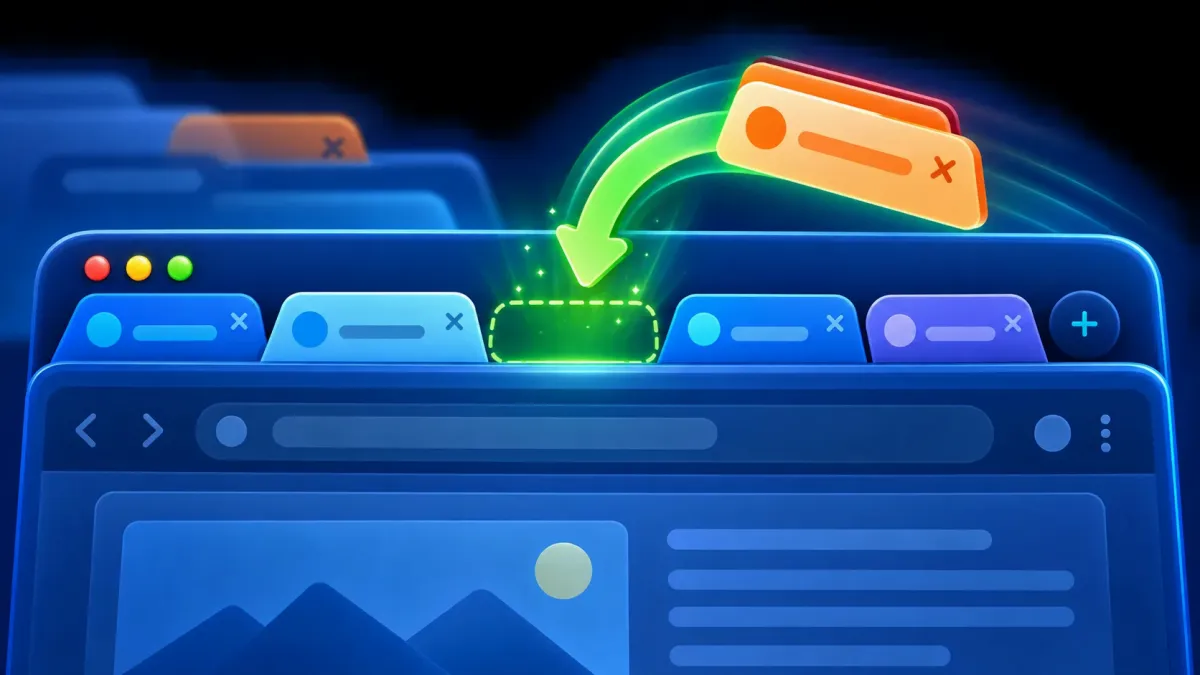
Press it again to bring back earlier tabs in reverse order. If you closed a whole window, the first press usually restores that window with all its tabs. The shortcut is documented by Google for Chrome, Microsoft for Edge, and Apple for Safari.
Private and incognito windows do not keep normal history, so their tabs usually cannot be restored. Do not rely on them for anything you need to keep.
2. Reopen Your Previous Session at Startup
- Chrome: Settings > On startup > Continue where you left off.
- Edge: Settings > Start, home, and new tabs > When Edge starts > Open tabs from the previous session.
- Firefox: search Settings for Open previous windows and tabs and turn it on. You can also use History > Restore Previous Session, as Mozilla’s session restore guide explains.
On a shared computer, remember this also reopens sensitive pages for the next person. Use separate Windows accounts and lock the PC when you step away.
3. Turn On Quit and Close Warnings
A warning prompt stops a stray key press from closing everything:
- Firefox: in Settings, under Tabs, turn on Ask before closing multiple tabs. On a Mac, also check Confirm before quitting with ⌘+Q. See Mozilla’s close-tab warning guide.
- Chrome on Mac: in the Chrome menu, select Warn Before Quitting, so you must hold Command + Q to quit.
These warnings do not help with crashes or shutdowns, so keep the restore steps above as your safety net.
4. Bookmark All Important Tabs
Bookmarks are far more dependable than leaving research tabs open for weeks. Press Ctrl + Shift + D (Command + Shift + D on a Mac) in Chrome, Edge, or Firefox to save every open tab into one folder. Name it after the project or topic, and clear out old folders now and then.
A bookmark saves the address, not unsaved work inside the page, so save documents and forms before closing.
5. Pin the Tabs You Use Every Day
Right-click a tab and choose Pin. Pinned tabs shrink and stay at the left of the tab strip, so you are less likely to close them while clearing out temporary tabs. Pinning is organisation, not backup; bookmark anything you cannot afford to lose.
6. Organise Tabs into Groups
Tab groups keep work, shopping, and research apart and make a crowded window easier to manage. Some browsers can save and sync groups, but behaviour varies by version. Close a test group once to confirm you can get it back before relying on it.
7. Sync Bookmarks and Open Tabs
Signing in to your browser can sync bookmarks, history, and open tabs to other devices, so a closed or broken laptop does not take your tabs with it. Sync only what you need and protect the account with two-factor authentication. For Firefox, follow Mozilla’s Sync setup guide.
Sync is not a full backup: deleting something on one device can delete it everywhere.
Protect your browser when other people use the same computer.
8. Be Careful With Tab-Manager Extensions
Session-manager extensions can save named sets of tabs, but they may also read your browsing history and page addresses. Check the publisher, reviews, update history, and requested permissions before installing, and remove any you no longer use. For most people, the built-in tools above are enough.
9. Save Work Inside Web Apps Before Closing
Restoring a tab does not always restore unsaved text, form entries, uploads, or edits inside a web app. Check that a document shows it is saved before closing the window, and use the app’s draft or version-history feature for important work.
Learn more time-saving keyboard shortcuts for Windows.
What If Closed Tabs Do Not Come Back?
- Open the browser’s History menu and check Recently closed.
- Make sure you are in the same browser profile that opened the tabs.
- Check synced tabs from another signed-in device.
- Look in your bookmark folders and saved tab groups.
Avoid “history recovery” tools that ask for access to your personal data. If history was cleared or the tabs were private, there may be nothing left to restore.
Prevent Accidental Browser Closure Checklist
- Memorise Ctrl + Shift + T (Command + Shift + T on a Mac).
- Turn on previous-session startup in your main browser.
- Turn on close or quit warnings where your browser offers them.
- Bookmark important tab sets instead of leaving them open.
- Use pinned tabs and groups for organisation, not as backups.
- Protect synced accounts with two-factor authentication.
Frequently Asked Questions
Can I restore a whole browser window after closing it?
Usually, yes. Press Ctrl + Shift + T on Windows or Linux, or Command + Shift + T on a Mac. You can also find it under History > Recently closed.
Why did only one tab come back?
Press the shortcut again. Browsers restore recently closed items one at a time, working backwards.
How do I prevent accidental browser closure in Chrome or Firefox?
In Firefox, turn on Ask before closing multiple tabs in Settings. In Chrome on a Mac, select Warn Before Quitting in the Chrome menu. Chrome on Windows does not offer the same built-in close-warning option, so rely on Continue where you left off instead.
Can private or incognito tabs be restored?
Usually not. Private browsing is designed not to keep the history that session restore depends on.
Do I need a tab-manager extension?
Not for most people. Reopen shortcuts, previous-session startup, bookmarks, groups, and sync cover most needs.