KB5129195 is the emergency out-of-band update Microsoft released on September 14, 2026, to clean up problems caused by the September 2026 Patch Tuesday update for Windows 11. If Remote Desktop stopped connecting, a Hyper-V shared folder disappeared, or USB audio broke after installing this month’s security update, this is the fix.
Here is what KB5129195 actually changes, which Windows versions need it, what it does not fix, and how to install it safely.
If you are also dealing with an earlier update, see our KB5121003 problems and fixes.
KB5129195 is a cumulative out-of-band update for Windows 11 24H2 and 25H2. It installs builds 26100.9457 and 26200.9457, adds protection for CVE-2026-62721, fixes Remote Desktop instability and Plan9 host-folder sharing, and restores 8-channel or 3D audio on affected USB Audio Class 1.0 devices. File History was later fixed by KB5124010. Domain trust and other USB-audio symptoms are still only mitigated.
If Remote Desktop stopped connecting after the update, see how to fix Remote Desktop after a Windows update.
Table of Contents
ToggleWhat KB5129195 Fixes
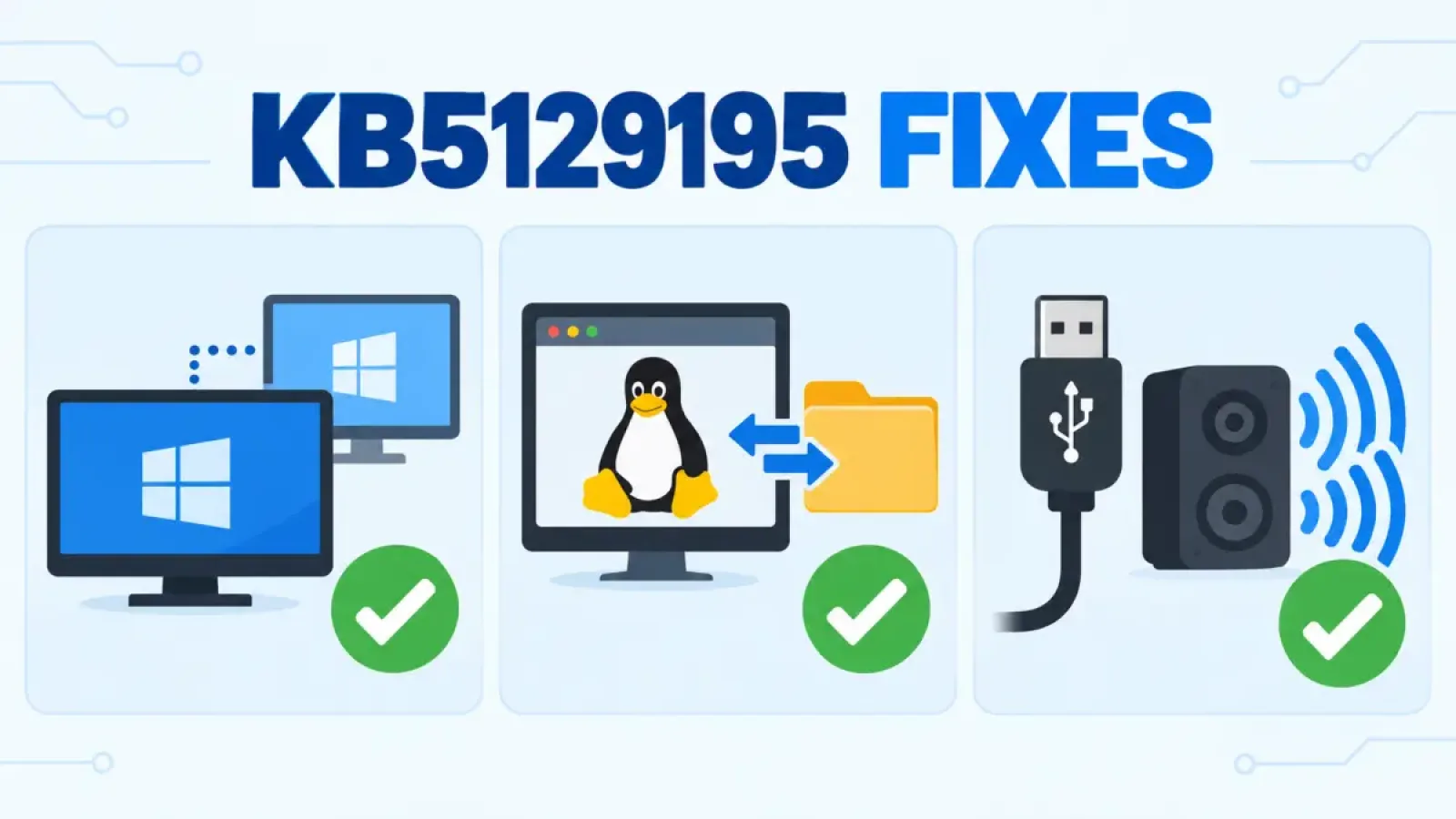
KB5129195 addresses three specific problems that appeared after installing the September 8, 2026 security update (known as KB5124008 for 24H2/25H2 and KB5124012 for 26H1):
- Remote Desktop Services failures. RDP connections were hanging, refusing to connect, or getting stuck at "Please wait for the Remote Desktop Configuration" on some systems. This mainly affected people who use Remote Desktop to reach a work PC, a home PC, or a server.
- Hyper-V shared folders disappearing. Apps using HCS-managed virtual machines could lose access to host folders shared with Linux VMs through the Plan9 protocol.
- Multichannel USB audio failures. Some USB Audio Class devices with more than two channels stopped producing sound or failed to start after the update.
Microsoft also folded in a fix for a newly disclosed privilege-escalation vulnerability as part of the same package, so installing KB5129195 is worth doing even if you have not personally run into the three bugs above.
For this month’s regular release, see the Windows 11 October 2026 update.
KB5129195 is not a complete fix for every September issue. File History backup failures were resolved later by KB5124010 (September 22) and later updates. Microsoft still lists domain secure-channel failures on some Credential Guard-protected devices and USB Audio Class 1.0 symptoms such as Code 10, no sound or unresponsive volume controls. Only the 8-channel and 3D audio symptom is fixed.
Which Windows Versions Need It
KB5129195 applies to the Windows versions that received the September 8 security update:
| Windows version | Build after KB5129195 |
|---|---|
| Windows 11, version 25H2 | 26200.9457 |
| Windows 11, version 24H2 | 26100.9457 |
If you are still on Windows 11 24H2 and have not moved to 25H2 yet, see our guide on Windows 11 24H2 end of support for the upgrade timeline.
KB5124010 Update: File History Fixed, New AC-3 Audio Issue
On September 22, 2026, Microsoft released the optional preview update KB5124010 for Windows 11 24H2 and 25H2 (builds 26100.9550 and 26200.9550). It is also the base update for the Windows 11 26H2 enablement package.
KB5124010 fixes the File History problem that started with KB5124008. File History could fail to back up or restore files to an external drive or network location, sometimes with a misleading prompt to reconnect a drive that was already connected. The fix is also included in updates released after September 22.
Separately, if games started crashing after a recent update, see Windows 11 games crashing after an update.
How to confirm the fix installed, check your backup drive and run a fresh File History backup.
Apps That Use AC-3 Audio Closing Unexpectedly
On October 2, 2026, Microsoft confirmed a new issue. After KB5124010 or later updates, some apps that need Windows to decode AC-3 (Dolby Digital) audio might close unexpectedly. Some fail to launch; others work until you play music, a video or game audio.
The problem mainly affects legacy games, older media players and some productivity apps that still rely on Windows’ built-in audio decoder. Many modern apps include their own decoder and are not affected. It can occur on Windows 11 24H2, 25H2 and 26H2, and Microsoft says a fix will come in a future Windows update.
Office had its own update glitch this month; see Excel copy and paste not working after an update.
Until Microsoft releases the fix, try these low-risk steps:
- Update the affected app or game to its latest version.
- In the app’s audio settings, choose a stereo or PCM output instead of Dolby Digital, if available.
- Play the same file in a modern media player that uses its own built-in decoder.
- Check Microsoft’s release health page for the fix before trying anything more drastic.
Do not download AC-3 or Dolby codec packs from unofficial websites. They are a common route for malware and can make audio problems worse. Uninstalling KB5124010 is only a temporary option and also removes its File History fix, while later updates include the same change.
How to Install KB5129195
Method 1: Windows Update (Recommended)
Most systems receive KB5129195 automatically, but you can force it manually:
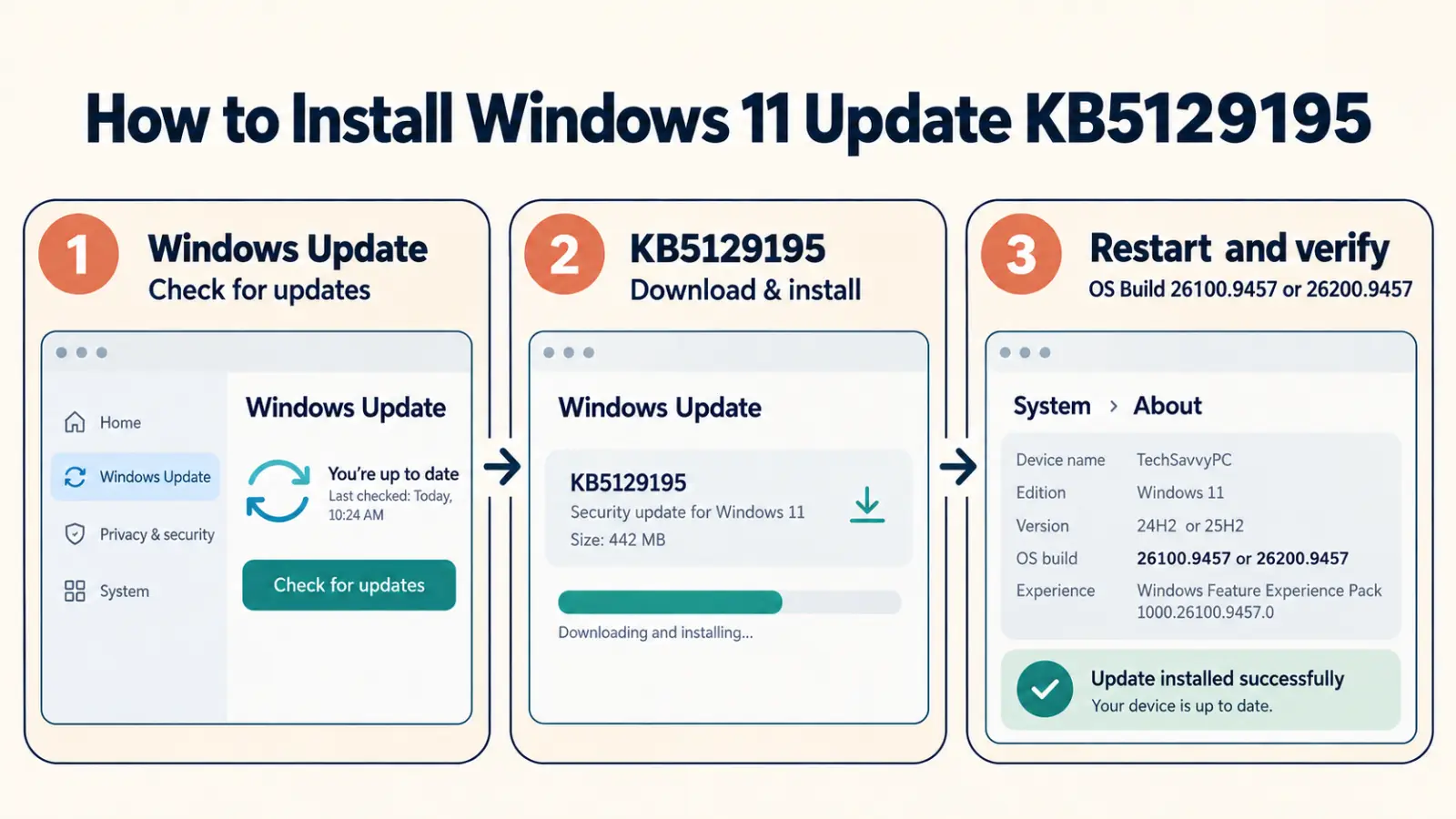
- Open Settings and go to Windows Update.
- Click Check for updates.
- If KB5129195 appears, click Download & install.
- Restart when prompted. Out-of-band updates typically install in a few minutes.
Method 2: Microsoft Update Catalog
If Windows Update has not offered it yet, or you manage multiple machines, you can download the standalone package:
- Go to the Microsoft Update Catalog and search for KB5129195.
- Download every required checkpoint cumulative update plus the KB5129195 .msu package for your processor architecture (x64 or Arm64), following the order shown in Microsoft’s catalog instructions.
- Install the checkpoint packages in the listed order before the target package, or use Microsoft’s documented DISM method to process the package folder, then restart.
Method 3: WSUS or Windows Update for Business
Organizations managing updates centrally will find KB5129195 available through WSUS and Windows Update for Business, following normal approval and deployment policies. Because this is an out-of-band security fix, Microsoft recommends prioritizing it outside the regular monthly deployment ring where practical.
For every known issue across this year’s updates in one place, see our Windows 11 update problems tracker.
Troubleshooting the Install
If KB5129195 will not install, try these in order:
- Restart your PC and check for updates again. Some updates need a pending restart cleared first.
- Free up at least a few GB of disk space, then retry.
- Run Settings > System > Troubleshoot > Other troubleshooters > Windows Update and let it fix common update-service problems.
- If you see a specific error code during installation, check our Windows Update error 0x80073712 guide or search the code directly; update failure codes usually point to a specific, fixable cause.
If Remote Desktop was your main problem, confirm the fix by reconnecting after the restart. If it still hangs, check that the Remote Desktop service itself is running via services.msc before assuming the update did not help.
The full breakdown of the September 2026 security update that KB5129195 patches on top of.
Frequently Asked Questions
Do I need to install KB5124008 before KB5129195?
No. KB5129195 is cumulative and includes eligible improvements and security protections from earlier updates. Windows Update handles the applicable prerequisites automatically; catalog users must follow Microsoft’s checkpoint-package order.
Will KB5129195 fix Remote Desktop if I am not on the affected build?
No. If your Remote Desktop problem started before September 2026 or you are on an older, unpatched build, the cause is different. This update only resolves the regression introduced by the September 8 patch.
Is KB5129195 optional?
It is a cumulative out-of-band update delivered automatically through Windows Update and Microsoft Update. Since it also includes a security fix for a privilege-escalation vulnerability, installing it is worth doing even if you have not hit the RDP, Hyper-V, or USB audio bugs.
Can I uninstall KB5129195 if it causes new problems?
Yes. Go to Settings > Windows Update > Update history > Uninstall updates, find KB5129195, and remove it. Note this will bring back the three bugs it fixes.
Still using Windows 11 24H2? Review the October 13 end-of-support deadline and 25H2 upgrade steps.
Does KB5129195 fix File History?
No. File History was fixed by the September 22 preview update KB5124010 and by updates released after that date. Install KB5124010 or a later cumulative update, restart, and run a new backup.