Quick Answer
Is your Windows Store not working? The quickest fixes are to restart your PC, check the date and time, and reset the Store cache by running wsreset. If it still fails, run the Windows Store Apps troubleshooter, reset the Store app in Settings, and make sure Windows is updated. This guide covers 10 proven fixes for Windows 10 and 11, in order from easiest to most thorough.
Table of Contents
ToggleIt is frustrating when the Windows Store is not working and you cannot install or update your apps.
The store may fail to open, get stuck loading, or show an error code, but most causes are simple to fix.
This guide works through the fixes in order, starting with the quick ones that solve most cases.
Why Is the Windows Store Not Working?
The store relies on several settings and services, and a problem with any of them can stop it.
A wrong date or time, a network issue, or a corrupted cache are the most common causes.
A pending Windows update or a signed-out account can also break it.
The fixes below cover each of these, so you do not need to know the exact cause to solve it.
Fix 1: Restart Your PC
Always start with a restart, which clears temporary glitches affecting the store.
Save your work and restart the computer fully rather than sleeping it.
After it boots, open the Microsoft Store and see if it works.
This simple step fixes a surprising number of store problems.
Fix 2: Check the Date, Time, and Region
A wrong date or time is a common and easily missed cause of the Windows Store not working.
- Open Settings, then Time and language
- Turn on Set time automatically
- Confirm your time zone and region are correct
- Reopen the store
The store checks secure connections, and a wrong clock breaks them, so this fix is worth trying early.
Fix 3: Check Your Internet Connection
The store needs a working internet connection to load and download apps.
Open a website in your browser to confirm you are online.
If the connection is down, fix that first, then try the store again.
A weak or dropping connection can also cause the store to hang, so a stable network helps.
Fix 4: Sign Out and Back Into Your Microsoft Account
A signed-out or glitchy account can stop the store working.
- Open the Microsoft Store
- Click your profile picture at the top
- Sign out, then sign back in with your Microsoft account
- Try the store again
Refreshing your sign-in often clears account-related errors.
Fix 5: Reset the Store Cache With wsreset
A corrupted cache is one of the most common reasons the Windows Store is not working, and clearing it is quick.
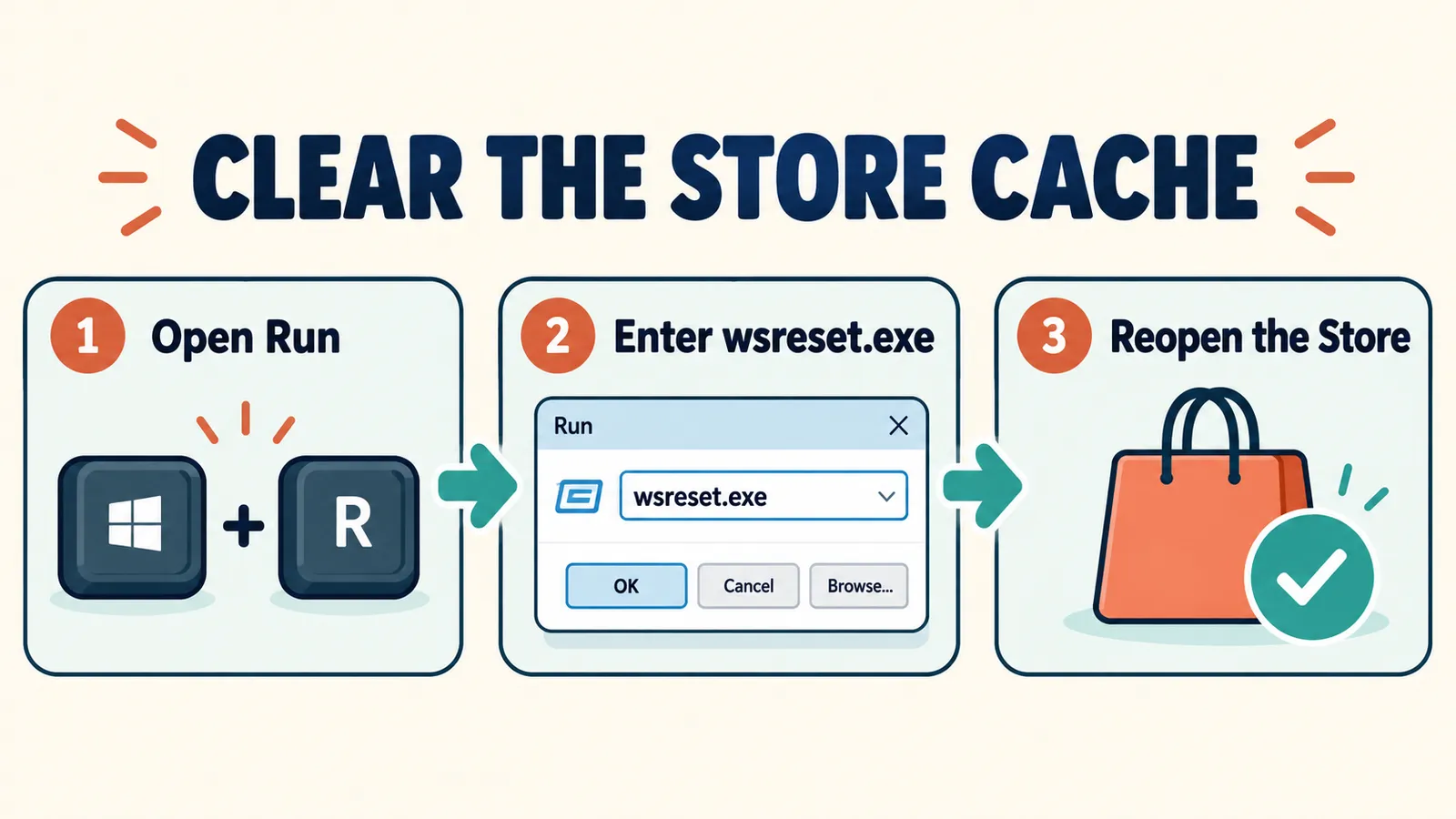
- Press Windows + R to open the Run box
- Type wsreset.exe and press Enter
- Wait as a blank window opens and then closes
- The Microsoft Store opens automatically when it finishes
This clears the store cache without removing any of your installed apps.
It is one of the most effective single fixes for store problems.
Fix 6: Run the Windows Store Apps Troubleshooter
Windows has a built-in troubleshooter just for store apps.
- Open Settings, then System, then Troubleshoot
- Choose Other troubleshooters
- Find Windows Store Apps and run it
- Follow the prompts and apply any fixes
It checks common settings and services automatically, fixing many issues without manual steps.
Related Guide
Store trouble is one of many PC issues. Here is how to fix the rest.
Fix 7: Reset the Microsoft Store App
If the store is still broken, resetting the app gives it a clean start.
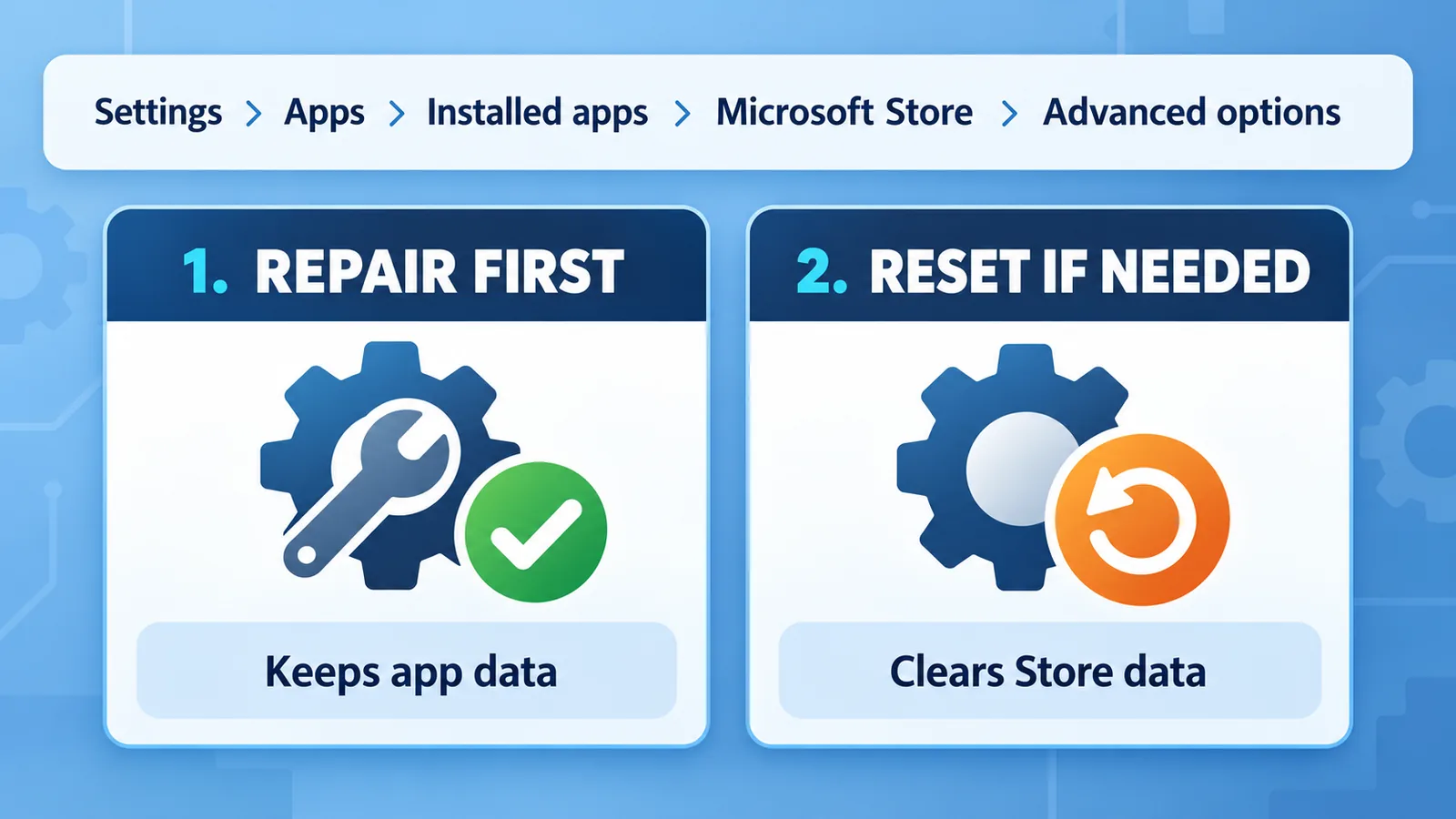
- Open Settings, then Apps, then Installed apps
- Find Microsoft Store and open its Advanced options
- Click Repair first, then try the store
- If it still fails, click Reset
Repair keeps your data, while Reset clears the app’s data to fix deeper problems.
Note
Try Repair before Reset. Repair keeps the app’s settings, while Reset clears them, though neither removes your installed apps.
Fix 8: Update Windows
A pending or missing update often fixes a store that will not work.
- Open Settings, then Windows Update
- Click Check for updates
- Install anything waiting
- Restart to finish
Keeping Windows current also prevents many store problems from returning.
Fix 9: Re-Register the Microsoft Store
If nothing else works, re-registering the store reinstalls it cleanly using PowerShell.
Open PowerShell as an administrator from the Start menu.
Run the Get-AppxPackage command that re-registers the Microsoft Store for your account.
Restart your PC afterwards, and the store should be restored.
Fix 10: Check the Required Services
The store depends on a few background services being active.
- Press Windows + R, type services.msc, and press Enter
- Make sure Microsoft Store Install Service is running
- Check that Windows Update service is running too
- Start any that are stopped, then restart
If these services are off, the store cannot install or update apps.
Read Next
Learn to check running services and processes with this essential tool.
Fixing Common Windows Store Error Codes
The store sometimes shows an error code, which points to the cause.
Many codes are cleared by the same fixes: wsreset, the troubleshooter, and a store reset.
Note the code shown, as it helps if you need to search for a specific solution.
In most cases, working through this guide clears the error whatever its number.
Common Mistakes When the Store Will Not Work
A few missteps can slow down the fix.
The first is skipping the simple date, time, and internet checks before deeper steps.
The second is choosing Reset before Repair, which clears settings unnecessarily.
The third is ignoring pending Windows updates that would have fixed the problem.
Final Thoughts on the Windows Store Not Working
When the Windows Store is not working, the fix is usually quick and your apps are safe throughout.
Start with a restart, the clock check, and wsreset, which solve most cases in minutes.
For stubborn problems, the troubleshooter, a store reset, and a Windows update finish the job.
For more help, Microsoft’s Windows support covers Store troubleshooting in detail.
Fix 11: Clear or Disable a Proxy
A proxy or VPN can block the store’s connection to Microsoft.
Open Settings, Network and internet, Proxy, and turn off any manual proxy you are not using.
Disconnect any VPN and try the store again.
Once the store works, you can turn these back on if you need them.
Fix 12: Run SFC and DISM Scans
Corrupted system files can stop the store working, and two built-in scans repair them.
- Open Command Prompt as an administrator
- Type sfc /scannow and press Enter, then wait
- Next run DISM /Online /Cleanup-Image /RestoreHealth
- Restart your PC when both finish
These scans find and fix damaged files that other steps cannot reach.
They take a few minutes but often resolve stubborn store problems.
Fix 13: Check Your Region and Language
The store shows content based on your region, and a wrong setting can cause errors.
Open Settings, Time and language, then Language and region.
Set your country or region to the correct one.
A matching region keeps the store working smoothly and shows the right apps.
Fix 14: Create a New User Account to Test
If the store fails only on your account, a new account can confirm and work around it.
Create a new local or Microsoft account in Settings, Accounts.
Sign in and open the store to see if it works there.
If it does, the problem is with your original profile, which you can then repair.
What to Do If the Store Is Missing Entirely
Sometimes the Microsoft Store icon disappears rather than simply failing.
Search for Microsoft Store in the Start menu, as it may just be unpinned.
If it is truly gone, re-register it with the PowerShell method from Fix 9.
A Windows update or a system repair can also restore a missing store.
Store Downloads Stuck or Pending
A common variation is downloads that stick on pending and never finish.
Run wsreset to clear the cache, which often unsticks them.
Make sure you are not paused, and check you have enough storage for the app.
Restarting the Microsoft Store Install Service can also get stalled downloads moving.
When the Store Opens but Apps Will Not Install
If the store opens fine but installs fail, the fix is usually about services or storage.
Confirm the Microsoft Store Install Service and Windows Update service are running.
Free up storage, since installs fail when the drive is nearly full.
Then run wsreset and try the install again.
Why the Store Sometimes Breaks After an Update
It is common for the store to stop working right after a Windows update.
Updates can reset settings, clear caches, or briefly disable services the store needs.
Usually a restart and wsreset restore it quickly.
If not, installing the next small update often includes a fix.
Protecting Your Apps While You Troubleshoot
A reassuring point is that none of these fixes put your installed apps at risk.
wsreset, the troubleshooter, and even a store reset only affect the store itself.
Your games, tools, and their data stay exactly where they are.
So you can work through every fix without worrying about losing anything.
A Simple Order to Fix the Store
To make it easy, here is the order that solves most cases of the Windows Store not working.
- Restart the PC
- Check the date, time, and internet
- Run wsreset to clear the cache
- Run the Windows Store Apps troubleshooter
- Repair or reset the Store app
- Update Windows, then re-register the store if needed
Starting simple and escalating only when needed is the fastest, safest path back to a working store.
Get Your Microsoft Store Back on Track
When the Windows Store is not working, the solution is almost always simple and quick.
Restart, check your clock and connection, and clear the cache with wsreset first.
For anything stubborn, the troubleshooter, a reset, and an update will finish the job.
With this guide, a broken store becomes a five-minute fix rather than a lasting headache.
Understanding wsreset and What It Does
The wsreset command is the single most useful tool for a broken store, so it helps to understand it.
It clears the Microsoft Store cache, which is where temporary and often corrupted data builds up.
Because it only touches the cache, it is completely safe and keeps your apps and settings.
After it runs, the store reopens fresh, which fixes a large share of problems on its own.
Repair vs Reset: Which Should You Use?
The Store app offers both Repair and Reset, and knowing the difference saves you steps.
Repair fixes the app without touching its data, so always try it first.
Reset clears the app’s data and settings, which fixes deeper issues but signs you out.
Neither option removes your installed apps, so both are safe to use.
Checking for Enough Storage
A nearly full drive is an overlooked cause of store and install failures.
Open Settings, System, Storage to see how much space is left.
Free up room by removing unused apps and clearing temporary files.
With enough space, the store can download and install apps without errors.
Making Sure Windows Update Is Healthy
The store shares components with Windows Update, so a healthy update system helps the store.
Run the Windows Update troubleshooter if updates are also failing.
Make sure the Windows Update service is running in the services list.
Fixing update problems often fixes the store at the same time.
When to Try a System Restore
If the store broke after a recent change, System Restore can undo it.
Search for Create a restore point and open System Restore.
Choose a point from before the problem started and follow the prompts.
Your files stay safe, though recently installed apps and updates may be removed.
Avoiding Store Problems in the Future
A little maintenance keeps the Microsoft Store reliable.
Keep Windows, your apps, and your drivers updated.
Leave date, time, and region set automatically.
Keep some storage free and restart your PC regularly.
Common Error Messages and Quick Fixes
The store can show a few typical messages, each with a simple response.
Try again later usually means a temporary server or network issue, so wait and retry.
Check your connection points to internet or clock problems.
A cache or account error is nearly always cleared by wsreset or signing out and back in.
Fixing the Store on a Work or School PC
On a managed computer, the store may be restricted by an administrator.
If the store is blocked or missing and settings are greyed out, your IT department controls it.
Contact them rather than trying to force changes on a managed device.
On your personal PC, every fix in this guide is available to you.
What Causes the Cache to Corrupt?
Since a corrupt cache is the top cause, it helps to know why it happens.
Interrupted downloads, sudden shutdowns, and failed updates can all damage the cache.
Over time, leftover temporary data simply builds up and causes errors.
Running wsreset now and then keeps the cache clean and the store healthy.
Testing That the Store Works Again
After applying a fix, confirm the store is truly back to normal.
Open the Microsoft Store and let it load fully.
Try installing or updating a free app to check downloads work.
If both succeed, your store is fixed and ready to use.
Your Store Troubleshooting Toolkit
With these fixes, a Microsoft Store that will not work is rarely a lasting problem.
Start with a restart and wsreset, then escalate only if needed.
Keep your system updated and your cache clean, and store problems stay rare.
Bookmark this guide so the fix is always close at hand.
Back to Downloading Apps in Minutes
A store that will not open feels like a big problem, but the fix is almost always fast and simple.
Work through the steps in order, from a restart and wsreset to a reset and update, and the Microsoft Store will be back to downloading apps in minutes.
Keep this guide bookmarked, and any future store hiccup becomes a quick, confident fix.
Frequently Asked Questions
Why is my Windows Store not working?
Common causes are a wrong date or time, a network issue, a corrupted cache, a signed-out account, or a pending Windows update. Working through the fixes in order clears almost all of them.
How do I reset the Microsoft Store?
The quickest reset is to run wsreset.exe from the Run box, which clears the cache. For a deeper reset, open Settings, Apps, find Microsoft Store, and use Repair or Reset in its advanced options.
Does resetting the Store delete my installed apps?
No. Running wsreset or resetting the Store app clears its cache and settings but does not remove the apps you have installed. Your apps stay in place.
Why does the Store say check your connection?
Usually your internet is down or unstable, or the date and time are wrong, which breaks the store’s secure connection. Fix your connection and clock, then try again.
How do I fix the Store after a Windows update?
Restart your PC, run wsreset, and run the Windows Store Apps troubleshooter. If needed, reset the Store app or install the next Windows update, which often includes a fix.
Can I reinstall the Microsoft Store?
Yes. If it is badly broken, you can re-register it using a PowerShell command run as an administrator, which reinstalls the store cleanly for your account.