Android scam protection has grown a lot this year, but most of it only helps if it is switched on and your phone supports it. Some tools are on by default. Others are opt-in, limited to certain phones, or still rolling out.
This guide covers the Android scam protection settings you can check today, which phones they work on, and what Google announced on October 14 that is still on its way. Every setting name below comes from Google’s own help pages or recent reporting.
For Android scam protection, open Google Messages and confirm Spam protection is on under Protection & Safety. On a supported Pixel, open the Phone app, go to Settings, and turn on Scam Detection for calls. Keep your phone updated, because newer features such as Enhanced Protection and call forwarding warnings are rolling out in stages.
Table of Contents
ToggleSetting 1: Spam protection in Google Messages
Google says Spam protection is on by default and you are notified when it is turned on, but the option appears only if your device supports it. It is worth checking once.
- Open Google Messages.
- Tap your profile picture or initials at the top right.
- Tap Messages settings, then Protection & Safety, then Spam protection.
- Make sure Enable spam protection is on.
Per Google’s help page, on-device models look for known spam patterns, so detection can work without a data connection. If a message contains a link, the URL is sent to Google to check whether it is malicious. Suspected spam may be blocked from delivery or moved to the spam folder.
Report what slips through
When you get a suspected spam or scam warning, tap Report spam if it is spam, or Report not spam if it is a real message. You can also block the number. Reports help improve the filter for everyone.
If your phone uses a different messaging app, such as a carrier or manufacturer app, these steps will not match. Google Messages is the app these settings belong to.
Setting 2: Scam Detection for phone calls
Scam Detection in the Phone app alerts you to possible scam calls while they happen. If the likelihood is high, you get a notification, a sound, and a vibration. You can dismiss it with Not a scam or end the call.
Google’s Phone app help page says the feature is for Google Pixel devices only. It lists Pixel 6 and later in the US, Pixel 9 and later in several other countries, and notes it works only with a SIM tied to a listed country while the phone is in that country. You also need the latest Phone app version.
- Open the Phone app.
- Tap More, then Settings.
- Tap Scam Detection and switch it on.
It is off by default and you must opt in. Google says processing happens on the device, and no conversation audio or transcription is stored on the device or sent to Google servers. A beep plays at the start of a monitored call and every few minutes so everyone on the call knows it is active. Google also says the feature “is not 100% accurate,” so stay cautious with unknown numbers.
Setting 3: Enhanced Protection in Google Messages
This is newer. Android Authority reports that opting in to Enhanced Protection turns on Scam Detection with secure cloud analysis, warnings for links from unfamiliar numbers, and malicious link protection powered by Gemini Nano. The link protection can also flag brand-new domains that are not yet in Google’s catalogue.
The report names the Pixel 10 or newer, Galaxy S26 series, Galaxy Z Fold 8, and other select devices, with rollout later in October 2026. It did not give a menu path, so watch for the option in Google Messages settings after your next app update.
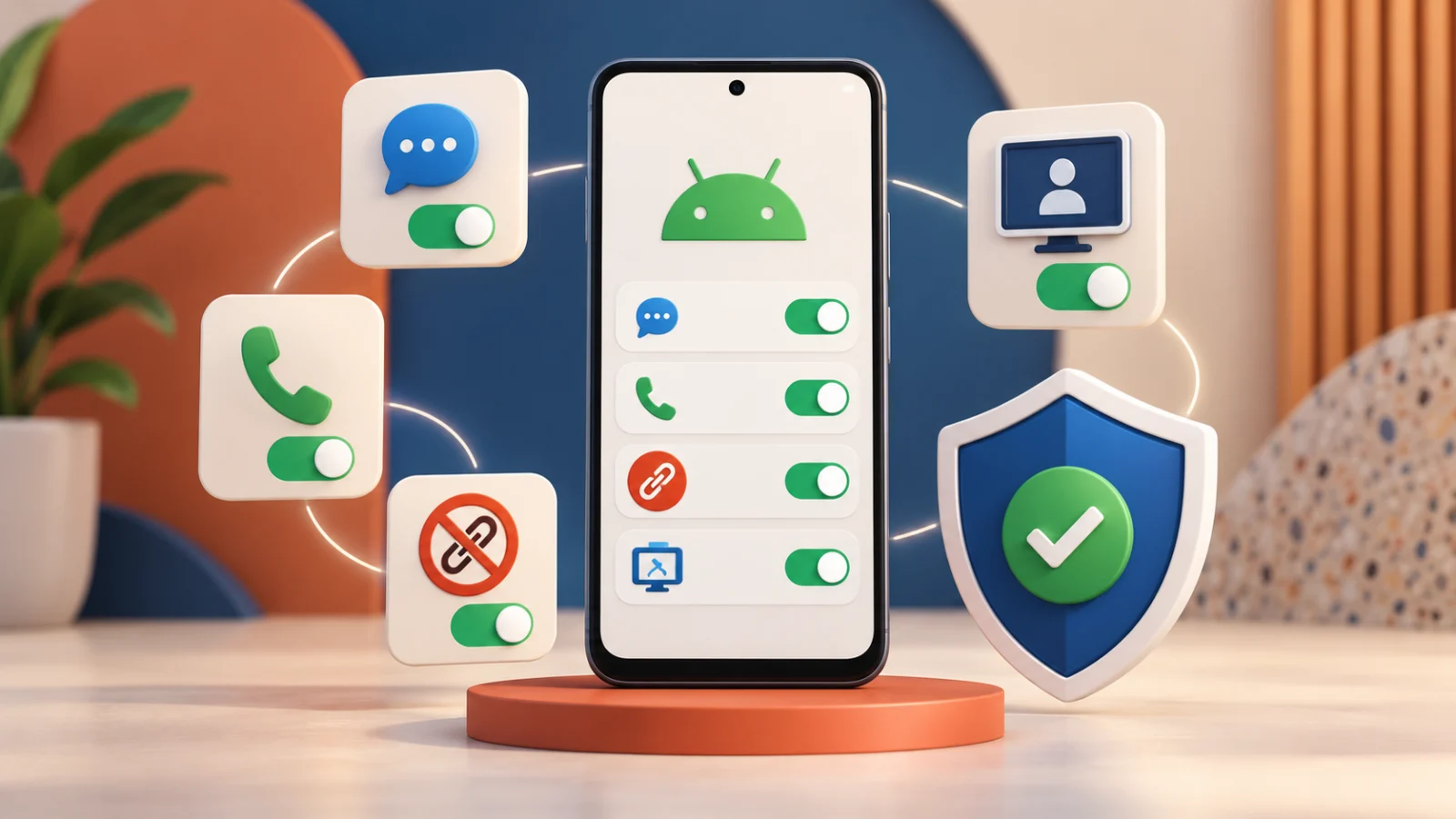
Setting 4: Scam Detection in chat notifications
Chat notifications judged to be potential scams will show a “likely scam” warning. Tapping it shows tips, such as not sharing personal information or opening links and attachments.
Previously Pixel-only, Android Authority says this is coming to Android phones from HONOR, Infinix, Motorola, OnePlus, OPPO, TECNO, vivo, and Xiaomi. No specific date was given, and it did not list Android version requirements. If your phone is on the list, keep Google Messages and Google Play services updated.
Setting 5: Screen-share privacy
Scammers often ask you to share your screen. Android already hides sensitive fields in native apps. According to the same report, when you screen-share through Chrome or Android System WebView, login fields and payment screens will also be hidden automatically on Android 15 or newer.
Never share your screen with someone who called you unexpectedly, even with this protection. Scammers use screen sharing to watch you type codes and approve payments.
Setting 6: Call forwarding warnings
Apps will no longer be able to silently turn on call forwarding in the background. Your phone will warn you if a scammer tries to get you to forward your calls. The report says this arrives in early December 2026 on Pixels and select phones.
You can check your forwarding settings today. Our guide to the call forwarding scam shows how on Pixel and Galaxy phones.
If you think something is wrong with your phone, run these checks first.
Habits that matter more than Android scam protection settings
No scam filter catches everything. Google itself says Scam Detection is not fully accurate. Strong habits fill the gap.
Slow down when you feel pressure
Scammers create urgency. A real bank or agency will let you hang up and call back on an official number.
Check links before you tap
Use our guide to checking if a link is safe, and learn about QR code tricks in our QR code scams guide.
Keep your phone updated
Many of the new protections arrive through system, Play services, or app updates. Our guide to checking your Android security patch level shows how to see where you stand.
Use strong sign-in methods
App-based codes and passkeys beat text-message codes. See our passkeys guide.
Which settings can you use on your phone?
| Setting | Where | Who can use it |
|---|---|---|
| Spam protection | Google Messages > Protection & Safety | Devices that support it; on by default |
| Scam Detection for calls | Phone > More > Settings | Supported Pixel phones; opt in |
| Enhanced Protection | Google Messages (rolling out) | Pixel 10 or newer, Galaxy S26, Galaxy Z Fold 8, select devices |
| Chat notification warnings | Rolling out | Pixel and several Android brands |
| Call forwarding warnings | Rolling out from early December | Pixels and select phones |
Rollouts are staged, so you may not see a feature the day it is announced. Check again after major updates.
Frequently Asked Questions
Is Spam protection on by default in Google Messages?
Google says it is on by default and that you are notified when it is turned on. The option only appears if your device supports it, so open the Protection & Safety menu to confirm.
Does Scam Detection for calls work on Samsung phones?
Google’s Phone app page lists it for Google Pixel devices only. Other phones may get message-based protections that Google has announced separately.
Does Scam Detection record my calls?
Google says processing happens on the device and no conversation audio or transcription is stored on the device or sent to Google servers. A beep tells participants it is active.
When will Enhanced Protection arrive?
Android Authority reports a rollout later in October 2026 for select devices. Keep Google Messages updated and check its settings.
Is Android scam protection enough on its own?
No. Google says Scam Detection is not 100% accurate. Pair the settings with careful habits, such as never sharing codes or screens with callers.