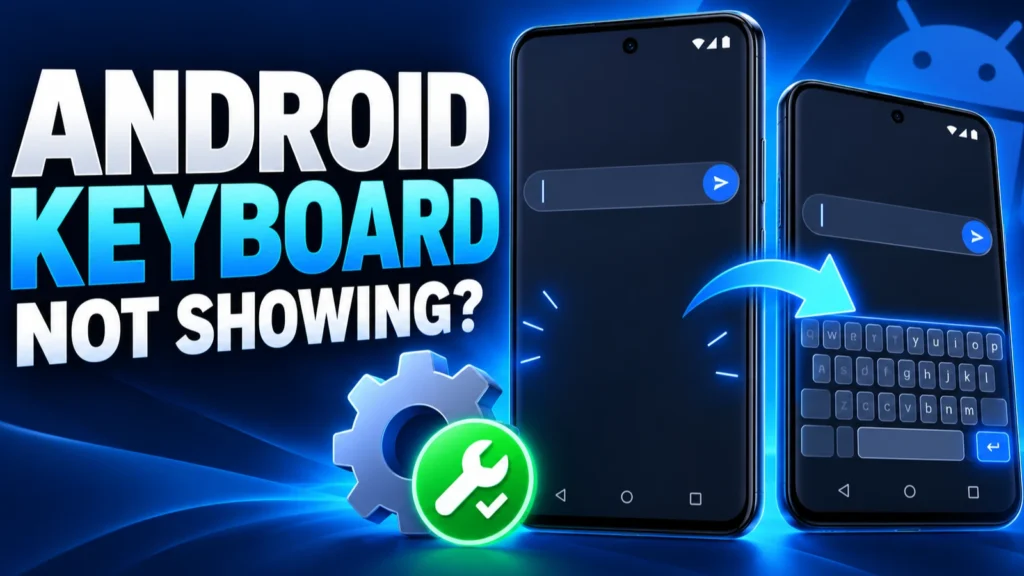
An Android keyboard not showing up is a small bug with a big effect. You tap a search box or a message field, the cursor blinks, and no keyboard appears. You cannot type, search, or even sign in.
This problem can affect Pixel, Samsung Galaxy, and other Android phones. Start with the low-risk checks below—restart, update the keyboard app, confirm the default input method, and disconnect hardware keyboards—before clearing data or reinstalling anything.
If your Android keyboard is not showing, restart the phone, then update Gboard in Google Play. Next, make sure Gboard is switched on under Settings, System, Keyboard, On-screen keyboard. If it still hides, force stop Gboard, clear its cache, disconnect any physical keyboard, and install the latest system update. Reinstall the keyboard app last.
Table of Contents
ToggleWhy the Android keyboard stops appearing
Several things can hide the on-screen keyboard. A glitch inside the keyboard app is the most common. A recent update can also leave the app in a bad state, and a Bluetooth keyboard can tell Android that you no longer need the on-screen one.
Sometimes the keyboard did not break at all. Another keyboard app took over as the default, or the keyboard was switched off by mistake. Each fix below targets one of these causes.
Menu names vary slightly between Pixel, Samsung, and other brands. If you cannot find an option, use the search bar at the top of Settings. We describe Google Pixel and Gboard menus first, then Samsung notes where they differ.
Android keyboard not showing: 8 fixes
1. Restart your phone
When troubleshooting Android keyboard not showing, restart the phone first. This clears temporary input-method glitches and is the first step in Google’s current Gboard troubleshooting guidance. Hold the power button, choose Restart, then test the keyboard in a simple app such as Messages or Keep.
2. Update Gboard and the other keyboard apps
- Open the Google Play Store.
- Tap your profile picture, then Manage apps & device.
- Choose Updates available and update Gboard if it appears. Update any other keyboard app you use.
3. Make sure the keyboard is switched on
For Android keyboard not showing because Gboard is missing from your keyboard list, Google says to turn it back on:
- Open Settings.
- Tap System, then Keyboard, then On-screen keyboard.
- Switch on Gboard.
On a Samsung Galaxy, open Settings > General management > Keyboard list and default and check that your keyboard is on and set as the default.
4. Switch back to Gboard if another keyboard took over
- Open any app where you can type, such as Gmail or Google Keep.
- Tap a text field.
- Touch and hold the Globe icon at the bottom of the keyboard.
- Tap Gboard.
If you cannot see any keyboard to tap, skip to fix 5 and fix 6, then try again.
5. Disconnect any physical keyboard
A connected Bluetooth or USB keyboard is a common cause of Android keyboard not showing because Android may hide the on-screen keyboard. Turn off Bluetooth for a moment or unplug the device, then tap a text field again.
If you use a hardware keyboard on purpose, look for a setting under Settings > System > Keyboard > Physical keyboard that lets you keep the on-screen keyboard visible. On Samsung it is under General management > Physical keyboard.

6. Force stop and clear the keyboard cache
- Open Settings > Apps and choose Gboard (or Samsung Keyboard).
- Tap Force stop and confirm.
- Open Storage or Storage & cache and tap Clear cache.
- Open an app and tap a text field to test.
Start with Clear cache, which removes temporary files. Use Clear storage or Clear data only if the problem continues: Google notes that this resets Gboard to its default state and removes saved words and settings.

Keep an eye on free space. A phone that is almost full can cause apps to misbehave. Our guide to freeing up space on your phone shows how to clear room safely.
7. Install the latest system update
Keyboard and Android system updates can include bug fixes and compatibility improvements. Google recommends keeping Gboard current; also install any Android system update offered through your phone maker’s Settings app.
- Open Settings > System > System update (on Samsung: Software update).
- Tap Check for update and install anything offered.
- Restart if asked.
Rollouts happen in phases, so the update may not appear immediately. Our guide to checking your Android security patch level shows how to see what you are running.
8. Uninstall updates or reinstall the keyboard
Use this fix last. If Gboard is your only keyboard app, install a second keyboard from Google Play first, so that you can still type.
- Open Settings > Apps and select Gboard.
- Tap the menu in the top-right corner and choose Uninstall updates if available. Otherwise tap Uninstall.
- Open the Play Store, search for Gboard, and install it again.
- Turn it on under Settings > System > Keyboard > On-screen keyboard.
Reinstalling may reset your keyboard settings and learned words. If you use Google sync, much of your dictionary comes back after you sign in again.
A broader troubleshooting guide if the keyboard is only one of several problems.
If the keyboard only fails in one app
For Android keyboard not showing in only one app, the keyboard itself is probably fine. Update that app, clear its cache, and check whether it has a setting that blocks keyboards, such as a secure input mode. A bug inside the app is likely if the problem appears only in a single search bar.
You can also test with a different input method. Install a second keyboard, such as the Samsung keyboard on a Galaxy phone or another keyboard from Google Play, to see whether the issue follows the keyboard or stays with the app.
Check whether Safe Mode helps
For Android keyboard not showing after installing another app, test Safe Mode. Safe Mode temporarily disables third-party apps; if the keyboard works there, another app is interfering.
- Press and hold the power button until the power menu appears.
- Touch and hold Power off until you see Safe mode, then tap OK.
- Test the keyboard. Restart normally to leave Safe Mode.
If Safe Mode fixes it, uninstall recently added apps one at a time, starting with overlays, screen filters, and accessibility tools. For more help with slow or glitchy phones, see our guide to optimizing a mobile device.
When to contact support or reset
A full factory reset should be the final step. Back up your photos and files first. If the Android keyboard not showing problem continues on a brand-new phone or after every fix, contact the phone maker because it could be a touchscreen hardware problem. Our guide to Android 17 touchscreen problems on Pixel covers the screen side.
Samsung Galaxy keyboard checks
On a Samsung Galaxy phone, open Settings → General management → Keyboard list and default and confirm Samsung Keyboard or your chosen keyboard is enabled and selected. Samsung’s current keyboard guidance also documents resetting keyboard settings and clearing its cache.
- Open Settings > General management > Samsung Keyboard settings.
- Scroll to the bottom and tap Reset to default settings.
- Open a text field and test the keyboard.
If the Samsung keyboard stopped appearing after an update, restart first, confirm Samsung Keyboard is still the default, and clear its cache. Avoid clearing data until you have tried those lower-impact checks.
Keyboard looks wrong or sits off-screen
Sometimes the keyboard is present but not where you expect it. A floating or one-handed layout can leave it small, in a corner, or hidden behind another window. Open the keyboard toolbar, look for layout or mode options, and return to the standard docked keyboard. Rotate the phone to portrait and back to refresh the layout.
Keep the keyboard working in the future
A few habits reduce the chance of a repeat.
- Install system and Play Store updates when they arrive.
- Use one main keyboard app rather than several at once.
- Keep at least a few gigabytes of free storage.
- Remove apps that draw over other apps if you do not need them.
Frequently Asked Questions
Why does my keyboard not appear when I tap a text box?
Common causes are a keyboard app glitch, a disabled keyboard, another default keyboard, or a physical keyboard that tells Android to hide the on-screen one. Work through the fixes above in order.
Will clearing the Gboard cache delete my data?
Clearing the cache removes temporary files only. Avoid Clear storage unless you need a full reset, since it can remove saved settings and learned words.
Did Google fix a keyboard bug on Pixel phones?
Google’s October 2026 Pixel update lists a fix for the virtual keyboard sometimes failing to appear when tapping search fields on Pixel 8 through Pixel 11. Update your phone to get it when it reaches you.
How do I get my Samsung keyboard back?
Open Settings, then General management, then Keyboard list and default, and make sure Samsung Keyboard is on and set as default. Then force stop it and clear its cache if it still hides.
Is it safe to use a third-party keyboard?
Keyboard apps can see what you type, so use a well-known one from a trusted developer and review the permissions. If you handle sensitive information, stay with Gboard or your phone maker’s keyboard.