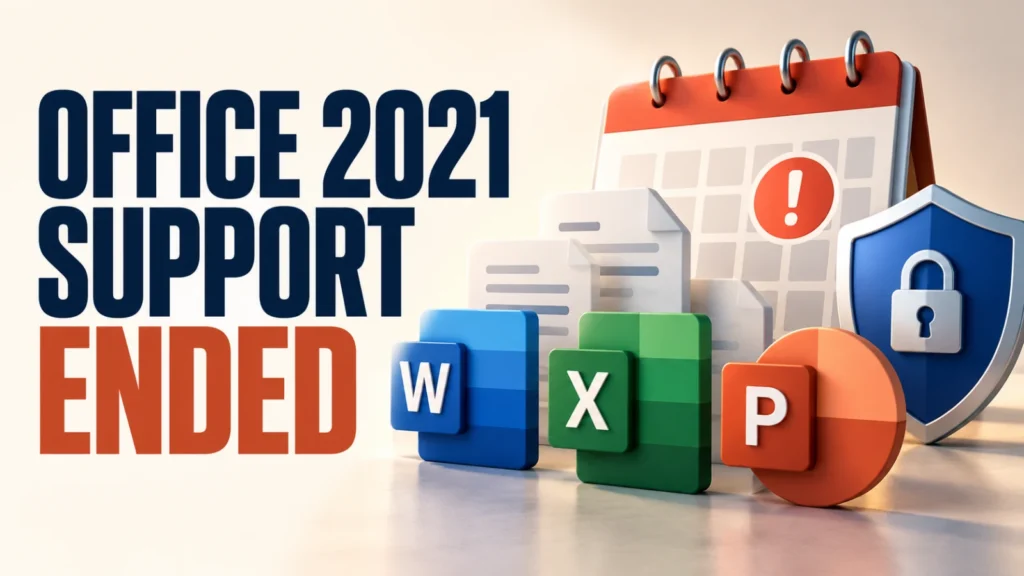
Office 2021 end of support has arrived. Microsoft says support for Office 2021 ended on October 13, 2026, with no extension and no extended security updates. If you still use Word, Excel, or Outlook from that version, you need a plan.
The apps do not stop working overnight, so there is no need to panic. But the risk grows with time. This guide explains what ended, how to check your version, and five sensible options, including a free one.
Office 2021 end of support means Microsoft no longer provides security fixes, bug fixes, or technical support for it as of October 13, 2026. The apps may keep working, but they will not get security updates. Move to a newer Office or Microsoft 365, switch to a free alternative, or keep use limited and offline-safe.
Table of Contents
ToggleWhat Office 2021 end of support means
Per Microsoft’s end-of-support page, the following ended on October 13, 2026: technical support, bug fixes and security fixes (including for vulnerabilities reported later), software updates, phone and chat support, and most online help content will be retired over time.
Microsoft states there is no extension and no extended security updates for Office 2021. Business products such as Office LTSC 2021 are reported to share the date. Check Microsoft’s lifecycle page for your exact product, including Mac versions, because the page we reviewed gave Windows home examples such as Office Home & Student 2021 and Office Home & Business 2021.
Microsoft says your apps may keep functioning, “however, you could expose yourself to serious and potentially harmful security risks.” New flaws found after the end date will not be fixed.
Why this matters for everyday users
Office files are a common way to spread malware. Attackers send documents that try to exploit weaknesses in the software opening them. When Microsoft stops patching, each new weakness stays open. The risk is highest if you open attachments, edit files from outside sources, or use Outlook for email.
This month already showed how real the danger is. Microsoft patched an exploited Windows flaw that bypasses download warnings. Read our Mark of the Web guide to see how those warnings protect you.
Step 1: Check which Office version you have
- Open Word or Excel and create a blank document.
- Select File > Account.
- Look under Product Information. It shows whether you have Microsoft 365, Office 2021, or another version.
- Select About Word (or About Excel) to see the full version and build.
If it says Microsoft 365, you are on a subscription that keeps updating, and this end date does not apply to you. If it says Office 2021, read on.
If you are not sure, look at the box, email receipt, or Microsoft account page you used when you bought Office. One-time purchases show the year in the product name.
Option 1: Upgrade to a newer Office or Microsoft 365
Microsoft’s page recommends upgrading to a newer version of Office and links to purchase or trial options, including Microsoft 365. Microsoft 365 is a subscription with continuing updates. Microsoft also sells newer one-time-purchase versions, so compare what is available on Microsoft’s site.
Which is better depends on how you work. A subscription suits people who want ongoing updates and cloud storage on several devices. A one-time purchase suits people who want to pay once, but it has its own end date later. Prices change, so check Microsoft’s site rather than trusting an old figure.
Option 2: Use the free web versions
If you only write the occasional letter or open a spreadsheet, Microsoft’s web versions of Word, Excel, and PowerPoint may be enough. They run in your browser with a Microsoft account, and Microsoft keeps them updated. They have fewer features than the desktop apps, so test them with your own files first.
Option 3: Switch to a free alternative
LibreOffice is a free, open-source suite that opens and saves Word, Excel, and PowerPoint formats. It handles most simple documents well. Complex layouts, macros, and heavy formatting may not convert perfectly, so keep a copy of the original file and compare the result.
For PDFs, you may not need Office at all. See our guide to the best free PDF editor, and browse our list of top free Windows utilities.
A starter list of useful programs for a new Windows PC.

Option 4: Keep Office 2021, but reduce the risk
If you cannot move yet, you can lower your risk, although you cannot remove it. This is a stopgap, not a plan.
- Keep Windows and your security software fully updated.
- Leave Protected View on and avoid clicking Enable Editing on files from outside sources.
- Do not open Office attachments you did not expect, even from known senders, until you confirm with them.
- Use a different, supported email app instead of Outlook 2021 if you can.
- Back up your important files regularly.
Our guide to data backup covers an easy routine, and our guide to checking if a link is safe helps with email links.
Option 5: For work or school, ask IT
Microsoft has separate guidance for IT-managed installations. If your employer or school installed Office, do not change it yourself. Ask the IT team about their upgrade plan and whether you can use a managed Microsoft 365 licence.
How to move your files safely
Your documents are not locked to the old version. Newer Office and alternatives open the same file types. Still, take a few precautions before switching.
Back up first
Copy your Documents folder, Outlook data files, and any templates to an external drive or cloud folder before you install anything.
Save your licence and sign-in details
Keep your Microsoft account email and the product key or order confirmation you used for Office 2021 in a safe place.
Test with a few important files
Open key documents in the new app and check fonts, tables, and formulas. Fix any problems before you uninstall the old version.
What about other support deadlines this month?
Several end dates landed around the same time, according to WindowsForum’s Patch Tuesday roundup: Windows 11 24H2 Home and Pro received their last update on October 13, 2026. If you use that version, see our guide on Windows 11 24H2 end of support. People still on Windows 10 should read our guide to Windows 10 Extended Security Updates.
Treat these dates as a prompt to review your whole setup: operating system, Office, browser, and backups.
Which option fits you?
| Your situation | Best fit |
|---|---|
| Use Word and Excel daily with many features | Microsoft 365 or a newer one-time Office |
| Occasional documents only | Microsoft web apps or LibreOffice |
| Tight budget, simple files | LibreOffice |
| Need more time to decide | Keep Office 2021 with extra care, then switch soon |
| Work or school PC | Ask IT |
Frequently Asked Questions
When did Office 2021 support end?
Microsoft states that support ended on October 13, 2026, with no extension and no extended security updates.
Will Office 2021 stop working?
Not immediately. Microsoft says the apps may keep functioning, but you could face serious security risks because security fixes have ended.
Is there an extended security update for Office 2021?
Microsoft says there are no extended security updates for Office 2021.
Can I use LibreOffice instead?
Yes, for many documents. It opens Word, Excel, and PowerPoint formats, but complex layouts and macros may not convert perfectly. Test your files first.
How do I check my Office version?
Open Word or Excel, select File, then Account, and read the Product Information section. About Word or About Excel shows the full version.