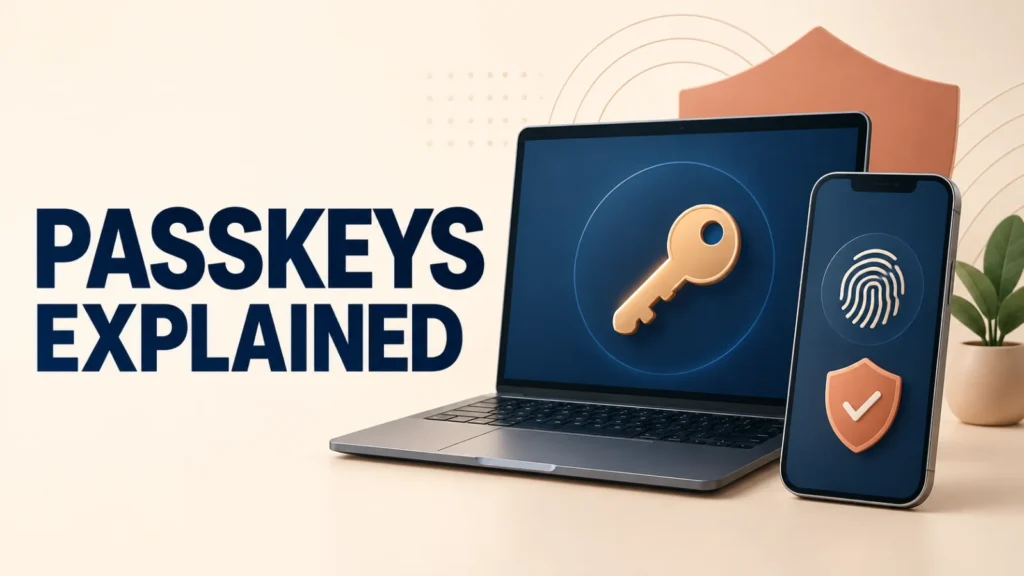
Passkeys explained simply: a passkey lets you sign in with the screen-lock method you already use—such as Face ID, a fingerprint, or a device PIN—instead of typing a reusable password.
Passkeys are safer against phishing, but setup, syncing, and recovery vary by device and passkey provider. This guide shows how they work, how to create one, and what to check before relying on passkeys for an important account.
A passkey is a phishing-resistant sign-in credential based on a cryptographic key pair. The website stores a public key; your device or passkey provider protects the matching private key. To create one, open a supported account’s security settings, choose Create a passkey, select where to save it, and confirm with your device unlock. Keep a tested recovery method until you know the passkey works on every device you need. This passkeys explained guide also covers syncing, recovery, and cross-device sign-in.
Table of Contents
TogglePasskeys Explained: What a Passkey Actually Is
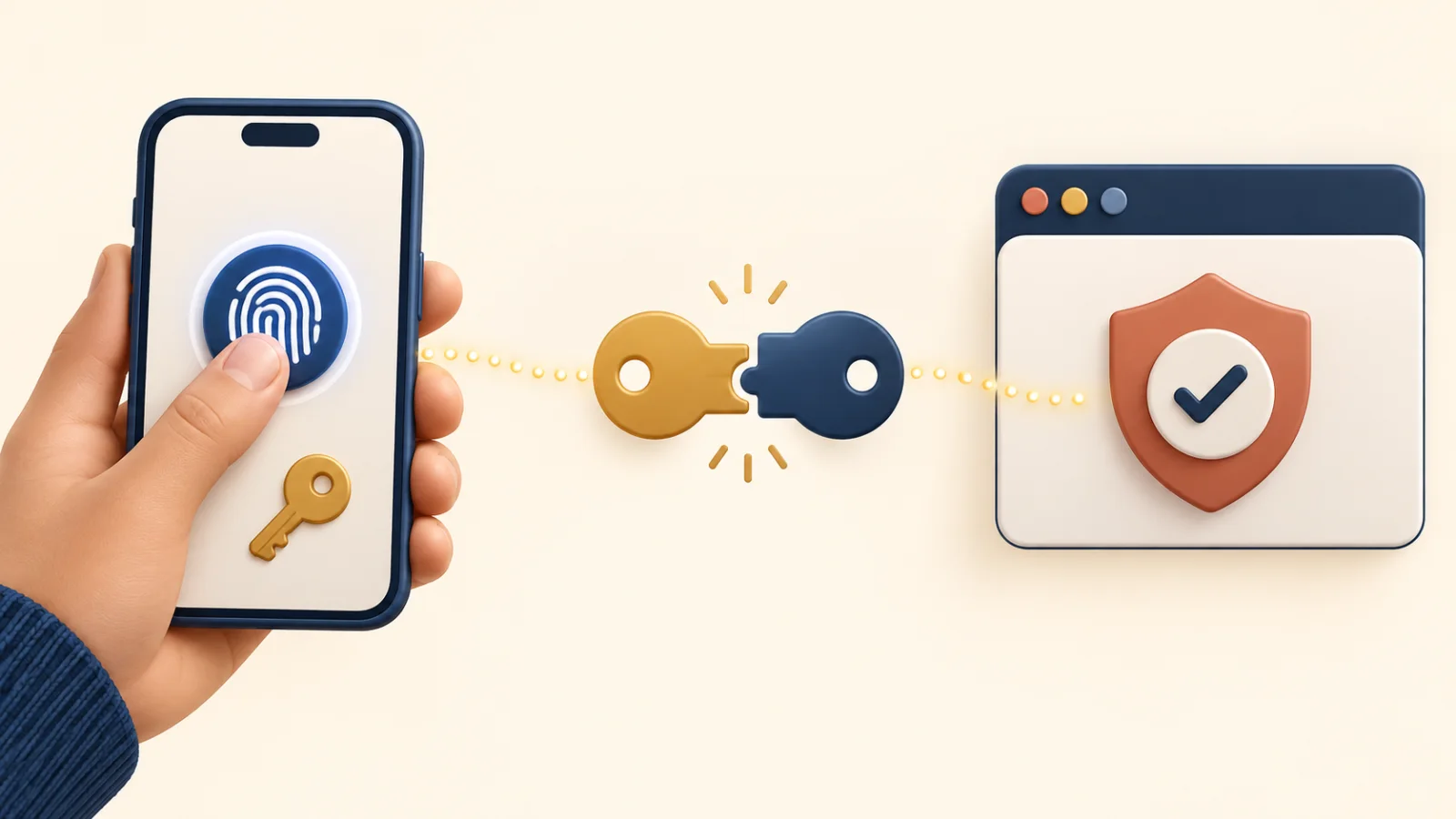
A passkey is a FIDO credential built on the FIDO2 standards, including WebAuthn. When you register a passkey, your device creates a public-and-private cryptographic key pair for that specific website or app.
The service keeps the public key. The private key is held by your device, security key, or passkey provider and is used to approve a cryptographic challenge during sign-in. Your face, fingerprint, pattern, or PIN normally unlocks that credential locally; the biometric data itself is not sent to the website.
Why Passkeys Are Safer Than Passwords
- Phishing resistance: a passkey is bound to the real website or app, so a look-alike login page cannot use it for the legitimate service.
- No reusable secret on the server: the service stores a public key rather than a password that an attacker could steal and replay.
- Unique for every service: one compromised account does not expose a credential reused elsewhere.
- No password to type: keyloggers and shoulder-surfing cannot capture a password that was never entered.
Passkeys do not make an account invulnerable. Someone who can unlock your device may be able to use its passkeys, and weak account-recovery processes can still create risk.
Synced and Device-Bound Passkeys Are Different
Synced passkeys are stored through a credential manager such as iCloud Keychain, Google Password Manager, Microsoft Password Manager, or a compatible third-party password manager. They can become available on other approved devices using the same provider.
Device-bound passkeys stay on one device or physical security key. They may suit higher-security situations, but you need another passkey or recovery route if that device is lost. Windows Hello can save a passkey locally, while a browser or password manager may offer a synced location.
Choose the save location deliberately. A passkey saved only to one Windows device is not automatically restored on a new PC. A passkey saved to a synced credential manager follows that provider’s security and recovery rules.
How to Create a Passkey
Create a Passkey for a Google Account
- On a device you own, open Google’s Passkeys page.
- Select Create a passkey, then select it again when prompted.
- Unlock the device to approve the credential.
Google warns against creating passkeys on shared devices because anyone who can unlock that device may be able to access your account.
Create a Passkey for a Microsoft Account
- Open your Microsoft account’s Advanced security options.
- Select Add a new way to sign in or verify.
- Select Face, Fingerprint, PIN, or Security Key.
- Choose the offered save location and complete the device-unlock prompt.
For a work or school account, your organization must support passkeys and may restrict where they can be stored.
Create a Passkey on iPhone, iPad, or Mac
Apple does not provide one universal Apple Account switch that creates passkeys for every service. Instead, start on the supported website or app, open its sign-in or security settings, and choose its passkey option. Apple can save the credential to the Passwords app and sync it through iCloud Keychain when that feature is enabled.
On iPhone or iPad, check Settings > [your name] > iCloud > Passwords & Keychain. On current Apple software, you can view saved credentials in the Passwords app.
How to Use a Passkey on Another Device
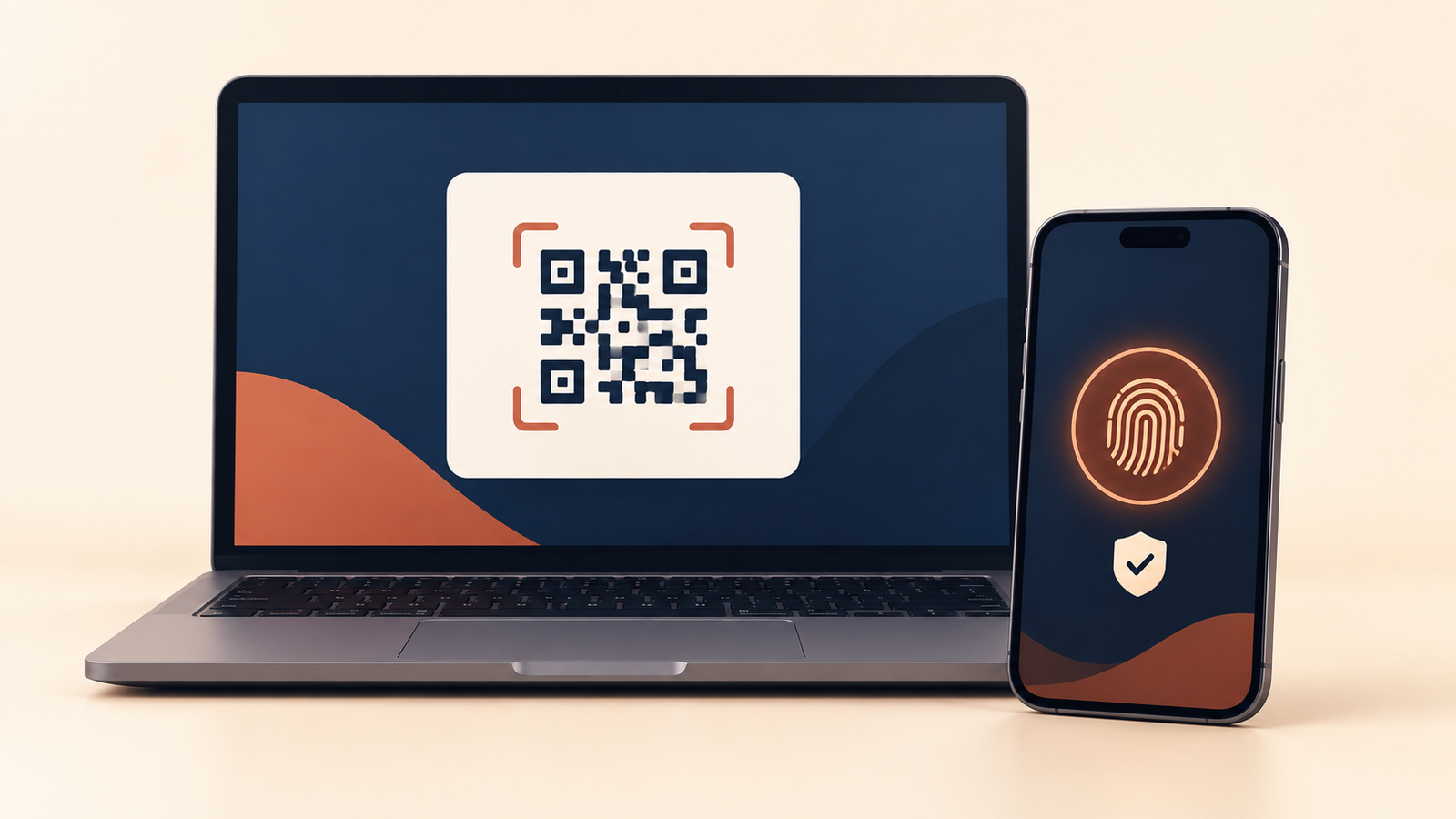
If the passkey is already available through the credential manager on the current device, select the account and approve the prompt with your face, fingerprint, or PIN.
For cross-device sign-in, a computer may display a QR code. Scan it with the phone that holds the passkey, keep Bluetooth enabled when requested so the devices can confirm proximity, and approve the sign-in on the phone. Do not create a passkey directly on a public or shared computer.
What Happens If You Lose a Device
A synced passkey may return when you sign in to the same credential manager on a new approved device. A device-bound passkey will not. Recovery therefore depends on where the passkey was saved and what recovery methods the account offers.
- Add more than one passkey for critical accounts when the service allows it.
- Keep recovery codes in a secure offline place.
- Maintain a verified recovery email or phone number.
- Remove the lost device’s passkey from the account as soon as possible.
- Use a spare FIDO2 security key if your threat level justifies it.
Do not remove your password or other recovery method merely to improve convenience. First confirm that passkey sign-in and account recovery both work on the devices you will actually use.
Common Passkey Problems
- No passkey option: the site may not support passkeys, or your work account may be restricted by an administrator.
- Passkey does not appear: confirm you are using the same passkey provider and account, and that device screen lock is enabled.
- QR sign-in fails: update the browser and operating system, enable Bluetooth when requested, and keep both devices nearby.
- Wrong save location: delete the unwanted passkey from the service only after creating and testing a replacement in the preferred provider.
When a service does not support passkeys, continue using a unique password stored in a reputable password manager and enable strong two-factor authentication.
Use this guide to choose a stronger backup method for accounts that still require a password or do not support passkeys.
Passkeys Explained: A Final Setup Checklist
Before relying on a passkey for an important account, confirm where it is saved, test a sign-in on another device you use, and keep a recovery method that you can access. This passkeys explained checklist helps avoid being locked out after a lost phone or new computer.
Passkeys Explained FAQs
Are passkeys the same as passwords saved in a browser?
No. A saved password is still a shared text secret that autofill enters. A passkey uses asymmetric cryptography and does not send a reusable password to the service.
Can someone use my passkey if they steal my phone?
Not unless they can also satisfy the device unlock or exploit another recovery path. Remove the lost device and its passkey from important accounts as soon as you regain access.
Do passkeys work across Android, iPhone, Windows, and Mac?
Yes, when the website, browser, operating system, and selected passkey provider support the combination. Cross-device QR sign-in is also available in many cases.
Can I still use my password after creating a passkey?
Often yes, because many services keep passwords as a fallback. Some services offer a passwordless mode, so check the account recovery options before changing it.
Are passkeys completely phishing-proof?
Passkeys are designed to resist credential phishing because they are tied to the legitimate site. They cannot prevent every form of fraud, malware, unlocked-device misuse, or weak account recovery.
Start With One Important Account
Use this passkeys explained checklist with an account you use often on a personal device. Create the passkey, note where it is saved, sign out and test it, then verify your recovery method before adding passkeys elsewhere.
For the technical model and current platform instructions, see the FIDO Alliance passkey overview, Google Account Help, Microsoft Support, and Apple Passwords and passkeys guide.