Your Android security patch level is the date of the security fixes installed on your phone or tablet. It is separate from the Android version number, and checking it takes less than a minute.
The exact menu names vary by manufacturer, but Android normally shows the patch date under Settings > About phone > Android version. This guide explains what the date means, how to update it, and what to do when a device no longer receives patches.
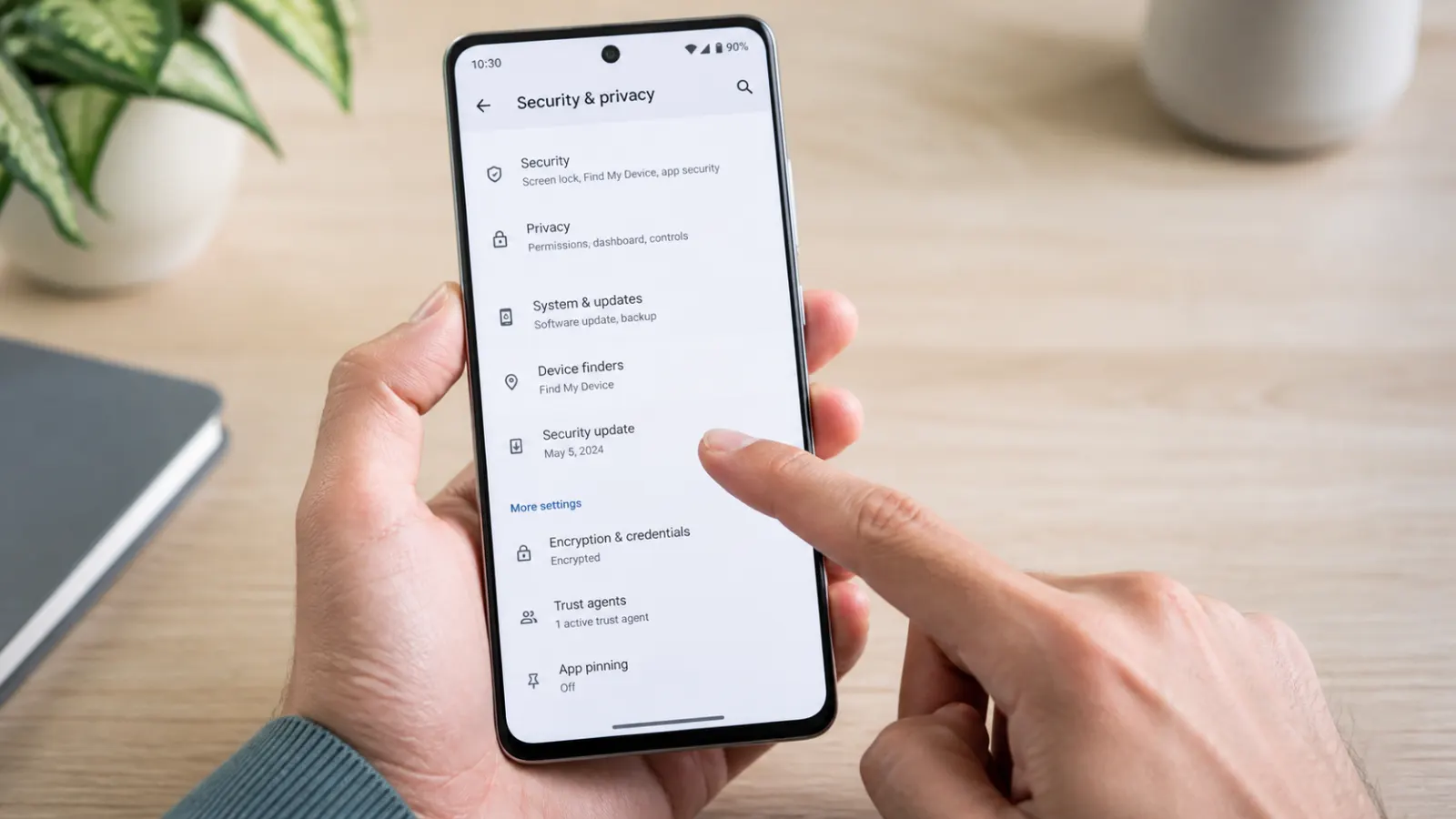
Open Settings > About phone > Android version and look for Android security update. To check for a newer patch, open Settings > System > Software update; Pixel phones may label this Software updates. Samsung Galaxy devices normally use Settings > Software update > Download and install.
Table of Contents
ToggleWhat the Android Security Patch Level Means
The patch level appears as a date, such as August 5, 2026. It does not mean the phone was updated on that day. It means the installed build includes the security fixes assigned to that patch level.
Google publishes Android security bulletins that group fixes by patch level. Some bulletins use two dates, commonly the first and fifth of the month. The later level includes the fixes from the earlier level plus additional device and component fixes. Phone makers may also include fixes for their own hardware and software.
A newer Android version does not automatically prove that the patch level is current. Likewise, an older Android version can still receive security patches while the manufacturer supports it.
The Android security update date and Google Play system update date are different. Google Play system updates can update certain modular components, but they do not replace manufacturer-delivered firmware and security patches.
How to Check Your Android Security Patch Level
- Open the Settings app.
- Tap About phone or About tablet.
- Tap Android version.
- Find Android security update. The date shown is your installed patch level.
On some phones, the patch date appears directly on the About phone page or under Software information. If the path differs, use the Settings search box and search for security update, Android version, or software update.
Samsung Galaxy phones and tablets
Open Settings > About phone > Software information, then look for Android security patch level. To check for an update, return to Settings and open Software update > Download and install.
Samsung notes that screens and settings can vary by carrier, software version, and model. Carrier approval can also affect when an update reaches a particular device.
Google Pixel phones
Open Settings > About phone > Android version. You can see the Android version, Android security update, Google Play system update, and build number.
To check for updates, open Settings > System > Software updates. Install both available system updates and Google Play system updates, then restart when prompted.
OnePlus, Motorola, Xiaomi, and other Android devices
Start with Settings > About phone > Android version. If the patch date is not there, check Software information, Security & privacy, or search Settings. Update menus are usually under System update or Software update.
How Recent Should the Patch Level Be?
There is no single date that every supported Android device must show. Pixel, Samsung, and other manufacturers use different update schedules, and carriers can add another delay. The useful comparison is between your installed date and the latest update officially offered for your exact model and region.
If your phone is several months behind, check manually for updates and review the manufacturer’s support page. A recently released bulletin does not mean every device receives that patch immediately, but a long and unexplained gap deserves attention.
A patch date alone does not guarantee that every device-specific issue is fixed. Android bulletins cover platform vulnerabilities, while manufacturers and chipset vendors can publish additional fixes. Use the support policy and update notes for your exact model when assessing risk.
How to Install Android Security Updates
- Connect to a reliable Wi-Fi network and charge the device.
- Back up important photos, messages, and files.
- Open Settings > System > Software update, or your manufacturer’s equivalent menu.
- Download and install the available update.
- Restart the device if requested, then check the patch level again.
Most security updates install automatically, but manual checks are useful when a notification was dismissed or the phone was offline. Also open Settings > Security & privacy > System & updates > Google Play system update where available.
Google’s official Android update guide lists the current generic paths. Samsung provides a separate Galaxy update guide.
What to Do If No Update Is Available
First restart the phone and check again. Confirm that you have enough free storage, a stable connection, and the correct date and time. If an update downloads but fails, free space, recharge the battery, and retry without using a VPN or restrictive network.
Next, check the manufacturer’s support page for your exact model number and region. Two phones with similar names can have different support schedules. Carrier-branded models may also receive an update later than unlocked versions.
Do not download unofficial firmware from random websites to force a newer patch level. Installing the wrong image can erase data, prevent the phone from starting, or weaken verified-boot protections. Use only the manufacturer’s documented recovery or update method.
When Your Phone Stops Receiving Security Updates
Once official security support ends, ordinary app updates cannot patch vulnerabilities in the operating system, kernel, modem, or vendor components. The phone may keep working, but the security gap grows over time.
For a device used for banking, work accounts, password management, or sensitive messages, plan a replacement when security support ends. Until then, reduce exposure: remove unused apps, avoid sideloading, keep Play Protect enabled, use a strong screen lock, and do not ignore browser or account warnings.
Use the mobile security checklist to strengthen screen locks, app permissions, backups, and lost-device protection.
Android Security Patch Level FAQs
Is the Android security patch level the same as the Android version?
No. The Android version identifies the operating-system release, while the security patch level identifies the dated set of security fixes included in the installed build.
Why does my phone have two security update dates?
Android can show an Android security update date and a Google Play system update date. They update different parts of the system and may not match.
Can I update the security patch level without upgrading Android?
Sometimes. Manufacturers can provide security patches without moving a device to a new major Android version. What is available depends on the model’s support policy.
Why is my Samsung or carrier phone behind the latest bulletin?
Manufacturers and carriers test and distribute device-specific builds on different schedules. Compare your phone with the latest update officially released for its exact model, carrier, and region.
Is an antivirus app a substitute for Android security updates?
No. Security apps may detect some harmful behavior, but they cannot replace operating-system and firmware fixes delivered by the device manufacturer.
Keep the Check Simple
Check the Android security patch level whenever you install a system update and every few months thereafter. Install official updates promptly, check the separate Google Play system update, and confirm how long the manufacturer supports your model. If support has ended, treat replacement as a security decision rather than waiting for the phone to fail.
For technical details, consult the official Android Security Bulletins.