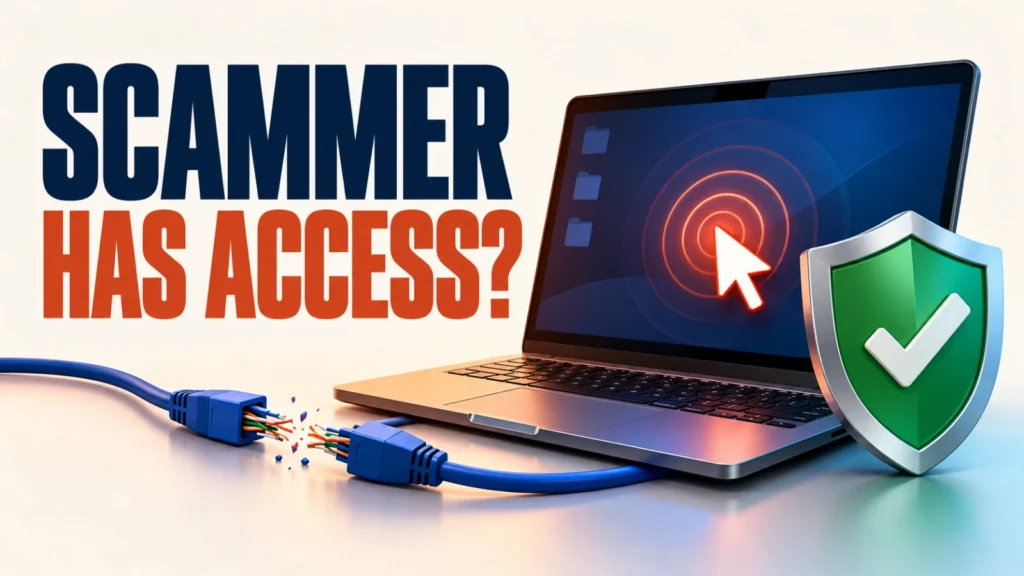
Scammer remote access to your computer is frightening, but the next few minutes matter most. The good news is that most of the damage can be limited when you act calmly and in the right order.
This guide covers what scammer remote access looks like, the nine steps to take now, and how to avoid the trap next time. It uses current research on a fake Microsoft support campaign and Microsoft’s own guidance on remote support tools.
If a scammer has remote access to your computer, disconnect from the internet right away to end the session. Then close and uninstall the remote tool, run a full security scan, change your passwords from a different trusted device, call your bank if you shared payment details, and enable two-factor authentication on key accounts.
Table of Contents
ToggleHow these scams get remote access
The scam usually starts with a frightening pop-up or call. GridinSoft’s report on a campaign called Help TDS describes a fake Windows update notice that escalates to a full-screen message claiming Microsoft has disabled your computer, with alarms, a phone number, and a voice telling you not to restart.
When you call, the “support agent” sounds helpful and may say the service is free. In a test call by researchers, the caller had them sign out with Ctrl+Alt+Delete to remove the browser lock, then asked them to download UltraViewer, a legitimate remote desktop tool, to take control. The researchers questioned the download and the call ended.
That detail matters. The tools scammers use are often real, legal software, so antivirus may not flag them. The danger is who is on the other end.
Signs of scammer remote access on your PC
| Sign | What it may mean |
|---|---|
| Mouse moves or windows open by themselves | An active remote session |
| A remote tool is installed that you did not choose | Access was set up for later |
| A caller asked you to share a code or install software | You started a session |
| New programs or startup items you do not recognise | Persistent access or other malware |
| Unexpected bank or account alerts | Credentials may have been taken |
If the caller only made you click a button, you may not see anything unusual. Assume access was granted if you followed their instructions.
Step 1: Disconnect from the internet
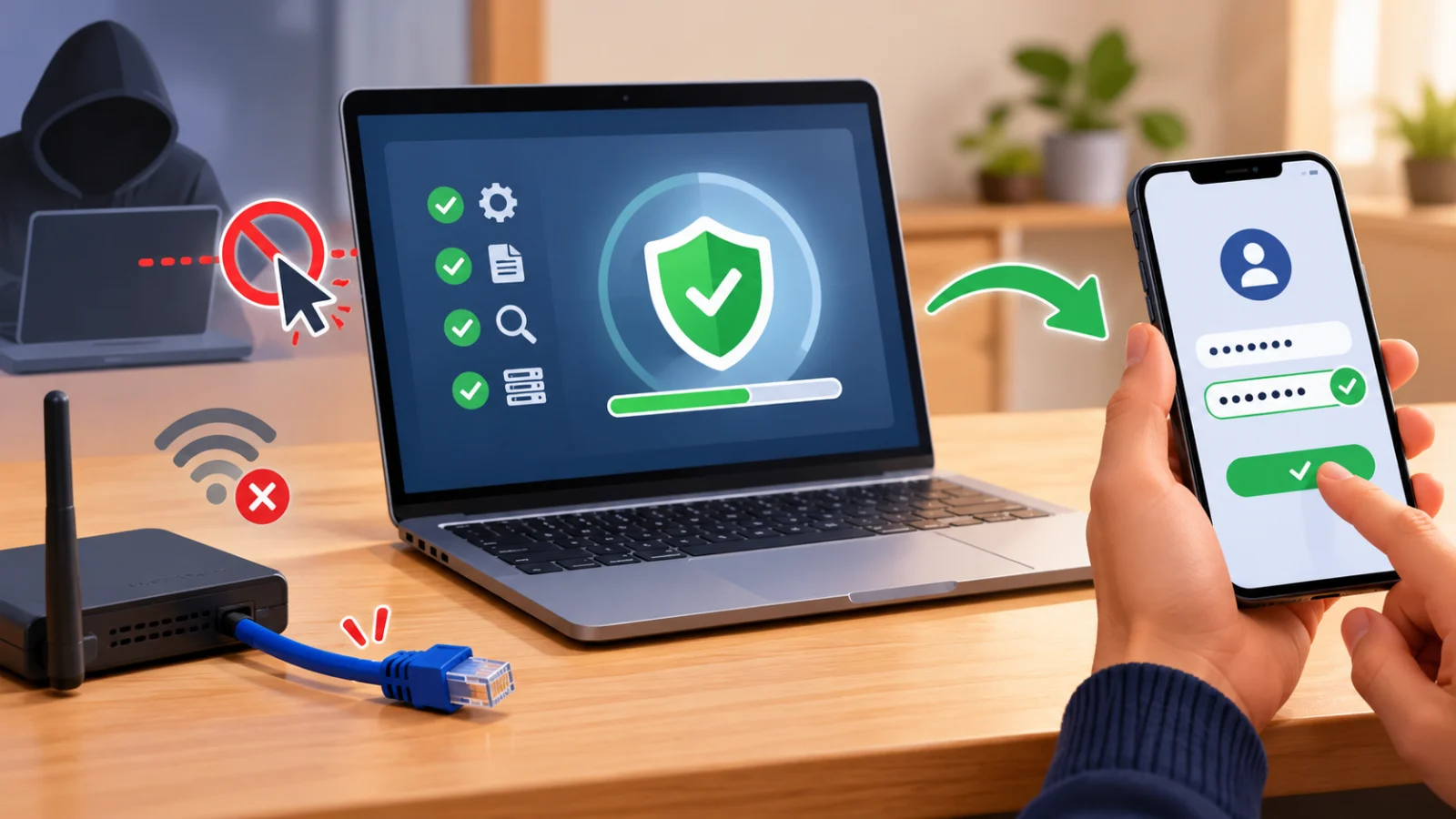
This is the fastest way to end a remote session. Turn off Wi-Fi from the taskbar, unplug the network cable, or switch on Airplane mode. Do this before anything else.
Do not shut the PC down yet if you want to note which tool was running. Take a quick photo of the screen with your phone if you can.
Step 2: Close the remote tool and write down its name
Look for a window or tray icon from a remote access program. GridinSoft advises recording the tool name and what the caller did, which helps when you report the scam or speak to your bank.
Close the program. If the browser is stuck on a full-screen scare page, press Ctrl + Shift + Esc to open Task Manager and end the browser task. Do not reopen the same tab when you restart the browser.
Step 3: Uninstall remote tools you did not choose
- Open Settings > Apps > Installed apps.
- Sort by install date so the newest items appear first.
- Look for remote tools such as UltraViewer, AnyDesk, TeamViewer, or anything unfamiliar that you did not install on purpose.
- Select the three-dot menu next to each one and choose Uninstall.
Also check Windows’ built-in tool. Per Microsoft’s Quick Assist documentation, you can uninstall it from Settings > Apps > Installed apps, then the three-dot menu and Uninstall. Microsoft recommends removing it if you do not use it.
Only remove tools you are sure you did not install on purpose. If your IT department or a relative you trust uses a remote tool to help you, ask them first.
Step 4: Check startup programs
Open Task Manager with Ctrl + Shift + Esc and select Startup apps. Look for anything you do not recognise, especially remote tools set to start with Windows. Right-click suspicious entries and choose Disable, then uninstall the program as in Step 3.
Step 5: Run a full security scan
GridinSoft notes that a visible download may not reveal every installed component, so scan even if you removed the tool. In Windows Security, go to Virus & threat protection > Scan options and choose a full scan or a Microsoft Defender Offline scan. Offline scans restart the PC to check for hidden threats.
If your protection was switched off, see our guide to the Defender turned off warning. If you suspect ransomware, follow our ransomware removal guide.
Step 6: Change passwords from a different device
Use your phone or another trusted computer, not the affected PC. Change your email password first, because email can reset all your other accounts. Then change banking, shopping, and social accounts, and any password you typed or saved while the caller had access.
Use unique passwords for each account. A password manager makes this easier. See our guide to the best free password managers.
Step 7: Contact your bank or card issuer
If you shared card details, logged in to banking while the caller watched, or paid for “support”, call the number on the back of your card or on your bank’s official website. Ask them to review recent activity, block or replace the card, and flag the transaction.
Be careful if someone calls you back about a “refund”. Refund scams often follow tech support scams, and the caller may ask for more remote access or payment details. Hang up and contact your bank yourself.
Step 8: Turn on two-factor authentication
Two-factor authentication adds a second check, so a stolen password alone is not enough. Turn it on for your email, bank, and Microsoft account, using an authenticator app where possible. Our guide on two-factor authentication compares the methods, and our passkeys guide shows an even safer option.
Step 9: Decide whether to reset Windows
If you cannot tell what the caller did, resetting Windows gives you a clean slate. Back up your documents and photos to an external drive first, and scan those files before putting them on a clean system. Then go to Settings > System > Recovery and choose Reset this PC.
This is a bigger step. For most people who closed the session quickly and found nothing installed, steps 1 to 8 are enough. Use a reset if the PC still behaves oddly, or if the caller had long access to a work or finance machine.
Learn how the fake pop-up scam works and what to do if a caller asks for payment.
Report the scam and avoid it next time
Microsoft asks people to report tech support scams using its technical support scam form, which is linked from its Quick Assist documentation. Reporting helps get scam sites and numbers taken down. Also tell your local consumer protection or police reporting service about any money lost.
If this happened on a work computer, contact your IT team through a known channel, not through a number on the scam page.
Microsoft states that it never contacts you unsolicited to request access to your device. A real Windows error message does not include a support phone number, according to the GridinSoft report. Only give remote access to someone you contacted yourself, such as your own IT team or a company you chose.
Microsoft’s documentation also says not to allow a Quick Assist connection unless you started the interaction, and not to share credentials for any website or app. If a pop-up locks your screen, do not call the number. Close the browser from Task Manager instead. For broader habits, read our guide on how to protect yourself from online scams.
Frequently Asked Questions
How can I tell if a scammer is still connected to my computer?
Disconnect from the internet and the session ends. Then check installed apps and startup items for remote tools, and run a full scan to be sure.
Are tools like AnyDesk and UltraViewer viruses?
No, they are legitimate remote desktop tools. Scammers misuse them, so antivirus may not flag them. What matters is who asked you to install them.
Should I factory reset my PC?
Not always. If you ended the session quickly and found nothing installed, a scan and password changes may be enough. Reset if the PC still acts strangely or the caller had long access.
What if I already paid the scammer?
Contact your bank or card issuer straight away using the number on your card or the bank’s official site. Ask them to review the payment and block the card if needed.
Does Microsoft call people about computer problems?
Microsoft states that it never contacts you unsolicited to request device access. Treat any such call or pop-up as a scam.