Microsoft PC Manager review: the app puts cleanup, startup-app controls, storage tools, Windows Update, and selected security shortcuts in one free dashboard. It is a legitimate Microsoft utility for supported Windows 10 and Windows 11 PCs, but it is not a magic speed booster.
Most of its useful jobs can already be done through Windows Settings, Task Manager, Storage Sense, and Windows Security. Its real advantage is convenience. This Microsoft PC Manager review explains what is useful, what to treat cautiously, and who should install it.
Microsoft PC Manager is safe to download from Microsoft and useful for people who want basic maintenance controls in one simple app. Boost can free temporary memory, cleanup can find disposable files, and startup management can reduce unnecessary background launches. It cannot repair weak hardware or guarantee a faster PC. Skip it if you already manage Windows directly or prefer not to add another background utility.
Table of Contents
ToggleWhat Is Microsoft PC Manager?
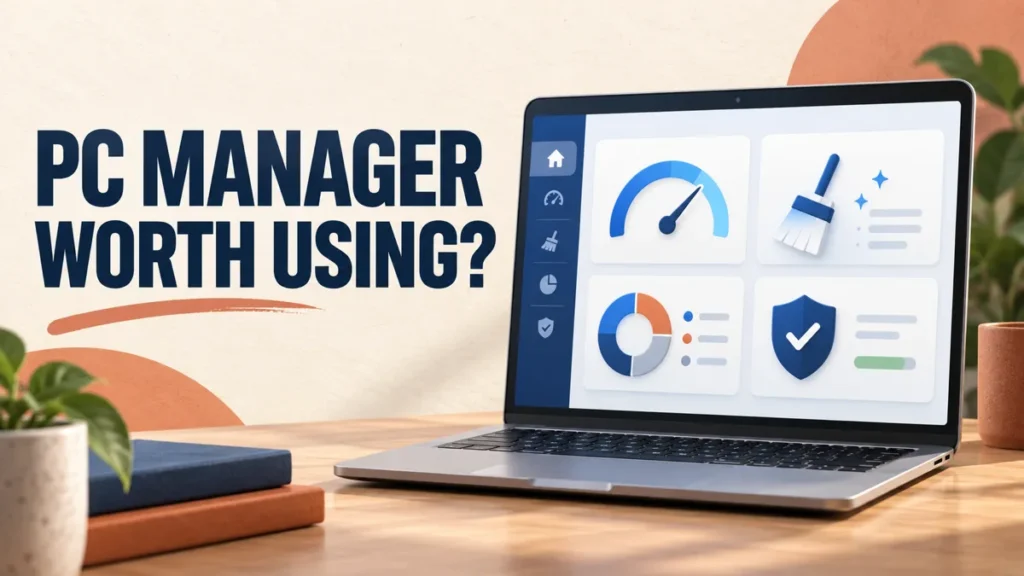
Microsoft describes PC Manager as a free utility compatible with Windows 10 build 19042.0 or later and Windows 11. Its interface groups routine maintenance tools that are otherwise spread across several parts of Windows.
Depending on the installed version and region, it can include Health Checkup, Deep Cleanup, Boost, storage analysis, startup and process management, app removal, Windows Update, Windows Security links, pop-up management, a toolbox, and a small desktop toolbar. Features can change as Microsoft updates the app.
Is Microsoft PC Manager Safe?
Yes, when it comes from the official Microsoft PC Manager site or Microsoft Store. Microsoft publishes the app, its terms, and its privacy disclosures.
Avoid download portals that bundle installers, browser extensions, or unrelated optimizers. Microsoft specifically advises obtaining PC Manager from an official source. Also read every cleanup selection before confirming it, because deleting caches and temporary files can remove items you expected to keep.
Microsoft says some PC Manager functions process information locally, while selected services can send limited diagnostic or feature data to Microsoft. Optional pop-up management reporting may include screenshots when a user chooses to submit them. Review the app settings and Microsoft Privacy Statement before enabling optional reporting.
Microsoft PC Manager Features That Are Actually Useful
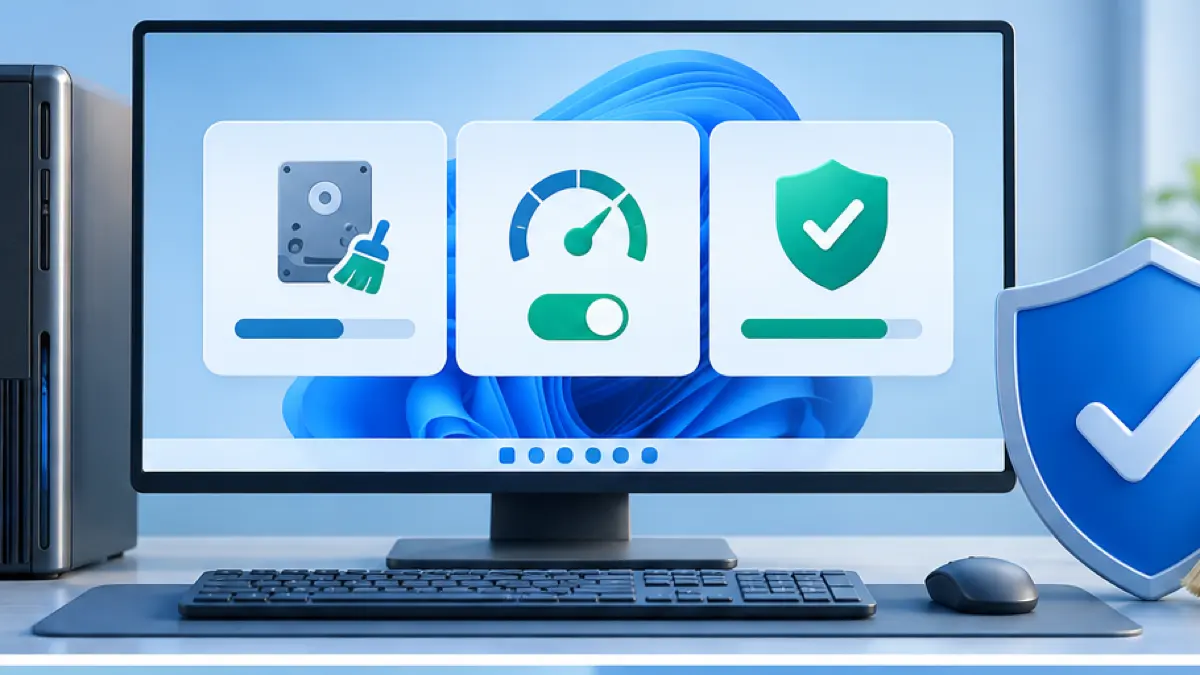
Boost and Temporary File Cleanup
Boost can release some memory and remove temporary files with one click. This may help briefly when many apps have been opened, but Windows will use memory again as programs need it. A lower memory percentage is not automatically better.
Cleanup is more useful when storage is nearly full. Review the file categories first, especially downloads, browser data, and application caches. For ongoing automatic cleanup, Windows Storage Sense already provides similar controls.
Startup and Process Management
The startup list can reveal apps that launch with Windows and slow sign-in. Disable only software you recognize and do not need immediately. Leave security software, hardware utilities, cloud-sync tools you rely on, and accessibility services enabled.
Process management is a simpler view of running apps. Task Manager remains better when you need CPU, memory, disk, network, and per-process detail.
Storage Analysis, Updates, and Security Shortcuts
Storage analysis helps identify large files and common cleanup targets. Windows Update and Virus and Threat Protection entries mainly provide a convenient route into existing Windows services rather than replacing them.
This consolidation is valuable for a less technical user. An experienced Windows user may find the original Settings and Windows Security pages clearer because they expose more detail.
Features to Use Carefully
- Deep Cleanup: inspect every category before deletion. Cache removal can sign you out or make an app rebuild data.
- Startup recommendations: do not disable an unfamiliar item solely because the app labels it optional.
- Default-app repair: confirm that you want Microsoft defaults before accepting changes.
- Pop-up management: blocking a nuisance is useful, but an unexpected prompt can also belong to software that needs attention.
- One-click acceleration: expect a temporary housekeeping effect, not a permanent hardware upgrade.
Create a backup before major cleanup, and change one group of settings at a time so a problem is easy to reverse.
What Microsoft PC Manager Cannot Fix
PC Manager cannot add RAM, replace a failing drive, cool an overheating processor, remove every form of malware, or make an old computer meet Windows 11 hardware requirements. It also cannot diagnose every reason a PC feels slow.
If Task Manager shows sustained 100 percent disk use, unusually high CPU load, very low available memory, or a failing storage device, investigate the cause instead of repeatedly pressing Boost. Microsoft also notes that older hardware may not improve significantly from software maintenance.
Use this diagnosis workflow when the PC remains slow after basic cleanup or when one resource stays unusually busy.
How to Install and Use PC Manager Safely
- Download PC Manager only from Microsoft or the Microsoft Store.
- Open the dashboard and review Health Checkup without applying every suggestion automatically.
- Use storage analysis to identify large or temporary files, then verify each category.
- Review startup apps and disable only entries you recognize and do not need at sign-in.
- Keep Windows Security and Windows Update enabled.
- Restart the PC and confirm your normal apps, browser, sync, and peripherals still work.
Do not install multiple cleanup suites that all monitor startup, memory, or pop-ups. Overlapping utilities add background work and make troubleshooting harder.
Who Should Use Microsoft PC Manager?
Install it if you want a simple Microsoft-made dashboard for routine cleanup, startup control, and shortcuts to built-in security tools. It is especially approachable for a family PC or a user who finds Windows Settings fragmented.
Skip it if you already use Storage Sense, Task Manager, Settings, and Windows Security comfortably. You are not missing a unique repair engine. The built-in Windows tools remain available without PC Manager.
See focused utilities for disk health, storage visualization, startup inspection, file syncing, and other jobs PC Manager does not replace.
Microsoft PC Manager FAQs
Is Microsoft PC Manager free?
Yes. Microsoft offers PC Manager as a free utility for supported Windows 10 and Windows 11 PCs.
Does PC Manager replace Windows Security?
No. PC Manager links to or surfaces selected Windows security functions. Keep Windows Security and its protections enabled.
Does the Boost button make a PC faster?
Boost may free temporary memory and remove temporary files, so it can help briefly in some situations. It cannot overcome insufficient hardware, overheating, a failing drive, or a demanding workload.
Can I uninstall Microsoft PC Manager?
Yes. You can remove it through Windows Settings like another installed app. The standard Windows maintenance and security tools remain available.
Microsoft PC Manager Review: Final Verdict
Microsoft PC Manager is a credible convenience app, not an essential Windows upgrade. Its strongest benefit is bringing familiar maintenance controls into one clean interface. Use cleanup and startup suggestions selectively, keep backups, and download it only from Microsoft.
For users who already know Windows Settings and Task Manager, the app is optional. For everyone else, it can make routine maintenance easier without resorting to aggressive third-party optimizer suites.