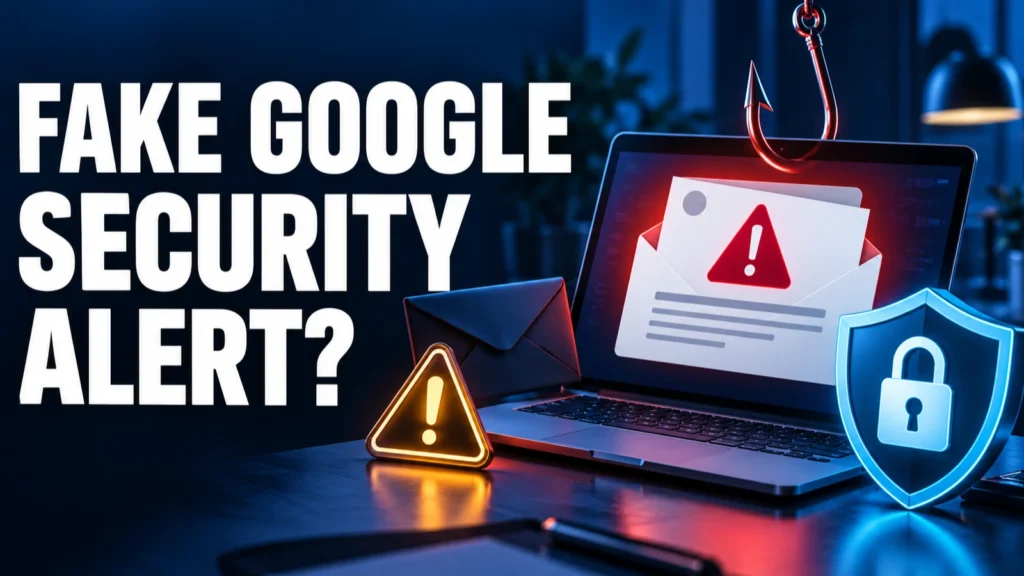
A fake Google security alert is one of the hardest scam emails to spot, because it can arrive from a real-looking Google address and still be a trap. The message says someone signed in to your account or that a new app password was created, and it pushes you to act within minutes.
This guide shows how the scam works, seven warning signs, and a safe way to check any alert without clicking the email. You will also learn what to do if you already entered your password or read out a code.
Never use the button inside a security alert you did not expect. Close the email, open a new tab, and type myaccount.google.com yourself. If the alert is real, you will see it in your account’s security section. Google says it will never call you about your account security or ask for your password or verification codes.
Table of Contents
ToggleHow a fake Google security alert works
Scammers send an email that looks like an official Google notice. Some are made to appear as if they come from no-reply@accounts.google.com, and some pass technical checks such as DKIM, which makes a visual check of the sender unreliable.
The pretext changes, but the pattern stays the same. You are told about a breach, a sign-in from an unknown device, or a newly created app password. A blue button such as Check activity or Secure account leads to a fake page that asks for your password or a “verification” step. Reporting from Online Threat Alerts says these pages are sometimes hosted on genuine Google subdomains such as sites.google.com.
The scam also travels outside email. Attackers send malicious links in unwanted Google Calendar or Meet invitations, and some call you while pretending to be Google Support.
AI writing tools help scammers produce clean, error-free text. Do not rely on bad spelling as a warning sign any more.
7 signs a Google security alert is fake
1. It creates urgency
Real alerts can be time sensitive, but a fake one usually threatens to lock or delete your account within hours. Pressure is meant to stop you from checking.
2. The button leads away from Google’s sign-in pages
On a computer, hover over the button without clicking. Official sign-in happens on accounts.google.com. A link to sites.google.com, docs.google.com, a Google Form, or a shortened link is a warning sign, even though those are real Google services, because anyone can publish a page on them.
3. You do not see the alert in your account
A real alert normally appears in your Google Account as well as in your inbox. If you check yourself and find nothing, the email is not what it claims to be.
4. It asks for your password or a code
Google’s account-security guidance says it will never ask for your password in an email, message, or phone call. If a page asks for your password after you click a suspicious alert, stop.
5. It mentions an app password you never made
Scammers use made-up “app password” warnings because they sound technical and scary. If you never created one, check your account directly rather than through the email.
6. It arrives with a call, invite, or text
Google’s help center explains that callers who claim to be Google Account Security may spoof real phone numbers, use details about real employees, and even open a genuine support case in your name to look credible. A matching email or case number does not prove the call is real.
7. The wording is generic or the sign-in details do not match
A real alert shows the device type, time, and approximate location of the sign-in. A fake one is often vague, or lists a place and device you cannot connect to anything you did.
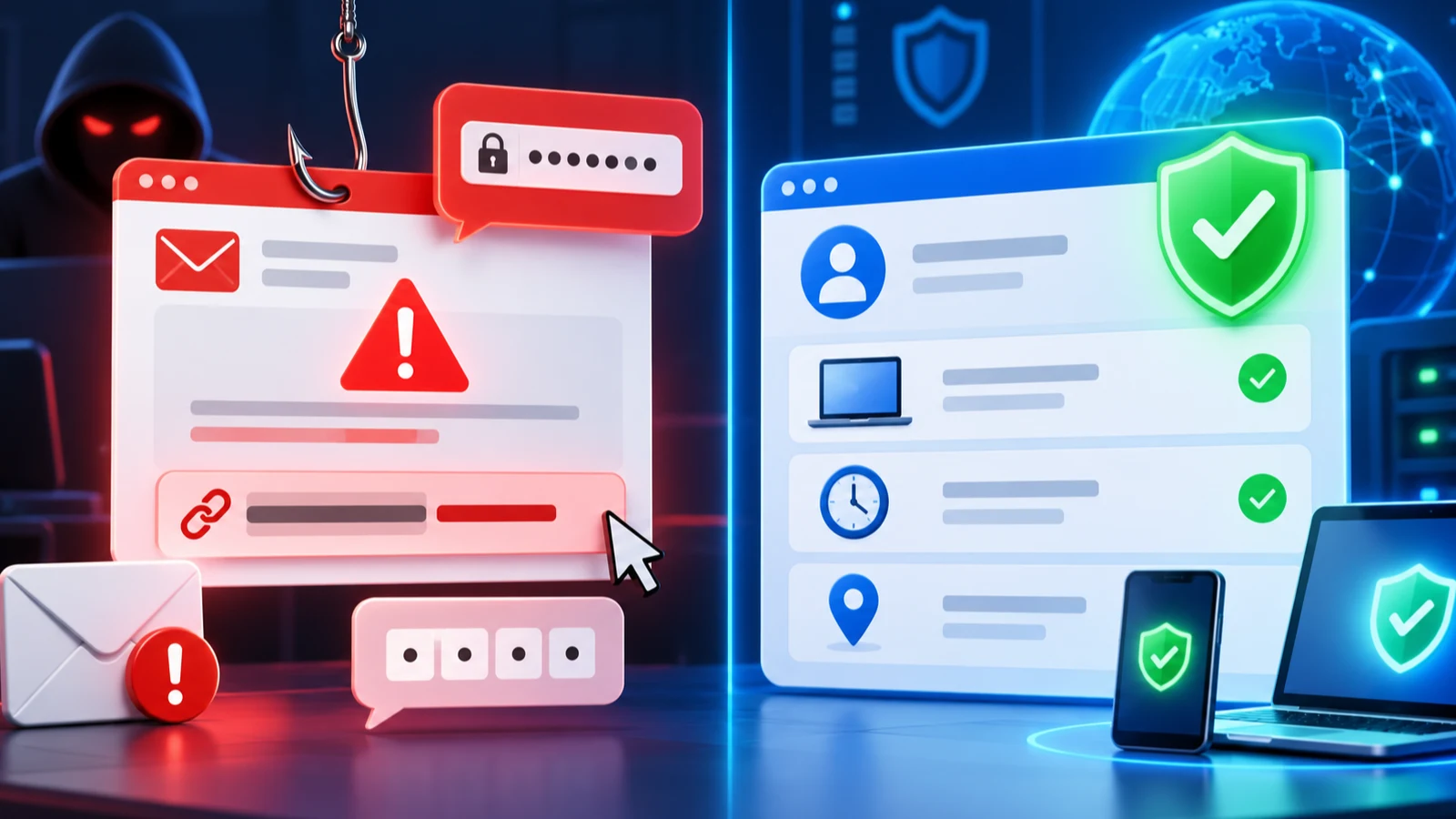
Gmail may show a warning banner or move suspicious mail to Spam. Take those warnings seriously, and do not drag a flagged message back to the inbox to “test” it.
How to check if an alert is real
You never need the email to verify it. Use your own route into your account.
- Close the email. Do not click any button, link, or attachment.
- Open a new browser tab and type myaccount.google.com yourself, or open the Google app on your phone.
- Sign in as usual and go to Security. Look at the Security issues found panel and your recent security activity.
- Compare the date, device, and place of any sign-in with your own activity.
- If everything looks normal, the email was almost certainly fake. Report it and delete it.
Google’s security alert help page explains how to respond when an alert is real: if the activity was not you, choose No, secure account and follow the steps.

The phone call version of the scam
Google states that it will never call you about your account security, ask for your password, ask you to read out a verification code, or send an email to confirm a caller’s identity. Any message that claims to validate a caller is fraudulent, even if it comes from a real Google domain.
If someone calls claiming to be Google, hang up. Do not call back a number the caller provides. Check your account yourself using the steps above. Google’s scam-call guidance covers this in more detail.
Never read a Google verification code to anyone, and never approve a sign-in prompt that you did not start. That code or tap is the key that lets the attacker into your account.
What to do if you already clicked or entered your password
Act quickly, but stay calm. Most account takeovers can be reversed if you move fast.
- Use a device you trust and go to myaccount.google.com. Select Security and change your password to a new, unique one.
- Open Your devices in the Security section and sign out of any device you do not recognise.
- Review your recovery phone number and recovery email. Remove anything you did not add.
- In Gmail, open Settings > See all settings and check Forwarding and POP/IMAP and Filters and Blocked Addresses. Attackers often add a forwarding rule to keep reading your mail.
- Run Google’s Security Checkup and remove any app or connection you do not recognise.
- If you used the same password on other sites, change it there too.
If you read out a verification code, treat the account as compromised even if you cannot see anything wrong yet. Follow the steps above and also read Google’s guide to securing a hacked or compromised account.
Another account-alert scam pattern and what to do if a real lock affects you.
How to report a fake Google security alert
- In Gmail on a computer, open the message.
- Select the More menu (three dots) next to Reply.
- Choose Report phishing.
Reporting helps Google protect other people. If you are in the US, you can also forward phishing emails to the Anti-Phishing Working Group at reportphishing@apwg.org, and report fraud to the FTC.
Lock down your Google account for the future
A strong account setup makes a stolen password far less useful.
Use a passkey or security key
Passkeys and security keys cannot be typed into a fake page, so they stop most phishing attempts. Our guide to passkeys and how to set them up walks through the process.
Turn on 2-Step Verification the right way
Prefer security keys or an authenticator app to text message codes. Read which two-factor methods actually protect you before choosing.
Limit unknown Calendar invitations
In Google Calendar, open Settings > Event settings and set Add invitations to my calendar to Only if the sender is known. Google says this option adds invitations automatically only when you have interacted with the sender, the sender is in your contacts, or the sender belongs to your organisation.
Use a password manager
A password manager only fills in a password on the correct website. If it does not offer to fill in, you may be on a fake page. See our free password manager comparison for options.
Other brands copy the same trick
Google is not the only target. Kaspersky has reported a similar technique with Microsoft Entra, where emails ride on genuine Microsoft systems, so a real sender address proves nothing, according to coverage of the Kaspersky research.
The safest habit is the same everywhere: do not use the email’s button, open the service yourself, and look for the alert there. For a wider checklist, see our guide to protecting yourself from online scams.
Real alert or fake alert: a quick comparison
Where to verify: A genuine alert can be checked inside your Google Account after you sign in through your own trusted route. A fake alert tries to keep you inside its button, link, or phone number.
Password or verification code: Google says it will not ask for your password or verification code by email, message, or phone call. A request for either is a strong scam signal.
Phone calls: Google says it will not call you about an account-security problem. End the call and check your account independently.
Details and tone: Genuine security alerts include useful details such as the device, time, and approximate location. Scam messages often rely on panic, deadlines, or vague threats.
Link destination: Do not use the message link to decide whether it is safe. Open your Google Account independently and review recent security activity there.
Help family members spot these alerts
People who are less comfortable with technology are targeted more often. A short conversation can prevent a lot of harm.
- Show them where to type myaccount.google.com on their phone or computer.
- Agree on one rule: no one from Google ever needs a code, so never read one out.
- Tell them to ask you before acting on any urgent account warning.
- Turn on 2-Step Verification on their account, with you as a backup contact if appropriate.
Voice-based scams can add pressure on top of email. Our guide to the AI voice cloning scam explains how to set up a family code word.
Frequently Asked Questions
Can a fake Google email really come from a Google address?
Yes. Scammers can spoof sender addresses, and some messages pass technical checks like DKIM. That is why you should verify alerts inside your Google Account instead of trusting the sender line.
Does Google ever call about account security?
Google says it will never call you about your account security, ask for your password, or ask you to read out a verification code. Treat any such call as a scam and hang up.
Is a link to sites.google.com safe?
Not automatically. Anyone can publish a page on a Google subdomain, so a link to sites.google.com, docs.google.com, or a Google Form in a security alert is a red flag.
What if the alert is real and I click No, secure account?
Follow the on-screen steps, change your password, and check your devices and recovery options. Then run Security Checkup for a full review.
Should I delete the email after reporting it?
Yes. Report it as phishing first, then delete it. Do not forward it to friends except as a warning with the links removed.