Optimize Mobile Device Speed: 12 Proven Ways to Boost Performance

Anwar AlamAnwar AlamAug 4, 202612 min read0 comments
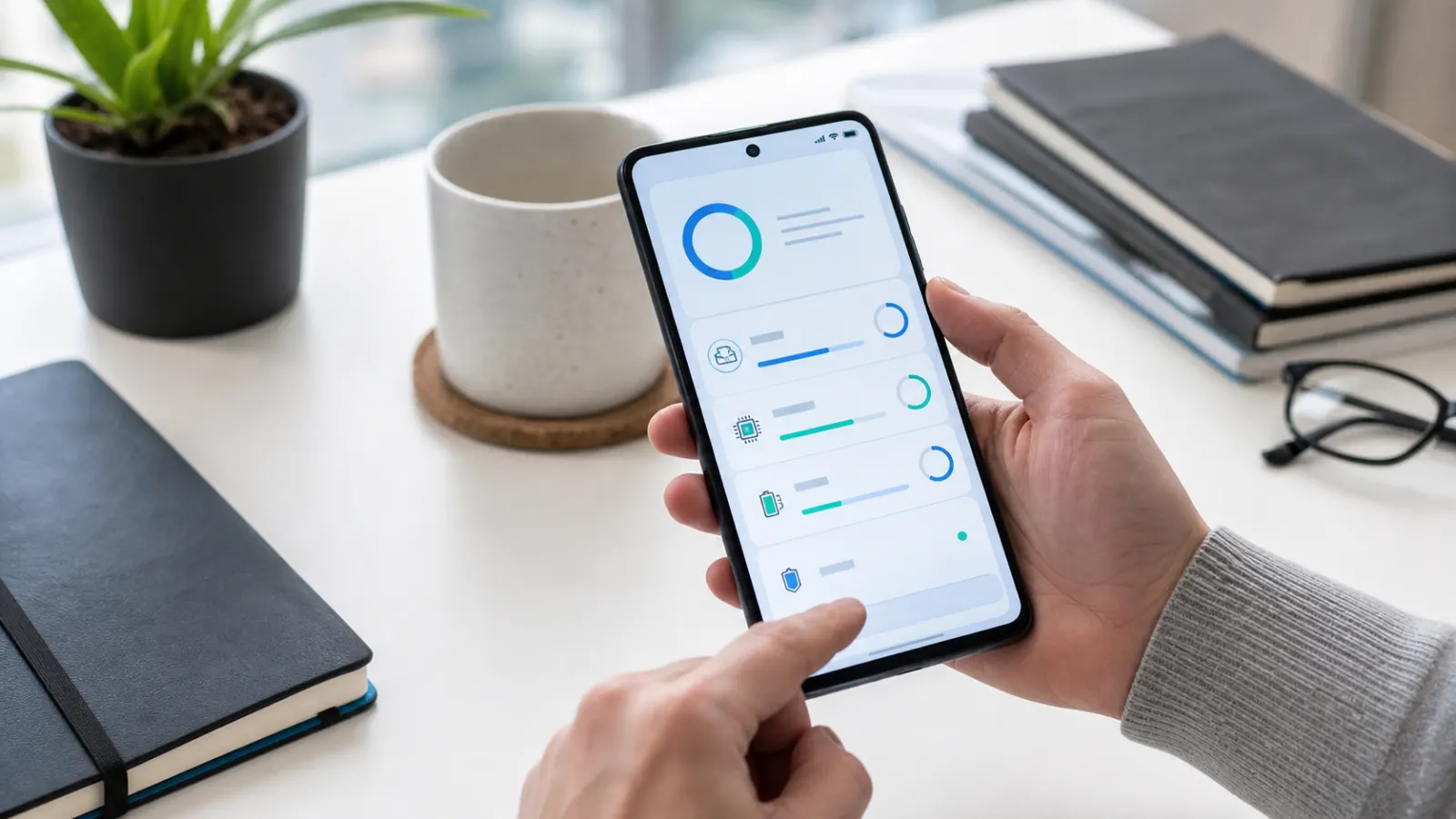
Mobile performance optimization on a fast responsive smartphone
Quick Answer

To optimize mobile device performance, focus on the basics that make the biggest difference: free up storage, limit background apps, keep software updated, and clear out clutter. Most phones feel noticeably faster within a few minutes. This guide covers every step for both Android and iPhone, from quick fixes to deeper tune-ups, so your device runs smoothly again without spending a penny.

Almost every phone slows down as it gets older. Apps take longer to open, scrolling stutters, and simple tasks start to feel sluggish.

The good news is that most of this slowdown is software, not hardware. With a short tune-up you can often optimize your mobile device and recover much of its original speed.

This guide walks through the changes that matter most, starting with the quickest wins and moving to deeper fixes for stubborn cases.

Why Your Mobile Device Slows Down Over Time

Phones slow down for a mix of reasons that build up gradually rather than all at once.

Storage fills with photos, apps, and cached files, leaving less room for the system to work smoothly.

Apps grow larger with each update and run more background tasks, using memory and processing power.

Software also gets heavier over time, while older hardware has to work harder to keep up. Together these make a once-fast phone feel tired.

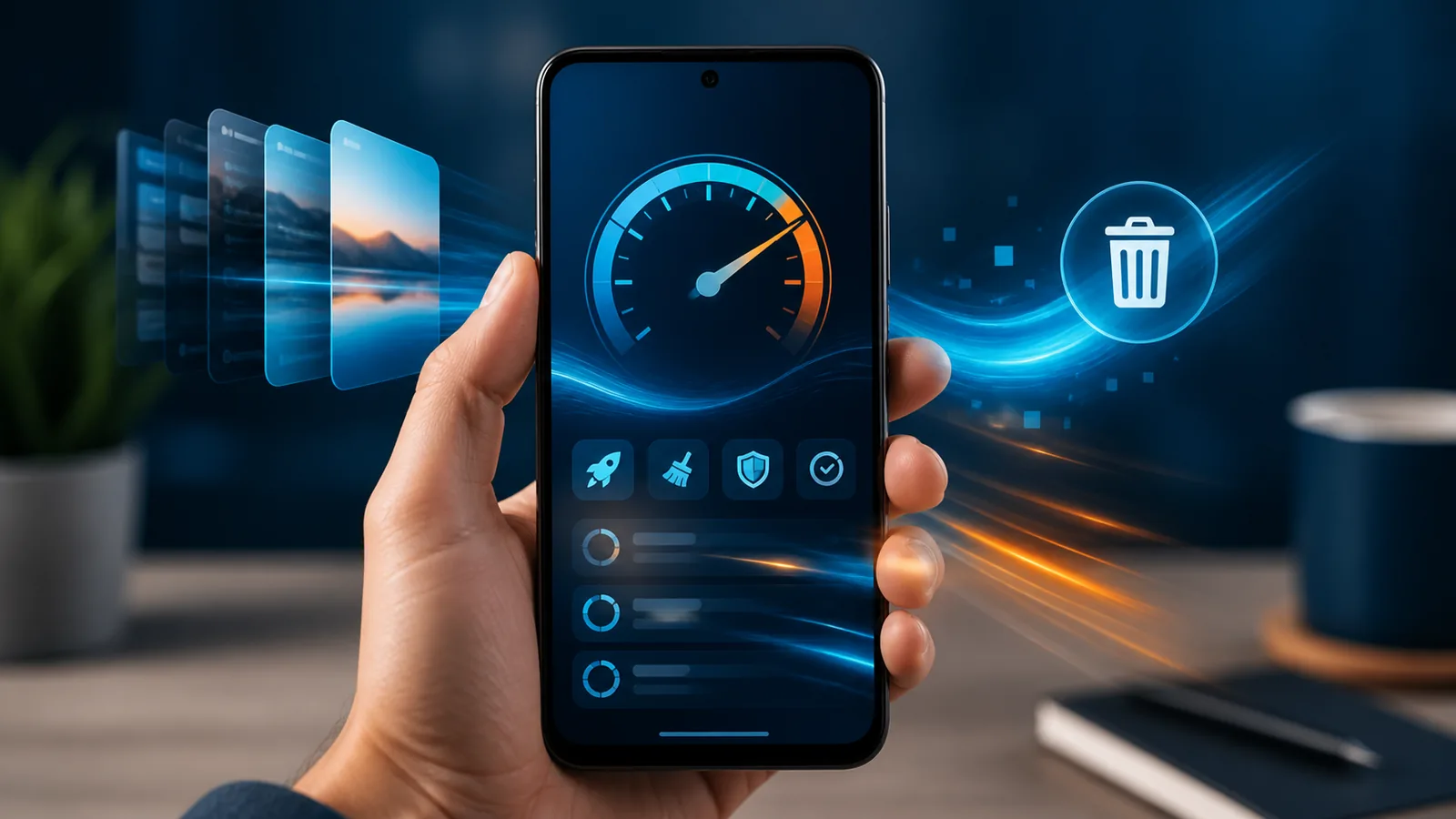
Optimize mobile device performance using storage memory battery and speed settings

Restart Your Mobile Device Regularly

The simplest fix is also one of the most effective. Restarting clears temporary files and closes background processes that build up over days of use.

If you never turn your phone off, try restarting it once or twice a week.

Many phones that feel slow speed up noticeably after a simple restart, and it takes less than a minute.

i
Pro tip

Quick TipSet a reminder to restart your phone on the same day each week. It is an easy habit that keeps performance steady.

Free Up Storage to Optimize Your Mobile Device

A nearly full phone is one of the biggest causes of slow performance, because the system needs free space to run smoothly.

Delete apps you no longer use, clear duplicate photos, and back up your camera roll to the cloud.

Aim to keep at least 10 percent of your storage free, which gives the system room to breathe.

Freeing storage is often the single most effective way to optimize your mobile device and make it feel new again.

Related guide

Tips for Managing Storage Space on Your Mobile Device — A full phone is a slow phone. Follow these steps to clear space fast.

Close and Limit Background Apps

Apps running in the background use memory and processing power even when you are not looking at them.

Close apps you are not using, and check your settings for any that run constantly without needing to.

On Android, Settings show which apps use the most battery and background data. On iPhone, Background App Refresh lets you limit which apps update in the background.

Cutting down background activity frees resources for the app you are actually using.

Clear background apps and unused processes to speed up a mobile device

Update Your Software and Apps

Updates do more than add features. They often include performance improvements and fixes that help your device run better.

Check for a system update in Settings and install any that are waiting.

Update your apps through the Play Store or App Store too, since outdated apps can be slower and less stable.

Keeping everything current is a simple, ongoing way to optimize your mobile device.

Clear the App Cache

Cached files help apps load quickly, but they pile up and can slow things down over time.

On Android, open Settings, then Apps, pick an app, tap Storage, and choose Clear cache.

iPhone handles cache differently, but clearing a browser’s history and website data has a similar effect.

This is safe and does not delete your accounts or saved content, so it is a good regular habit.

Reduce Animations and Visual Effects

The smooth animations that make a phone feel polished also use processing power. Trimming them can make an older device feel snappier.

On Android, you can reduce or turn off animations in Developer options, or use an accessibility setting to remove them.

On iPhone, turn on Reduce Motion in Accessibility settings to cut back on effects.

The difference is small on new phones but can be very noticeable on older ones.

Manage Your Home Screen and Widgets

A cluttered home screen with many live widgets and animated wallpapers uses resources every time you unlock your phone.

Remove widgets you do not check, and switch a live wallpaper for a static one.

Keep only the apps and shortcuts you use often on the main screen.

A cleaner home screen loads faster and is easier to navigate as a bonus.

Turn Off Unused Connectivity Features

Features like Bluetooth, GPS, and mobile hotspot use power and background activity even when idle.

Turn off anything you are not using, and disable location for apps that do not need it.

This not only helps performance but also improves battery life.

It takes seconds in your quick settings and makes a small but steady difference.

Check for Heavy or Misbehaving Apps

Sometimes a single app is responsible for most of the slowdown, draining battery and memory in the background.

Check your battery and storage settings to spot any app using far more than its fair share.

Updating, reinstalling, or replacing that app often solves the problem.

If a rarely used app is a heavy drain, removing it entirely is the simplest fix.

Optimize Mobile Device Settings on Android

Android offers several built-in tools to keep performance high.

  • Use the Device care or Battery and device care menu to optimise in one tap
  • Turn on adaptive battery to limit rarely used apps
  • Clear junk with Files by Google
  • Disable or uninstall bloatware you never use

Running Device care every so often is an easy way to optimize your mobile device on Android.

Optimize Mobile Device Settings on iPhone

iPhone has its own settings that help keep things running smoothly.

  • Turn on Offload Unused Apps to reclaim space automatically
  • Enable Reduce Motion for a snappier feel
  • Limit Background App Refresh to essential apps
  • Keep iOS updated for the latest performance fixes

These small changes help an iPhone stay responsive for years.

When to Consider a Factory Reset

If your phone is still slow after every other step, a factory reset can give it a fresh start.

A reset wipes everything and reinstalls the system cleanly, which often restores near original speed.

Back up your photos, messages, and files first, because a reset erases all your data.

!
Warning

WarningA factory reset deletes everything on your phone. Always back up your photos, contacts, and important files before you begin.

Hardware Limits: When Optimisation Is Not Enough

Software fixes go a long way, but every phone has hardware limits.

Very old devices with little memory and slow storage will always struggle with the latest heavy apps.

If your phone is many years old and still slow after a full tune-up, it may simply be reaching the end of its comfortable life.

In that case, the fixes here will still help, but a newer device is the only real cure for demanding tasks.

Habits to Keep Your Mobile Device Fast

A few simple habits keep your phone quick long after the first tune-up.

Restart it weekly, keep some storage free, and install updates promptly.

Review your apps every month and remove anything you no longer use.

These small routines mean you rarely need a big clean-up, because problems never get the chance to build up.

i
Pro tip

Read NextEffective Mobile Device Battery ManagementA faster phone and a longer-lasting battery go hand in hand. Here is how to protect yours.

Common Mistakes When Trying to Speed Up a Phone

Some popular fixes do more harm than good.

Installing several booster or cleaner apps often adds clutter and background activity, the opposite of what you want.

Constantly force-closing every app can actually slow things down, since the phone has to reload them from scratch.

Ignoring updates in the hope of saving space leaves you without important performance and security fixes.

Final Thoughts on Optimising Your Mobile Device

A slow phone is frustrating, but it is rarely beyond help. Most of the time a short tune-up brings back much of the speed you remember.

Free up storage, limit background apps, update your software, and restart regularly, and you will optimize your mobile device without spending anything.

Keep a few simple habits going, and your phone will stay fast and reliable for far longer.

For steps specific to your model, your phone maker and Android support or Apple support pages have the latest guidance.

Signs Your Mobile Device Needs Optimising

It is not always obvious when a phone needs attention, but a few clear signs point to it.

Apps take several seconds to open, or the screen freezes briefly when you switch between them.

The keyboard lags behind your typing, and scrolling feels jerky rather than smooth.

The battery drains faster than it used to, and the phone runs warm during simple tasks.

If you notice two or more of these, it is a good time to optimize your mobile device with the steps in this guide.

Free Up Memory Versus Storage: What Is the Difference?

People often confuse memory and storage, but they affect performance in different ways.

Storage is where your files, apps, and photos live long term. When it fills up, the system has less room to work and slows down.

Memory, or RAM, is the short-term space apps use while running. When it runs out, the phone has to reload apps, causing lag.

Restarting frees memory, while deleting files frees storage. Both help, which is why a good tune-up covers each one.

How to Optimize Your Mobile Device for Gaming

Games are among the most demanding apps, so a few tweaks make a real difference for smooth play.

Close other apps before you start, so the game has the most memory and processing power available.

Turn on any game or performance mode your phone offers, which prioritises the game and reduces interruptions.

Keep the phone cool and out of direct sunlight, since heat forces the processor to slow down to protect itself.

Lowering in-game graphics settings a notch also helps older phones hold a steady frame rate.

Balancing Speed and Battery Life

Some optimisation steps help both speed and battery, while a few trade one for the other.

Freeing storage, closing background apps, and updating software help performance and battery at the same time.

Reducing animations and screen brightness saves battery with almost no downside.

The key is to make the changes that help both first, then decide how much you want to trade for extra battery life.

Optimising a Budget or Older Phone

Cheaper and older phones have less memory and slower storage, so they benefit the most from a good tune-up.

Keep only the apps you truly need, since every extra app competes for limited resources.

Use lightweight or Go editions of popular apps where they exist, as they are designed for modest hardware.

Turn off heavy visual effects and live wallpapers, which a budget phone feels more than a flagship does.

With these adjustments, even an inexpensive phone can handle everyday tasks smoothly.

A 10-Minute Mobile Device Tune-Up

If you only have a few minutes, this quick routine covers the changes that matter most.

  1. Restart your phone to clear memory
  2. Delete two or three apps you no longer use
  3. Clear the cache on your biggest apps
  4. Install any pending system and app updates
  5. Turn off background refresh for apps that do not need it
  6. Remove unused widgets and switch to a static wallpaper

Run this once and your phone should already feel quicker. Repeat it every month or two to keep the speed.

Does Optimising Void Your Warranty or Cause Problems?

A common worry is that changing settings might harm the phone or void the warranty, but the steps in this guide are all safe.

Everything here uses built-in settings and official tools, so nothing puts your device or warranty at risk.

The only step that removes data is a factory reset, and even that is a standard, supported feature once you have backed up.

You can undo most changes at any time, so there is no reason to hesitate to optimize your mobile device.

Keep Your Mobile Device Running Smoothly

Optimising a phone is not a one-time job but a light habit that pays off every day.

A quick monthly tune-up keeps small problems from building into a noticeable slowdown.

Free storage, fewer background apps, and up-to-date software are the foundation of a fast phone.

Stick with these basics and your device will stay responsive for far longer than you might expect.

Optimize Mobile Device Performance Without Extra Apps

You do not need to install anything to optimize mobile device performance. Every effective step uses tools already built into your phone.

Third-party boosters often promise magic but deliver little, and they add their own background load.

The built-in storage, battery, and app settings give you everything required for a real, lasting speed-up.

Trusting these native tools keeps your phone both faster and safer.

Final Checklist to Optimize Your Mobile Device

Here is a simple summary you can return to whenever your phone starts to feel slow.

  • Keep at least 10 percent of storage free
  • Restart the phone once or twice a week
  • Install system and app updates promptly
  • Limit background apps and refresh
  • Remove apps you no longer use
  • Reduce animations on older devices

Follow this short list and you will optimize your mobile device and keep it running smoothly for years to come.

Start Optimising Your Phone Today

The best time to optimize your mobile device is before it becomes frustratingly slow, but it is never too late to start.

Pick two or three steps from this guide, do them now, and you will likely feel the difference within minutes.

Make them a habit, and a fast, responsive phone becomes the normal experience rather than a rare treat.

Frequently Asked Questions

How can I optimize my mobile device for free?

Free up storage, close background apps, install updates, clear app caches, and restart your phone. These steps cost nothing and usually make the biggest difference to speed.

Why is my phone so slow all of a sudden?

A sudden slowdown is often caused by full storage, a recent app update, or a misbehaving app running in the background. Restarting and checking your storage and battery settings usually reveals the cause.

Do booster and cleaner apps actually work?

Most add more clutter than they remove and run in the background themselves. Stick to built-in tools and trusted options like Files by Google for safe, effective results.

Does clearing the cache speed up my phone?

It can help, especially for apps that have built up a lot of cached data. It is safe and does not delete your accounts, so it is a good habit to repeat now and then.

Will a factory reset make my phone faster?

Often yes, because it reinstalls the system cleanly and removes years of build-up. Just back up everything first, since a reset erases all your data.

How often should I restart my phone?

Once or twice a week is enough for most people. Regular restarts clear temporary files and background processes that can slow your device down over time.

Facebook
X
LinkedIn

Get the Weekly Fix

One email a week. Real fixes, no fluff.

Subscription Form

Join the discussion

Leave a Reply

Your email address will not be published. Required fields are marked *