
Common mobile device problems — freezing, overheating, poor battery, Wi-Fi drops, storage warnings — hit almost every phone eventually, but most trace back to just a handful of fixable causes.
Most phone problems — freezing, overheating, poor battery, Wi-Fi drops, storage warnings — fall into a few categories with real fixes you can do yourself. This guide covers the common ones with step-by-step troubleshooting.
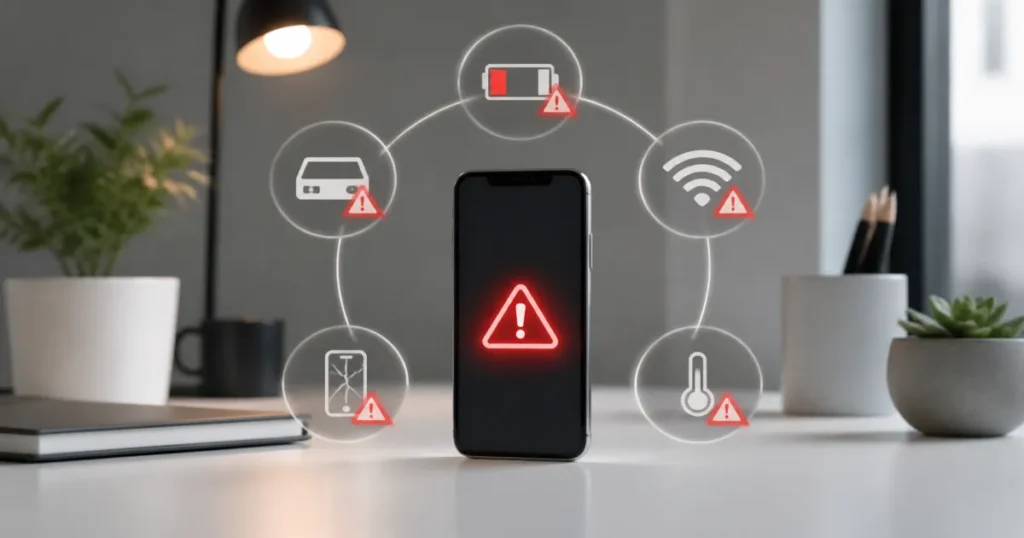
Table of Contents
TogglePhone Won't Turn On or Charge
Start with the basics before assuming it’s dead:
- Try a different cable and charger — cables fail far more often than the phone itself, and a charger that works for one device doesn’t always deliver enough power for another.
- Check the charging port for lint or debris — a surprisingly common cause, especially on phones carried in pockets. A wooden toothpick (not metal) can gently clear it.
- Force restart: on most Android phones, hold Power + Volume Down for 10-15 seconds. On iPhones with Face ID, quickly press Volume Up, then Volume Down, then hold the Side button.
- Leave it plugged in for at least 30 minutes untouched — a completely drained battery sometimes needs a few minutes of charge before the screen will respond at all.
Fix drain and heat problems with our full mobile battery management guide.
Phone Overheating
Occasional warmth during charging or heavy use (gaming, navigation) is normal. Persistent overheating usually traces back to one of these:
- Direct sunlight or a hot car — the most common cause by far, and easy to overlook.
- A case blocking heat dissipation — try removing it during heavy use or charging to see if it helps.
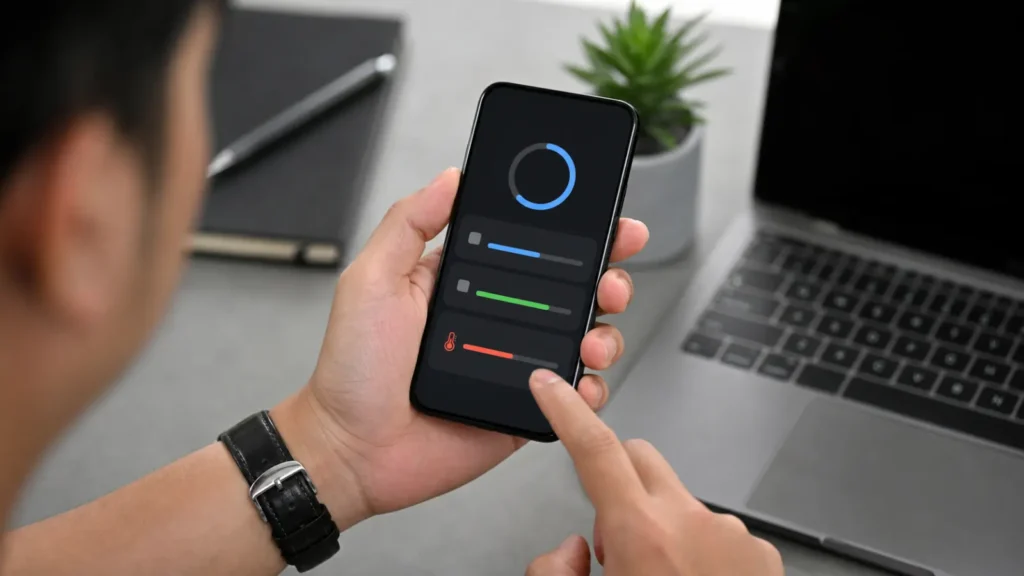
- A rogue app — check your battery usage settings (Settings > Battery on both Android and iOS) to see if one specific app is using unusually high background power.
- Charging while gaming or navigating — this combination generates more heat than either alone; if possible, let it charge without heavy use running at the same time.
Apps Crashing or Freezing
Work through these in order — they’re roughly sorted from quickest fix to most involved:
- Force-close and reopen the app (swipe it away from your recent apps list).
- Restart your phone — clears temporary memory issues that build up over days of uptime.
- Check for an app update in the Play Store or App Store — crashes are often already fixed in a newer version.
- Clear the app’s cache (Android: Settings > Apps > [app name] > Storage > Clear Cache — this doesn’t delete your data, just temporary files).
- Uninstall and reinstall if the above doesn’t help — this resolves corrupted app data that a cache clear alone won’t fix.
Wi-Fi or Bluetooth Won't Connect
These connectivity issues usually come down to a small number of causes:
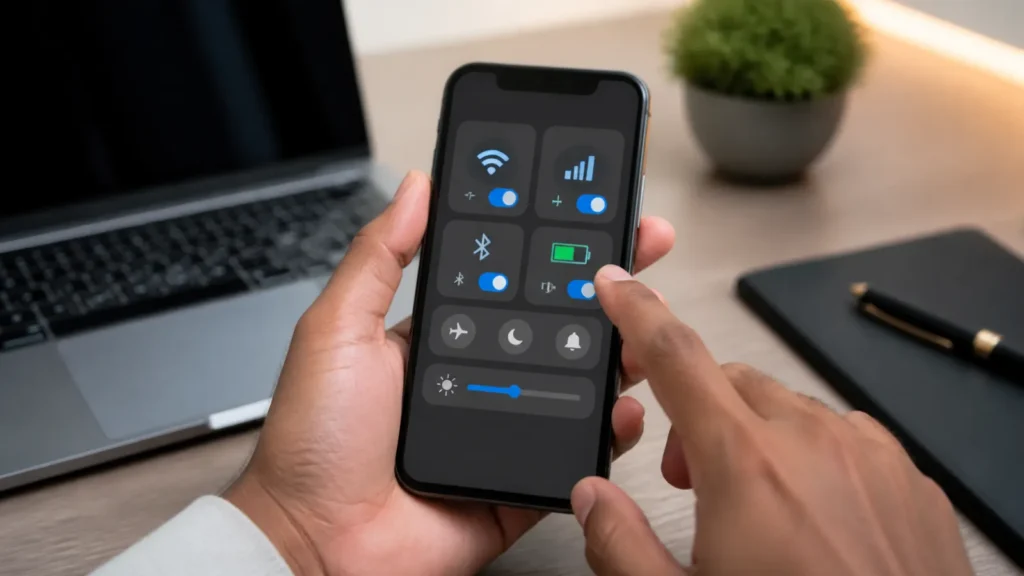
- Toggle Airplane Mode on, wait 5 seconds, then off — forces a fresh reconnection attempt.
- Forget the network and reconnect (Settings > Wi-Fi > tap the network > Forget), then re-enter the password — fixes issues caused by a corrupted saved connection.
- Restart your router if other devices are also struggling — the problem may not be your phone at all.
- For Bluetooth specifically, make sure the other device isn’t already connected to a different phone or speaker — most Bluetooth accessories only maintain one active connection at a time.
Screen Unresponsive or Touch Not Working
If part or all of the touchscreen has stopped responding:
- Remove any screen protector — a peeling or poorly-applied one can interfere with touch sensitivity, especially near the edges.
- Clean the screen — moisture or grease can genuinely cause touch issues, not just cosmetic problems.
- Force restart the device (see the restart method above) — resolves many software-level touch freezes.
- If only specific areas are unresponsive consistently, this usually points to physical digitizer damage (often from a drop), which needs a professional repair rather than a software fix.
Battery Draining Unusually Fast
A few quick checks before assuming the battery itself is failing:
- Check Settings > Battery to see which specific app is using the most power — a single misbehaving app in the background is a very common cause.
- Lower screen brightness and reduce screen timeout — the display is typically the single biggest power draw on any phone.
- Turn off location services for apps that don’t need it running constantly (check Settings > Location > App permissions).
- If the battery has noticeably worse life than it did a year or two ago even with light use, this is normal degradation — lithium batteries lose capacity over hundreds of charge cycles, and replacement is the only real fix at that point. For the fuller picture on getting the most out of your battery day-to-day, see our mobile battery management guide.
Speed up a sluggish phone with a few simple settings changes.
Storage Full
A few places that reclaim space quickly without deleting anything you actually want:
- Clear app caches (Android: Settings > Apps > [app] > Storage > Clear Cache) — this is temporary data, not your actual files or app data.
- Check your camera roll for duplicate photos and videos, particularly burst-mode shots and screen recordings, which tend to accumulate unnoticed.
- Move photos and videos to a cloud service (Google Photos, iCloud) and remove the local copies once backed up.
- Uninstall apps you haven’t opened in months — Settings on both platforms will show you sorted by last-used date. See our full mobile storage management guide for more ways to recover space.
Google’s own storage help guide covers a few more built-in tools worth knowing about on Android.
When to Get Professional Help Instead
A few situations are worth taking to a repair shop or carrier rather than troubleshooting further yourself:
- Physical screen damage (cracks, unresponsive areas after a drop) — a hardware repair, not a software fix.
- Water damage — time-sensitive; power the device off immediately and don’t attempt to charge it until it’s been properly assessed.
- Battery swelling (a visibly bulging back panel or screen lifting at the edges) — stop using the device immediately; a swollen lithium battery is a genuine safety risk.
- Anything still under warranty — opening the device yourself can void it.
Frequently Asked Questions
Why does my phone get warm even when I'm not using it much?
Background app activity is the most common cause \u2014 apps syncing, refreshing content, or running location tracking can generate real heat even when the screen is off. Check Settings > Battery for a usage breakdown to spot the culprit.
Is it bad to charge my phone overnight?
No \u2014 modern phones stop charging once full and use trickle charging to maintain the level, so overnight charging doesn’t meaningfully harm the battery on any phone made in the last several years.
My phone randomly restarts \u2014 is that serious?
Occasional random restarts are often a single misbehaving app or a pending software update. If it happens repeatedly within a short period, back up your data and consider a factory reset, or see our mobile performance optimization guide for a full troubleshooting path before reaching for a reset.
Will a factory reset fix most software problems?
Usually, yes \u2014 but treat it as a last resort after trying the specific fixes above, since it erases everything and takes real time to set back up. Always back up first.