A Microsoft Edge problem usually shows up as crashes, freezes, pages that will not load, or a browser that refuses to open. The good news is that almost all of them come from a short list of causes: an outdated build, corrupted cache, a bad extension, or damaged program files.
Work through the fixes below in order. They start with the quickest and safest steps and stop at a full repair, so you only go as far as you need to.
If the Microsoft Store is also refusing to open, see our separate Microsoft Store fixes.
Update Edge from Settings > About Microsoft Edge, restart the PC, then clear cached images and files and turn off extensions. If Edge still crashes or freezes, reset its settings at edge://settings/reset. If it will not open at all, repair it from Settings > Apps > Installed apps > Microsoft Edge > Modify > Repair.
If other apps are crashing too, not just Edge, see how to fix common software errors.
Table of Contents
ToggleMicrosoft Edge Problem? Start With These Quick Checks
These take a minute each and solve a surprising number of problems:
- Close Edge completely. Open Task Manager with Ctrl + Shift + Esc, select any leftover Microsoft Edge process, and choose End task.
- Update Edge. Open Settings and more (…) > Settings > About Microsoft Edge. Edge checks for updates automatically; restart it if prompted.
- Restart the PC. This clears stuck background processes that Edge depends on.
- Try an InPrivate window (Ctrl + Shift + N). Extensions normally stay off there unless you explicitly allowed them or an organization requires them. If the problem disappears, an extension or stored site data is the likely cause.
Fix 1: Clear Cached Images and Files
Corrupted cache is the most common reason for pages that load half-finished, look broken, or make Edge sluggish.
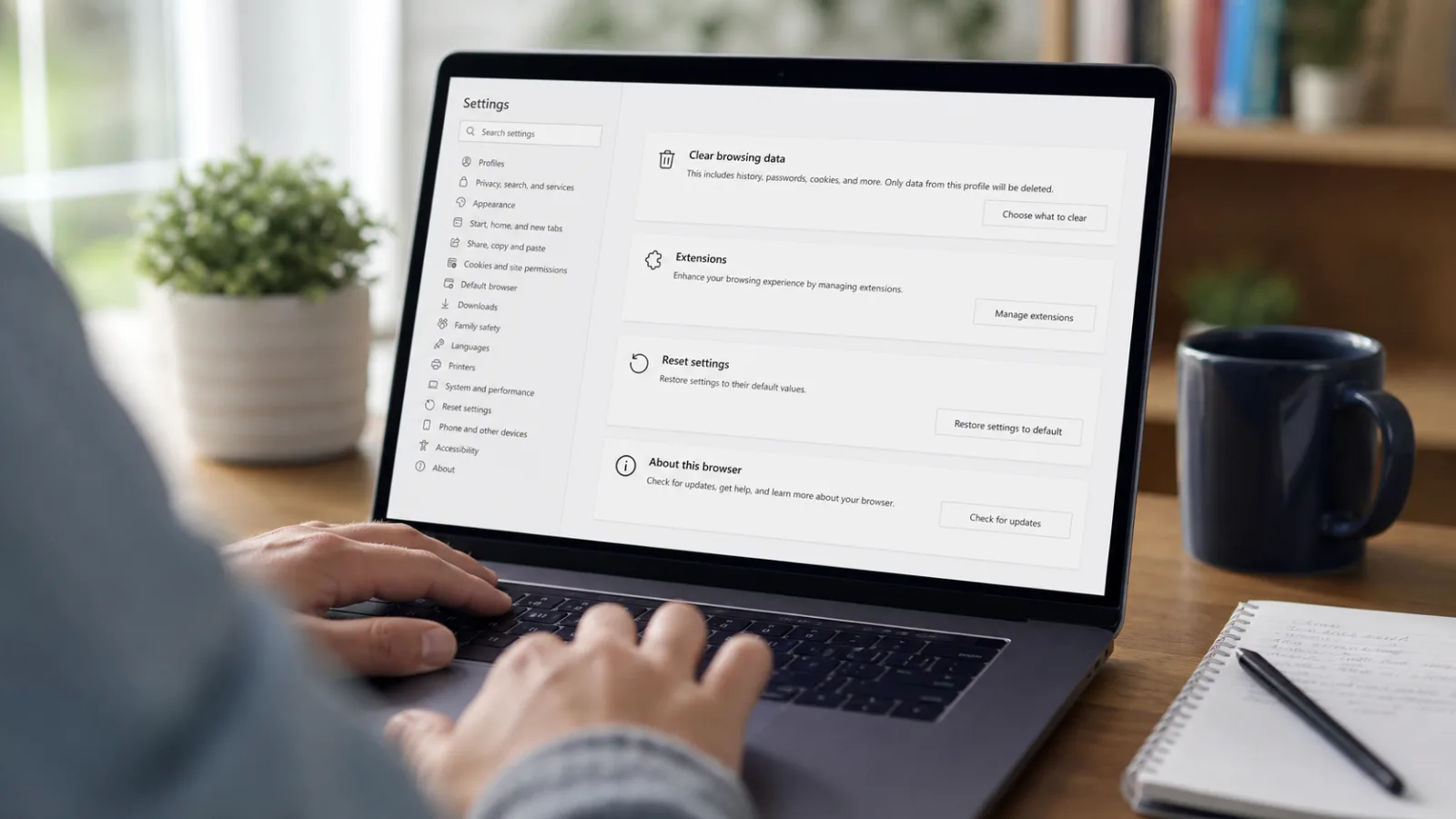
- Press Ctrl + Shift + Delete to open Delete browsing data.
- Set Time range to All time.
- Tick Cached images and files. Add Cookies and other site data if sign-ins are failing.
- Choose Clear now and restart Edge.
Clearing cookies signs you out of most websites, so have your passwords ready.
Fix 2: Turn Off Extensions
A faulty or outdated extension can crash tabs, slow Edge down, or break specific websites.
- Go to edge://extensions.
- Switch every extension off.
- Restart Edge and test.
- Turn extensions back on one at a time until the problem returns, then remove that extension.
If you would rather switch browsers altogether, we compared the best AI browsers available now.
Fix 3: Turn Off Graphics Acceleration
If Edge freezes, flickers, or shows black or blank areas, the graphics driver may be clashing with hardware acceleration.
- Go to edge://settings/system.
- Turn off Use graphics acceleration when available.
- Choose Restart.
If that helps, update your graphics driver, then try turning acceleration back on.
Fix 4: Websites Will Not Load or Display Correctly
First, open the same page in another browser. If it fails there too, the problem is your connection, not Edge. Restart the modem and router, and check the network before changing anything in Edge.
If only Edge fails:
- Select the padlock icon in the address bar, choose Cookies and site data, and clear data for that site.
- Temporarily set Tracking prevention to Balanced in edge://settings/privacy if a site stops working after you chose Strict.
- For an old site built for Internet Explorer, use Internet Explorer mode only when the site requires it. In Edge 141 or later on a personal device, open Settings > Default browser, find Internet Explorer mode pages, choose Add a page, and enter the site address. A managed work or school device may leave this option under administrator control.
If File Explorer is lagging as well, not just Edge, see how to fix a slow File Explorer.
Fix a Windows connection that shows Wi-Fi but no internet.
Fix 5: Sync, Favorites, or Passwords Missing
- Select your profile picture in Edge and confirm you are signed in with the same Microsoft account on every device.
- Open edge://settings/profiles/sync and check that sync is on for Favorites, Passwords, and anything else you expect to see.
- If sync is stuck, turn it off, restart Edge, and turn it on again.
- If Edge will not save passwords, search Settings for passwords and make sure Offer to save passwords is on.
If you would rather keep passwords outside the browser, a free password manager works across Edge, Chrome and your phone.
Keep your tabs safe if Edge closes unexpectedly.
Fix 6: Scan for Malware
Unwanted software can change your search engine, inject pop-ups, or crash Edge. Open Windows Security > Virus & threat protection and run a Quick scan. If anything is found, run a Full scan too. Make sure any third-party security software is up to date as well.
Fix 7: Reset Edge Settings
A reset undoes settings changes that may be causing crashes, including ones made by unwanted software.
- Go to edge://settings/reset.
- Choose Restore settings to their default values, then Reset.
A reset restores your startup page, new tab page, search engine, and pinned tabs, turns off extensions, and clears temporary data such as cookies. Your favorites, history, and saved passwords are kept.
Fix 8: Repair Microsoft Edge
If Edge will not open or keeps crashing after a reset, repair it. Microsoft says your browser data and settings should not be affected.
- Open Start > Settings > Apps > Installed apps.
- Find Microsoft Edge, select the three dots, and choose Modify.
- Approve the prompt, stay connected to the internet, and select Repair.
Edge reinstalls itself and reopens when the repair finishes. See Microsoft’s Edge troubleshooting guide for more steps.
If the problems go beyond Edge, work through our checklist for common computer problems.
If every browser is slow, not just Edge, the PC itself may be the bottleneck. Close heavy apps and check memory use in Task Manager before you reinstall anything.
Our Windows Task Manager guide shows how to find which app is using the memory.
Find out why the whole PC feels slow in about ten minutes.
Frequently Asked Questions
Why does Microsoft Edge keep crashing?
The usual causes are an outdated version, a faulty extension, corrupted cache, or damaged program files. Update Edge, turn off extensions, clear the cache, and repair Edge if the crashes continue.
How do I fix Microsoft Edge not opening?
End any Edge process in Task Manager and restart the PC. If Edge still will not open, repair it from Settings > Apps > Installed apps > Microsoft Edge > Modify > Repair.
Will resetting Edge delete my favorites and passwords?
No. A reset keeps favorites, history, and saved passwords. It restores default settings, turns off extensions, and clears temporary data such as cookies.
Why is Microsoft Edge so slow?
Too many open tabs, heavy extensions, and a large cache are the usual reasons. Close tabs you are not using, turn off extensions, and clear cached images and files.
How do I open an old website that only works in Internet Explorer?
In Edge 141 or later on a personal device, open Settings > Default browser, add the site under Internet Explorer mode pages, and reload it. A managed device may require an administrator to enable IE mode. Internet Explorer itself is no longer supported.