Windows Task Manager is the first place to look when your PC slows down, freezes, or the fan spins loudly for no reason. It shows exactly what your computer is doing.
Despite looking technical, Task Manager is easy to use once you know what each part means.
This guide walks through how to open it, what every tab does, and how to use it to keep your PC running smoothly.
If Task Manager confirms the PC is slow, use our slow computer diagnosis to choose the next fix.
Windows Task Manager is a built-in tool that shows everything running on your PC and how much CPU, memory, disk, and network each item uses. You can open it with Ctrl + Shift + Esc, then use it to close frozen apps, spot what is slowing your computer, and manage startup programs. This guide explains every tab and the most useful ways to monitor and improve your PC’s performance.
Table of Contents
ToggleWhat Is Windows Task Manager?
Windows Task Manager is a built-in system tool that gives you a live view of everything running on your computer.
It lists open apps and background processes, and shows how much of your CPU, memory, disk, and network each one is using.
From here you can close programs that have stopped responding, spot resource hogs, and control which apps start with Windows.
It is one of the most useful troubleshooting tools in Windows, and it is available on every modern version.
How to Open Windows Task Manager
There are several quick ways to open Task Manager, so you can pick whichever you find easiest.
- Press
Ctrl + Shift + Escto open it instantly - Press
Ctrl + Alt + Delete and choose Task Manager - Right-click the taskbar or Start button and select Task Manager
- Search for Task Manager in the Start menu
The keyboard shortcut Ctrl + Shift + Esc is the fastest, and it works even when your PC is struggling.
A Tour of the Task Manager Tabs
Task Manager is organised into several tabs, each showing a different view of your system.
The Processes tab lists running apps and background tasks with their resource use.
The Performance tab shows live graphs of CPU, memory, disk, and network.
Other tabs cover app history, startup programs, users, detailed processes, and system services.
If you only see a simple window, click More details to reveal the full set of tabs.
The Processes Tab Explained
The Processes tab is where most people spend their time, and it is the heart of Windows Task Manager.
At the top are your open apps, and below them are background processes and Windows system tasks.
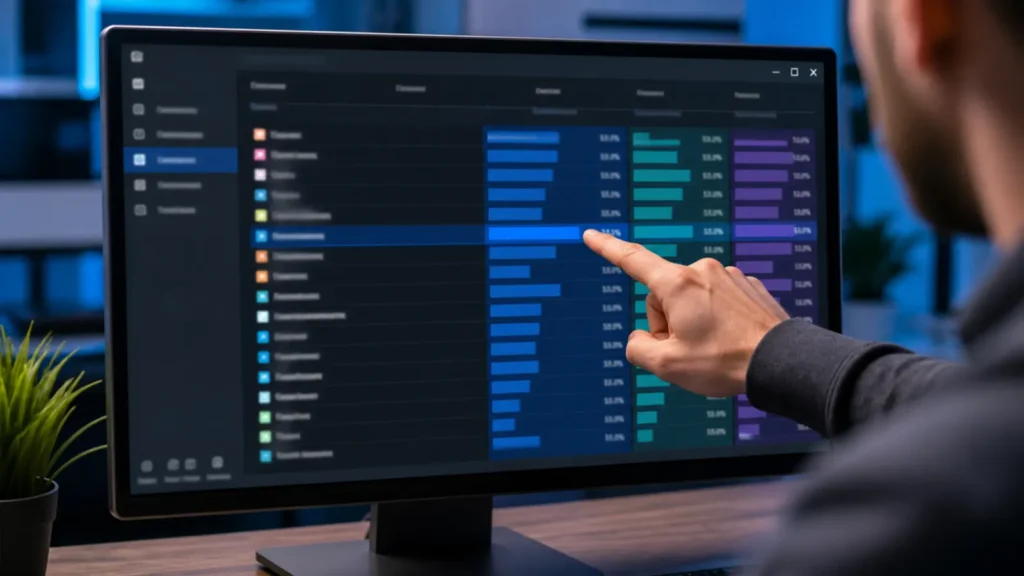
Columns for CPU, Memory, Disk, and Network show how much each item is using right now.
Click a column heading to sort by it, which instantly reveals whatever is using the most of that resource.
For more on reading these columns, Microsoft’s own Task Manager reference breaks down each tab in detail.
Reading CPU, Memory, Disk, and Network
Understanding these four numbers is the key to using Task Manager well.
CPU is your processor. High CPU use makes the whole PC feel slow and the fans spin up.
Memory, or RAM, holds open apps. When it runs high, switching between apps becomes sluggish.
Disk shows how hard your storage drive is working, and a constant 100 percent often explains a slow PC. Network shows internet and local data use.
The Performance Tab
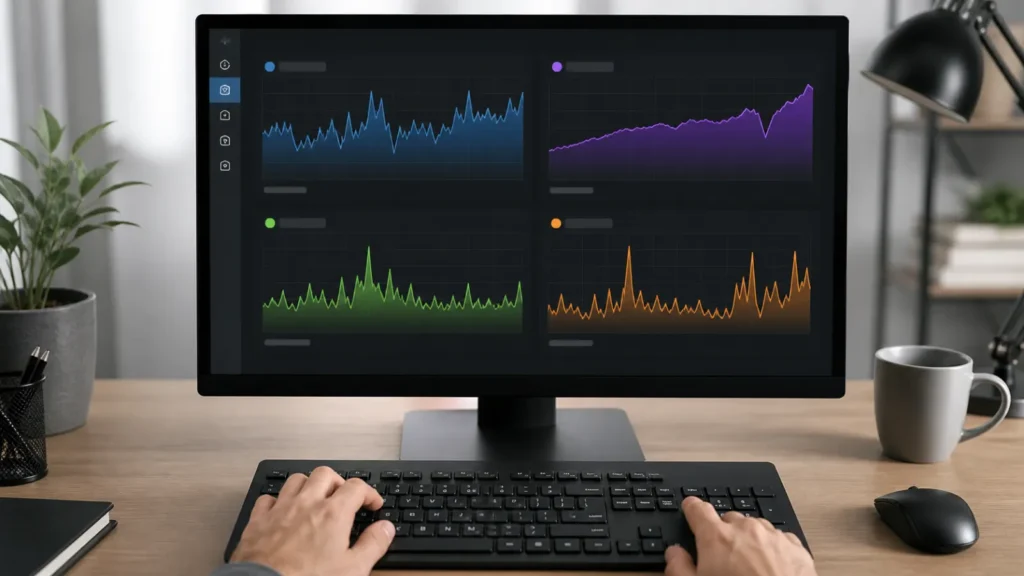
The Performance tab turns those numbers into clear, live graphs.
You can watch CPU, memory, disk, and network activity over time, which helps spot spikes and patterns.
It also shows useful details like your total memory, processor speed, and how long the PC has been running.
This tab is ideal for checking whether your hardware is coping or being pushed to its limit.
The App History Tab
The App History tab shows resource use by app over a longer period.
It is handy for spotting which apps use the most processor time or network data across days or weeks.
This can reveal a background app quietly using far more data than you expected.
It focuses mainly on built-in and store apps rather than every program.
Startup Apps: Speed Up Your Boot Time
The Startup tab, called Startup apps in Windows 11, is one of the most valuable parts of Task Manager.
It lists every program set to launch automatically when Windows starts.
Each one is rated by its startup impact, from low to high, so you can see which slow your boot the most.
Disabling high-impact apps you do not need can noticeably speed up how quickly your PC is ready to use.
How to Reduce Startup Programs
Too many startup programs are a leading cause of a slow boot and a sluggish first few minutes.
- Open Task Manager and go to the Startup apps tab
- Look at the Startup impact column
- Right-click any high-impact app you do not need at startup
- Choose Disable
Disabling startup apps does not uninstall them. You can still open them normally whenever you want.
Focus on apps like chat tools, updaters, and helpers that do not need to run the moment you log in.
How to End a Frozen Program
One of the most common reasons to open Windows Task Manager is to close an app that has stopped responding.
- Open Task Manager with
Ctrl + Shift + Esc - Find the frozen app in the Processes tab, often marked Not responding
- Click it once to select it
- Click End task to force it to close
The app closes immediately, so save your work in other programs first if you can.
Save your work before using End task. Avoid ending Windows processes or services you do not recognise, because doing so can close system features or make Windows unstable until you restart.
How to Find What Is Slowing Your PC
Task Manager is the quickest way to find the cause of a slow computer.
- Open the Processes tab
- Click the CPU column to sort by processor use
- Note any app using a very high percentage
- Repeat with the Memory and Disk columns to find other heavy users
Once you know which app is responsible, you can close it, update it, or change its settings.
Often a single misbehaving app or browser tab is behind most of the slowdown.
What to Do About 100 Percent Disk Usage
Seeing disk usage stuck at 100 percent is one of the most common performance complaints.
Open Task Manager, sort by the Disk column, and see which app is responsible.
Common causes include a Windows update running, a search index rebuilding, or a heavy app writing lots of data.
Often the fix is simply to wait for a background task to finish, or to close or update the offending app.
What to Do About High Memory Usage
High memory use makes switching between apps slow and can cause programs to stall.
Sort the Processes tab by Memory to find the biggest users, which are often browsers with many tabs open.
Closing unused tabs and apps frees memory immediately.
If your PC constantly runs low on memory, adding more RAM is the most effective long-term fix.
Windows Task Manager Tips and Shortcuts
A few lesser-known features make Task Manager even more useful.
- Right-click an app and choose Open file location to see where it lives
- Use Search online to look up an unfamiliar process
- Right-click a process and set its priority for advanced control
- Keep Task Manager on top while troubleshooting using its options menu
These small tricks help you understand and manage what is running with more confidence.
Windows 10 vs Windows 11 Task Manager
The tool works the same way on both versions, with a few design differences.
Windows 11 gives Task Manager a refreshed look, a side menu instead of top tabs, and a dark mode that matches the system.
It also adds an efficiency mode to limit an app that is using too many resources.
The core features, from ending tasks to managing startup apps, are the same on both.
Efficiency Mode in Windows 11 Task Manager
Windows 11 added a helpful feature called efficiency mode for taming greedy apps.
When one app is using too much processor time, right-click it and turn on efficiency mode.
This lowers its priority so it uses fewer resources, leaving more for whatever you are actively doing.
It is a gentler alternative to ending a task, since the app keeps running while behaving better.
Common Mistakes When Using Task Manager
A few mistakes can cause more harm than good.
The first is ending system processes you do not recognise, which can crash Windows. Stick to closing apps you opened.
The second is force-closing apps too quickly, losing unsaved work when a short wait would have let them recover.
The third is disabling startup apps you actually need, such as security or driver software, which can cause other issues.
Ctrl + Shift + Esc is just the start. Learn dozens more time-saving Windows shortcuts.
Once your PC runs smoothly, organise your work with virtual desktops.
Task Manager Not Opening? How to Fix It
Occasionally Task Manager itself will not open, usually due to a glitch or a policy setting.
Try a different method first, such as Ctrl + Alt + Delete, in case one shortcut is blocked.
Restarting your PC clears most temporary glitches that stop it opening.
If it is still blocked, a virus scan and checking your account settings can help, since some malware disables Task Manager.
Task Manager vs Resource Monitor
Windows includes a more detailed tool called Resource Monitor for advanced users.
Task Manager gives a clear, everyday overview that suits most people perfectly.
Resource Monitor breaks activity down much further, showing exactly which files and connections each process uses.
You can open it from the Performance tab, but most users never need to go beyond Task Manager itself.
When Task Manager Is Not Enough
Task Manager solves most everyday performance problems, but some issues need more.
If your PC is slow even with nothing heavy running, the cause may be full storage, an ageing drive, or too little memory.
Persistent crashes or strange behaviour can point to a driver issue or malware, which need a proper scan and updates.
In those cases, Task Manager helps you spot the symptom, then you can move on to the right deeper fix.
Frequently Asked Questions
How do I open Windows Task Manager quickly?
Press Ctrl + Shift + Esc to open it instantly. You can also press Ctrl + Alt + Delete and choose Task Manager, or right-click the taskbar and select it.
What does End task do in Task Manager?
End task force-closes the selected program immediately, without saving. It is useful for frozen apps, but avoid ending Windows system processes you do not recognise.
How do I see what is slowing down my PC?
Open the Processes tab and click the CPU, Memory, and Disk columns to sort by each. The apps at the top of each list are using the most of that resource.
Can I speed up my PC with Task Manager?
Yes. Use the Startup apps tab to disable programs that launch with Windows but you do not need, which can noticeably speed up boot time and free resources.
Is it safe to end processes in Task Manager?
It is safe to close apps you opened. Be careful with background and system processes, since ending an essential Windows process can cause a crash or restart.
Why will my Task Manager not open?
A temporary glitch, a policy setting, or malware can block it. Try another method like Ctrl + Alt + Delete, restart your PC, and run a virus scan if the problem continues.