To increase C drive space, open Settings > System > Storage and check what is using space. Clear reviewed temporary files, uninstall large apps you do not use, reduce old restore points, and make locally stored cloud files online-only. Change partitions only after backing up and confirming that unallocated space is directly beside C: on the same disk.
Increase C drive space with the safest fixes first. Most PCs recover enough room through Windows Storage settings, unused apps, old update files, and cloud files without resizing a partition or buying hardware.
The 11 steps below move from low-risk cleanup to storage changes. Stop when Windows has enough working room and avoid deleting unfamiliar system files.
Table of Contents
Toggle
Check What Is Using the C Drive First
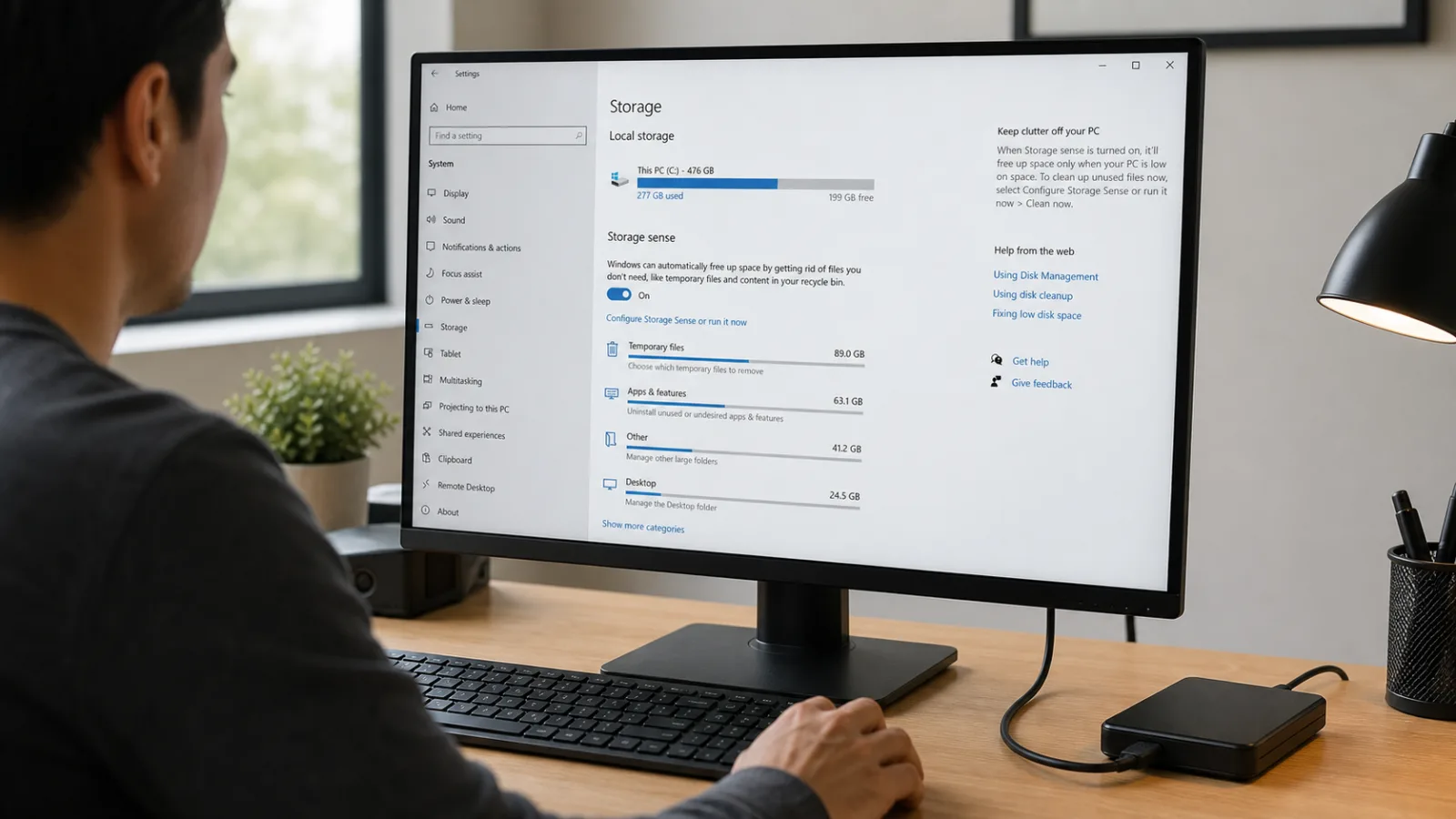
Open Settings > System > Storage and wait for Windows to calculate the categories. Check Apps, Temporary files, Documents, Pictures, Other, and cloud content before deleting anything.
Microsoft’s Windows Storage settings guide explains the categories and where new content can be saved. If one category is unexpectedly large, start there instead of running random cleanup tools.
Steps 1 to 4: Use the Safest Cleanup Options
Step 1: Review Temporary files. In Storage, open Temporary files. Select caches and update leftovers you no longer need, then choose Remove files. Check the Downloads option carefully because it contains personal files.
Step 2: Empty the Recycle Bin and review Downloads. Deleted files still occupy their original space until the Recycle Bin is emptied. Sort Downloads by size and remove old installers, ISO files, and videos only after confirming they are no longer needed.
Step 3: Remove the previous Windows installation when rollback is no longer needed. After a major upgrade, open Temporary files or Cleanup recommendations and select Previous Windows installation(s). This removes Windows.old and also removes the option to return to the previous Windows version. Microsoft documents the supported process in its Windows.old cleanup instructions.
Step 4: Uninstall large apps you no longer use. Go to Settings > Apps > Installed apps and sort by size. Remove games and programs you recognize and no longer need. Leave unfamiliar driver, hardware, and security components in place until you identify them.
Turn on Storage Sense and choose its schedule carefully. Storage Sense manages the system drive, usually C:. With its default settings, it can remove temporary files and aged Recycle Bin items, but it does not manage Downloads or cloud content unless you configure those options. Review Microsoft’s Storage Sense settings before enabling automatic deletion.
Organize large folders and downloads so the C drive does not fill again.
Steps 5 to 7: Reclaim Space Reserved by Windows
Step 5: Reduce old restore-point storage. Press Windows + R, run sysdm.cpl, open System Protection, select C:, and choose Configure. Lower Max Usage if restore points occupy more space than you can spare. Keep System Protection enabled so Windows retains a recovery path.
Deleting restore points removes recovery options. Keep at least one current backup before reducing the allocation, and do not disable protection merely to gain a small amount of space.
Step 6: Disable hibernation only when you do not use it. The hiberfil.sys file can be close to the size of installed RAM. To remove it, open Terminal as administrator and run:
powercfg.exe /hibernate offRestore it later with powercfg.exe /hibernate on. Microsoft explains both commands and the file’s purpose in its hibernation guidance.
Disabling hibernation also removes the hibernation option and affects features that use the hibernation file, including Fast Startup. It is usually a poor trade on a laptop that relies on hibernation when the battery becomes low.
Step 7: Keep the page file system-managed. Open Advanced System Settings, Performance Settings, Advanced, and Virtual memory. If you previously assigned an unnecessarily large fixed page file, select Automatically manage paging file size for all drives. Do not disable the page file; Windows and crash-dump collection can require it.
Steps 8 to 10: Move Files and Apps Off C
Step 8: Change where new content is saved. In Settings > System > Storage > Advanced storage settings, open Where new content is saved. Choose another internal drive for new documents, music, pictures, videos, or supported apps. Move existing personal folders only after confirming the destination has enough space and is backed up.
Step 9: Make unneeded OneDrive files online-only. Files On-Demand is enabled by default in current OneDrive builds, but files you opened or marked Always keep on this device still use local space. Right-click a backed-up file or folder and choose Free up space.
The file remains in OneDrive but needs internet access to open. Microsoft explains the icons and behavior in its Files On-Demand guide.
Step 10: Install or move large apps and games to another drive. Steam, Xbox, and many creative applications support additional library locations. Use the app’s own move feature when available; manually dragging an installed program folder usually breaks shortcuts, updates, or licensing.
Review recovery-safe practices before moving large amounts of important data.
Step 11: Add Storage or Extend the C Partition

If cleanup and file moves are not enough, add a second drive or replace a small system SSD with a larger one. Back up first and use the hardware manufacturer’s installation or cloning instructions.
Disk Management can extend C: only when compatible unallocated space is immediately to its right on the same physical disk. The volume must also use a supported file system such as NTFS. Microsoft lists the requirements in its volume-extension guide.

Do not delete a recovery or data partition just to make Extend Volume available unless you have verified its purpose, backed up its contents, and prepared recovery media. A mistaken partition deletion can make Windows unbootable or destroy files.
What Not to Delete From the C Drive
- Do not remove files manually from Windows, System32, Program Files, or WinSxS.
- Do not use registry cleaners or unknown cleanup utilities.
- Do not disable the page file to recover a few gigabytes.
- Do not compress the entire system drive as a first-line cleanup method.
- Do not move installed program folders by dragging them to another drive.
Use Windows Storage settings, each application’s uninstaller, and supported move or partition tools.
Keep the C Drive From Filling Again
Leave Storage Sense configured, review large apps and Downloads occasionally, and save new media to a secondary drive when available. Keep enough free space for the updates and temporary work Windows requests; Microsoft notes that feature updates can require 6–11 GB or more, with additional temporary space for rollback.
If Windows repeatedly reports low storage after ordinary cleanup, the system drive is probably too small for your workload. Expanding storage is safer and more durable than repeatedly deleting recovery features.
Frequently Asked Questions
Is it safe to delete Temporary files in Windows?
Usually, but review every category first. Downloads can contain personal files, and removing a previous Windows installation removes your rollback option.
Does freeing C drive space make Windows faster?
It can help when the drive is nearly full because Windows needs room for updates, temporary files, and virtual memory. It will not fix an unrelated CPU, memory, driver, or malware problem.
Why is Extend Volume greyed out for C?
The required unallocated space is usually missing or is not immediately to the right of C: on the same disk. The file system or disk layout can also prevent extension.
Should I disable hibernation to save space?
Only if you understand the effect and do not need hibernation or related Fast Startup behavior. It can recover significant space on systems with a large amount of RAM.
Can I delete the Windows.old folder?
Yes, after confirming the current Windows installation and your files work correctly. Use Storage settings rather than deleting the protected folder manually.
Should I disable the Windows page file?
No. Keep it system-managed unless a documented workload requires a specific configuration. Disabling it can cause memory errors and prevent useful crash dumps.