Wifi connected but no internet usually means your device is joined to the router but cannot reach the wider internet. The fastest fixes are to restart your router and PC, forget and rejoin the network, and refresh your connection with a few simple commands. This guide lists 12 proven fixes in order, from the quickest to the more technical, for Windows, plus steps for phones.
Table of Contents
ToggleSeeing wifi connected but no internet is one of the most common and frustrating network problems. Your device shows a strong signal, yet nothing loads.
The good news is that it is almost always fixable in a few minutes, and you rarely need any special tools.
This guide works through the fixes in order, starting with the quick ones that solve most cases, so you can get back online fast.
Why Does Wifi Connected but No Internet Happen?
This problem means your device has joined the router successfully, but data is not flowing between the router and the internet.
The break can be at several points: your device, the router, the cable from your provider, or the provider itself.
Common causes include a temporary router glitch, an IP address conflict, outdated network drivers, or a DNS problem.
Because there are several possible causes, the fixes below move from the most likely and easiest to the more technical.
Quick Checks Before You Start
A few seconds of checking can save you a long troubleshooting session.
- Look for a yellow warning triangle on the wifi icon, which confirms the no-internet state
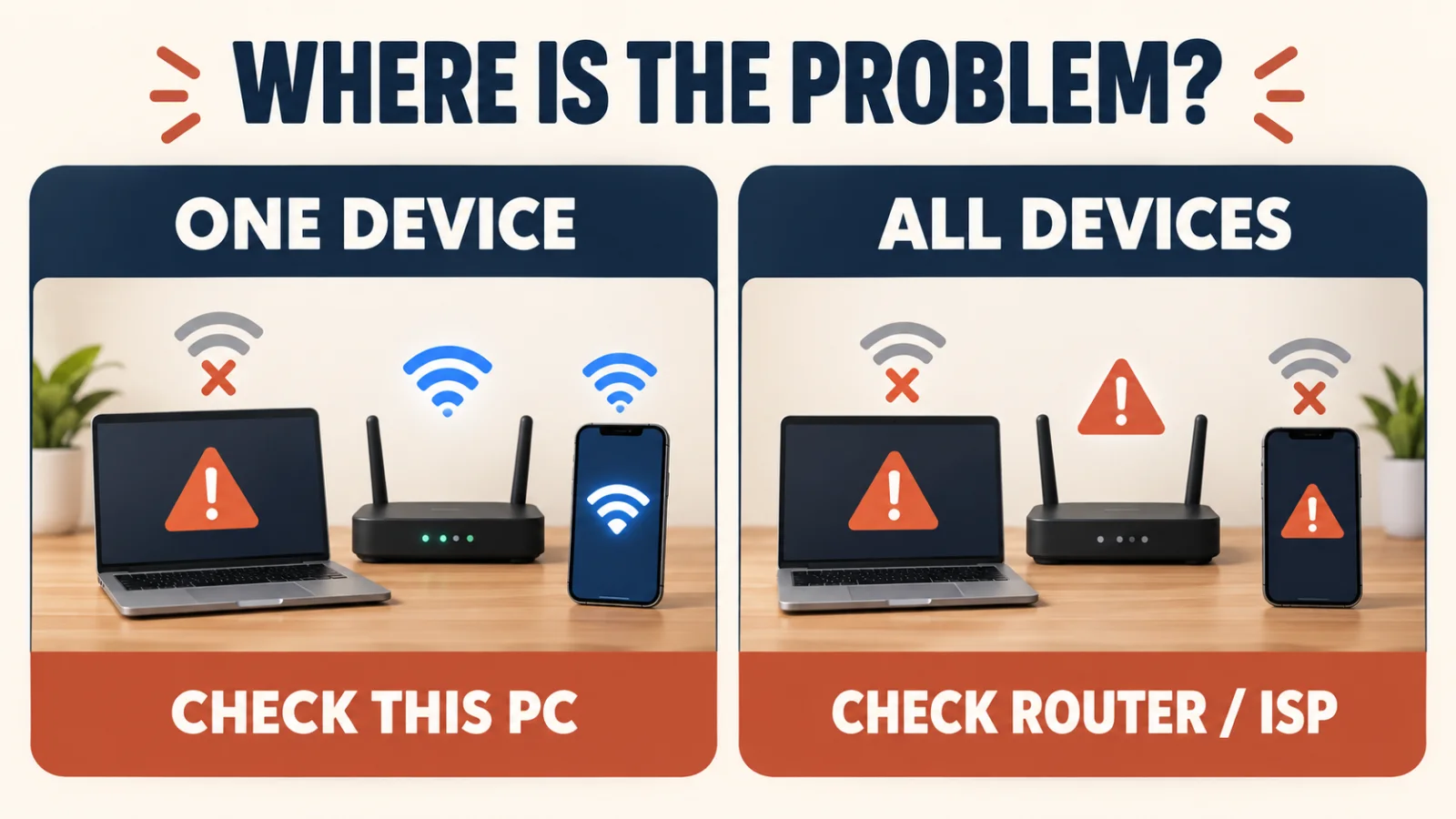
- Check whether other devices on the same wifi also have no internet
- Make sure airplane mode is off and wifi is actually on
- Confirm you have not run out of data or hit a provider limit
If every device is offline, the problem is likely the router or your provider. If only one device is affected, the fix is usually on that device.
Fix 1: Restart Your Router and Device
Restarting clears temporary glitches and is the single most effective fix for wifi connected but no internet.
- Turn off your device
- Unplug the router from power
- Wait 30 seconds, then plug the router back in
- Wait for its lights to settle, then turn your device back on
This simple power cycle resolves a large share of cases, so always try it first before anything more technical.
Fix 2: Check If It Is Just One Device
Knowing whether the problem is one device or all of them points you to the right fix.
Try opening a website on your phone and another computer using the same wifi.
If only one device fails, focus on that device with the steps below. If all fail, jump to the router and provider checks near the end.
Fix 3: Forget and Reconnect to the Network
A corrupted saved network profile can cause this problem, and forgetting the network clears it.
- Open your wifi settings
- Select your network and choose Forget
- Wait a moment, then select the network again
- Enter the password to reconnect
Reconnecting builds a fresh profile, which often restores internet access right away.
Fix 4: Run the Windows Network Troubleshooter
Windows has a built-in tool that can find and fix many network faults automatically.
- Right-click the wifi icon in the taskbar
- Choose Troubleshoot problems, or open the Network troubleshooter in Settings
- Follow the prompts and let it apply any fixes
- Restart if it asks you to
It will not solve everything, but it is quick and often handles common issues without any technical steps.
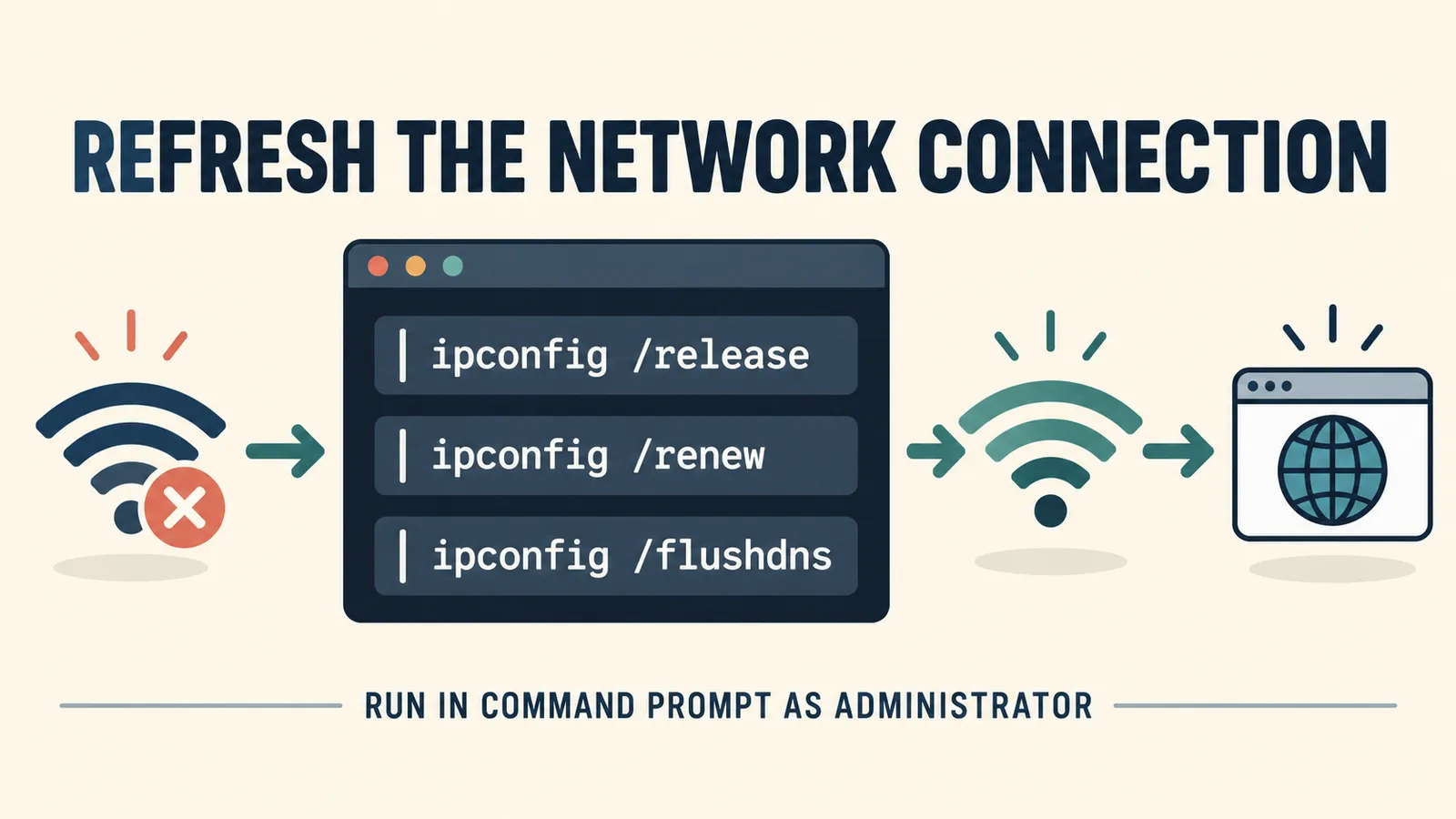
Fix 5: Release and Renew Your IP Address
An IP address conflict is a frequent cause of wifi connected but no internet, and refreshing it can help.
- Open Command Prompt as an administrator
- Type
ipconfig /releaseand press Enter - Type
ipconfig /renewand press Enter - Close the window and test your connection
This asks your router for a fresh address, which clears many connection problems.
Fix 6: Flush the DNS Cache
A corrupted DNS cache can stop websites loading even when your connection is fine.
- Open Command Prompt as an administrator
- Type
ipconfig /flushdnsand press Enter - Wait for the confirmation message
- Try loading a website again
Flushing the cache clears out stale entries so your device can look up sites correctly.
Fix 7: Change Your DNS Server
Sometimes your provider’s DNS servers are slow or down, and switching to a public one fixes it.
In your network adapter settings, set the DNS servers manually to a reliable public option such as 8.8.8.8 and 8.8.4.4, which are Google’s, or 1.1.1.1, which is Cloudflare’s.
Save the change and test again. A different DNS often restores access instantly when the provider’s own servers are the problem.
Fix 8: Reset the TCP/IP Stack
Resetting the network stack repairs deeper settings that can cause this issue.
- Open Command Prompt as an administrator
- Type netsh int ip reset and press Enter
- Type netsh winsock reset and press Enter
- Restart your PC
This returns your network components to a clean state and often clears stubborn problems.
WarningAfter netsh winsock reset you must restart your PC for the change to take effect. Save any open work before restarting.
Fix 9: Update or Reinstall Your Network Driver
An outdated or corrupted wifi driver is a common cause on Windows.
- Open Device Manager
- Expand Network adapters
- Right-click your wireless adapter and choose Update driver
- If that fails, choose Uninstall device, then restart to reinstall it automatically
A fresh, current driver often restores a connection that keeps dropping to no internet.
Fix 10: Disable and Re-enable the Network Adapter
Turning the adapter off and on again is a quick reset that can clear the fault.
- Open Settings, then Network and internet
- Open the Advanced network settings
- Select your wifi adapter and choose Disable
- Wait a few seconds, then choose Enable
This is gentler than a full restart and sometimes all that is needed.
Fix 11: Turn Off VPN, Proxy, or Antivirus Temporarily
Security software can sometimes block internet access while the wifi stays connected.
Disconnect any VPN, turn off proxy settings, and briefly disable third-party antivirus or firewall software.
Test your connection with each one off. If the internet returns, that program is the cause and needs its settings adjusted.
Remember to turn your antivirus and firewall back on once you have finished testing, so your PC stays protected.
Fix 12: Check Your Router and Internet Provider
If every device is offline, the problem is likely beyond your PC.
Check the lights on your router or modem against the guide in its manual. A missing internet light points to a provider issue.
Log in to your router’s settings page to confirm it has a connection, and look for any outage notices from your provider.
If the router shows no internet from the provider, contact them, as the fault may be on their end.
Wireless Adapter Disappeared after Windows 10/11 Upgrade
If your wifi adapter vanished entirely after an update, this guide brings it back.
Fixing Wifi Connected but No Internet on a Phone
Phones can show the same problem, and the fixes are similar.
On Android or iPhone, toggle airplane mode on and off, then forget and rejoin the wifi network.
Restart the phone and the router, and check that the date and time are set automatically, since a wrong clock can block secure connections.
If mobile data works but wifi does not, the issue is with the network or router rather than the phone.
What the Yellow Warning Triangle Means
The small yellow triangle or exclamation mark on your wifi icon is Windows telling you there is no internet.
It confirms your device reached the router but cannot get out to the wider internet.
Seeing it helps you skip straight to the connection and router fixes rather than the password or signal.
How to Prevent Wifi Connected but No Internet
A few habits reduce how often this problem returns.
Keep your network drivers and Windows updated so known bugs are fixed.
Restart your router every week or two to clear it before problems build up.
Place the router in an open, central spot and away from interference for a steadier connection.
Read Next8 Free Ways to Make Your Laptop FasterA faster, well-maintained laptop tends to have fewer network hiccups too.
Common Mistakes When Fixing Wifi Issues
A few missteps can waste time or make things worse.
The first is skipping the simple restart and jumping straight to advanced commands.
The second is changing many settings at once, so you cannot tell what fixed or broke the connection.
The third is forgetting to turn antivirus or a VPN back on after testing, leaving the PC exposed.
Final Thoughts on Wifi Connected but No Internet
Wifi connected but no internet looks alarming, but it is one of the most fixable problems you will meet.
Start with a restart, work down the list, and change one thing at a time so you know what worked.
In most cases you will be back online within a couple of minutes, without needing to call anyone.
For deeper help, the Microsoft Windows support site has official network troubleshooting steps for your version.
How to Check Your Connection With a Ping Test
A quick ping test shows exactly where the connection is breaking.
- Open Command Prompt
- Type ping 192.168.1.1 to test your router, using your own router address if it differs
- Type ping 8.8.8.8 to test the wider internet
- Type ping google.com to test DNS
If the router replies but 8.8.8.8 does not, the problem is beyond your router. If 8.8.8.8 replies but google.com does not, it is a DNS issue.
This simple test tells you which fix to focus on and saves a lot of guesswork.
Fixing It on Windows 10 vs Windows 11
The fixes are the same on both versions, with only small differences in where the settings live.
On Windows 11, network options sit under Settings, then Network and internet, with a cleaner layout.
On Windows 10, the same options are under Network and Internet too, though some menus are named slightly differently.
The Command Prompt steps work identically on both, so you can follow every fix regardless of your version.
What to Do If Only Websites Fail but Apps Work
Sometimes apps and games work while websites will not load, which is a strong sign of a DNS problem.
Flush your DNS cache and switch to a public DNS server such as Google or Cloudflare.
Also try a different browser to rule out a browser-specific issue.
If apps connect but no site opens in any browser, DNS is almost always the cause.
When a Recent Update Caused the Problem
If the trouble began right after a Windows update, the update may have changed a network setting or driver.
Reinstalling or rolling back your network driver often fixes this quickly.
You can also check for a newer update that corrects the issue, since fixes tend to follow common bugs fast.
A network reset from Settings restores everything to default and clears update-related problems.
WarningA full network reset removes saved wifi networks and VPN settings, so note your wifi passwords before you use it.
Using a Network Reset as a Last Resort
If nothing else works, Windows can reset all your network settings at once.
- Open Settings, then Network and internet
- Open Advanced network settings
- Choose Network reset
- Confirm and let your PC restart
This reinstalls your adapters and clears every network setting, which fixes most stubborn cases.
Afterwards you will need to rejoin your wifi and set up any VPN again, so keep your passwords handy.
Signs the Problem Is Your Provider, Not You
Sometimes no amount of tinkering helps because the fault is with your internet provider.
Clear signs include every device being offline, a missing internet light on the modem, and a service status page reporting an outage.
Try connecting your phone to the wifi and then to mobile data to compare, which quickly shows whether the wider internet is reachable.
If the evidence points to your provider, contact them rather than spending more time on your own settings.
Keep a Simple Wifi Troubleshooting Checklist
Saving a short checklist means you can fix this fast next time without rereading the whole guide.
- Restart the router and device first
- Forget and rejoin the network
- Run
ipconfig /flushdnsand renew your IP - Switch to a public DNS like 8.8.8.8
- Update the network driver
- Check the router and provider if all devices are down
With these six moves in mind, wifi connected but no internet becomes a quick fix rather than a mystery.
Get Back Online With Confidence
Wifi connected but no internet is common, but you now have a clear, ordered plan to fix it.
Begin with a restart, use the ping test to find where the break is, and apply the matching fix.
Work through one step at a time, and in most cases you will be back online within minutes and know exactly what solved it.
Why a Strong Signal Does Not Mean Internet
It seems odd that a full-strength wifi signal can still show no internet, but the two are separate things.
Signal strength measures how well your device talks to the router, not whether the router reaches the internet.
So you can sit right next to the router with a perfect signal and still have no internet if the connection beyond the router is down.
This is why the fixes here focus on the connection and the router, not on moving closer or boosting the signal.
Should You Use a Wired Ethernet Cable to Test?
Plugging in an Ethernet cable is a fast way to narrow down the problem.
If a wired connection works but wifi does not, the issue is with the wifi side, such as the adapter or wireless settings.
If a wired connection also has no internet, the problem is the router or your provider, not your wifi at all.
Even a brief cable test can save you from chasing the wrong fix.
A Quick Recap
Wifi connected but no internet almost always comes down to one of three things: the router, your device settings, or your internet provider.
Restart first, then use a ping test to see where the break is, and match the fix to the cause rather than trying everything at once.
Keep the six-step checklist handy, and you will handle this common problem quickly and confidently every time it appears.
Frequently Asked Questions
Why does my wifi say connected but no internet?
It means your device joined the router but cannot reach the wider internet. Causes include a router glitch, an IP or DNS problem, an outdated driver, or an issue with your provider.
What is the fastest fix for wifi connected but no internet?
Restart your router and device. Unplug the router for 30 seconds, power it back on, and restart your PC. This resolves a large share of cases in a couple of minutes.
How do I fix it with Command Prompt?
Open Command Prompt as an administrator and run ipconfig /release, ipconfig /renew, and ipconfig /flushdns. For deeper issues, run netsh int ip reset and netsh winsock reset, then restart.
Why do all my devices have no internet?
If every device is offline, the problem is usually the router or your internet provider rather than any single device. Check the router lights and look for a provider outage.
Can antivirus cause wifi connected but no internet?
Yes. Some VPNs, proxies, and third-party security tools can block internet access while wifi stays connected. Disable them briefly to test, then turn protection back on.
How do I stop this happening again?
Keep Windows and your network drivers updated, restart your router every week or two, and place it in a central, open spot. These habits keep the connection stable.