Useful Mobile Apps: 10 Free Picks to Simplify Your Daily Life

Anwar AlamAnwar AlamAug 4, 202612 min read0 comments
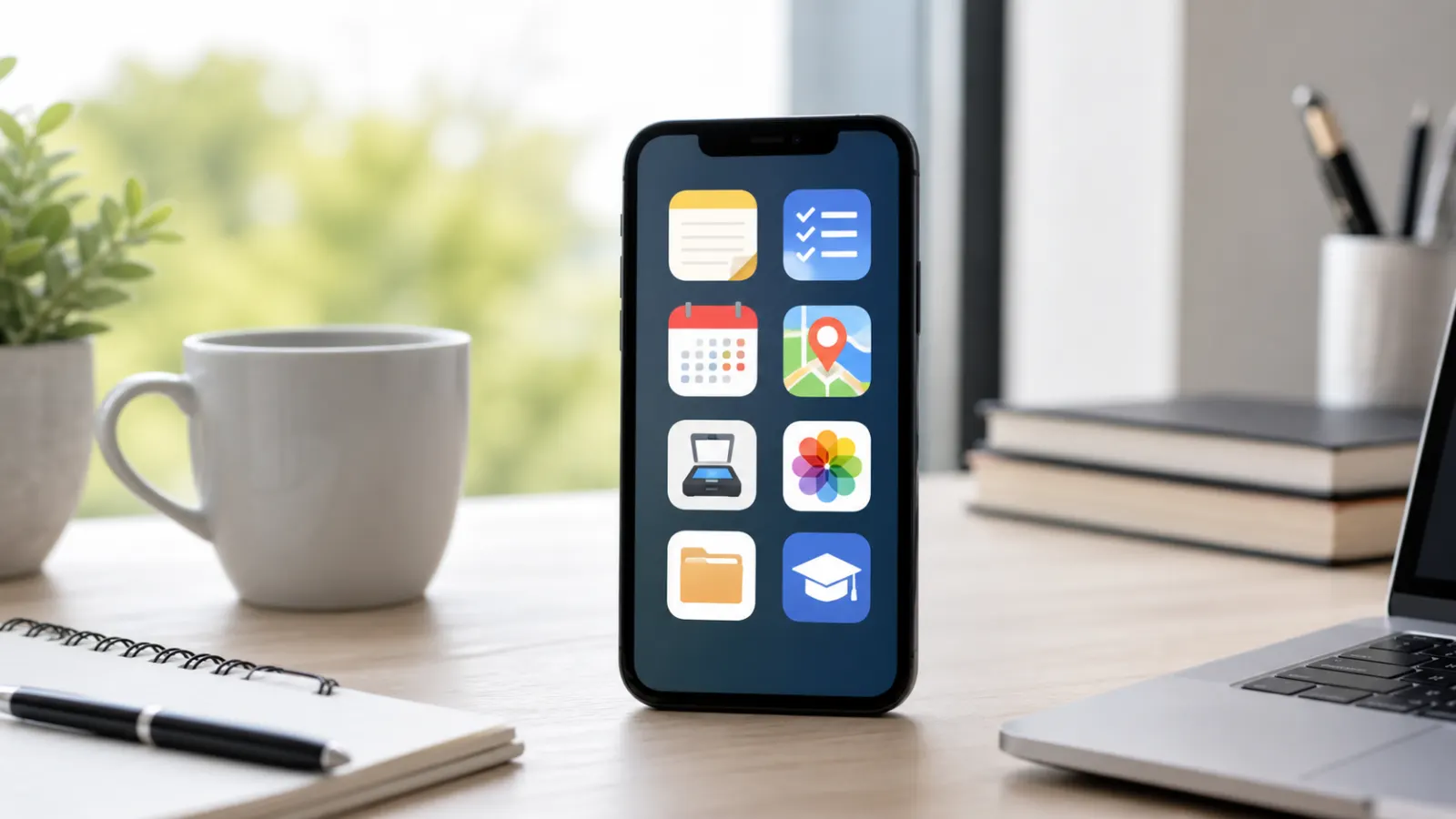
Smartphone surrounded by useful everyday mobile app categories
Quick Answer

Useful mobile apps can save you time, money, and stress every single day, but only when you pick ones that solve a real problem instead of chasing a trend. This guide covers 10 genuinely useful mobile apps for notes, photos, security, navigation, learning, and entertainment, with what each one does and who it suits best. Every app here works on both Android and iPhone.

App stores hold millions of downloads, and most you will open once and forget. The useful mobile apps worth keeping are the few that quietly make daily life easier.

This list skips the hype. Instead of trending games or one-off novelties, it focuses on tools you will actually open every week.

Each pick is free to start and works on both Android and iPhone. Where an app has a paid upgrade, that is noted so there are no surprises.

Why the Right Mobile Apps Make Such a Difference

Your phone is the device you touch most, often more than a hundred times a day. The apps on it shape how smoothly those moments go.

The right set of useful mobile apps removes small frictions: remembering a password, finding a photo, scanning a receipt, or getting somewhere on time.

Multiply those tiny wins across a week and they add up to real saved time and a calmer, more organised day.

Just as importantly, good apps respect your attention. They help you get in, do the task, and get out, instead of pulling you into an endless feed. 

How to Judge Whether an App Is Worth Installing

Before adding any app, it helps to have a simple checklist. These are the questions worth asking about any of the useful mobile apps below.

  • Does it solve a problem you actually have?
  • Is it free or fairly priced for what it does?
  • Does it respect your privacy and ask only for permissions it needs?
  • Is it updated regularly and well reviewed?
  • Does it work across your devices?

If an app passes those five checks, it usually earns a place on your phone. If it fails even one or two, it is often better to skip it.

Useful Mobile Apps for Notes and Organisation

Capturing ideas and tasks quickly is the foundation of staying organised, and these two apps do it better than the built-in tools on most phones.

Google Keep

Google Keep is a fast, simple note app for jotting down thoughts, building checklists, and saving voice memos. Notes sync instantly across your phone, tablet, and computer.

You can add location or time reminders, colour-code notes, and even pull text out of a photo. It is free and ideal for anyone who wants notes without a steep learning curve.

Microsoft To Do

Microsoft To Do turns scattered tasks into clear, manageable lists. You can set due dates, recurring reminders, and a daily planner that suggests what to focus on.

It syncs with Outlook tasks and works well for both simple shopping lists and larger projects. The app is free on Android and iPhone.

Useful mobile apps for notes tasks navigation photos and daily organization

Useful Mobile Apps for Photos and Files

Phones fill up fast with photos and downloads. These apps help you back everything up and clear out the clutter.

Google Photos

Google Photos automatically backs up your pictures and lets you search them by what is in them, such as a place, a person, or even the word receipt.

Its built-in tools can free up space by removing copies already saved to the cloud. Backup uses your Google storage, with paid plans if you need more room.

Files by Google

Files by Google is a lightweight file manager that finds junk files, duplicate photos, and large downloads you have forgotten about.

It suggests safe things to delete and can share files offline with nearby phones. The app is free and especially handy on phones with limited storage.

Useful Mobile Apps for Security and Privacy

Two apps do more to protect your accounts than almost anything else: a password manager and an authenticator.

Bitwarden

Bitwarden stores all your passwords in one secure vault and fills them in for you, so you never have to reuse a weak password again.

It can generate long, random passwords and sync them across devices. The core app is free, with a low-cost premium tier for extra features.

An Authenticator App

An authenticator app such as Google Authenticator or Microsoft Authenticator generates the six-digit codes used for two-factor login.

These codes add a strong second layer of security to your important accounts and work even without an internet connection. Both options are free.

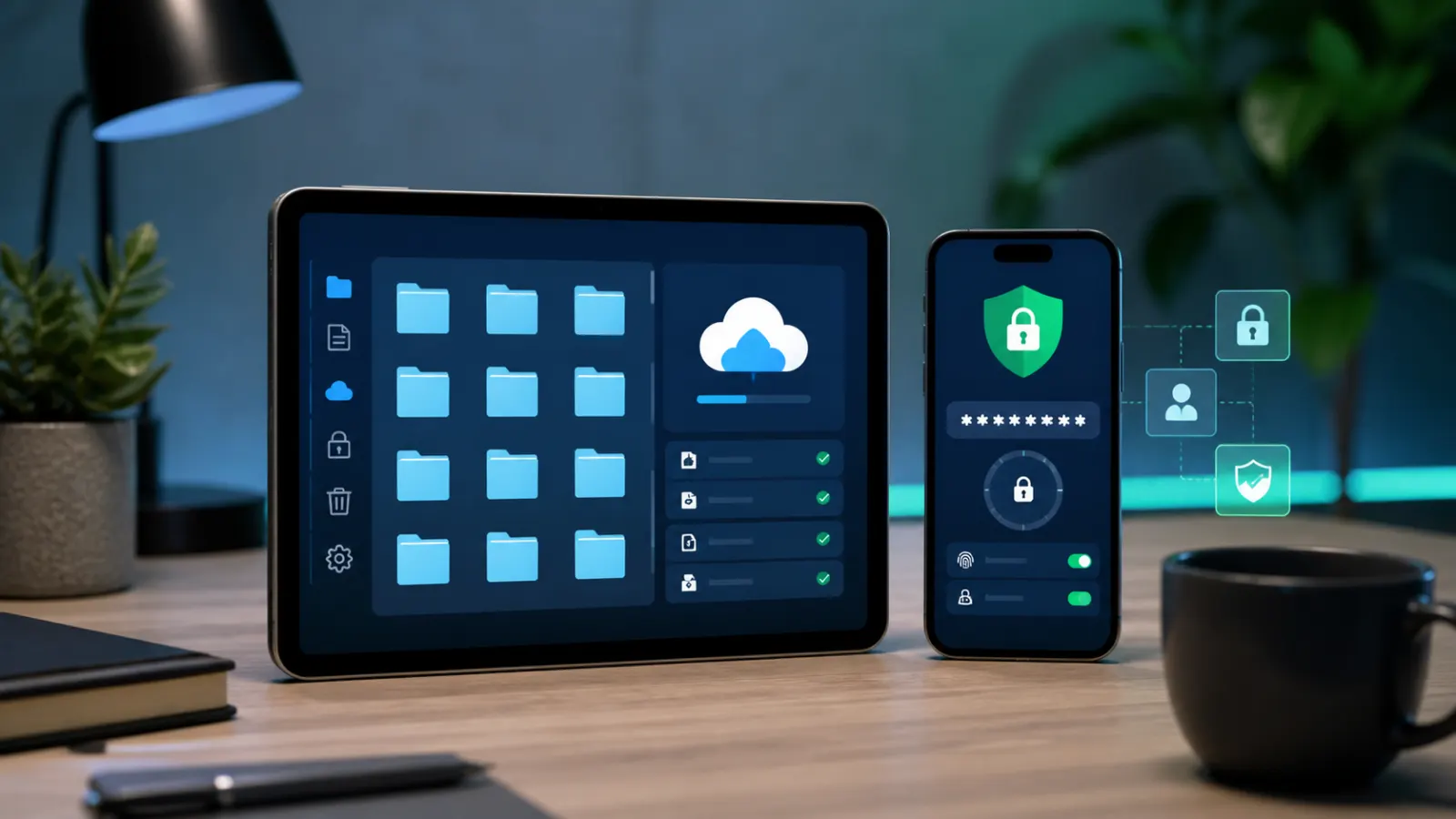
Useful mobile apps for file management password security and privacy

Useful Mobile Apps for Navigation and Productivity

Getting around and handling everyday paperwork are two places a good app saves real time.

Google Maps

Google Maps handles navigation, live traffic, public transport, and saved places. You can download maps for offline use before travelling somewhere with poor signal.

Features like sharing your live location and finding nearby services make it useful far beyond simple directions. It is free to use.

A Document Scanner

A scanner app such as Adobe Scan turns your camera into a portable scanner. Point it at a receipt, form, or letter and it saves a clean PDF.

It straightens pages, sharpens text, and lets you share the file instantly. This replaces a bulky scanner for most home tasks, and the basic version is free.

Useful Mobile Apps for Learning and Entertainment

Your phone is also a great tool for picking up a new skill or relaxing at the end of the day.

Duolingo

Duolingo makes learning a language feel like a game, with short daily lessons that fit into a spare five minutes.

Gentle reminders help you keep a streak going, which is surprisingly motivating. It is free with ads, and an optional subscription removes them.

VLC

VLC is a free, open-source media player that plays almost any video or audio file you throw at it, with no extra codecs to install.

It supports subtitles, playback speed control, and streaming, which makes it far more flexible than most built-in players. There are no ads and nothing to pay.

Useful Mobile Apps: A Quick Comparison

Here is the full list at a glance, so you can decide where to start.

  • Google Keep — quick notes and checklists
  • Microsoft To Do — tasks and reminders
  • Google Photos — photo backup and search
  • Files by Google — clean up storage
  • Bitwarden — password manager
  • Authenticator app — two-factor login codes
  • Google Maps — navigation and transit
  • Adobe Scan — scan documents to PDF
  • Duolingo — learn a language
  • VLC — play any media file

You do not need all ten at once. Start with the two or three that match a problem you have right now, then add more as you go.

Related guide

Tips for Managing Storage Space on Your Mobile Device — Once you install a few new apps, use these tips to keep your phone from filling up.

Common Mistakes When Installing New Apps

A few habits can turn a helpful app into a drain on your phone or your privacy.

The first is installing too many at once. A cluttered home screen is harder to use, and unused apps still take up space and run in the background.

The second is ignoring permissions. If a simple app asks for your contacts, microphone, or location without a clear reason, that is a red flag worth questioning.

The third is downloading from unofficial sources. Sticking to the Google Play Store or Apple App Store greatly reduces the risk of malware.

How to Keep Your Apps Safe and Clutter-Free

Installing good apps is only half the job. Keeping them tidy and secure matters just as much.

Review your apps every month and remove anything you have not opened. Fewer apps means less clutter and a smaller attack surface.

Keep your remaining apps updated, since updates often fix security holes. On Android, Google Play Protect scans apps for known threats automatically.

Finally, check app permissions in your phone settings now and then, and switch off any that an app does not truly need.

i
Pro tip

Read NextHow to Optimize Your Mobile Device for Better PerformanceSpeed up an older or sluggish phone with a few simple settings changes.

Final Thoughts on These Useful Mobile Apps

The best phone is not the one with the most apps, but the one with the right ones. A small, well-chosen set of useful mobile apps quietly makes each day run smoother.

Start with a single category that matches a problem you have today, whether that is remembering passwords, backing up photos, or getting organised.

Add the others over time, keep your app list tidy, and your phone will stay fast, secure, and genuinely helpful.

More Useful Mobile Apps Worth Adding

Once you have the core ten set up, a few extra useful mobile apps round out an everyday phone nicely.

Signal

Signal is a private messaging app that keeps your chats end-to-end encrypted by default. It looks and works like any other messenger, with texts, calls, and group chats.

If privacy matters to you, it is one of the easiest ways to protect your conversations. The app is free and run by a non-profit.

Google Calendar

Google Calendar keeps your appointments, reminders, and events in one place and syncs them across every device.

Colour-coded calendars and shared events make it easy to juggle work and family schedules. It is free with any Google account.

A Read-It-Later App

A read-it-later app such as Pocket lets you save articles and videos to enjoy when you have time, even offline.

It strips out clutter for a clean reading view and syncs across devices, so a long article saved on your phone is waiting on your tablet later.

A Better Weather App

The built-in weather app is fine, but a dedicated radar-based option gives you minute-by-minute rain forecasts and severe-weather alerts.

For anyone who commutes, walks, or plans outdoor time, that extra accuracy is genuinely useful, and most have a capable free tier.

Free Versus Paid: Are Premium App Versions Worth It?

Many useful mobile apps offer a free tier and a paid upgrade, which raises a fair question: when is it worth paying?

For apps you use daily, a small subscription often pays for itself in saved time or removed ads. A password manager or a focus app can be worth a few dollars a month.

For apps you open occasionally, the free version is usually plenty. There is no need to pay for features you will rarely touch.

A good rule is to try the free tier for a few weeks first. If you keep hitting a limit that genuinely slows you down, that is the moment to consider upgrading.

How to Set Up Your New Apps the Right Way

A little care during setup makes any app safer and more useful from day one.

  1. Sign in with a strong, unique password and turn on two-factor login where offered
  2. Review the permissions the app requests and allow only what it needs
  3. Turn on backup or sync so your data is safe if you lose your phone
  4. Adjust notification settings so the app alerts you only when it matters
  5. Explore the settings once to learn what the app can do

Five minutes of setup is worth it. It prevents privacy surprises later and helps you get the most from each app.

Useful Mobile Apps for Families and Older Users

The right apps can make a phone friendlier for children, parents, and grandparents alike.

For families, a shared calendar and a shared photo album keep everyone in the loop without endless group messages.

For older users, apps with large text, simple layouts, and clear buttons matter most. Many of the picks in this guide, such as Google Keep and Google Maps, offer accessibility settings that increase text size and contrast.

Setting up a password manager for a less tech-confident relative is also one of the kindest things you can do, since it removes the stress of remembering logins.

Battery and Data: Keeping Your Apps Efficient

Even the most useful mobile apps can drain your battery or data if left unchecked, so a quick review now and then keeps things efficient.

Check which apps use the most battery in your phone settings, and restrict background activity for any you rarely open.

Turn on data-saver mode for apps that stream or sync large files, and set backups to run only on Wi-Fi.

These small tweaks let you enjoy your apps without watching your battery or data allowance disappear.

Where to Find Trustworthy App Recommendations

With so many apps released every week, knowing where to look saves time and avoids risky downloads.

Stick to the official Google Play Store and Apple App Store, where apps are checked and reviews are visible. The editors picks and top charts are a reasonable starting point.

Trusted technology sites and their app round-ups are another good source, since they test apps and explain the trade-offs in plain language.

Be wary of links in random emails or messages that push you to install something. If an app is genuinely useful, you will find it in the official store.

Building Your Own Set of Useful Mobile Apps

There is no single perfect app list, because the best set depends on how you live and work. Treat this guide as a starting point rather than a checklist to complete.

Pick the categories that match your daily routine, install one or two apps from each, and give them a week of real use before deciding what stays.

Over time you will build a lean, personal collection of useful mobile apps that saves time without cluttering your phone, and that is the real goal.

Revisit your list every few months. New apps appear, your needs change, and trimming what you no longer use keeps your phone fast and focused.

Frequently Asked Questions

What are the most useful mobile apps to install first?

Start with a password manager like Bitwarden and a backup app like Google Photos. They protect your accounts and your memories, which are the two things hardest to replace.

Are these useful mobile apps free?

Yes, every app on this list is free to start. Some, such as Bitwarden and Duolingo, offer optional paid tiers that remove ads or add features, but the free versions are enough for most people.

Do these apps work on both Android and iPhone?

All ten apps are available on both Android and iPhone. A few, like Files by Google, are most useful on Android, but the core picks work the same on either platform.

How many apps should I keep on my phone?

There is no perfect number, but a good rule is to keep only apps you have opened in the last month. Removing the rest keeps your phone tidy, faster, and easier to navigate.

How do I know if a mobile app is safe?

Download only from the official Google Play Store or Apple App Store, check the reviews and update history, and review the permissions it requests. Be cautious if an app asks for access it does not need.

Which app is best for freeing up storage space?

Files by Google is excellent for clearing junk and duplicate files, while Google Photos frees space by backing up pictures to the cloud so you can safely remove local copies.

Facebook
X
LinkedIn

Get the Weekly Fix

One email a week. Real fixes, no fluff.

Subscription Form

Join the discussion

Leave a Reply

Your email address will not be published. Required fields are marked *