Virtual desktops in Windows let you create separate screens on one PC, so you can keep work apps on one desktop and personal apps on another without them getting mixed up. The feature is built into both Windows 10 and Windows 11, it is free, and you can switch between desktops in a second with a keyboard shortcut. This guide shows you how to set them up and use them well.
Table of Contents
ToggleIf your screen is always crowded with too many open windows, virtual desktops in Windows can help. They give you extra, separate workspaces on the same computer.
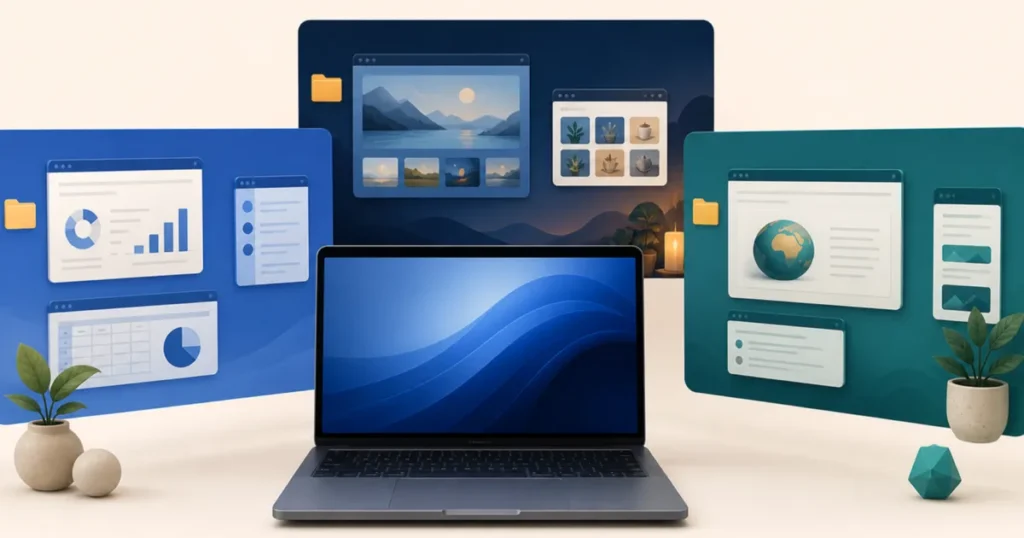
Think of them as multiple monitors that live inside one screen. Each desktop holds its own set of open apps, and you flip between them instantly.
Best of all, the feature is already built into Windows. There is nothing to install and nothing to pay, so you can start using it in the next few minutes.
This beginner guide explains what virtual desktops in Windows are, how to create and manage them, and the smartest ways to fit them into your day.
What Are Virtual Desktops in Windows?
A virtual desktop is a separate workspace on your PC. Each one has its own open windows, but they all share the same files, apps, and settings.
For example, you might keep email and documents on Desktop 1 for work, and a browser and music on Desktop 2 for personal time.
When you switch desktops, the apps from the other one simply move out of view. They keep running in the background, ready for when you switch back.
It is a bit like having several clean desks in one room. You walk to whichever desk holds the task you want, without tidying anything away.
Why Use Virtual Desktops in Windows?
The main benefit is focus. When only the apps for one task are on screen, distractions from other tasks disappear.
They also reduce clutter. Instead of a taskbar packed with a dozen windows, each desktop shows only what belongs to it.
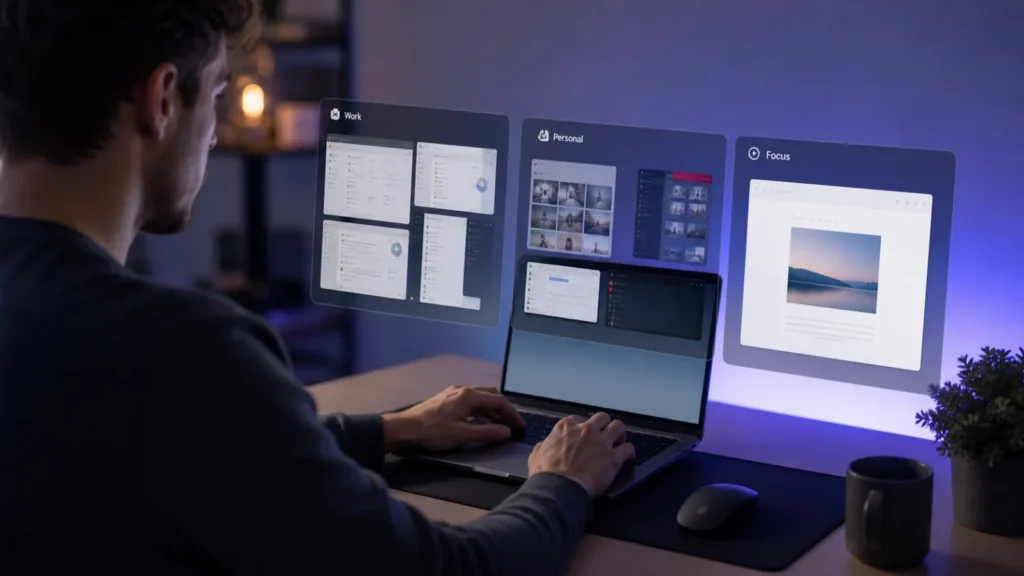
Virtual desktops in Windows are great for separating roles too. Work on one, personal on another, and a side project on a third keeps each part of your life distinct.
And because switching is instant, you get this organisation without the cost or desk space of extra monitors.
Quick TipIf you often share your screen in meetings, keep a clean desktop with just the apps you want others to see. Switch to it before you present and nothing private appears.
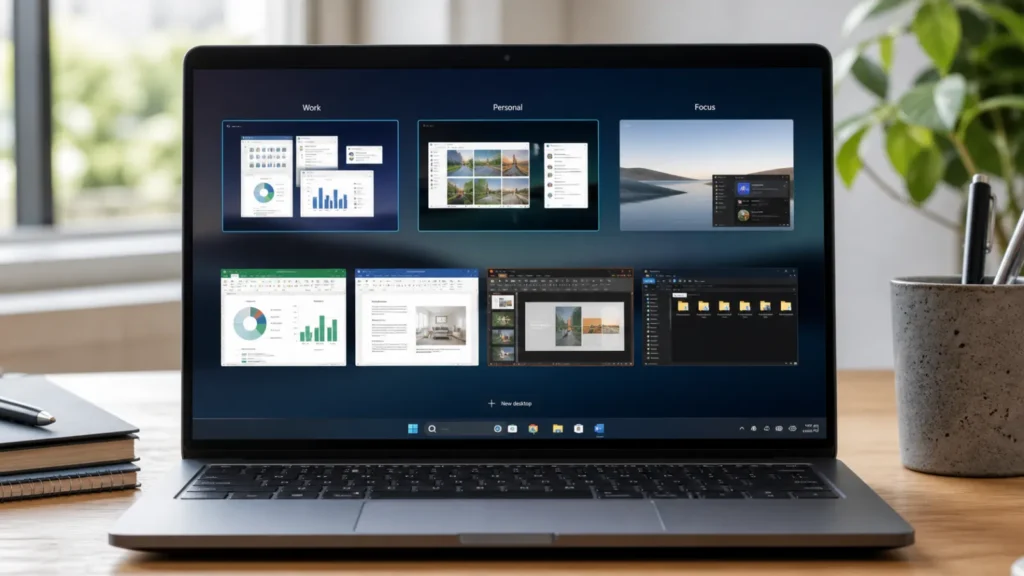
How to Create a Virtual Desktop in Windows
Creating a new desktop takes only a couple of clicks, and the steps are almost identical on Windows 10 and Windows 11.
- Click the Task View button on the taskbar, which looks like two overlapping rectangles
- If you cannot see it, press
Windows + Tab to open Task View - Click New desktop, usually shown as a plus sign near the top or bottom
- Your new desktop appears, ready to use
You can create several desktops this way. Most people find two to four is the sweet spot before it becomes hard to remember what is where.
If the Task View button is missing, right-click the taskbar and turn on Show Task View button. On Windows 11 this is under Taskbar settings.
How to Switch Between Virtual Desktops
Once you have more than one desktop, moving between them is quick.
- Open Task View with the button or
Windows + Tab - Click the desktop you want at the top of the screen
- Or skip Task View entirely and press
Windows + Ctrl + Left or Right to slide between desktops
The keyboard shortcut is the one worth learning. After a day or two it becomes automatic, and you will switch desktops without thinking.
On a laptop touchpad, you can also swipe with four fingers left or right to change desktops, which feels natural once you try it.
How to Move Windows Between Desktops
Sometimes you open an app on the wrong desktop. Moving it across is simple.
- Open Task View with
Windows + Tab - Hover over the desktop that has the window you want to move
- Right-click the window thumbnail and choose Move to
- Pick the destination desktop
You can also drag a window thumbnail from one desktop to another inside Task View, which many people find quicker once they get used to it.
There is also an option to show a window on all desktops, which is handy for a music player or a chat app you always want available.
How to Rename and Customise Your Virtual Desktops
Naming your desktops makes them far easier to use, especially once you have three or more.
- Open Task View
- Click the name above a desktop, such as Desktop 1
- Type a clear name like Work, Personal, or Design
- Press Enter to save
On Windows 11 you can also set a different wallpaper for each desktop. This gives every workspace its own look, so you know at a glance which one you are on.
A quick visual cue like this saves you a moment of confusion every time you switch.
How to Close a Virtual Desktop
When you no longer need a desktop, closing it is safe and easy.
- Open Task View
- Hover over the desktop you want to remove
- Click the X in its corner
- The desktop closes, and any open windows move to the desktop on its left
Closing a desktop does not close your apps. They simply shift to another desktop, so you will not lose any work.
WarningClosing a desktop moves its windows rather than deleting them, but it is still worth a quick check that nothing important gets buried on another desktop.
Keyboard Shortcuts for Virtual Desktops in Windows
Learning a few shortcuts turns virtual desktops in Windows from a nice feature into a fast, daily habit.
Windows + Tab — open Task ViewWindows + Ctrl + D — create a new desktopWindows + Ctrl + Left or Right — switch between desktopsWindows + Ctrl + F4 — close the current desktop
These four shortcuts cover almost everything you will do. Master them and you may never touch the Task View button again.
Essential Windows Keyboard Shortcuts for Enhanced Productivity — Learn dozens more shortcuts that pair perfectly with virtual desktops.
Practical Ways to Use Virtual Desktops in Windows
The feature is flexible, so here are some proven setups to inspire your own.
Separate Work and Personal Life
Keep work apps on one desktop and personal apps on another. At the end of the day, switch to your personal desktop and leave work out of sight.
One Desktop Per Project
If you juggle several projects, give each its own desktop. All the tabs, documents, and tools for a project stay together and out of each other’s way.
A Dedicated Focus Desktop
Create a clean desktop with only the single app you need for deep work. No email, no chat, just the task in front of you.
A Presentation Desktop
Set up a tidy desktop for screen sharing. Switch to it before a meeting so your audience sees only what you intend.
Virtual Desktops in Windows 10 vs Windows 11
The core feature works the same on both versions, but Windows 11 adds a few refinements.
- Windows 11 lets you set a separate wallpaper for each desktop
- Windows 11 has smoother animations when switching
- Both versions support the same keyboard shortcuts
- Both let you rename desktops and move windows between them
If you are on Windows 10, you still get all the essential features. The upgrades in Windows 11 are helpful polish rather than must-haves.
Tips to Get the Most from Virtual Desktops
A few habits make virtual desktops in Windows genuinely useful rather than something you forget about.
Keep the number small. Two to four desktops is easy to remember, while ten becomes a maze.
Name every desktop clearly so you always know its purpose at a glance.
Learn the switch shortcut first, because fast switching is what makes the whole system feel worthwhile.
Give each desktop a consistent job. If Desktop 2 is always personal, your brain learns the layout and switching becomes second nature.
Common Mistakes and How to Avoid Them
New users tend to hit the same few snags.
The first is creating too many desktops. More than four and you lose track of what is where, which defeats the purpose.
The second is forgetting the feature exists. Keep the Task View button visible for the first week as a reminder.
The third is mixing tasks across desktops. Keep each desktop focused on one role, or the separation stops helping.
Troubleshooting Virtual Desktops in Windows
The feature is reliable, but here is what to check if something seems off.
If the Task View button is missing, right-click the taskbar and turn it on in Taskbar settings.
If keyboard shortcuts do nothing, make sure you are pressing Windows + Ctrl together with the arrow keys, not just Ctrl.
If desktops disappear after a restart, note that Windows may not always keep every desktop open across reboots, so save important work first.
For the official reference, the Microsoft Windows support site covers the latest steps for your exact version.
Read NextHow to Use Windows Task Manager for Performance MonitoringIf apps feel slow across your desktops, Task Manager helps you find the cause.
Final Thoughts on Virtual Desktops in Windows
Virtual desktops in Windows are one of the most useful built-in features that many people never try. They cost nothing, take minutes to learn, and quickly make a busy PC feel calmer.
Start with two desktops, one for work and one for everything else. Learn the switch shortcut, and give the setup a few days.
Once it clicks, you will wonder how you managed with everything piled onto a single, crowded screen.
Virtual Desktops vs Multiple Monitors: Which Is Better?
People often ask whether virtual desktops in Windows can replace a second monitor. The honest answer is that they solve different problems.
A second monitor shows two things at once, side by side, which is ideal when you need to compare or reference while you work.
Virtual desktops show one workspace at a time and switch instantly, which is ideal for focusing on a single task without distractions from another.
The best setup often uses both: two monitors for space, and virtual desktops to organise different projects across them. You do not have to choose one or the other.
Do Virtual Desktops Affect Gaming or Performance?
Virtual desktops have almost no impact on performance on their own, because switching a desktop does not close or reload any apps.
What matters is how much you have open in total. Ten heavy apps use the same memory whether they sit on one desktop or spread across four.
For gaming, most full-screen games run on the desktop you launch them from and are not affected by having other desktops open.
If your PC ever feels slow, the cause is usually the number of running apps, not the desktops themselves.
Using Virtual Desktops on a Laptop
Laptops make virtual desktops in Windows even more useful, because screen space is limited and gestures are quick.
On a precision touchpad, swipe left or right with four fingers to switch desktops. It feels natural after a few tries and is faster than any button.
You can also swipe up with three fingers to open Task View, then tap the desktop you want.
These gestures turn a small laptop screen into several roomy workspaces, which is a real help when you are working away from a desk.
A Simple Two-Desktop Setup to Start With
If you are new to the feature, this beginner setup is the easiest way to see the benefit.
- Create one extra desktop with
Windows + Ctrl + D - Name the first desktop Work and open your email, documents, and work browser there
- Name the second desktop Personal and open your social, music, and personal browser there
- Use
Windows + Ctrl + Left or Right to switch between them all day
After a week with just two desktops, you will have a clear sense of whether adding a third for a specific project or hobby is worth it.
Starting small like this is the surest way to build a habit that sticks, rather than abandoning the feature after one crowded afternoon.
How Virtual Desktops Fit Into a Focused Workflow
Virtual desktops work best alongside a few simple focus habits rather than on their own.
Pair a focus desktop with the do-not-disturb setting in Windows, so notifications stay quiet while you work.
Combine desktops with keyboard shortcuts for snapping windows, and each workspace becomes a tidy, purpose-built layout.
Used this way, virtual desktops in Windows become the backbone of a calm, organised day rather than just a hidden feature you rarely open.
Are Virtual Desktops Right for You?
Virtual desktops in Windows suit almost anyone who runs more than a handful of apps at once, but they help some people more than others.
If you switch often between very different tasks, such as work and study, the separation is a big win.
If you usually focus on one app at a time, you may find you need only two desktops, or even none at all.
The feature is free and takes minutes to try, so the only way to know for sure is to set up two desktops and use them for a few days.
Start Using Virtual Desktops in Windows Today
Virtual desktops in Windows are free, built in, and ready the moment you press Windows + Ctrl + D, so there is no reason not to try them.
Set up one extra desktop, give it a clear job, and switch to it with a shortcut whenever you want a clean, focused space.
Within a few days the habit forms, and a once-crowded screen turns into a set of calm, purpose-built workspaces you control with a single key press.
Keep it simple, keep it consistent, and let the feature quietly do its job in the background.
Frequently Asked Questions
What are virtual desktops in Windows used for?
They give you separate workspaces on one PC, so you can keep different tasks apart. A common setup is one desktop for work and another for personal apps, which reduces clutter and distraction.
How do I create a virtual desktop in Windows?
Press Windows + Ctrl + D, or open Task View with Windows + Tab and click New desktop. A fresh desktop appears instantly, ready to use.
Do virtual desktops slow down my PC?
Not by much. Apps on other desktops keep running in the background, so having them open across desktops uses about the same memory as opening them all on one desktop.
Can I set different wallpapers for each desktop?
On Windows 11, yes. Open Task View, right-click a desktop, and choose to set a background. Windows 10 uses the same wallpaper for all desktops.
What happens to my apps if I close a virtual desktop?
They are not closed. Any open windows move to the desktop on the left, so you will not lose your work.
Do virtual desktops stay open after I restart Windows?
Windows often keeps your desktops after a restart, but it is not guaranteed for every app or version, so save important work before shutting down.
Is there a keyboard shortcut to switch desktops quickly?
Yes. Press Windows + Ctrl + Left or Right to slide between desktops without opening Task View. It is the fastest way to move around.
![Two-Factor Authentication Explained: How It Works in 2026 [Top Tips]](https://techsavvyhelp.com/wp-content/uploads/2024/07/What-is-Two-Factor-Authentication-2FA-1024x536.jpg)
![How to Set Up Parental Controls in Windows: Your Ultimate Guide to Protecting Your Kids Online [2026]](https://techsavvyhelp.com/wp-content/uploads/2024/10/How-to-Set-Up-Parental-Controls-in-Windows-Your-Ultimate-Guide-to-Protecting-Your-Kids-Online-2-150x150.jpg)