

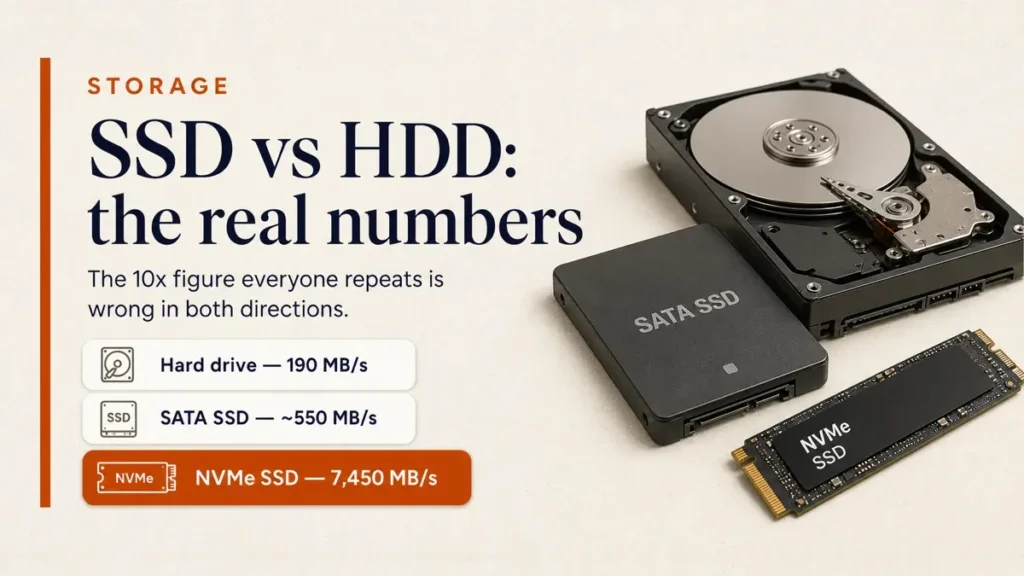
SSD vs HDD is a settled choice for the drive your operating system lives on: use an SSD every time. What is not settled is the number everyone repeats. “Ten times faster” is wrong in both directions at once, and which direction it is wrong in decides whether an upgrade is worth your money.
So rather than another list of adjectives, here are the figures the manufacturers publish themselves, what they actually mean for a machine you are sitting in front of, and the one comparison that still has a real answer.
Put your operating system, applications and current work on an NVMe SSD if the machine has a free M.2 slot, or a SATA SSD if it does not. Keep a hard drive for bulk storage you rarely touch — media libraries, backups, archives — where its enormous capacity per pound still beats everything. Running both is the normal arrangement, not a compromise.
Moving to an SSD is the biggest single upgrade on our list of ways to make your laptop faster.
Table of Contents
ToggleThe numbers, from the manufacturers’ own data sheets
Seagate’s BarraCuda 3.5 data sheet gives a maximum sustained transfer rate of 190 MB/s across its 16, 20 and 24 TB models, on a SATA 6 Gb/s interface at 7200 RPM with 512 MB of cache.
Samsung’s 990 PRO data sheet, a PCIe Gen 4 NVMe drive, gives 7,450 MB/s sequential read and 6,900 MB/s write.

That is roughly a 39× gap on sequential throughput, not 10×. But now the wrong direction: a SATA SSD is bolted to the same 6 Gb/s interface as the hard drive, which caps it around 550 MB/s — under 3× the BarraCuda.
The familiar “SSD vs HDD” framing quietly hides a bigger gap between the two kinds of SSD than between the slower SSD and a spinning disk.
If you are building a desktop, our PC building guide explains where each drive type fits.
Why the drive feels faster than any of those numbers explain
Here is the part that matters, and it is not throughput at all. Sequential speed describes reading one enormous file end to end — copying a video, say. Almost nothing you do all day looks like that.
Booting Windows, launching an application, opening a project: each is thousands of small reads scattered across the disk. That is random access, and it is where the two technologies stop being comparable. The 990 PRO publishes up to 1.6 million random read IOPS.
Seagate’s data sheet does not publish a random figure at all — and the omission is the point. On a spinning platter every scattered read waits for a physical arm to move and the disk to rotate underneath it.
Those are milliseconds of mechanical delay, repeated thousands of times, and no cache size fixes them.
SSDs also draw less power than spinning drives, one of several factors in our guide to laptop battery issues.
When people say an SSD “transformed” an old laptop, they are not describing 39× on file copies. They are describing the disappearance of thousands of tiny mechanical waits that used to add up to the machine feeling slow. It is why the upgrade lands so much harder than the headline speed figure suggests it should.
If the laptop has other faults, check our guide to repairing common laptop damage before spending money on upgrades.
NVMe or SATA: the comparison that still has an answer
If a machine has a free M.2 slot, there is no argument for buying a SATA SSD. Same physical convenience, a fraction of the ceiling. NVMe drives connect over PCIe lanes rather than the old disk interface, which is how they reach thousands of megabytes per second instead of hundreds.
Most student laptops now ship with NVMe; our laptop buying guide for students covers how much storage to get.
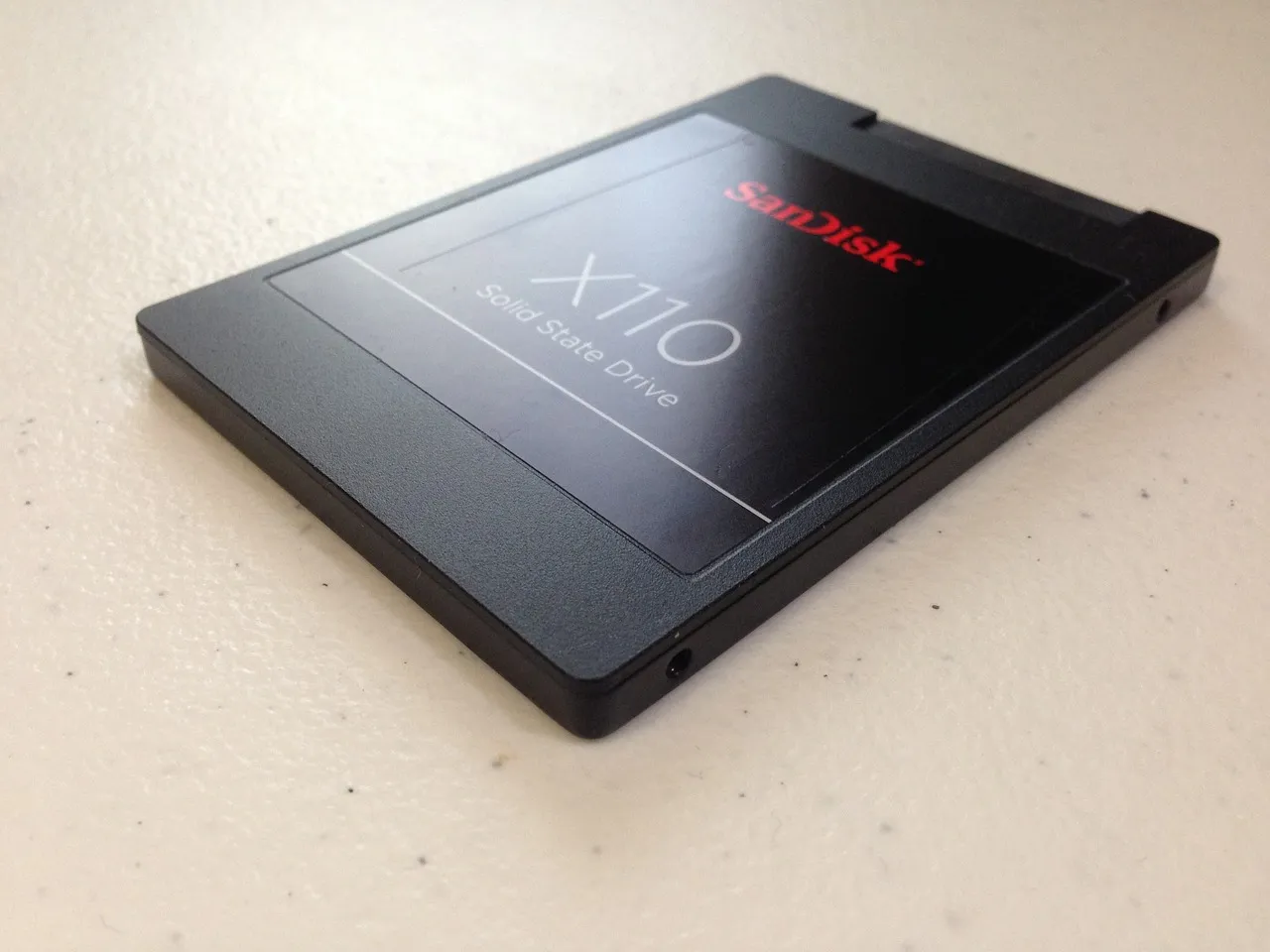
Look for an M.2 slot on the motherboard or in the laptop’s service manual, and note the PCIe generation it supports.
A Gen 4 drive works in a Gen 3 slot — it simply runs at Gen 3 speeds, which is still several thousand megabytes per second and vastly beyond anything a hard drive does.
Older machines may have M.2 slots wired for SATA only, which is worth confirming rather than assuming.
When buying, our budget laptop specs checklist shows what storage to look for.
Where hard drives still win, and it is not close
Capacity, and cost for that capacity. The BarraCuda family above reaches 24 TB in a single drive. The consumer NVMe drive alongside it tops out at 4 TB. For a media library, a backup target, or the bulk tier of a NAS, the hard drive remains the correct tool and shows no sign of going anywhere.
SSD for the operating system, applications and whatever you are currently working on. Hard drive for everything you keep but rarely open. You get the responsiveness where it is felt and the capacity where it is needed, and you pay for neither twice.
Power, heat and noise
The published figures are lopsided in a way that matters most on a laptop. The BarraCuda draws 8.9 W operating, 6.7 W idle and 1.2 W in standby. The 990 PRO draws 50–55 milliwatts at idle and around 5.5–6.5 W only while actively reading.
Idle is where a laptop spends most of its life, so that is 6.7 W against roughly a twentieth of a watt, continuously.
Add the mechanical differences — a hard drive is audible, generates more heat, and can be damaged by a knock while the platters are spinning — and the case for spinning disks inside a portable machine has essentially disappeared.
Our laptop buying guide covers storage alongside the CPU, RAM and screen.
The thing cheap SSDs do that reviews rarely mention
SSDs reach their headline write speeds using a fast cache, and it does not last forever. Samsung is upfront about this: the 990 PRO’s quoted figures were “measured with Intelligent TurboWrite technology being activated”, which the data sheet notes “operates only within a specific data transfer size”.
Buying used? See refurbished vs new laptops for how to check which drive you are getting.
Once that buffer fills, write speed drops to whatever the underlying flash can manage. On a good drive that is still respectable.
On a cheap QLC drive with no DRAM it can fall below a hard drive, which is how people end up with an SSD that feels slow while copying a large video file.
It never shows up in everyday use — and it shows up every time if you move big files for a living.
Do SSDs wear out?
Yes, and for almost everyone it is a non-issue. Flash cells tolerate a finite number of writes, which manufacturers publish as TBW — terabytes written. The 990 PRO is rated at 600 TB for the 1 TB model, 1,200 TB for the 2 TB and 2,400 TB for the 4 TB.
Put 600 TB in perspective: writing 50 GB every single day, you would reach it in around 33 years. Ordinary use does not come close, and the drive will be obsolete long before its cells are.
Hard drives usually give warning — noise, slowdowns, SMART errors — because they fail mechanically. SSDs tend to go more abruptly. That difference is worth knowing, but it changes nothing about the conclusion: a single drive of either kind is not a backup, and the only real protection is a copy somewhere else.
Is it worth upgrading an older machine?
Replacing a boot hard drive with an SSD is the largest improvement in perceived speed available to an ageing computer, and usually the cheapest. A machine that took two minutes to become usable after login becomes one that is ready in seconds, because all those small mechanical waits vanish at once.
It is also the upgrade people skip in favour of more RAM, which helps only if they were actually short of memory. If the machine has a hard drive in it, start there.
Where storage sits among the upgrades that genuinely change how a machine performs.
Making the switch: clone or start clean
Two routes, and the right one depends on how much you like your current install. Cloning copies the existing Windows installation across so the machine boots exactly as before, keeping every program and setting. Most SSD manufacturers give away cloning software for their own drives, and it is the path of least disruption.
Gamers should see our hardware guide for gamers for where a fast NVMe drive actually matters.
A clean install takes longer and means reinstalling applications, but it leaves behind years of accumulated clutter, and on a machine old enough to still have a hard drive there is usually a lot of it. If the old install was already slow for reasons other than the disk, cloning faithfully reproduces those reasons on faster hardware.
Do not wipe the hard drive the moment the new one boots. Leave it disconnected in a drawer for a fortnight, or reformat it as a secondary drive only after you have confirmed nothing was missed. It costs nothing and it is the difference between an inconvenience and a bad week.
One caveat on cloning: the new drive needs to be at least as large as the used space on the old one, not the old drive’s full capacity.
Moving from a full 2 TB hard drive to a 1 TB SSD works fine if only 600 GB is actually in use, though most cloning tools want you to clear the difference first.
Common mistakes to avoid
- Buying a SATA SSD when an M.2 slot is free. Same money, a fraction of the ceiling.
- Choosing on sequential numbers alone. They describe the workload you almost never have.
- Putting a budget QLC drive in a heavy-write role. Video scratch disks and constant large transfers are exactly where it collapses.
- Installing the operating system on the hard drive and games on the SSD. Backwards — the OS does far more small random reads than a game does.
- Treating an SSD as more reliable, therefore backup-optional. Different failure mode, same requirement.
- Filling an SSD to the brim. They need free blocks to write efficiently; leaving some headroom keeps performance up.
Developers who juggle large projects should also read our guide to laptops for programmers.
If the drive is nearly full, reclaiming space is worth doing before buying a bigger one.
SSD vs HDD: Frequently Asked Questions
Is an SSD really ten times faster than a hard drive?
It depends entirely on what is measured.
On sequential throughput, an NVMe SSD at 7,450 MB/s against a hard drive at 190 MB/s is closer to 39× — while a SATA SSD, capped by the same interface the hard drive uses, is under 3×.
On random access, where everyday responsiveness actually comes from, the difference is orders of magnitude larger than any of those.
Can I use an SSD and a hard drive in the same computer?
Yes, and it is the arrangement most desktops should use. Operating system, applications and current projects on the SSD; media, backups and archives on the hard drive. Most desktop cases and motherboards accommodate both without difficulty.
Should I buy NVMe or SATA?
NVMe, if the machine has a free M.2 slot that supports it. The price difference is small and the performance difference is not. SATA remains the right answer only when there is no M.2 slot available, or the slot is wired for SATA only.
Do SSDs wear out from normal use?
Not on any timescale that matters. A 1 TB Samsung 990 PRO is rated for 600 TB written; at 50 GB a day that is roughly 33 years. Heavy write workloads such as video editing shorten it, but ordinary use will never approach the limit.
Are hard drives obsolete?
No. They lost the argument for boot drives and laptops, and they comprehensively won on capacity — 24 TB in one drive against 4 TB for the consumer NVMe compared here. For bulk storage, backup targets and NAS units, hard drives remain the sensible choice.
The short version
Put the operating system on an SSD, prefer NVMe when the slot exists, and keep a hard drive for the things you store rather than use. The speed figure worth caring about is not on the box — it is random access, and it is the reason the upgrade feels the way it does.
And whichever you choose, it is still one drive. Keep a copy of anything you would be upset to lose somewhere else entirely.






One Response