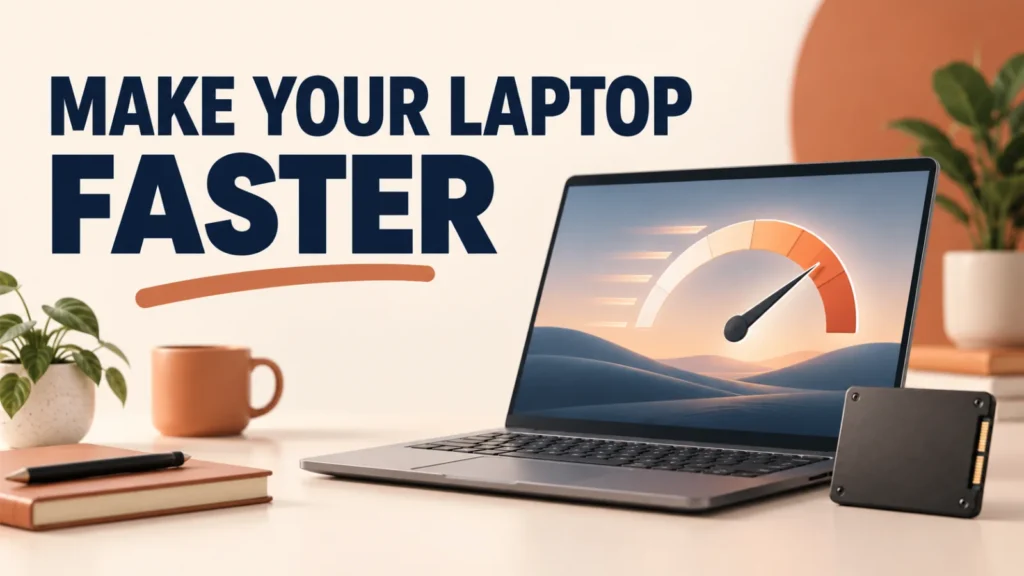
To make your laptop faster, restart it, free up a nearly full drive, disable startup apps you do not need, and remove unused programs. Then use Task Manager to find what is consuming CPU, memory, or disk. This guide covers 12 free Windows fixes and when an SSD or RAM upgrade is worth paying for.
For a symptom-first diagnosis, use our slow computer troubleshooting guide.
A slow Windows laptop usually needs a few targeted fixes, not a booster app. Start with the quick wins below, then check what is actually using its resources before changing more settings.
Table of Contents
ToggleWhy Your Laptop Slows Down
Storage may be nearly full, more apps may launch with Windows, or one process may be using too much memory or CPU. Heat and drive faults can also cause slowdowns. The right fix depends on the cause, so use Task Manager if the quick steps do not help.
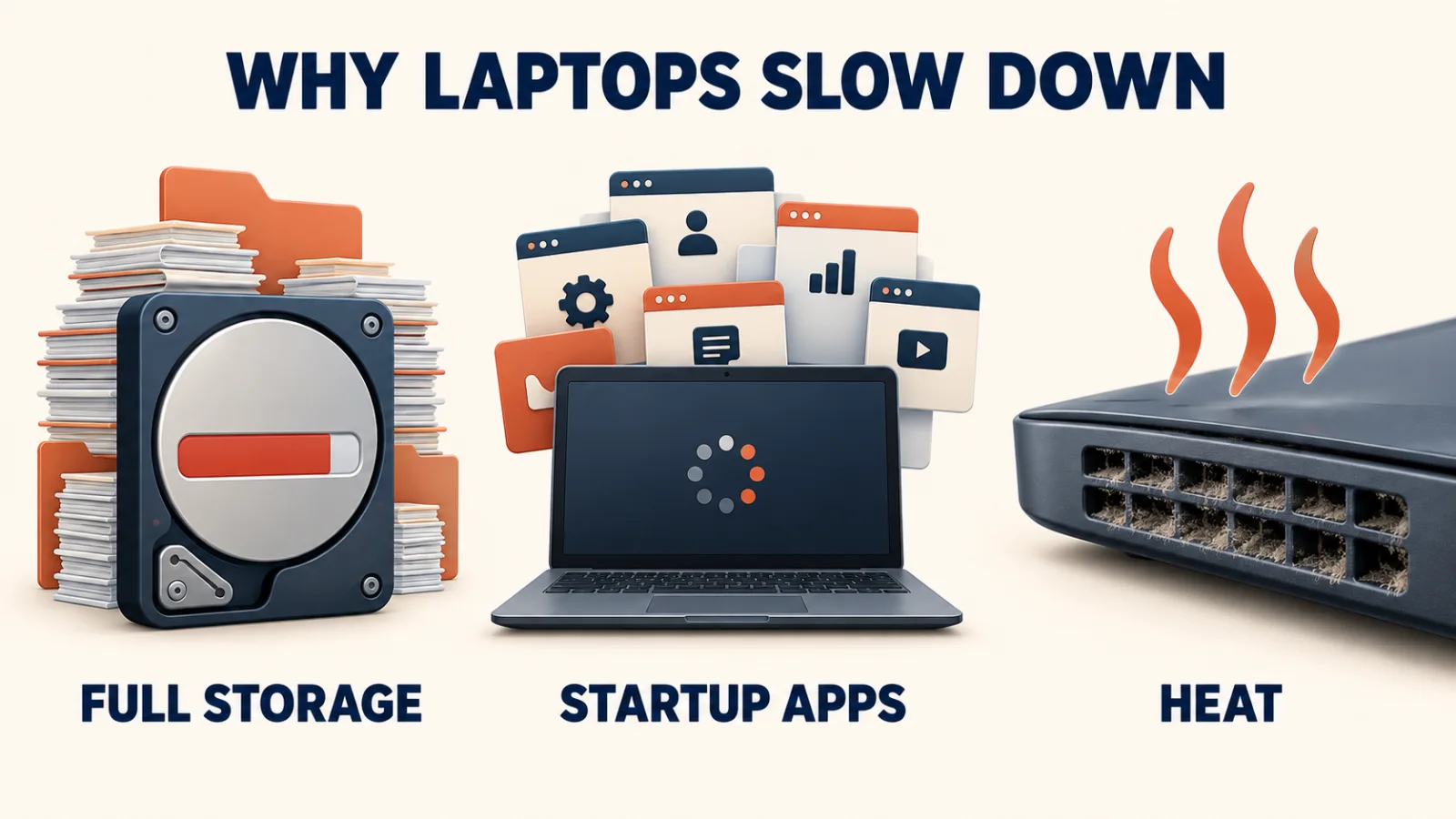
Quick Fixes to Make Your Laptop Faster
1. Restart the Laptop
Restarting clears temporary processes and gives Windows a fresh start. If you normally just close the lid, try a full restart before changing any settings.
2. Free Up Storage and Temporary Files
Open Settings > System > Storage to see what is using space. Remove files you no longer need, then review Temporary files before deleting anything. Storage Sense can clear eligible temporary files automatically. Check Downloads and the Recycle Bin carefully so you do not remove something you still need.
These steps matter most when the drive is close to full. Microsoft explains the built-in options in its guide to freeing drive space in Windows.
3. Disable Unneeded Startup and Background Apps
Press Ctrl + Shift + Esc, open Startup apps in Task Manager, and disable apps you do not need when signing in. You can still launch them manually later. Also close programs left running in the system tray when you are not using them. Avoid disabling security software or a device utility you rely on.
4. Uninstall Programs You No Longer Use
Open Settings > Apps > Installed apps and uninstall software you recognize but no longer use. This can free space and remove background processes. Leave unfamiliar drivers and manufacturer utilities alone until you know what they do.
Tune Windows and Your Apps
5. Update Windows and Needed Drivers
Open Settings > Windows Update and install available updates. If a specific device is having trouble, check its driver through Windows Update or the laptop manufacturer. Restart when prompted; a driver update is most useful when it addresses a real problem.
6. Scan for Malware
Open Windows Security > Virus & threat protection and run a scan. Malware can consume system resources in the background. Follow Windows Security’s instructions if it finds a threat.
7. Reduce Visual Effects
Search Windows for View advanced system settings, choose Settings under Performance, and turn off effects you do not need. On an older laptop, this can make the interface feel more responsive. Keep the settings you find useful or attractive.
8. Use the Right Power Mode
On Windows 11, open Settings > System > Power & battery > Power mode. Choose Best performance when plugged in if that option is available. A higher performance mode can use more power, so switch back when battery life matters.
9. Lighten Browser Load
Close tabs you are not using and remove extensions you no longer need. If the laptop is slow mainly while browsing, test with fewer tabs before changing Windows settings.
A few popular fixes do more harm than good: installing several booster or cleaner apps, which add clutter and background activity; constantly force-closing every app, which the laptop just has to reload; and ignoring updates, which costs you both performance and security fixes.
Find the Cause, Then Check Heat and Drive Health
Press Ctrl + Shift + Esc and open Task Manager’s Processes tab. Sort by CPU, Memory, then Disk to find an app using an unusual amount of resources. Update or close that app before trying a broader fix.
Use Task Manager to identify the process that is slowing the laptop.
10. Keep the Laptop Cool
If performance drops after the laptop gets hot, place it on a hard, flat surface and keep its vents clear. Clean visible dust carefully when the laptop is off. Persistent overheating may need professional servicing.
11. Check the Drive if It Freezes
If the laptop freezes, shows disk errors, or repeatedly stalls, open File Explorer, right-click the drive, choose Properties > Tools, then use Error checking. This is a diagnostic step for a suspected drive problem, not a routine speed boost. Back up important files first if you suspect the drive is failing.
Last Resort: Reinstall Windows
12. Reinstall Only After Backing Up
If the laptop is still slow after you identify and address the cause, reinstalling Windows can resolve persistent software problems. It takes time and requires reinstalling apps. Read Microsoft’s Windows recovery options and choose the option that fits your situation.
A clean reinstall erases everything on the laptop. Back up your files, photos, and documents before you begin.
Paid Upgrades: SSD and RAM
If the laptop still uses a hard disk drive, replacing it with an SSD is often the most noticeable hardware speed upgrade. More RAM helps when memory fills up as you use several apps or browser tabs. Check your exact laptop model first: some newer machines have soldered storage or memory and cannot be upgraded.
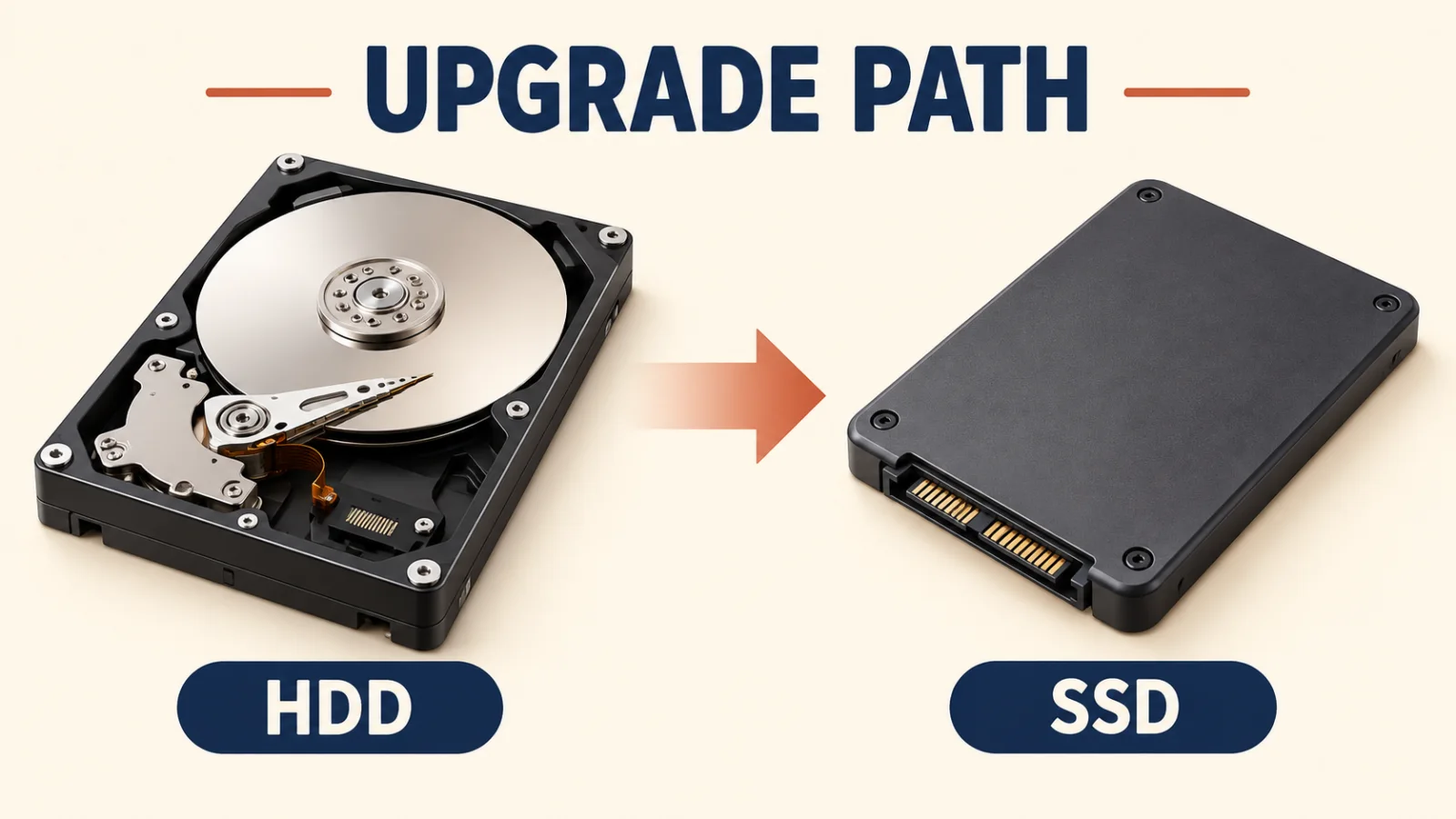
Replacing a drive means moving or reinstalling your data, so back up your files first.
Frequently Asked Questions
How can I make my laptop faster for free?
Free up storage, disable startup programs, uninstall unused apps, update Windows, scan for malware, and restart regularly. These steps cost nothing and make the biggest everyday difference.
What is the best upgrade to speed up a laptop?
Switching from an older hard drive to an SSD is the single biggest upgrade. It makes the laptop start, load, and respond far faster. Adding more RAM helps too if you run many apps at once.
Why is my laptop so slow all of a sudden?
A sudden slowdown is often caused by full storage, a recent update, malware, or a background app using the processor. Restart, check storage, and scan for malware to find the cause.
Do cleaner and booster apps make a laptop faster?
Usually not. Most add clutter and run in the background themselves. Stick to the built-in tools like Disk Cleanup, Storage Sense, and Task Manager for safe, effective results.
Does adding RAM make a laptop faster?
It helps if your laptop slows down when many programs or browser tabs are open. More RAM lets it hold more at once without lag, though an SSD gives a bigger boost for general speed.
Will a factory reset make my laptop faster?
Sometimes, if a software problem is causing the slowdown. Windows Reset offers different options, including one that keeps personal files, while a clean installation removes them. Back up important files before either option.