Computer hardware upgrades can make an older PC feel much faster, but only when the new part fixes the component that is holding the system back. Adding RAM will not cure a slow hard drive, and an expensive graphics card will not shorten ordinary web browsing if storage or background software is the real problem.
Start by measuring CPU, memory, disk and GPU activity during the task that feels slow. Then confirm compatibility, back up important files and buy the smallest upgrade that solves the measured limitation.
For a PC that still boots from a hard disk, moving Windows and applications to an SSD is usually the most noticeable general upgrade. Add RAM when memory stays nearly full during normal work. Upgrade the GPU for games or graphics workloads, and consider the CPU only when processor usage is the consistent bottleneck and the motherboard supports a worthwhile replacement.
Table of Contents
ToggleComputer Hardware Upgrades: Identify the Bottleneck First
Open Task Manager with Ctrl + Shift + Esc, select Performance, and reproduce the slow task. Watch CPU, Memory, Disk and GPU rather than judging performance from a single idle reading. Microsoft describes Task Manager in its Windows system-configuration guide as the system monitor for resource consumption.
- Disk stays at or near full activity: storage may be the limit, especially with a mechanical hard drive.
- Memory remains nearly full: Windows may need to move data between RAM and storage, which can make switching applications slow.
- GPU is saturated during a game: graphics settings or the graphics card may be limiting frame rate.
- CPU remains saturated while the GPU is not: the workload may be processor-limited.
- Performance falls as temperature rises: dust, airflow, fan or thermal-contact problems may be reducing clock speed.
Also check free storage and startup activity. Microsoft notes that low storage and too many background or startup applications can reduce performance without any failed hardware.

Upgrade From an HDD to an SSD
An SSD removes the mechanical seek delay of a hard disk. It can improve boot time, application launches, updates and file searches, but it does not increase CPU calculation speed or GPU frame rendering.
Check whether the computer accepts a 2.5-inch SATA SSD, an M.2 SATA drive or an M.2 NVMe drive. M.2 describes the physical form, not the interface, so an M.2 slot is not automatically compatible with every M.2 SSD. Confirm the interface, length and boot support in the computer or motherboard manual.
- Back up important files to a separate drive.
- Choose a compatible SSD with enough capacity for Windows, applications and working files.
- Use the drive manufacturer’s supported cloning tool or perform a clean Windows installation.
- Keep the old drive unchanged until the new installation boots and your files are verified.
Cloning and partition changes can make a PC unbootable if the wrong disk is selected or the process is interrupted. Keep a separate backup; a second copy on the same drive is not a backup.
Compare solid-state and mechanical storage before choosing the replacement drive.
Add RAM When Memory Is the Limit
More RAM helps when the computer runs out of working memory during multitasking, large documents, virtual machines, development tools or creative applications. It provides little benefit when current memory use is comfortably below capacity.
Before buying, verify the supported DDR generation, module type, maximum capacity, number of slots and memory arrangement. Laptop SO-DIMMs and desktop DIMMs are physically different, DDR generations are not interchangeable, and some laptops use soldered memory that cannot be upgraded.
For matched performance, use a compatible kit recommended for the computer or motherboard. Shut the PC down, disconnect power, follow the manufacturer’s electrostatic-discharge guidance, and confirm the new total in firmware or Windows after installation.
A module can physically resemble the correct part and still be unsupported. Check the exact computer or motherboard model, not only the processor name or the memory currently installed.
Improve Cooling Before Replacing Major Parts
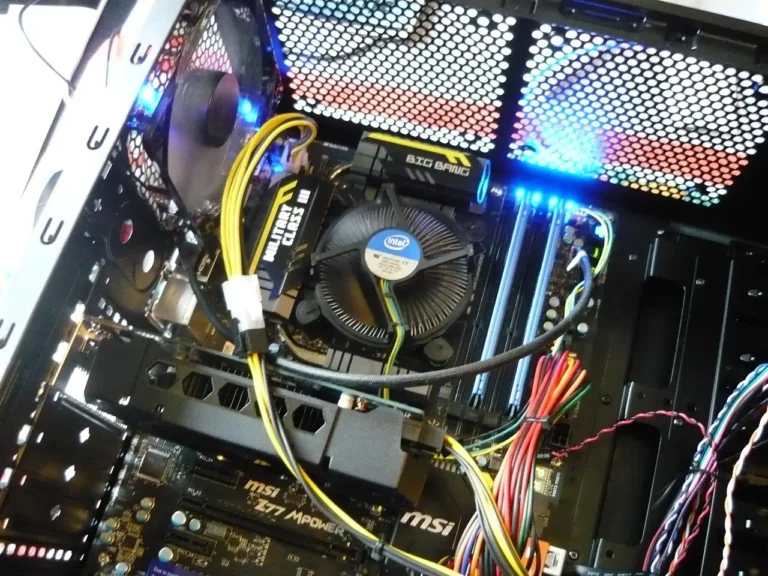
Dust-blocked vents, a failed fan, poor cable placement or dried thermal material can raise temperatures and reduce sustained performance. Cooling work helps only when heat is causing throttling; it does not turn a low-end processor into a faster model.
- Shut down, unplug the PC and move it to a ventilated work area.
- Hold fan blades still and use short bursts of compressed air from a safe distance.
- Clear intake filters and make sure cables do not obstruct fans.
- Confirm every fan spins normally after reassembly.
- Replace thermal paste only when you can remove and reinstall the cooler correctly.
Never open a power-supply enclosure; capacitors can retain dangerous energy after the computer is unplugged. Do not use a household vacuum directly on components, and do not allow compressed air to overspeed fan blades.
Upgrade the GPU for Graphics Workloads
A graphics-card upgrade is useful when a game, 3D application, GPU renderer or video workflow is limited by the current GPU. Lower the application’s resolution or graphics settings first: if performance improves clearly, the GPU is a likely bottleneck.
Check case clearance, slot width, power-supply capacity, required power connectors and firmware support. A high-end GPU may be wasted when the CPU cannot prepare frames quickly enough, the display resolution is low, or the power supply is unsuitable. Laptop GPUs are usually not replaceable, and external GPUs require specific high-bandwidth connections plus enclosure and operating-system support.
Consider a CPU Upgrade Carefully
A CPU upgrade can help compilation, simulation, software encoding and other processor-heavy work. It is often the most compatibility-sensitive upgrade because the socket alone is not enough: the motherboard chipset, firmware, power delivery, cooler and memory support all matter.
Compare the cost of a supported processor with the cost of a motherboard-platform replacement or a newer computer. On many laptops the processor is soldered. On older desktops, the fastest supported CPU may be expensive while delivering only a modest improvement.
A newer processor name does not guarantee compatibility with an existing motherboard. Use the board or system manufacturer’s supported-CPU list and required BIOS version.
Use BIOS Updates Only for a Specific Reason
Do not update firmware simply because a newer version exists. Review the manufacturer’s release notes and update only when the version fixes a relevant problem, closes a security issue or adds support required for the planned hardware. Follow the instructions for the exact computer or motherboard model.
Connect a laptop to AC power and do not interrupt the process. Intel’s BIOS guidance warns that an interrupted update can leave a computer unable to function correctly.
Installing firmware for the wrong model or losing power during a BIOS update can stop the computer from booting. Back up recovery information and use only the manufacturer’s official file and procedure.
Make the Existing Hardware Work Efficiently
Try the reversible Windows improvements before purchasing parts. Disable only unnecessary startup applications in Settings → Apps → Startup or Task Manager → Startup apps. Microsoft’s startup-app guidance explains that these applications affect boot speed and overall resource use.
Use Settings → System → Storage to review space and Storage Sense. According to Microsoft’s Optimize Drives documentation, Windows normally defragments hard disks and sends TRIM instructions to SSDs. Do not use old third-party defragmentation advice on an SSD.
Install Windows updates and hardware drivers through Windows Update or the device manufacturer. Avoid registry cleaners, “RAM booster” utilities and automatic driver-updater bundles; they do not fix a hardware bottleneck and can introduce instability.
Use the software checklist when Task Manager shows startup or background activity rather than a hardware limit.
When Buying a New Computer Makes More Sense
Replacement may be better when several components need upgrading, the system lacks supported security updates, the motherboard blocks a useful CPU or memory upgrade, or the required parts and labor approach the cost of a newer computer. A new machine also makes sense when downtime, battery condition or reliability matters more than extending the old platform.
Keep the upgrade when one compatible component clearly solves the bottleneck and the rest of the system remains reliable. That is the difference between a focused improvement and spending money around an obsolete platform.
Frequently Asked Questions
Which computer hardware upgrade makes the biggest difference?
For a system still using a mechanical boot drive, an SSD often produces the most visible everyday improvement. If the system already has an SSD, measure memory, CPU and GPU use before choosing another part.
Will adding more RAM make every computer faster?
No. Extra RAM helps when current memory is regularly close to full. It does not accelerate a workload limited by the processor, graphics card or storage.
Can every laptop be upgraded?
No. Some laptops allow storage or RAM replacement, while others use soldered memory and storage or have limited access. Check the service manual for the exact model.
Should I defragment an SSD?
No manual traditional defragmentation routine is needed. Windows recognizes SSDs and uses appropriate optimization such as TRIM through Optimize Drives.
Is overclocking a good first performance upgrade?
No. Overclocking can increase heat, power use and instability, and may affect warranty coverage. Fix cooling and identify the real bottleneck before considering it.
Upgrade the Part That Solves the Problem
The best computer hardware upgrades are targeted, compatible and backed by measurements. Diagnose the slow workload, protect your data, verify the system manual and change one component at a time.
An SSD, enough RAM and healthy cooling can extend a useful computer’s life. A GPU or CPU upgrade can be worthwhile for the right workload, but only after compatibility and total cost make sense.