Mark of the Web is the quiet marker that tells Windows a file came from the internet. It is why you see a warning when you open a downloaded document, and why Office sometimes opens a file in a read-only view.
It is also the reason this term appeared in security news this month. Microsoft patched an exploited flaw that let attackers get around those warnings. Here is what Mark of the Web does, what the flaw means for you, and seven practical ways to stay safe.
Mark of the Web is a tag Windows adds to files downloaded from the internet or received from outside sources. It triggers warnings, Protected View, and SmartScreen checks. In October, Microsoft patched an exploited flaw (CVE-2026-96951) that could bypass it. Install your latest Windows update, keep security tools on, and never unblock files you do not trust.

Table of Contents
ToggleWhat Mark of the Web actually is
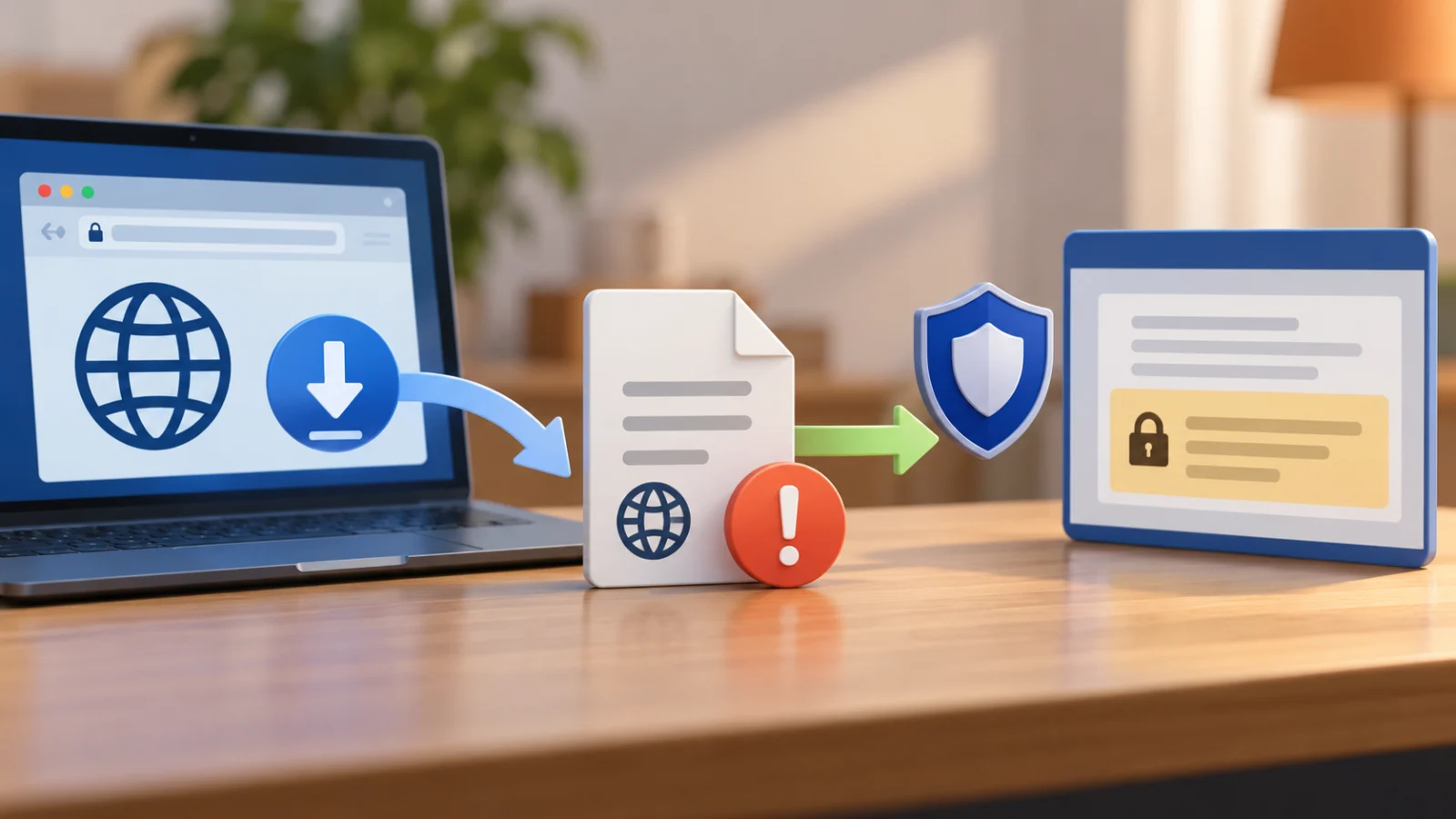
When you download a file or receive one from an untrusted source, Windows can attach a small piece of data to it that records where it came from. That tag is the Mark of the Web, often shortened to MOTW. The file looks normal, but Windows and other programs can read the tag.
Programs use it to decide how careful to be. Windows may show a security warning before running an app. Microsoft Office can open the file in Protected View, which is read-only. Other security checks can run before the file does anything.
The tag is not an antivirus scan, and it does not prove a file is dangerous. It only says the file came from somewhere else, so treat it with care.
What happened with CVE-2026-96951
On October 13, Microsoft patched a Windows Shell flaw tracked as CVE-2026-96951. Help Net Security describes it as a command injection vulnerability that attackers are exploiting in the wild.
An attacker sends a specially crafted file by email, instant message, or a collaboration tool, or tricks you into downloading it from a malicious site. You still have to open the file. When you do, the Mark of the Web protections that would normally warn you, open the file in a restricted view, or block it can be bypassed.
Microsoft has not said how attackers used the flaw or who found it. Tenable’s Satnam Narang called it the third Windows Shell flaw exploited this year, per the same report. Because it was actively exploited, patching soon matters more than usual.
Check Microsoft’s Security Update Guide entry for the CVE to see which Windows versions and KB numbers cover your PC. Third-party reports did not list affected versions.
Step 1: Install the October update
The fix arrived with the October 13 cumulative updates. For Windows 11 24H2, 25H2, and 26H2 the update is KB5127648, according to Windows Report. Other versions have their own October updates.
- Open Settings > Windows Update.
- Select Check for updates and install everything offered.
- Restart when asked, even if you are in the middle of work. The fix does not apply until you do.
If updates fail, our Windows 11 update problems guide covers the usual fixes.
Step 2: Learn to see whether a file has the tag
You can check any file yourself. Right-click it, choose Properties, and look at the bottom of the General tab. If Windows has tagged the file, you will see a security note saying the file came from another computer and might be blocked, with an Unblock checkbox.
Check with PowerShell
Open PowerShell in the folder and run Get-Content .\filename.ext -Stream Zone.Identifier, replacing the name with your file. If the file is tagged, it prints a few lines including a zone value. If it is not tagged, you get an error saying the stream was not found.
No Unblock box does not mean a file is safe. It can mean the tag was never added, was removed, or the file came through a path that skips it. Treat unexpected files with suspicion either way.
Step 3: Never unblock a file just to make it work
The Unblock checkbox removes the tag. That is fine for a file you trust, such as a document from a colleague you spoke to. It is a bad idea for random downloads, especially if a website or message tells you to “right-click and unblock”.
If a stranger, a pop-up, or a download page tells you to unblock a file, run a script, or disable warnings, treat it as a scam. Our guide to the fake CAPTCHA ClickFix scam shows how attackers use fake instructions to push you into running their code.
Step 4: Keep Defender and SmartScreen on
Mark of the Web is one layer. Microsoft Defender and SmartScreen are others. Open Windows Security and make sure real-time protection and app and browser control are on. If you see a warning that Defender is off, follow our guide on fixing the Microsoft Defender turned off warning.
Running a second antivirus is not needed for most people. If you want to compare options, see our antivirus software guide.
Step 5: Respect Protected View in Office
When Word or Excel opens a downloaded file in Protected View, you will see a yellow bar. Do not select Enable Editing until you are sure the file is expected and the sender is real. Many attacks depend on you clicking that button.
If you are unsure, ask the sender on a different channel, such as a phone call to a number you already have, whether they sent the file.
Step 6: Be careful with archives and shared links
ZIP and other archive files are popular with attackers because people trust them. Windows’ built-in extraction normally keeps the tag on the files inside, but some third-party archive tools may not pass it on. Check your tool’s settings if you rely on one.
Treat links in email, chat, and collaboration apps carefully too. Our guide to checking if a link is safe gives you a repeatable process before you click.
A practical checklist of settings that make Windows 11 harder to attack.
Step 7: Build safer download habits
Most file-based attacks start with a download you did not need. A few habits cut your risk a great deal.
Download from the source
Get software from the maker’s own site or the Microsoft Store, not from search ads or file-sharing links. Check the address bar carefully.
Show file extensions
Open File Explorer, select View > Show, and turn on File name extensions. A file called invoice.pdf.exe is not a PDF, and extensions make that obvious.
Keep your browser updated
Browsers receive security fixes often. See our note on the Chrome zero-day patch for how to check your version.
What to do if you opened a suspicious file
- Disconnect from the internet if the file did something odd, like opening a command window.
- Run a full scan in Windows Security > Virus & threat protection.
- Change passwords from a different, trusted device.
- Check for unknown programs in Settings > Apps > Installed apps.
If you think a scammer took control of your PC, follow our guide on what to do when a scammer has remote access.
Does this change anything for everyday users?
Not much day to day. The tag still works for most files, and the flaw needed you to open a crafted file. The practical lesson is that patches matter and warnings are worth heeding. Keep Windows current, open fewer unexpected files, and trust the warnings Windows shows you.
Frequently Asked Questions
What is Mark of the Web in Windows?
It is a tag Windows adds to files that come from the internet or other outside sources. Windows and Office use it to show warnings, open files in Protected View, and run extra checks.
Is CVE-2026-96951 fixed?
Yes. Microsoft patched it in its October 2026 Patch Tuesday updates, and it was reported as exploited before the fix. Install your latest Windows update and restart.
Should I click Unblock on a downloaded file?
Only if you trust the source and expect the file. Unblocking removes the tag and the warnings that come with it.
Does a file without the tag mean it is safe?
No. A missing tag can mean it was removed or never added. Judge a file by where it came from and what it is, not just the tag.
Does this affect Windows 10?
Third-party reports did not list affected versions. Check Microsoft’s Security Update Guide entry for the CVE and keep Windows 10 updated through whatever support you have.