Laptop keys not working? The cause is usually a setting rather than a broken keyboard. Filter keys, Num Lock, Fn Lock or the wrong keyboard layout can all make keys seem dead or type the wrong thing.
Work through the fixes below in order. The early ones take seconds, and the last ones tell you whether the keyboard itself needs a repair.
Restart the laptop first. Then turn off Filter keys in Settings > Accessibility > Keyboard, check Num Lock and Fn Lock, and confirm the keyboard layout under Time & language. If that fails, reinstall the keyboard in Device Manager. If the same keys also fail in the BIOS screen, the keyboard hardware is at fault.

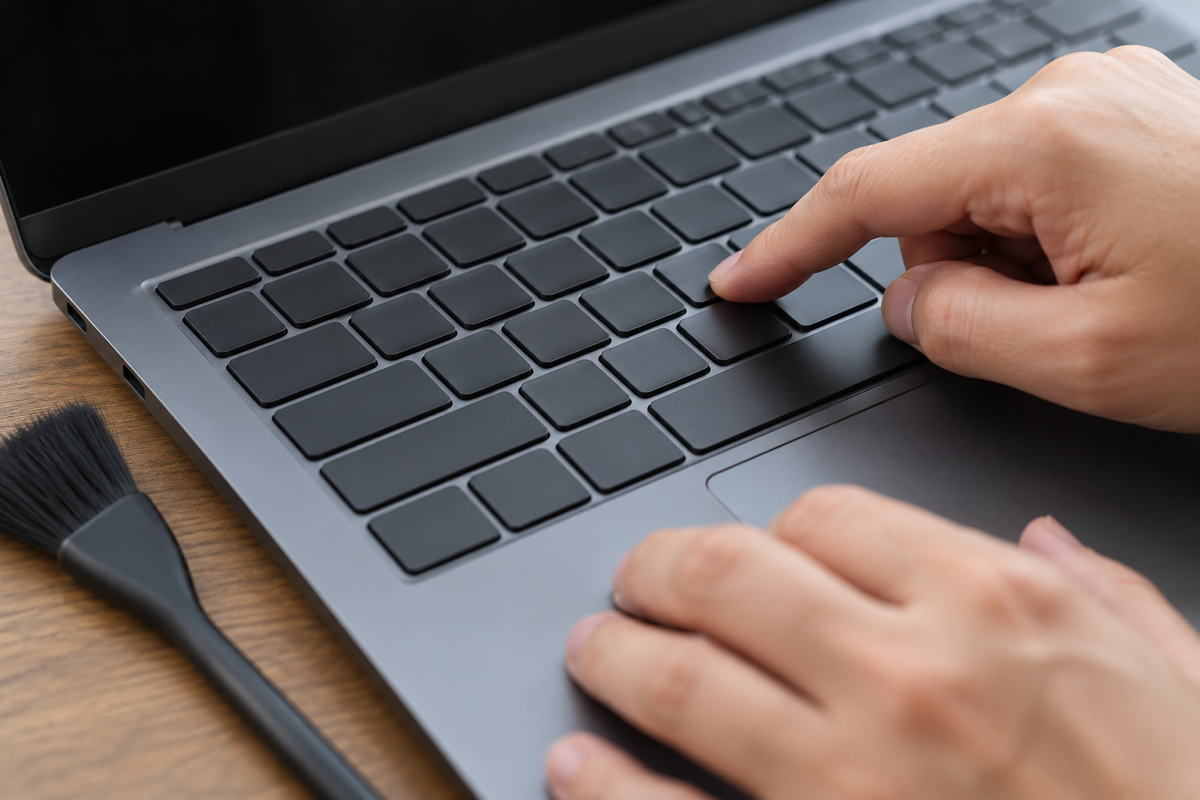
Table of Contents
ToggleLaptop Keys Not Working? Start With a Restart
A restart reloads the keyboard driver and clears a stuck key state. Use the touchpad to open Start > Power > Restart, not Shut down followed by power on.
If the keys work after the restart and fail again later, keep going. Something is switching a setting back on.
Fix 2: Turn Off Filter Keys and Sticky Keys
Filter keys ignores short or repeated key presses. When it is on, keys can feel dead unless you hold them down. It is easy to turn on by accident: holding the right Shift key for about eight seconds does it.
- Press
Windows + Ito open Settings. - Select Accessibility, then Keyboard.
- Turn Filter keys off.
- Turn Sticky keys off too, unless you use it on purpose.
- Test the keys in Notepad.
Fix 3: Check Num Lock and Fn Lock
Letters Typing Numbers
Smaller laptops without a separate number pad often put numbers on the letter keys. With Num Lock on, keys such as J, K and L type numbers instead. Press Num Lk, or Fn plus the key marked Num Lk, to turn it off.
Function Keys Doing the Wrong Thing
If F1 to F12 change the volume or brightness instead of working as function keys, or the other way round, Fn Lock is the cause. Many laptops toggle it with Fn + Esc or a key with a small padlock icon. Some models also have an action key or function key setting in the BIOS. Check your model’s manual for the exact key.
Fix 4: Check the Keyboard Layout and Language
If keys work but type the wrong symbols, Windows is using a different layout from the one printed on your keys. A common sign is @ and " swapping, or letters such as Y and Z changing places.
- Open Settings > Time & language > Language & region.
- Next to your language, open the options menu and select Language options.
- Under Keyboards, add the layout that matches your keys.
- Remove layouts you do not use.
Pressing Windows + Space switches between installed layouts. That shortcut is a common reason a layout changes without warning. Removing layouts you do not need stops it.
Fix 5: Reinstall the Keyboard Driver
A damaged driver can stop some or all keys from responding. Windows reinstalls the standard keyboard driver automatically after a restart.
- Right-click Start and select Device Manager.
- Expand Keyboards.
- Right-click your keyboard, often listed as Standard PS/2 Keyboard or HID Keyboard Device, and select Uninstall device.
- Restart the laptop with the touchpad.
- Test the keys again.
Also install the latest keyboard, chipset and BIOS updates from your laptop maker’s support site. Our guide to common Windows errors explains how to check other drivers safely.
Fix 6: Undo a Recent Update
If the keys stopped working straight after a Windows or driver update, roll it back.
- Windows update: Settings > Windows Update > Update history > Uninstall updates, then remove the newest one.
- Driver update: In Device Manager, open the keyboard’s Properties > Driver tab and select Roll Back Driver if it is available.
Do not look for the old Keyboard troubleshooter. Microsoft lists it among the legacy troubleshooters removed from newer versions of Windows 11, as explained on its troubleshooter deprecation page.
Fix 7: Test the Keys Outside Windows
This one test tells you whether the problem is software or hardware. Restart and open the BIOS setup screen with the key your laptop uses, often F2, F10, Esc or Del.
- Keys work in the BIOS: the hardware is fine. The problem is in Windows, so recheck Fixes 2 to 6.
- Keys fail in the BIOS too: the keyboard or its cable has a fault.
Plugging in a USB keyboard gives the same answer. If the external keyboard types normally, the laptop’s own keyboard is the problem.
Fix 8: Clean Under the Keys
Crumbs and dust can stop a key from pressing fully. Shut the laptop down, tilt it at an angle and use short bursts of compressed air around the affected keys.
Do not pry off keycaps on thin laptops. Their clips break easily and are hard to replace.
If you spilled a drink, shut the laptop down straight away, unplug it and turn it upside down. Do not switch it on to test the keys. Our laptop damage repair guide covers what to do next.
Laptop Keys Not Working Until the Repair? 3 Easy Workarounds
If a few keys are dead and a repair will take time, you have three workarounds:
- On-Screen Keyboard: Settings > Accessibility > Keyboard > On-Screen Keyboard. Microsoft explains it in its On-Screen Keyboard guide.
- A USB or Bluetooth keyboard: the quickest full fix.
- Remap a key: Microsoft PowerToys includes Keyboard Manager, which can move a dead key’s job to a key you rarely use.
Once your keys work again, these shortcuts save time every day.
Frequently Asked Questions
Why are my laptop keys not working all of a sudden?
The most common causes are Filter keys turning on, Num Lock or Fn Lock, a changed keyboard layout, or a driver problem after an update. Debris and liquid damage are the usual hardware causes.
How do I know if my laptop keyboard is broken?
Test the keys in the BIOS setup screen. If they fail there, or a USB keyboard works while the built-in one does not, the laptop keyboard has a hardware fault.
Can a Windows update stop laptop keys working?
Yes. An update can install a driver that does not suit your keyboard. Restart first, then roll back the update or driver if the problem started straight after it.
Is it expensive to replace a laptop keyboard?
It depends on the model. On many thin laptops the keyboard is part of the top case, which costs more to replace. Check warranty cover before paying for a repair.