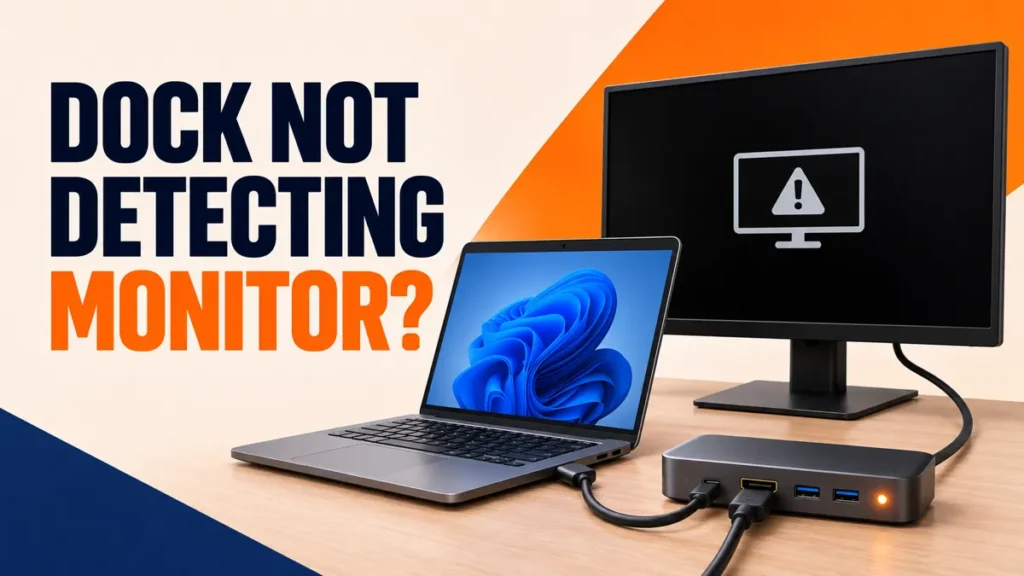
A docking station not detecting monitor connections is one of the most common laptop desk problems. The dock lights up, but the screens stay black, or the keyboard and Ethernet stop working. The cause is usually power, the wrong laptop port, a missing driver, or old dock firmware.
These fixes start with the quick physical checks and end with a full dock reset.
Check that the dock’s own charger is connected and its light is on. Plug the dock cable into the laptop’s Thunderbolt, USB4 or video-capable USB-C port, then choose Detect in Settings > System > Display. If the dock uses DisplayLink, install its current driver. Next update the dock firmware and laptop BIOS, then reset the dock using the manufacturer’s instructions.
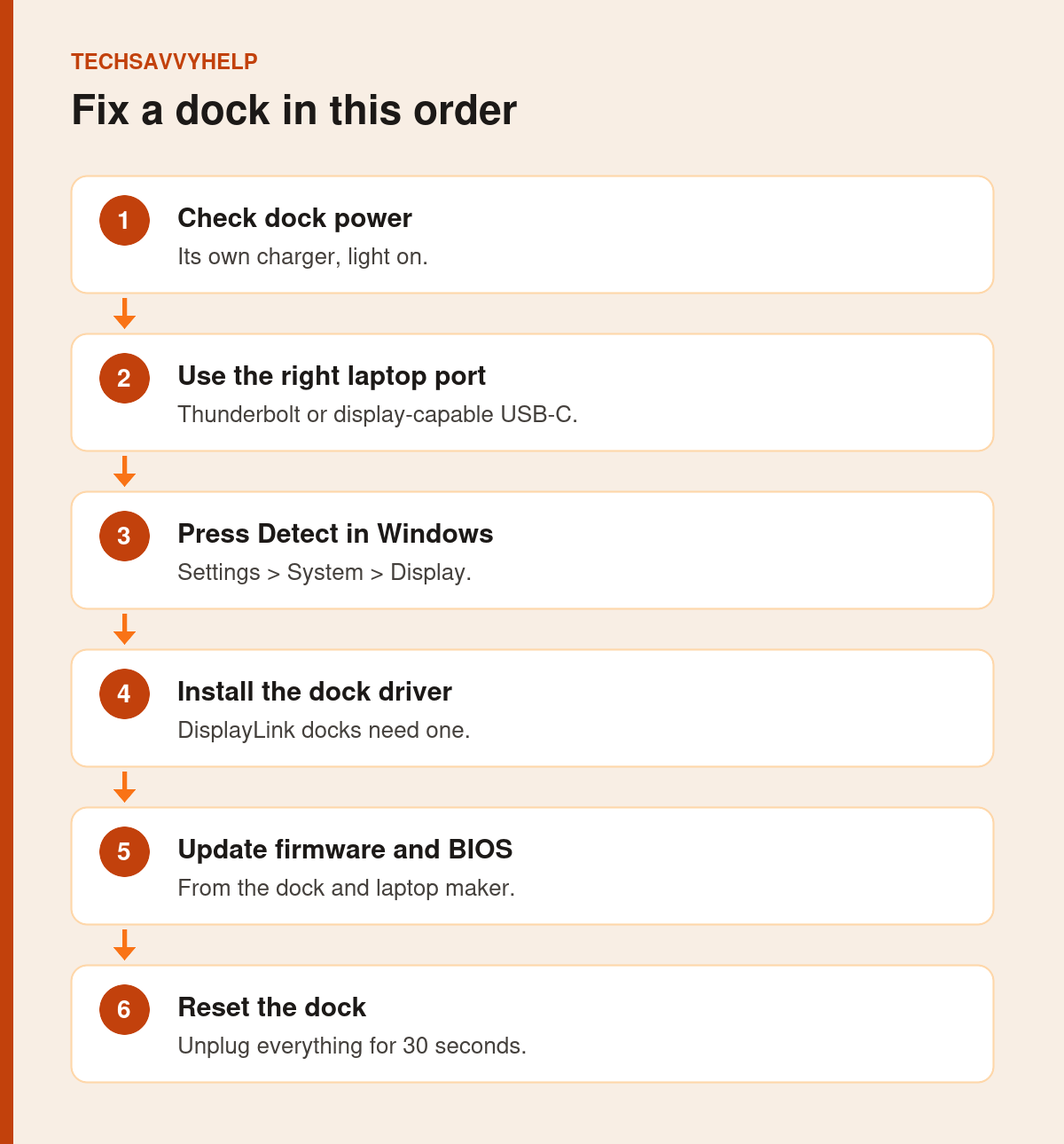
Table of Contents
ToggleFix 1: Check the Dock Has Power
Most docks need their own power adapter to run monitors and charge the laptop. Make sure it is plugged in and the dock’s power light is on. Dell’s dock troubleshooting guide also suggests trying a known-good adapter made for that dock model if the light stays off.
Fix 2: Use the Right Port on the Laptop
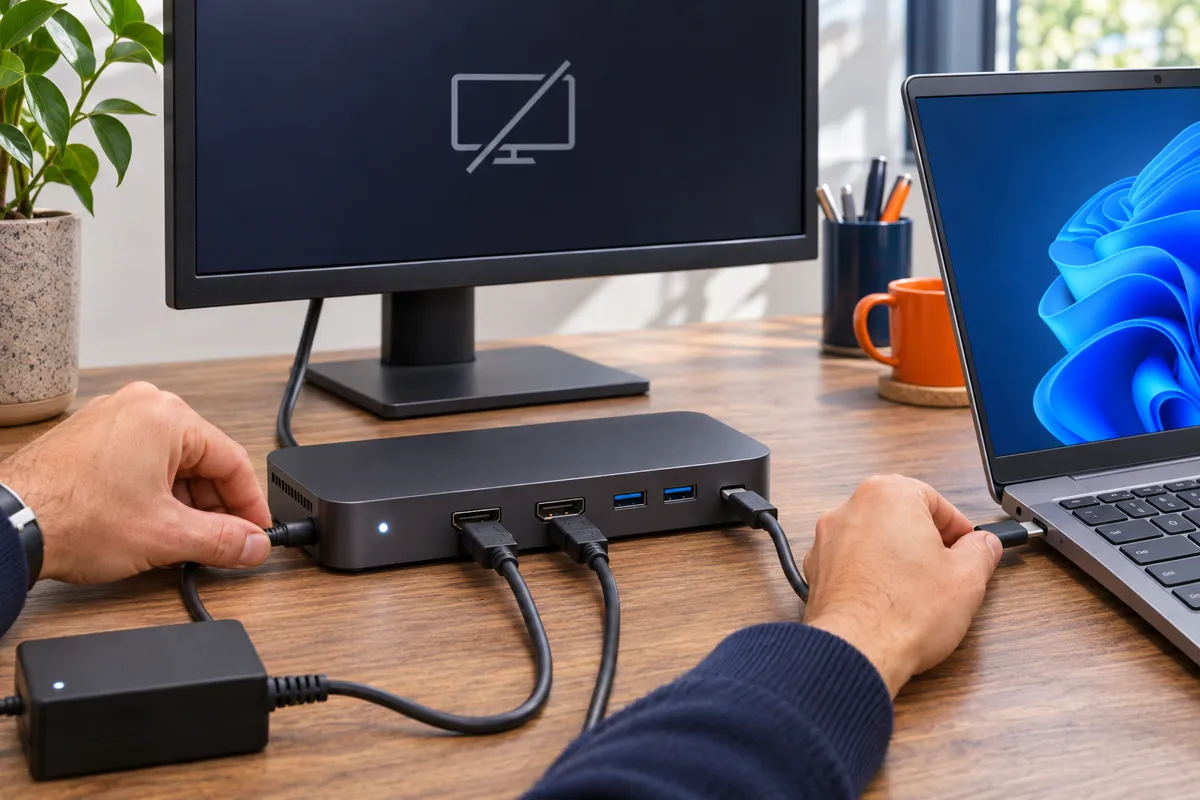
Not every USB-C port can send video. Look for a Thunderbolt lightning icon or a DisplayPort D icon next to the port. A data-only USB-C port can run a mouse but not a monitor. Microsoft’s USB-C help page says the same: if Windows shows Display connection might be limited, the laptop, cable and dock must all support DisplayPort Alternate Mode, and you need the port that supports it.
Use the cable that came with the dock. A charging cable may not carry video.
Fix 3: Press Detect and Check the Monitor Input
- Turn the monitor on and set its input to HDMI or DisplayPort to match the dock cable.
- Open Settings > System > Display.
- Expand Multiple displays and select Detect.
- Press Windows + P and choose Extend.
If one screen works and the other does not, swap the monitor cables to find out whether the problem follows the cable, the monitor or the dock port. Our guide to a second monitor not detected covers graphics driver fixes too.
Fix 4: Install the Dock Driver if It Uses DisplayLink
Many universal USB-C docks use DisplayLink to run extra screens. They do not work without the DisplayLink driver. Download it from the dock maker’s support page, install it and restart. Thunderbolt docks usually need no display driver, but the laptop may need its Thunderbolt software to approve the dock the first time.
Fix 5: Fix USB Devices on the Dock
If a keyboard or drive on the dock stops working, plug it straight into the laptop. If it works there, the device is fine and the dock or its firmware is the problem. If it fails everywhere, the device itself is faulty.
Fix 6: Fix Ethernet Through the Dock
Open Device Manager and expand Network adapters. Docks usually add a USB Ethernet adapter, often from Realtek. If it is missing or shows a warning, install the Ethernet driver from the dock maker’s page. Also try another network cable and wall port.
Fix 7: Docking Station Not Detecting Monitor After an Update? Update Firmware
Problems that start after a Windows update are often solved by firmware. Install the dock’s firmware updater from its maker, plus the laptop’s BIOS, graphics and Thunderbolt or USB-C updates. Keep the dock and laptop connected to power while firmware updates run.
Fix 8: Reset the Dock
Use the reset procedure for your dock model. For many powered Dell docks, disconnect the dock from the laptop and monitors, unplug its power adapter, then hold the dock’s power button for at least 30 seconds before reconnecting power first. Other docks use a shorter power-cycle or have no reset button, so check the manufacturer’s support page instead of assuming the Dell procedure applies.
Charging through the dock but the laptop says Slow charger? The dock may pass through less power than the laptop needs. See USB-C laptop not charging.
Frequently Asked Questions
Why is my docking station not detecting my monitor?
The most common causes are no power to the dock, a laptop port that cannot output video, a missing DisplayLink driver, or old dock firmware.
Do all USB-C ports support monitors?
No. The port must support DisplayPort Alternate Mode or Thunderbolt. Look for a lightning or D icon next to the port.
Why does my dock run one monitor but not two?
The dock or laptop may only support a set number of screens, or the second screen needs the DisplayLink driver. Check the dock’s specs.
How do I reset a docking station?
Unplug it from power, the laptop and the monitors, hold the power button for 30 seconds if it has one, then reconnect power first.