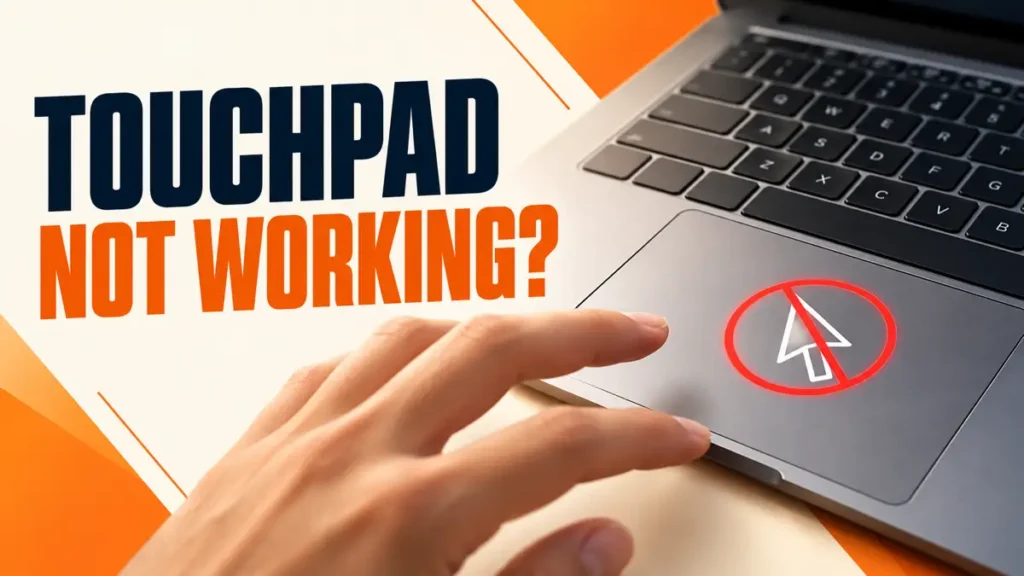
Windows 11 touchpad not working? The pointer freezes, disappears, or taps and gestures stop doing anything. In many cases the touchpad has simply been switched off by a key or a setting.
Each fix below includes keyboard steps, so you can work through it even if you cannot move the pointer. A USB mouse makes it quicker if you have one.
Press your laptop’s touchpad key, often an F key with a touchpad icon. Then open Settings > Bluetooth & devices > Touchpad and make sure Touchpad is on and Leave touchpad on when a mouse is connected is ticked. If it still fails, restart, update or reinstall the touchpad driver in Device Manager, and install updates from Windows Update and your laptop maker.
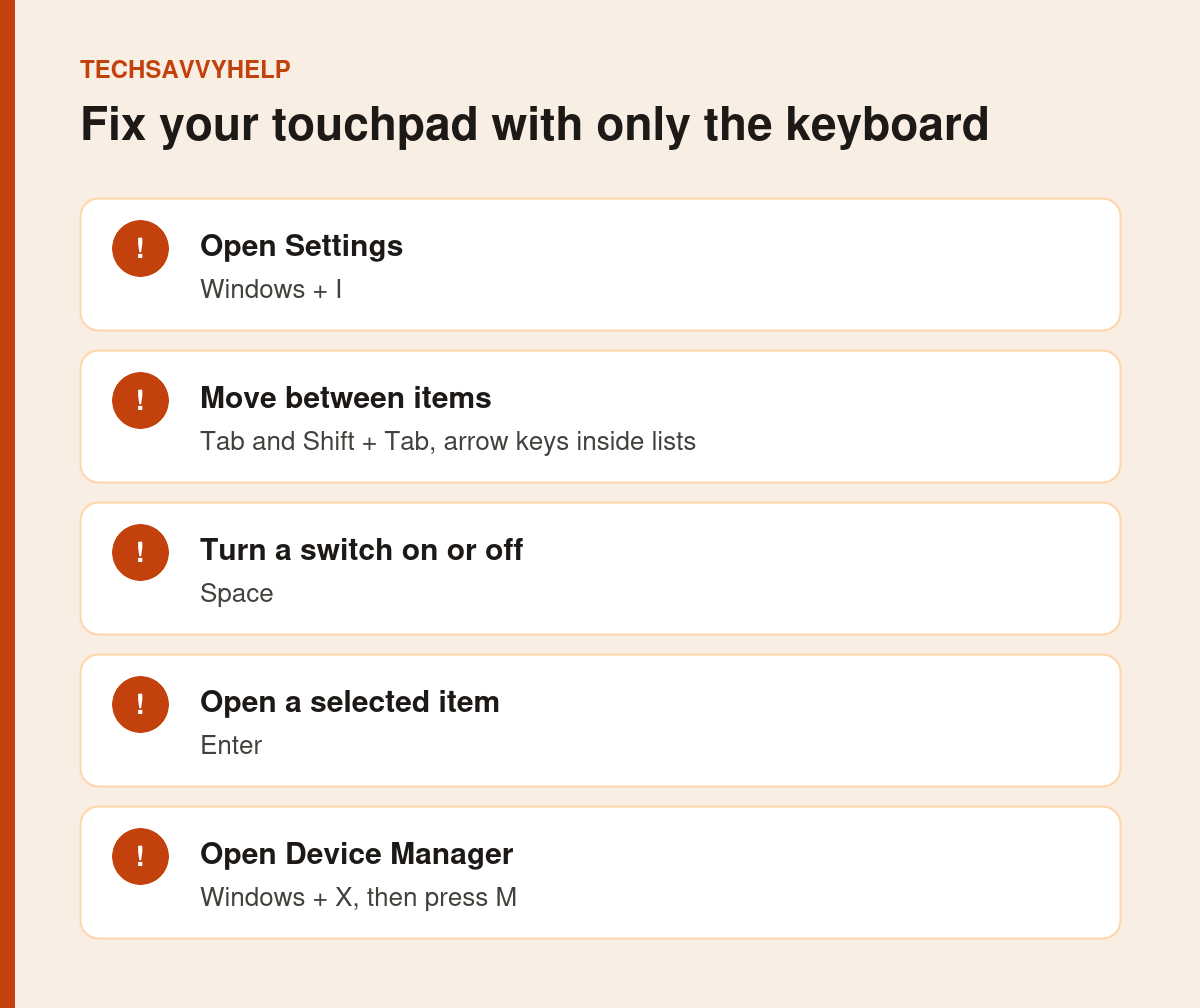
Table of Contents
ToggleFix 1: Press the Touchpad Key
Many laptops have a key that turns the touchpad on and off, usually one of the F1 to F12 keys marked with a touchpad icon. On some models you need to hold Fn at the same time. Some HP laptops instead turn the touchpad off when you double-tap its top-left corner.
Check your laptop’s manual for the exact key.
Fix 2: Turn the Touchpad On in Settings
- Press
Windows + Ito open Settings. - Go to Bluetooth & devices > Touchpad.
- Make sure Touchpad is turned on.
- Expand the Touchpad setting and tick Leave touchpad on when a mouse is connected.
That last option matters. If it is off, Windows disables the touchpad whenever a mouse, a mouse receiver or even some Bluetooth devices are connected.
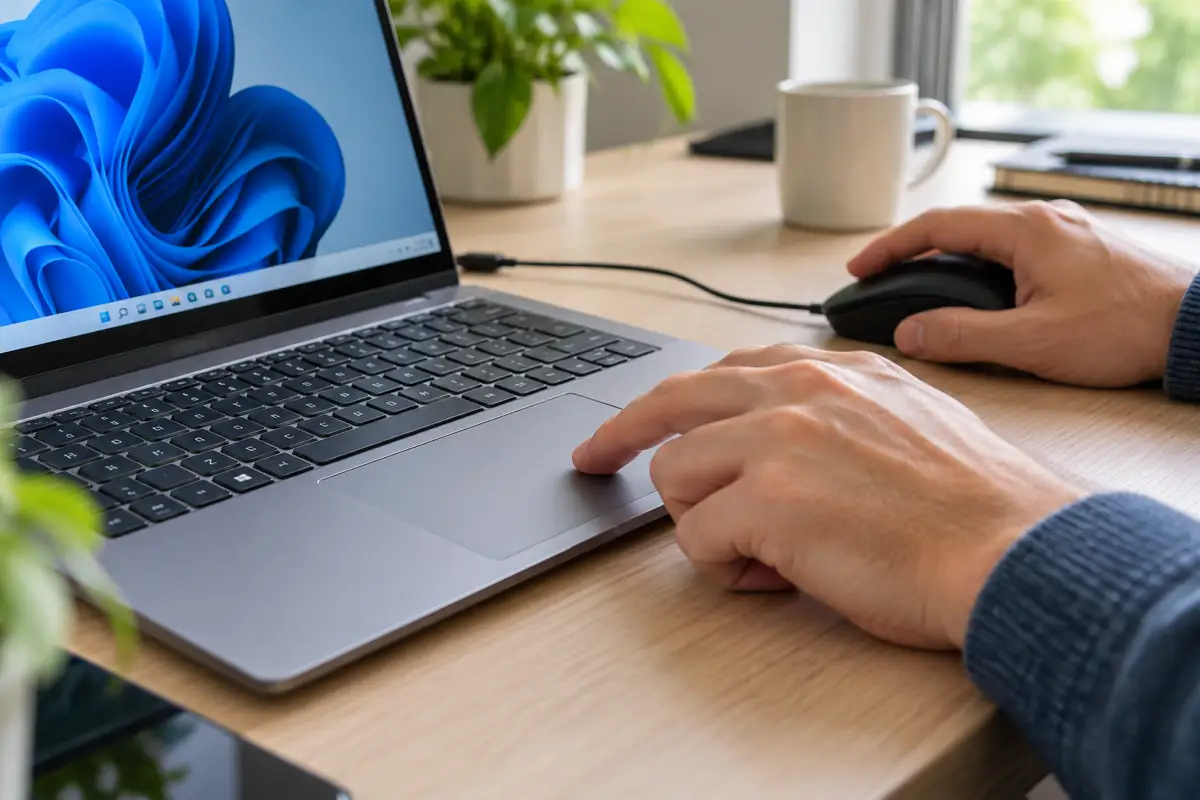
Fix 3: Check Tap and Gesture Settings
If the pointer moves but taps or gestures do nothing, open Bluetooth & devices > Touchpad and expand Taps, Scroll & zoom and Three-finger gestures. Turn on the actions you want, and raise Touchpad sensitivity if taps are ignored.
The same page has a Reset option under Touchpad that returns all touchpad settings and gestures to their defaults.
Fix 4: Restart the Laptop
A restart reloads the touchpad driver. Press Ctrl + Alt + Delete, use Tab to reach the power icon in the corner, press Enter and choose Restart with the arrow keys.
Fix 5: Update the Touchpad Driver
Microsoft’s first recommendation is to get the latest driver through Windows Update. Open Settings > Windows Update > Check for updates, and look under Advanced options > Optional updates for touchpad or input drivers.
You can also update it in Device Manager: press Windows + X, then M. Look under Human Interface Devices or Mice and other pointing devices, select the touchpad, press Shift + F10 and choose Update driver.
Fix 6: Reinstall the Touchpad Driver
If updating does not help, select the touchpad in Device Manager, press Shift + F10, choose Uninstall device and restart. Microsoft says Windows then downloads the latest driver through Windows Update. These steps follow Microsoft’s Fix touchpad problems in Windows page.
Fix 7: Install Your Laptop Maker's Drivers
Many touchpads need the manufacturer’s own driver for gestures to work, such as Synaptics, ELAN or Precision touchpad drivers bundled by Dell, HP, Lenovo or ASUS. Download them for your exact model from the maker’s support site, or use their update app.
Fix 8: Undo a Recent Update
If the touchpad stopped after an update, roll back the driver in Device Manager under Properties > Driver > Roll Back Driver. For a Windows update, go to Windows Update > Update history > Uninstall updates.
Windows 11 Touchpad Not Working at All? Check the Hardware
If the touchpad is missing from Device Manager entirely, or does not work in the BIOS setup screen on laptops that support a pointer there, the hardware or its cable may have failed. A swollen battery can also press up under the touchpad and stop clicks working.
If the touchpad is raised, the case bulges or the laptop rocks on a flat table, stop using it and have the battery checked. A swollen battery is a safety risk.
Keyboard acting up as well? This guide covers it.
Frequently Asked Questions
Why did my Windows 11 touchpad stop working suddenly?
Most often it was turned off with a touchpad key or setting, or Windows turned it off when a mouse was connected. Check the touchpad key and Settings > Bluetooth & devices > Touchpad first.
How do I turn on my touchpad without a mouse?
Press Windows + I, use Tab and the arrow keys to reach Bluetooth & devices > Touchpad, and press Space to turn the Touchpad switch on.
Why do touchpad gestures not work in Windows 11?
Gestures may be turned off in touchpad settings, or the laptop needs the manufacturer’s touchpad driver. Check the gesture settings, then install the maker’s driver.
Can I reset touchpad settings in Windows 11?
Yes. Open Settings > Bluetooth & devices > Touchpad, expand Touchpad and select Reset to return settings and gestures to default.