Laptop won’t turn on but power light is on? The laptop is getting power but not finishing startup, or it is starting but the screen stays black. Those are different problems, and the first job is to tell them apart.
The fixes below are safe for any laptop and do not erase your files. Start at the top.
Unplug every accessory, then check for signs of life such as fan noise or a keyboard light. Press Windows + Ctrl + Shift + B and connect an external monitor. If nothing changes, drain residual power: Dell holds the power button 30 to 35 seconds with the charger in, HP holds it about 15 seconds with the charger out, and many Lenovo laptops have a pinhole reset.
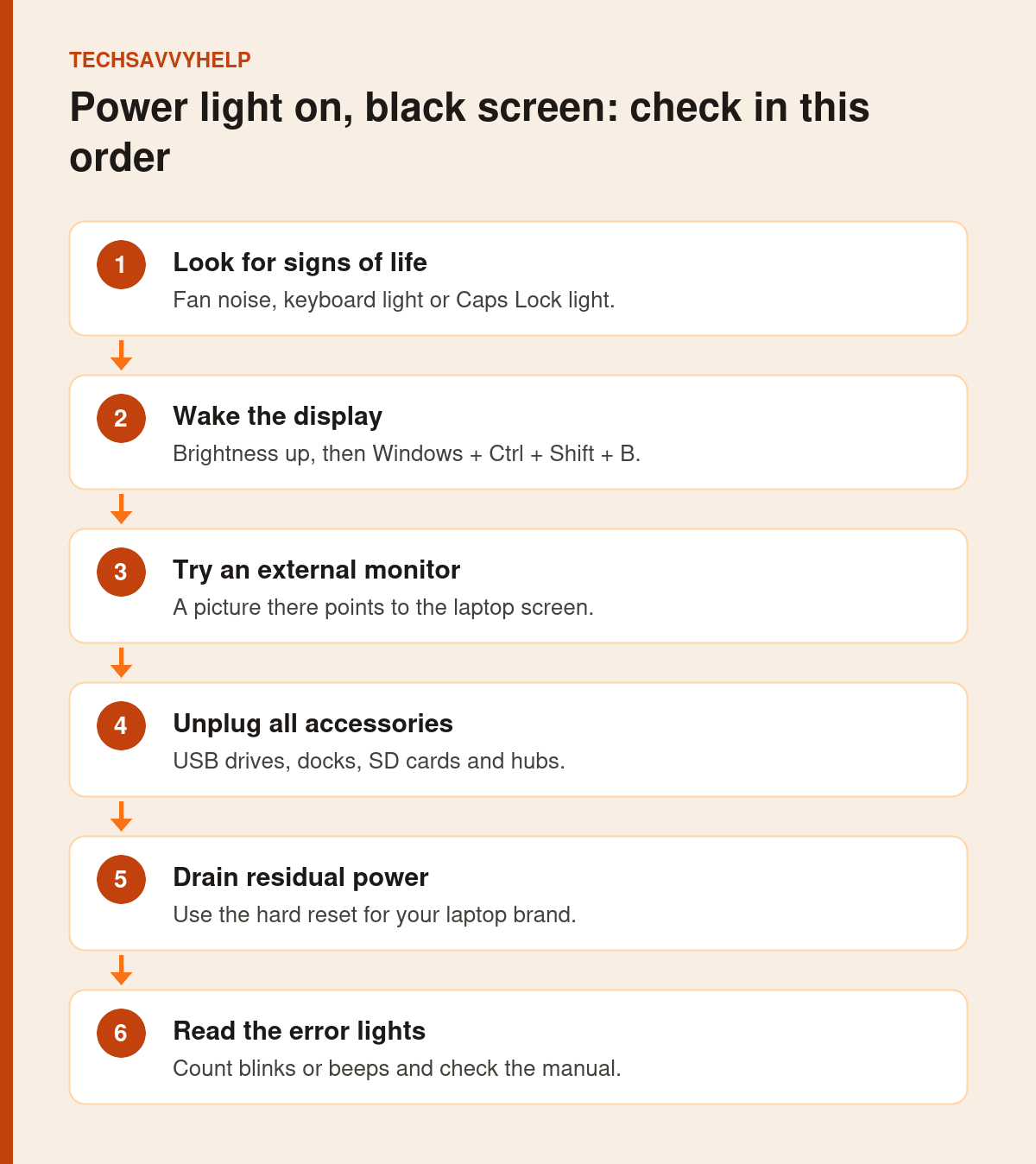
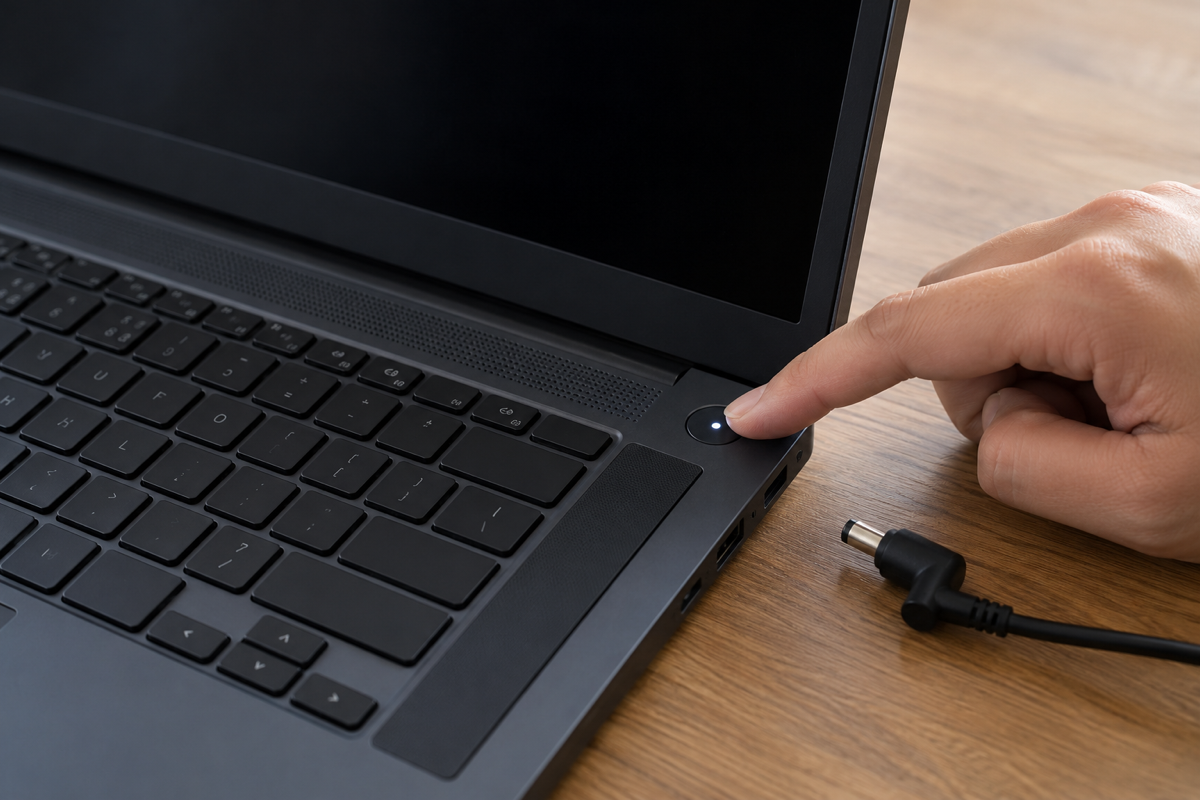
Table of Contents
ToggleLaptop Won't Turn On but Power Light Is On? Check the Screen
A laptop with a black screen is not always off. Listen for the fan, feel for warmth near the vents, and press Caps Lock to see if its light toggles. Any of these means the laptop is running and the problem is the display.
Press the brightness-up key a few times. Some laptops start with the brightness at zero after a battery drain.
Reset the Display With a Shortcut
Press Windows + Ctrl + Shift + B. On a working system you may hear a beep and see the screen flash black for a second. Windows Latest explains that this shortcut resets the graphics output. If a picture comes back, the laptop was on all along.
Fix 2: Connect an External Monitor
Plug the laptop into a TV or monitor with an HDMI or USB-C cable and press Windows + P to switch display modes.
Dell’s no-power guide explains the result. A picture on the external monitor points to a problem with the laptop’s own screen. No picture on either suggests a graphics or system board fault.
Fix 3: Unplug Everything
A faulty USB device, dock or memory card can stop a laptop at startup. Remove everything except the charger: USB drives, external disks, hubs, docks, SD cards and printers. Then try to switch it on again.
If it starts, reconnect your devices one at a time to find the one causing the problem.
Fix 4: Drain Residual Power With a Hard Reset
Laptops hold a small charge in their components even when off. That leftover power can lock the laptop in a state where the light is on but nothing starts. Draining it is safe and does not touch your files.
Dell
Dell’s procedure works on some Alienware, Inspiron, Latitude, Precision, Vostro and XPS models:
- Disconnect all external devices and keep the AC adapter connected.
- Press and hold the power button for 30 to 35 seconds, until the power light blinks three times.
- Release the button. Holding it for less than 25 or more than 40 seconds cancels the reset.
- Press the power button to start the laptop.
HP
- Turn the laptop off and remove it from any dock.
- Disconnect all peripherals and unplug the AC adapter.
- Remove the battery if it is removable.
- Press and hold the power button for about 15 seconds to drain residual power.
- Reconnect the battery and adapter, then switch the laptop on. If a startup menu appears, choose to start Windows normally.
Lenovo
Many Lenovo laptops have a small, unlabelled emergency reset hole on the bottom. Unplug the charger, push a straightened paperclip into the hole and hold it for at least 10 seconds. Reconnect the charger and press the power button.
Other Brands
Unplug the charger, remove the battery if you can, and hold the power button for about 15 seconds. Then reconnect power and try again. Your manual may list a model-specific reset button or pinhole.
Fix 5: Read the Error Lights and Beeps
Many laptops report startup faults with blinking lights or beeps. Count the pattern, for example two amber blinks then three white, and look it up in your model’s manual or support page. The pattern usually names the failing part, such as memory, display or battery.
On Dell laptops that can reach the startup screen, press F12 and choose Diagnostics. Note any error code and your Service Tag before contacting support.
Fix 6: Rule Out the Charger and Battery
A power light can come from the charger alone while the battery is too drained to start the laptop. Check these points:
- Adapter light: if the charger has a light and it is off, reseat both ends of the cable. Dell says to replace the adapter if it stays off.
- Another charger: try a known-good charger with the same wattage as the original.
- Time on charge: a fully drained battery may need to charge for a while before the laptop will start.
If the laptop starts but the battery will not fill, see our guide to a laptop that is plugged in but not charging.
Fix 7: Check Whether It Is a Windows Startup Problem
If you see the maker’s logo and then a black screen, an error message or a restart loop, the hardware is working and Windows is failing to load. That needs a different set of fixes:
- An error such as Operating system not found: see how to fix Operating System Not Found.
- A blue error screen: see our Blue Screen of Death guide.
Laptop Won't Turn On but Power Light Is On After Every Fix?
Book a repair if the laptop still shows a light but no picture after every fix above, including on an external monitor. The usual causes are a failed memory module, display cable, graphics chip or system board.
Do not open a laptop that is under warranty. Reseating memory or the display cable is a job for a technician on most modern laptops, because many have sealed batteries and fragile connectors.
If the laptop smells of burning, the battery looks swollen or the case is bulging, stop using it and unplug it. Do not try to charge it again until a technician has checked it.
More quick fixes for startup, speed and display problems.
Frequently Asked Questions
Why is my laptop power light on but the screen is black?
Either the laptop is running and the display is off or faulty, or it is stuck before startup. Check for fan noise, try the brightness keys and an external monitor, then drain residual power.
Will a hard reset delete my files?
No. Draining residual power only clears leftover charge in the hardware. Your files, apps and settings are not touched.
What does it mean if the power light blinks?
On many laptops a blinking pattern is an error code. Count the blinks and colours, then look up the pattern in your model’s manual or support site.
Can a dead CMOS battery stop a laptop turning on?
It can cause startup and clock problems on some models. Replacing it is a repair job on most modern laptops, so have a technician check it after the safe fixes here.