Common Windows errors are easier to fix when you start with the exact symptom instead of trying random repair commands. A blue screen, failed update, crashing app, missing DLL message and boot error can look equally disruptive, but they point to different parts of the system.
This guide helps you identify the error, protect your files and choose the safest targeted fix. It covers Windows 11 and supported Windows 10 systems, although labels can vary slightly by version.
Write down the complete error code, restart once, and check what changed immediately before the problem. Test the smallest relevant fix: Windows Update troubleshooting for update failures, app repair for one crashing program, DISM followed by SFC for damaged Windows components, or recovery tools when Windows cannot start. Back up important files before disk repair, driver removal or recovery.
Table of Contents
ToggleStart by Identifying the Windows Error
Capture the full message or stop code with a photo if the screen disappears quickly. Note when it happens, which app or device is involved, and whether the problem began after an update, driver, new program or hardware change.
- Only one app fails: start with that app’s update, repair, reset or reinstall options.
- Windows Update fails: use the built-in Windows Update troubleshooter and record the update code.
- The PC blue-screens or restarts: record the stop code and check drivers, hardware and recent changes.
- Windows files or built-in features fail: use Microsoft’s component and system-file repair order.
- The drive reports errors or unusual noises: protect data before attempting repair.
- Windows cannot start: move to Windows Recovery Environment rather than repeating forced shutdowns.

Before a driver rollback, disk repair, System Restore, Reset or Windows reinstallation, copy important files to a separate drive when the computer is stable enough. A restore point is useful for system changes, but it is not a backup of personal files.
1. Fix Blue Screen and Unexpected Restart Errors
A blue screen means Windows stopped to prevent further damage. The stop code and any named driver are more useful than the generic blue-screen appearance.
- Disconnect newly added nonessential USB devices.
- Undo a recent driver, application or hardware change when the timing clearly matches.
- Install pending Windows updates and the correct device drivers from Windows Update or the hardware manufacturer.
- Check Device Manager for a device with an error symbol.
- Test memory or storage when the same stop code returns after software changes are removed.
Do not assume every blue screen is malware or reinstall Windows immediately. Use the stop code to narrow the cause.
Use the broader troubleshooting checklist when crashes are accompanied by slowness, overheating, startup or connectivity problems.
2. Resolve Windows Update Errors
Open Settings > System > Troubleshoot > Other troubleshooters in Windows 11, then run Windows Update. Restart after it finishes and check for updates again. On Windows 10, the route is Settings > Update & Security > Troubleshoot > Additional troubleshooters.
Confirm the date, time and internet connection, and make sure the system drive has free space. If one update fails, record its KB number and error code rather than repeatedly forcing installation. Microsoft’s Windows Update troubleshooter guide provides the current built-in route.
If Windows Update reports that another installation or restart is pending, restart normally before clearing folders or services. Many update failures disappear after the pending servicing operation completes.
3. Repair an App That Crashes or Will Not Open
When only one application fails, Windows itself may be healthy. Update the app, close it fully in Task Manager, and test again. For supported Microsoft Store apps, open Settings > Apps > Installed apps, select the app’s menu, then use Advanced options > Repair.
Use Reset only if Repair fails because Reset removes that app’s stored settings and data.
For a traditional desktop program, use its own repair option in Settings > Apps > Installed apps when available, or uninstall and reinstall it from the developer’s official source. Check compatibility before using an old program on a newer Windows release.
What to Do About Missing DLL Errors
A missing DLL message usually belongs to an application, Windows component or supported runtime package. Reinstall or repair the affected application first. If the file is part of Windows, use the system-file repair steps below.
Do not download individual DLL files from unofficial “DLL download” sites. The file may be the wrong version, may not solve the underlying installation problem, and can expose the computer to malicious code.
Use this companion guide when the failure is limited to an installed program rather than Windows itself.
4. Repair Corrupted Windows Components and System Files
If built-in Windows features fail, commands report missing system files, or several unrelated apps stop working, repair the Windows component store before running System File Checker. Open Terminal (Admin) or Command Prompt (Admin).
Run DISM first:
DISM.exe /Online /Cleanup-Image /RestoreHealth
After it completes successfully, run:
sfc /scannow
Restart Windows and test the original problem. Microsoft documents this DISM-then-SFC order in its System File Checker guidance.
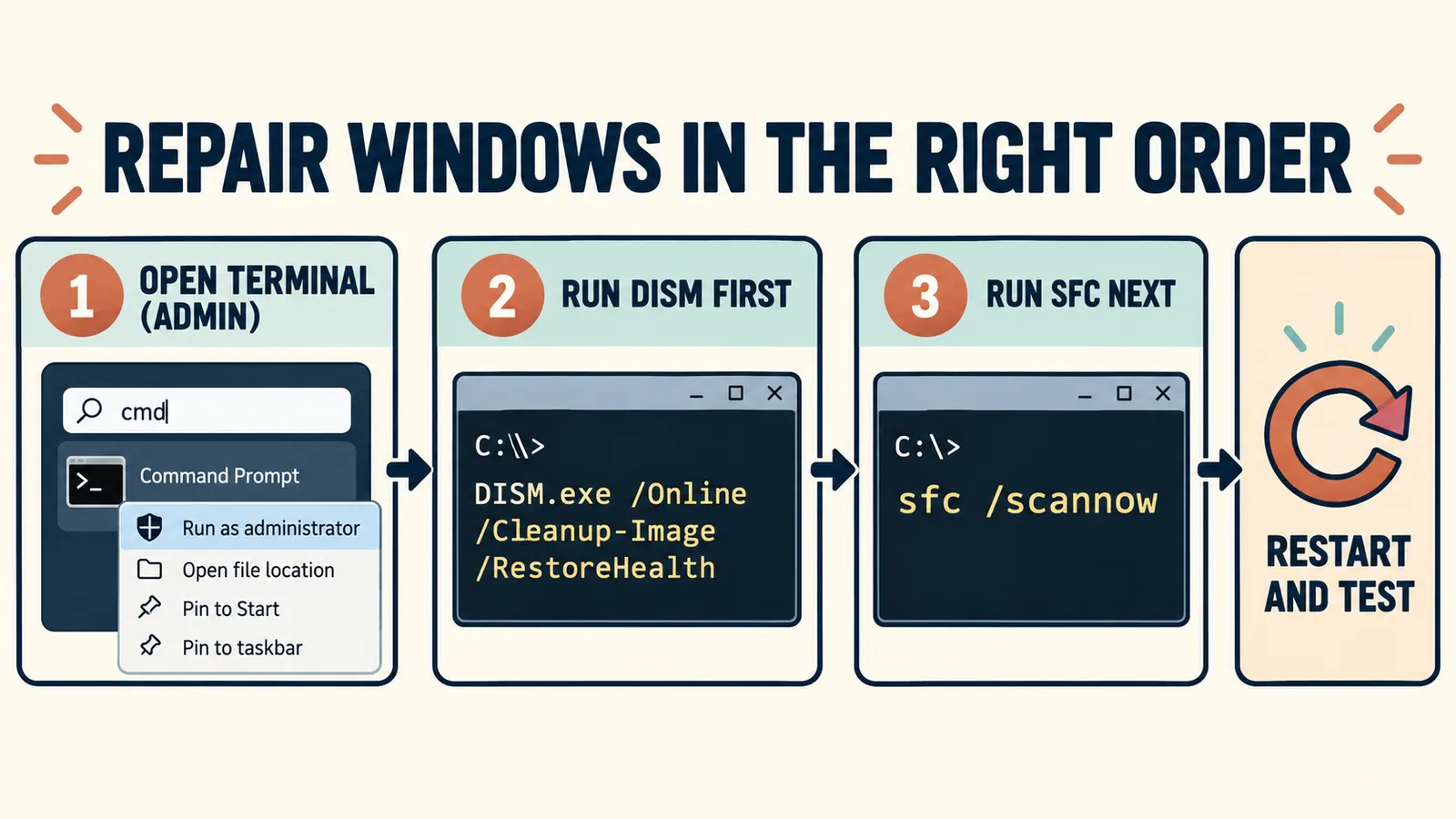
These commands repair protected Windows components and system files. They do not repair a broken third-party application, replace failing storage hardware or recover deleted personal files.
5. Respond Safely to Disk and Storage Errors
Low free space can break updates and make Windows unstable without a damaged drive. Open Settings > System > Storage, review temporary files and remove only items you recognize. Keep a separate backup before working on a drive that disconnects, becomes read-only, reports SMART warnings or makes unusual sounds.
For a file-system check that does not schedule repairs, open Terminal as administrator and run:
chkdsk C: /scan
If Windows reports errors that require an offline repair, back up first and follow the exact recommendation. Do not repeatedly run repair flags against a drive that may be physically failing.
If a drive clicks, disappears, reports critical health warnings or contains irreplaceable files, stop writing to it. Repeated repair attempts can reduce recovery options. Copy accessible data or seek professional recovery before destructive testing.
6. Handle Startup and Boot Errors
When Windows cannot reach the sign-in screen, note whether firmware detects the storage drive and whether the message refers to a boot device, recovery code or missing operating system. Remove nonessential external drives and check the boot order before changing partitions.
Windows Recovery Environment can provide Startup Repair, Uninstall Updates, System Restore and startup settings. Choose the option that matches the last known change. Do not rebuild boot records or delete partitions from a generic command list without confirming the disk layout.
Follow the dedicated recovery guide when Windows displays error code 0xc0000225 during startup.
7. Use Windows Recovery Options in the Right Order
If targeted repairs fail, Microsoft’s recovery options range from less disruptive to more destructive. Try Startup Repair for a startup problem, uninstall a recent problematic update, or use System Restore when a suitable restore point exists. Reset this PC or reinstall Windows only after backing up data and understanding which apps and settings will be removed.
Review Microsoft’s Windows recovery options before choosing. If BitLocker protects the drive, make sure the recovery key is available before entering recovery or changing boot settings.
Windows Error Fixes to Avoid
- Do not install registry cleaners, “one-click repair” suites or automatic driver-updater bundles.
- Do not download loose DLL files from unknown websites.
- Do not run every command found in a generic checklist.
- Do not disable security software permanently to make an error disappear.
- Do not change BIOS settings, partitions or boot records without identifying the actual startup problem.
- Do not treat an HTTP error, browser error or one-app problem as proof that Windows is corrupted.
A good repair changes one thing, tests the result and remains reversible whenever possible.
Frequently Asked Questions
What should I do first when Windows shows an error code?
Record the complete code and message, note what changed recently, restart once, and reproduce the problem. Then use the fix for that symptom instead of applying unrelated repair commands.
Are Windows error-repair tools safe?
Use built-in Windows tools and utilities from the device or software vendor. Avoid generic registry cleaners, DLL download sites and one-click repair suites that cannot explain what they will change.
Should I run DISM or SFC first?
Microsoft recommends running DISM with RestoreHealth before SFC when repairing Windows system files. DISM repairs the component source that SFC uses.
Will System Restore delete my personal files?
System Restore is designed to roll back system files, drivers, registry settings and installed programs, not personal documents. Still, back up important files because it is not a substitute for a file backup.
When should I reinstall Windows?
Consider reinstalling only after a verified backup and after targeted troubleshooting and suitable recovery options fail. Hardware failure must be ruled out because reinstalling Windows will not repair a failing drive or memory module.
Fix the Cause, Not Just the Message
The safest way to resolve common Windows errors is to identify the affected layer: one app, Windows Update, system files, storage, a driver or startup. Record the evidence, use the narrowest fix and verify the same task afterward.
If an error returns, keep the code and the steps already tried. That history is more valuable to support staff than another broad cleanup utility or an unexplained reinstall.