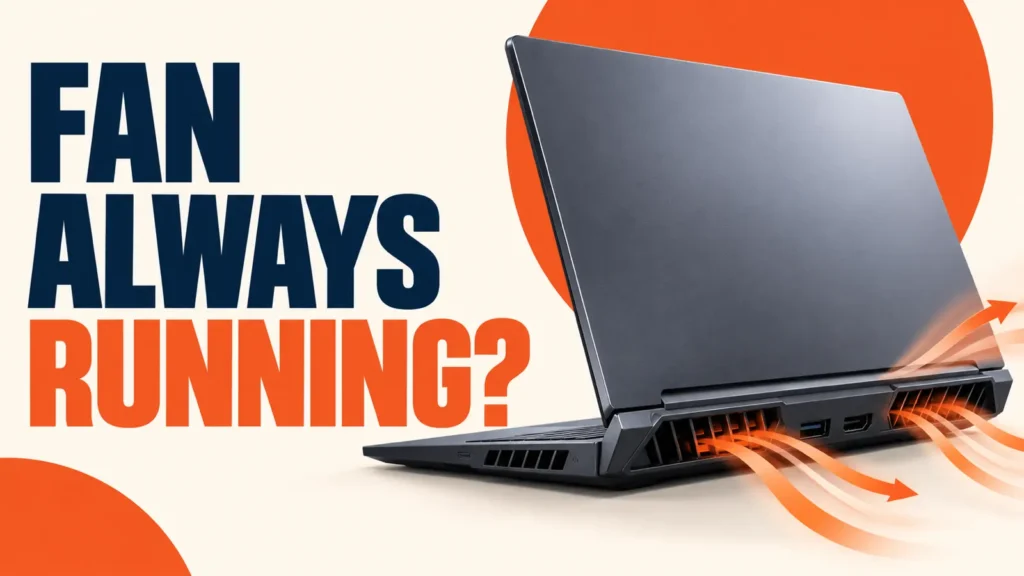
Laptop fan always running? The fan speeds up when the processor or graphics chip gets warm. If your laptop fan is always running, even while you only browse or type, something is keeping the chip busy or the heat is not getting out.
This guide starts with free software fixes you can do in minutes, then moves to cleaning and signs of a real hardware fault.
Open Task Manager with Ctrl + Shift + Esc and sort Processes by CPU. Close or update whatever is busy. Then switch Windows to a balanced power mode, choose your laptop maker’s Quiet thermal profile, and clean the vents. A fan that grinds or rattles needs a repair, not a setting.


Table of Contents
ToggleLaptop Fan Always Running: Why It Happens
Some fan noise is normal. The fan gets louder during games, video calls, exports and big downloads, then settles down when the work stops.
It is also normal for a few minutes after you switch on or install updates. Windows runs updates, search indexing and security scans in the background, and that work warms the processor.
It is a problem when:
- The fan stays loud while the laptop is idle on the desktop.
- The keyboard or base gets hot during light use.
- The laptop slows down when the fan is loud.
- The noise is grinding, rattling or clicking rather than a smooth whoosh.
Fix 1: Find What Is Keeping the CPU Busy
The fan reacts to heat, and heat comes from work. Start by finding the app doing that work.
- Press
Ctrl + Shift + Escto open Task Manager. - Open Processes and click the CPU column to sort by usage.
- Watch the list for a minute with your other apps closed.
- If one app stays near the top, save your work and close it, or update it.
- Open Startup apps and disable programs you do not need at sign-in.
Browsers are a common cause. A single tab with a video, game or heavy web app can keep the processor busy. Close tabs you are not using and remove extensions you do not recognise.
Our Windows Task Manager guide explains every tab if you want to dig deeper.
If Windows has just updated, leave the laptop plugged in and awake for a while. Background maintenance often finishes on its own and the fan calms down afterwards.
Fix 2: Change the Windows Power Mode
Windows 11 lets you trade a little speed for less heat. A lower-power mode makes the processor run cooler, so the fan has less to do.
- Open Start and select Settings.
- Go to System > Power & battery.
- Under Power mode, choose a balanced or battery-saving option instead of the best performance option.
If you cannot change Power mode, Microsoft says a custom power plan may be active. Open Control Panel > System and Security > Power Options and select the Balanced plan, then try again. See Microsoft’s power mode guide.
Fix 3: Switch to Your Laptop Maker's Quiet Fan Profile
Most laptop brands ship an app that controls the fan and processor together. This setting usually makes the biggest difference to noise.
Dell
Dell’s fan noise guide points to two apps. In Dell Power Manager, select Thermal Management and choose Quiet. The default is Optimized. On consumer models, open MyDell, go to Power > Settings > Thermal and pick Quiet.
Lenovo
Many Lenovo IdeaPad, Yoga and ThinkBook models switch operation mode with Fn + Q. Lenovo describes three modes: High Performance, Auto (Balanced) and Power Saving (Quiet). You can also change it in Lenovo Vantage or Lenovo PC Manager. Lenovo notes the names in the app can differ from its manual.
HP, ASUS and Other Brands
Look for a fan, thermal or performance setting in the maker’s own app: myHP or HP Command Center on HP, and MyASUS on ASUS. Options vary by model, and some budget laptops do not offer one.
Quiet modes lower fan and processor speed. Dell warns this can reduce performance and make the laptop’s surface warmer. Switch back to a balanced mode for gaming or video work.
Fix 4: Clean the Vents Safely
Dust builds up on the fan and the fins of the heatsink. The fan then has to spin faster to move the same heat. Cleaning the vents is free and often fixes a fan that got louder over months.
- Shut down the laptop fully and unplug the charger.
- Find the intake vents, usually underneath, and the exhaust vent on the side or back.
- Use short bursts of compressed air into the vents. Keep the can upright.
- Wipe the vent grilles with a dry, soft brush.
- Use the laptop on a hard, flat surface so the bottom vents can breathe.
Soft surfaces such as beds, cushions and laps block the bottom vents. That alone can keep a fan running at high speed.
Do not open the case if the laptop is under warranty. A shop or the manufacturer can clean the inside without voiding it.
Fix 5: Update the BIOS, Chipset and Graphics Drivers
Fan behaviour is controlled by the laptop’s firmware and drivers. Manufacturers fix fan and thermal bugs in BIOS and driver updates, so an old version can keep the fan busier than it should be.
Use the maker’s update tool, such as Dell SupportAssist, HP Support Assistant, Lenovo Vantage or MyASUS, or download updates for your exact model from the support site.
Keep the charger connected during a BIOS update and do not turn the laptop off. An interrupted BIOS update can stop the laptop from starting.
Fix 6: Scan for Malware
Malware that mines cryptocurrency or runs in the background uses a lot of processor power, which keeps the fan spinning. If Task Manager shows heavy CPU use you cannot explain, open Windows Security > Virus & threat protection and run a scan.
Our guide to fixing a slow computer covers the other background drains to check.
When Fan Noise Means a Hardware Problem
Settings cannot fix a fan that is failing. Book a repair if you notice:
- Grinding, rattling or clicking. Dell has a separate guide for grinding fan noise because it usually points to a worn or obstructed fan.
- Full speed all the time, even after the fixes above and with nothing running.
- Shutdowns from heat. These are an overheating problem, covered in our laptop overheating guide.
Run the maker’s built-in hardware test before you call support. On Dell, press F12 at startup and choose Diagnostics. Lenovo Vantage and HP’s diagnostics tools include similar hardware checks. Note any error code for the repair team.
Less background work also means less heat and a quieter fan.
Frequently Asked Questions
Why is my laptop fan always running even when idle?
Usually a background process is using the processor, or dust is trapping heat. Check Task Manager for CPU use, switch to a quieter power or thermal mode, and clean the vents.
Is it bad if my laptop fan is always on?
Not on its own. The fan is doing its job. It becomes a concern when the laptop is also hot, slow or shutting down, or when the fan grinds or rattles.
Can I turn off my laptop fan?
No, and you should not try. The fan protects the processor from overheating. Use a quiet thermal profile instead, which lowers fan speed safely.
Does a cooling pad help a noisy laptop fan?
It can help a little by improving airflow under the laptop, especially if the intake vents are underneath. It does not fix a busy process or a dirty heatsink.