Windows keyboard shortcuts let you control your PC without touching the mouse, so everyday jobs like switching apps, snapping windows, and taking screenshots happen in a fraction of a second. This guide lists the most useful Windows keyboard shortcuts for Windows 10 and Windows 11, grouped by task, plus how to build your own custom shortcuts.
If you use a Windows PC every day, learning a handful of Windows keyboard shortcuts is one of the fastest ways to work more comfortably. Instead of hunting through menus, you press two or three keys and the job is done.
You do not need to memorise everything at once. Start with five or six shortcuts you will actually use, keep them nearby for a week, and they quickly become muscle memory.
The shortcuts below work on both Windows 10 and Windows 11 unless noted. Where a shortcut is specific to Windows 11, it is clearly marked.
Table of Contents
ToggleWhy Windows Keyboard Shortcuts Are Worth Learning
Every time you move your hand to the mouse, aim, and click, you lose a second or two. On its own that feels tiny, but across a full day of app switching, copying, and window juggling it adds up to real time.
Windows keyboard shortcuts remove that friction. Your hands stay on the keys, your eyes stay on the screen, and your focus stays on the task.
They also reduce strain. Repeated mouse movement is a common cause of wrist and shoulder discomfort, so shifting some actions to the keyboard can make long sessions more comfortable.
Finally, shortcuts make you feel in control. Snapping two windows side by side or clearing your desktop with one key press is genuinely satisfying.
Screenshot the lists in this guide and keep them near your monitor for the first week. You will glance at them a few times, then stop needing them.
Essential Windows Keyboard Shortcuts Everyone Should Know
These are the core Windows keyboard shortcuts that pay off immediately, no matter what you do on your PC.
- Windows key — open or close the Start menu
- Ctrl + C — copy the selected item
- Ctrl + X — cut the selected item
- Ctrl + V — paste
- Ctrl + Z — undo the last action
- Ctrl + Y — redo the last action
- Ctrl + A — select everything
- Alt + Tab — switch between open apps
-
Alt + F4— close the active app -
Ctrl + Shift + Esc— open Task Manager directly
If you take only four shortcuts from this whole guide, make them copy, paste, undo, and Alt + Tab. Together they cover a huge share of everyday actions.
Window Management Shortcuts With Snap Layouts
Managing windows by dragging is slow. These shortcuts arrange everything for you in an instant.
-
Windows + Left or Right — snap the active window to one half of the screen -
Windows + Up — maximise the window -
Windows + Down — minimise or restore the window -
Windows + Shift + Left or Right — move the window to another monitor -
Windows + Home — minimise everything except the active window -
Windows + D— show or hide the desktop - Windows + P — open projection options for a second screen or projector
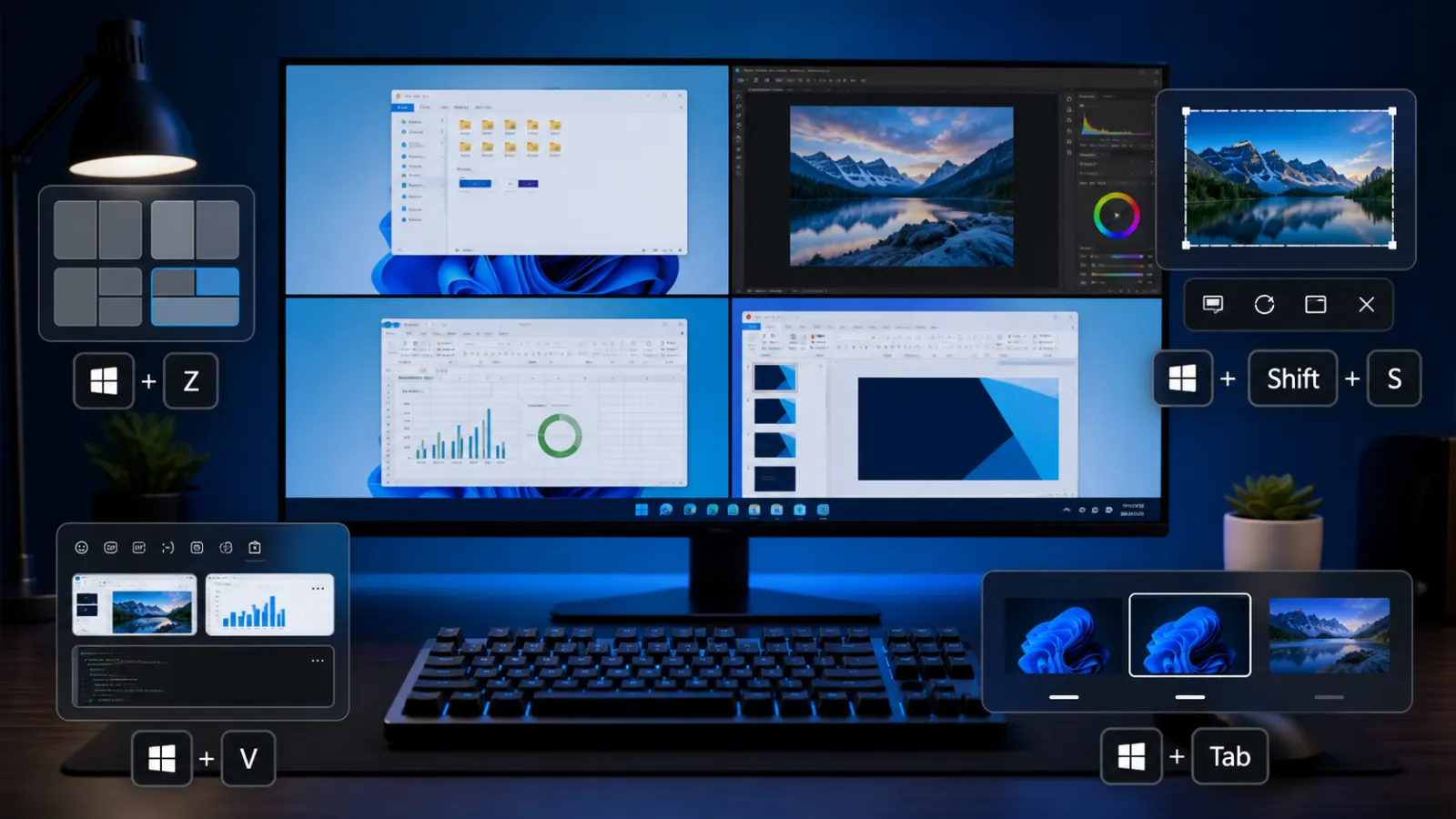
On Windows 11 you can also press Windows + Z to open Snap Layouts, then pick a grid position with the number keys. It is the quickest way to arrange three or four windows at once.
Snap Layouts appear only on Windows 11. On Windows 10, use the Windows key plus arrow key combinations above instead.
Virtual Desktop Shortcuts for a Cleaner Workspace
Virtual desktops let you keep separate spaces for work, personal tasks, and focused projects. These shortcuts move between them without touching the mouse.
-
Windows + Tab — open Task View -
Windows + Ctrl + D — create a new virtual desktop -
Windows + Ctrl + Left or Right — switch between desktops -
Windows + Ctrl + F4 — close the current desktop
A Beginner’s Guide to Using Virtual Desktops in Windows — Set up separate spaces for work and personal tasks, then switch between them in seconds.
File Explorer Keyboard Shortcuts
File Explorer is where a lot of daily clicking happens, so these Windows keyboard shortcuts save the most time.
-
Windows + E— open File Explorer - Ctrl + N — open a new window
- Ctrl + Shift + N — create a new folder
- Alt + Up — go up one folder level
- Alt + Left or Right — go back or forward
- F2 — rename the selected item
- F5 — refresh the view
- Ctrl + Shift + a number — switch the folder layout
The Delete key sends files to the Recycle Bin, so you can recover them later if you change your mind.
Shift + Delete removes files without sending them to the Recycle Bin. Only use it when you are certain you no longer need the file.
Text Editing Shortcuts That Work Almost Everywhere
These shortcuts work in most apps, from Word and email to browsers and chat boxes.
- Ctrl + B, I, or U — bold, italic, or underline
- Ctrl + Left or Right — jump one word at a time
- Ctrl + Shift + Left or Right — select one word at a time
- Home or End — jump to the start or end of a line
- Ctrl + Home or End — jump to the top or bottom of a document
- Ctrl + Backspace — delete the previous word
- Ctrl + F — find text on the page
Holding Shift while pressing an arrow key selects text. Combine it with Ctrl to select whole words quickly.
Screenshot and Screen Recording Shortcuts
Windows has several built-in ways to capture the screen, and each one suits a different need.
- PrtScn — copy the whole screen to the clipboard
-
Windows + Shift + S — capture part of the screen with Snipping Tool -
Windows + PrtScn — save a full screenshot to the Screenshots folder - Alt + PrtScn — capture only the active window
-
Windows + G— open Xbox Game Bar to record the screen
Windows + Shift + S is the one most people end up using, because it lets you drag a box around exactly what you want and then paste or annotate it.
Browser Shortcuts You Will Use Constantly
These work in Edge, Chrome, Firefox, and most other browsers, so they are among the most reusable Windows keyboard shortcuts you can learn.
- Ctrl + T — open a new tab
- Ctrl + W — close the current tab
- Ctrl + Shift + T — reopen the last closed tab
- Ctrl + Tab — move to the next tab
- Ctrl + a number — jump to a specific tab
- Ctrl + L — jump to the address bar
- Ctrl + Shift + N — open a private window
- Ctrl + D — bookmark the current page
Ctrl + Shift + T is a lifesaver. Close a tab by accident and one press brings it straight back.
Accessibility and System Shortcuts
Windows includes shortcuts that make the system easier to use and faster to manage.
-
Windows + L— lock your PC instantly -
Windows + I— open Settings -
Windows + A— open Quick Settings for Wi-Fi, volume, and brightness -
Windows + N— open Notifications and the calendar -
Windows + V— open Clipboard history - Windows + period — open the emoji and symbol picker
-
Windows + Plus — open Magnifier to zoom in
Windows + V is underrated. Turn on Clipboard history once and you can paste from a list of recent items instead of just the last thing you copied.
Get in the habit of pressing Windows + L every time you step away. It locks your screen in a fraction of a second and keeps your work private.
Windows 11-Specific Keyboard Shortcuts
Windows 11 added a few new Windows keyboard shortcuts that do not exist on Windows 10.
-
Windows + Z— open Snap Layouts -
Windows + W— open the Widgets board -
Windows + C— open Copilot or the chat assistant where available -
Windows + Alt + Up or Down — snap a window to the top or bottom half
Some Windows 11 shortcuts depend on your version and region. If Windows + C does nothing, Copilot may not be enabled on your device.
Bonus Windows Keyboard Shortcuts for Microsoft Office
If you spend time in Word, Excel, or Outlook, a few extra Windows keyboard shortcuts save even more time.
- Ctrl + S — save your work, and use it constantly
- Ctrl + P — print
- Ctrl + K — insert a link
- F7 — run a spelling check
- Ctrl + Shift + V — paste without formatting
- Ctrl + Enter — insert a page break in Word
- Alt + Enter — start a new line inside an Excel cell
Ctrl + S is the most important habit here. Press it every few minutes and you will rarely lose work to a crash or a power cut.
A Quick Note About Laptop Function Keys
On many laptops, the top-row keys double as media controls, so PrtScn or the F-keys may need the Fn key pressed at the same time. If a shortcut does nothing, try holding Fn as well, or check your keyboard settings.
Before using Alt + F4 or Shift + Delete, check what is selected. These close apps or remove files immediately and can cost you unsaved work.
How to Create Your Own Custom Windows Keyboard Shortcuts
Beyond the built-in keys, you can make your own shortcuts for the apps you open most often.
After that, pressing your chosen combination launches the app instantly. It works best for programs you use several times a day.
For more advanced custom shortcuts, Microsoft’s free PowerToys tool adds a Keyboard Manager that lets you remap keys and build your own combinations.
Windows Task Manager: The Ultimate Guide to Fix a Slow PC — Find what is slowing your PC and close it using the Task Manager shortcut you just learned.
Windows Keyboard Shortcuts for Search and the Taskbar
Windows puts search and your pinned apps one key press away, which saves a surprising amount of time during the day.
-
Windows + S— open Search to find apps, files, and settings - Windows + a number — open or switch to the pinned taskbar app in that position
-
Windows + T— cycle through taskbar apps -
Windows + B— jump to the system tray -
Windows + Shift + a number — open a new window of that pinned app
The taskbar number trick is worth learning first. If your browser is the first pinned app, Windows + 1 opens or focuses it every time.
Frequently Asked Questions
What are the most useful Windows keyboard shortcuts to learn first?
Start with Ctrl + C, Ctrl + V, Ctrl + Z, and Alt + Tab. These handle copy, paste, undo, and app switching, which together cover a large share of everyday actions.
Do Windows keyboard shortcuts work the same on Windows 10 and Windows 11?
Most do. Core shortcuts like copy, paste, snapping, and Alt + Tab are identical. Windows 11 adds a few extras such as Windows + Z for Snap Layouts and Windows + W for Widgets.
How do I take a screenshot with a keyboard shortcut?
Press Windows + Shift + S to capture part of the screen, or Windows + PrtScn to save a full screenshot to your Screenshots folder automatically.
Can I create my own custom keyboard shortcuts in Windows?
Yes. Right-click an app shortcut, open Properties, click the Shortcut key box, and press a letter. Windows adds Ctrl + Alt automatically. For more control, use Microsoft PowerToys.
What is the shortcut to lock my PC quickly?
Press Windows + L. It locks your screen instantly, which is useful whenever you step away from your desk.
How can I switch between open apps without the mouse?
Hold Alt and press Tab to cycle through open apps. Keep tapping Tab while holding Alt to move through them, then release to select.