A laptop overheating is more than uncomfortable. Heat makes the processor slow itself down, can crash games and apps, and in bad cases shuts the laptop off to protect the hardware.
Most overheating comes from blocked airflow, dust or too much work for the cooling system. This guide shows how to confirm the problem and fix it safely.
Use the laptop on a hard, flat surface with the vents clear. Close heavy apps in Task Manager, switch to a balanced power mode or your maker’s Quiet or Cool thermal profile, and clean dust from the vents. Update the BIOS and graphics driver. If it still shuts down from heat, have a technician clean the inside and replace the thermal paste.
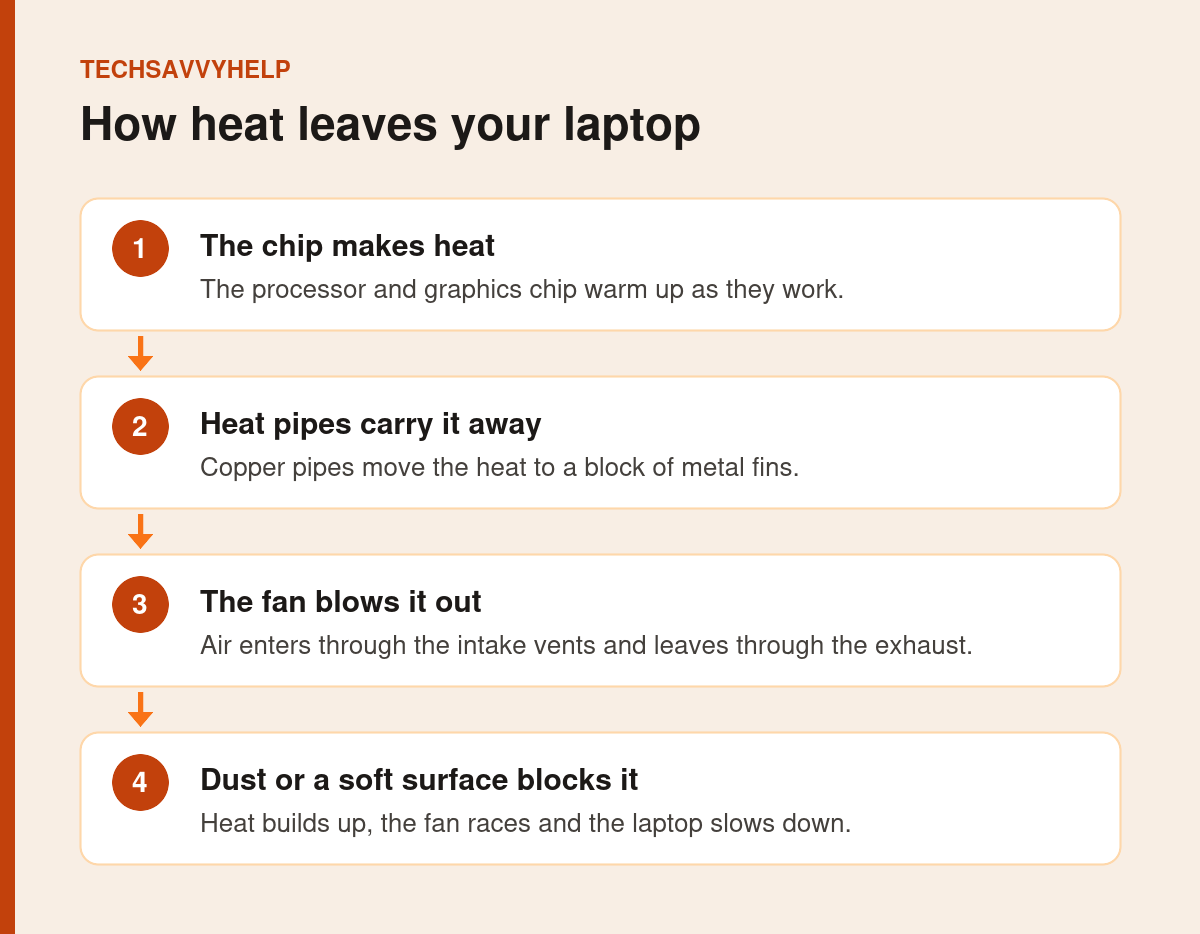

Table of Contents
ToggleLaptop Overheating: Signs to Watch For
- The base or keyboard is too hot to rest your hands on.
- The fan runs at full speed for long periods.
- The laptop gets slower the longer you use it, especially in games.
- Apps or games crash, or the laptop shuts down without warning.
- The battery stops charging while the laptop is hot.
A noisy fan on its own is not always overheating. If noise is your main problem, see our guide to a laptop fan that is always running.
How to Check Your Laptop's Temperature
Windows 11 shows the graphics chip temperature for dedicated graphics cards. Open Task Manager with Ctrl + Shift + Esc, select Performance, then click your GPU. Integrated graphics are not supported, so many thin laptops will not show a reading.
Task Manager does not show processor temperature. Use your laptop maker’s app, or a trusted hardware monitor such as HWiNFO, to read it.
Intel says the maximum operating temperature for its processors is listed as T-Junction or Max Operating Temperature on the processor’s specification page, and that readings can briefly go above it. Laptops are designed to slow the processor as it nears that limit. Regular slowdowns and shutdowns mean the cooling is not keeping up. See Intel’s temperature guidance.
Fix 1: Give the Vents Room to Breathe
Most laptops pull cool air in from underneath and push hot air out of the side or back. A bed, cushion, blanket or lap blocks the intake and traps heat almost instantly.
- Use the laptop on a desk or another hard, flat surface.
- Keep the exhaust vent clear of walls, books and cables.
- Raise the back slightly with a stand so more air reaches the bottom.
Fix 2: Reduce the Workload
Less work means less heat. Open Task Manager, sort Processes by CPU, and close apps you are not using. Browsers with many tabs, video calls, game launchers and cloud sync tools are common culprits.
Disable apps you do not need at sign-in under Startup apps. Our Task Manager guide explains each tab.
Fix 3: Change the Power Mode and Thermal Profile
Go to Settings > System > Power & battery and set Power mode to a balanced or battery-saving option. This lowers processor speed slightly and cuts heat noticeably.
Then check your laptop maker’s app. Dell Power Manager and MyDell offer a Quiet thermal mode, and many Lenovo laptops switch to a quiet mode with Fn + Q. Our fan guide lists where to find these settings by brand.
Fix 4: Clean Out the Dust
Dust on the fan and heatsink fins acts like a blanket. Shut the laptop down, unplug it, and use short bursts of compressed air into the vents while holding the can upright. A laptop that has run hot for months often improves straight away.
Do not open the case if the laptop is under warranty. A full internal clean is a job for the manufacturer or a repair shop.
Fix 5: Update the BIOS and Graphics Driver
Manufacturers adjust fan control and power limits in BIOS updates, and graphics driver updates can fix bugs that keep the chip busy. Install updates for your exact model from the maker’s support site or app.
If games crash after an update rather than from heat, see Windows 11 games crashing after an update.
Fix 6: Try a Cooling Pad
A cooling pad lifts the laptop and blows extra air at the bottom. It helps most on laptops with intake vents underneath, and during long gaming or video sessions.
A pad is a helper, not a cure. It will not fix a clogged heatsink or an app running out of control.
Fix 7: Watch the Room and the Charger
A laptop in direct sun or a hot car starts warm before you use it. Move it somewhere cooler, and avoid charging and gaming at the same time in a hot room, since charging adds heat to the battery.
If the laptop stops charging when hot, that is often a safety feature. Our guide to a laptop plugged in but not charging covers it.
When to Get Professional Help
Have the laptop checked by a technician if it still shuts down from heat after these fixes, if the fan grinds or does not spin, or if the laptop is several years old and has never been cleaned inside. A technician can clean the heatsink and replace dried-out thermal paste.
A swollen battery, bulging case or burning smell is a safety risk. Stop using the laptop, unplug it and get it inspected.
A lighter workload keeps your laptop faster and cooler.
Frequently Asked Questions
What causes laptop overheating so quickly?
Usually blocked vents, dust on the heatsink, or heavy apps running in the background. Using it on a soft surface is the fastest way to make it overheat.
Can overheating damage my laptop?
Laptops protect themselves by slowing down or shutting off, but running hot for long periods can shorten the life of the battery and other parts. Fix the cause rather than ignoring it.
How do I check my laptop CPU temperature in Windows 11?
Task Manager only shows dedicated GPU temperature. Use your laptop maker’s app or a trusted monitoring tool such as HWiNFO to read the CPU temperature.
Does a cooling pad really work?
It can lower temperatures a little, especially on laptops with vents underneath. It works best together with clean vents and a sensible power mode.