Table of Contents
ToggleWhy OneDrive Backs Up These Folders by Default
OneDrive PC folder backup can sync Desktop, Documents, and Pictures to the cloud so they are protected and available on other devices. If you want to stop OneDrive backing up these folders, use the Manage backup controls rather than deleting files.
Microsoft calls this “PC folder backup.” Once it’s on, anything you save to those three folders uploads to OneDrive automatically and counts against your OneDrive storage. (Microsoft Support)
Open OneDrive Settings > Sync and backup > Manage backup, then turn off Desktop, Documents, or Pictures. Choose where the existing files should remain. If you want local copies, first download any cloud-only files, then choose Keep files only on my PC.
How to Stop OneDrive Backing Up Folders
These are Microsoft’s own steps, and they work the same way on Windows 10 and Windows 11.
- Click the OneDrive cloud icon in the taskbar notification area.
- Select the gear icon, then Settings.
- Go to the Sync and backup tab.
- Click Manage backup.
- Toggle off Desktop, Documents, and Pictures individually.
- When prompted, choose “Keep files only on my PC” for each folder.
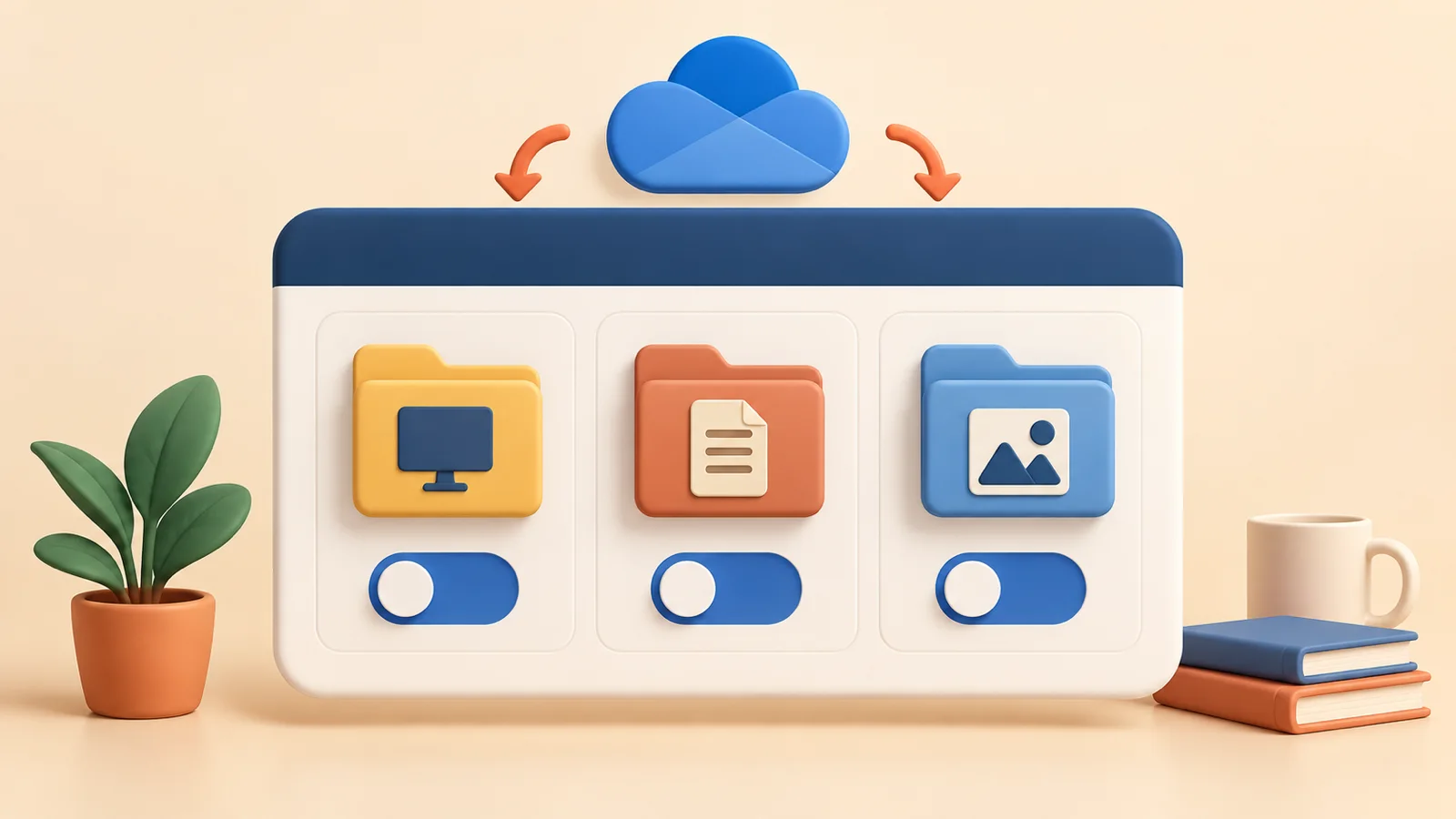
OneDrive asks where the existing files should remain: Keep the files only in OneDrive removes them from the computer, while Keep the files only on my PC removes them from OneDrive. Read the choice carefully before confirming.
Moving files back onto your PC uses local storage — here’s how to free some up if you’re tight on space.
What Happens to Your Files When You Stop Backup
Choosing Keep the files only on my PC keeps the files in the local folder and removes them from OneDrive. Choosing the OneDrive-only option does the reverse. Stopping folder backup therefore changes where the files remain; it does not keep identical copies in both places.
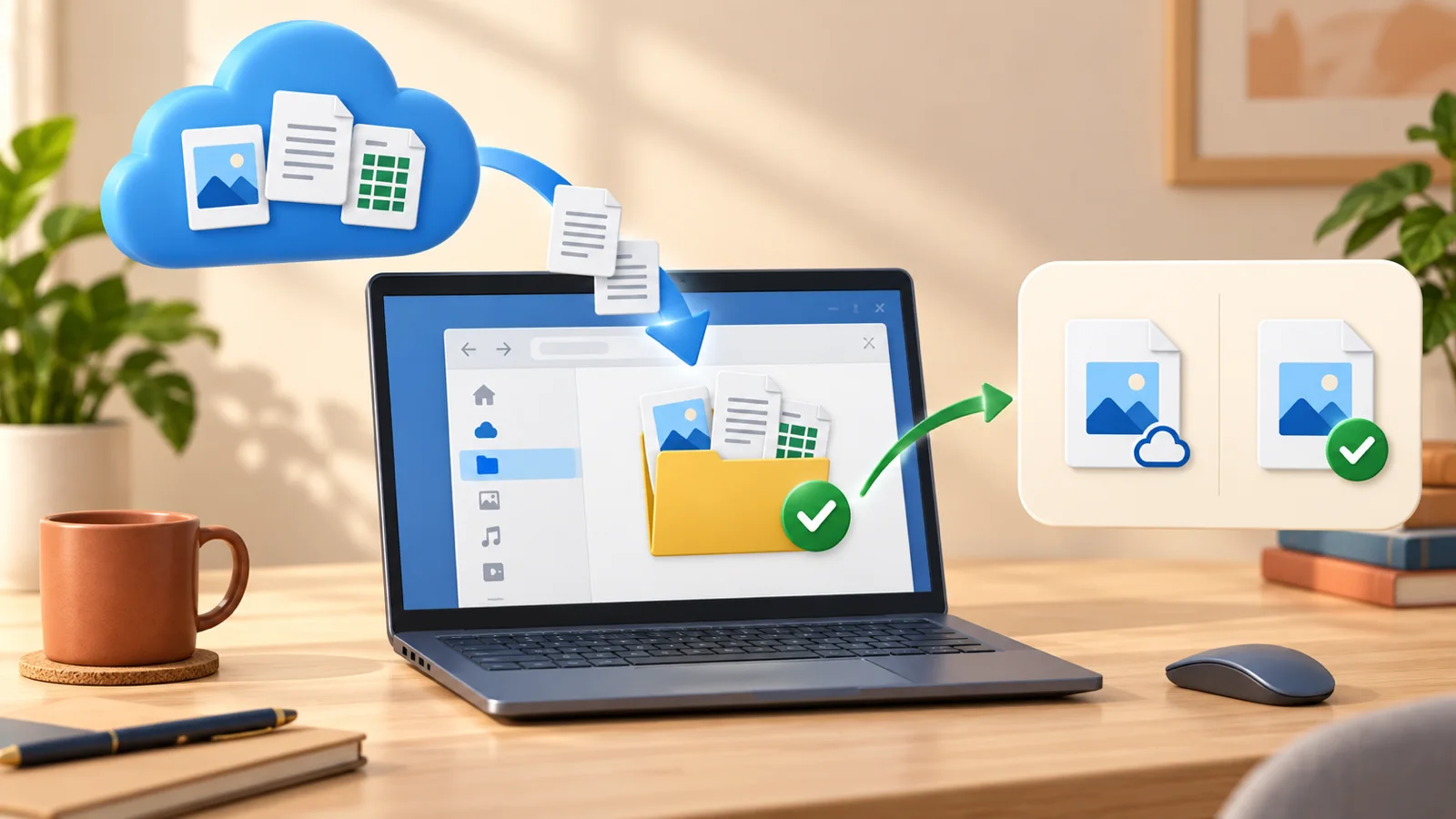
One edge case: if a file in those folders is cloud-only (never downloaded locally to save space), Microsoft’s own support page notes you may see a message that some files “couldn’t be moved.” (Microsoft Support)
If OneDrive says some files could not be moved, change those cloud-only files to Always keep on this device and wait for them to download before stopping backup.
Turn Off Just These Folders, or OneDrive Entirely?
Turning off folder backup only stops Desktop, Documents, and Pictures from syncing. OneDrive itself, and any other folders you’ve added to it, keep working normally.
If you want no automatic cloud backup at all, that’s a different, more permanent step — and worth pairing with a real backup plan so you’re not left with zero copies of anything.
If you’re moving away from automatic cloud backup, replace it with a plan that actually protects your files.
How to Turn Backup Back On Later
You can return to OneDrive Settings > Sync and backup > Manage backup, turn a folder on again, and select Save changes. Check that syncing finishes before assuming the folder is protected.
Frequently Asked Questions
Will turning off OneDrive backup delete my files?
When you stop OneDrive backing up, your choice removes the files from one location but does not erase the only copy when you follow the prompt correctly. Choose the PC-only option for local copies or OneDrive-only for cloud copies, and download cloud-only files first.
Does this stop OneDrive from running entirely?
No. It only stops Desktop, Documents, and Pictures from being backed up. OneDrive itself, and any other synced folders, keep working.
Why did OneDrive start backing up my folders without me asking?
If you need to stop OneDrive backing up folders enabled during setup, open Manage backup to see exactly which folders are currently protected.
What if some of my files were cloud-only and won't move back?
Microsoft says cloud-only files must be downloaded first. Mark them Always keep on this device, wait for the green availability indicator, and then stop the folder backup.
Can I turn individual folders off instead of all three?
Yes. The Manage backup screen toggles Desktop, Documents, and Pictures independently, so you can stop just one or two and leave the rest syncing.