
Table of Contents
ToggleWhy Websites Block Your VPN
If a site suddenly refuses to load, shows a CAPTCHA loop, or tells you to “turn off your proxy” the moment you connect through a VPN, that’s usually deliberate, not a glitch.
Websites restrict VPN traffic for different reasons. Streaming services may limit viewing because availability varies by region, while security systems may challenge a shared VPN address when it generates unusually heavy or automated-looking traffic. Banks and shops may also react when the connection location conflicts with the account or payment activity.
When websites block your VPN, first confirm the site works without it. Reconnect or choose another VPN server, complete any legitimate CAPTCHA, and retry in a private window. If access is essential and the site is trusted, temporarily disconnect the VPN. A dedicated IP may help with a shared-address reputation problem, but it is not guaranteed.
How Websites Recognize VPN Traffic
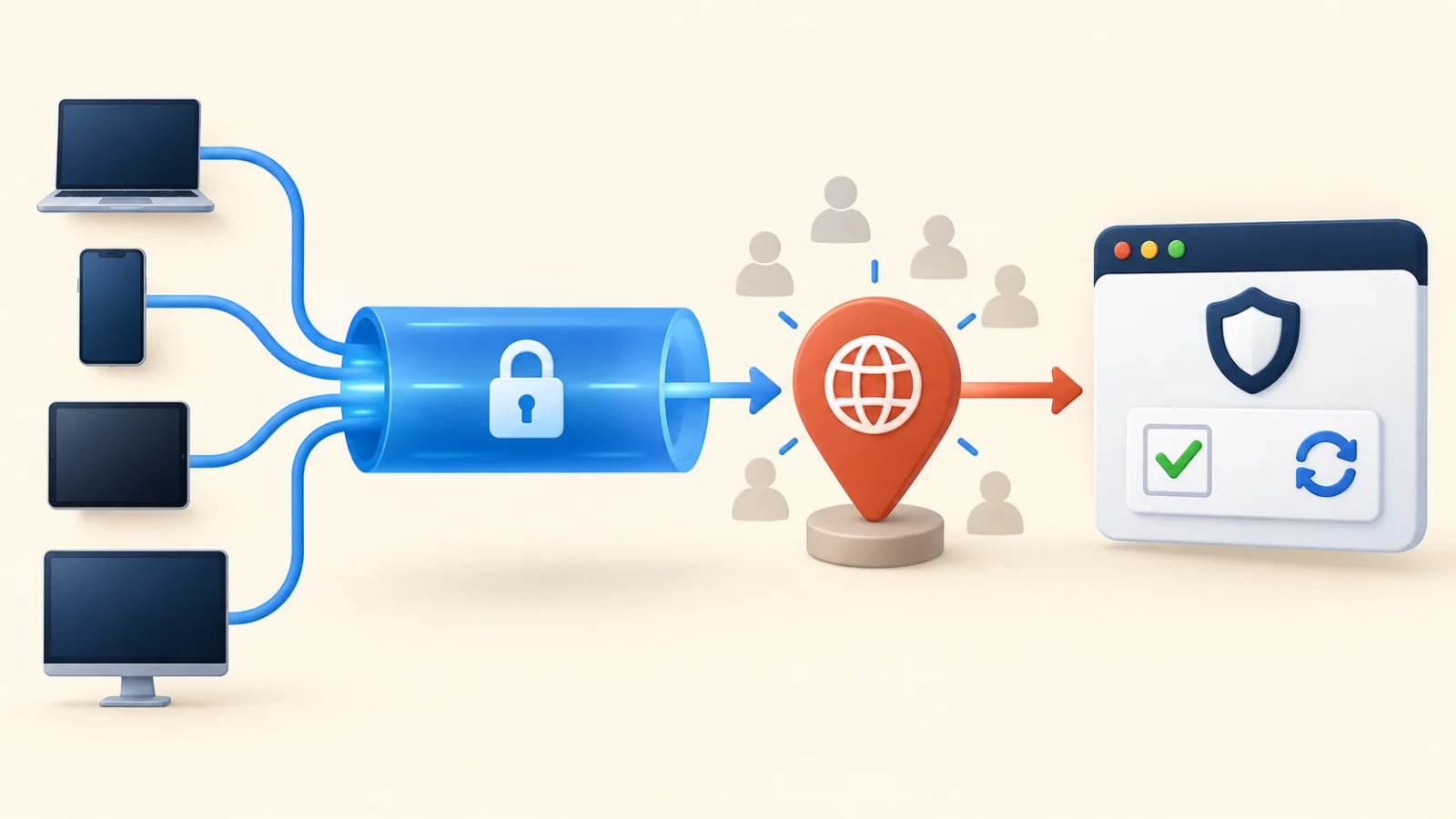
A website normally sees the VPN server’s public address rather than your home address. It can combine that address with request and account signals:
IP ownership and reputation: an address associated with a hosting provider, proxy, or previously abusive traffic may receive a challenge or be denied.
Shared-address traffic: many customers can appear behind one VPN exit address. Google explains that unusual automated traffic from another user on the same VPN may cause a CAPTCHA or temporary block. (Google Search Help)
Location and account mismatch: a sudden country change can conflict with an account region, payment method, or recent sign-in history. Netflix confirms that a VPN can make a device appear to connect from another location. (Netflix Help Center)
Request and browser signals: security tools can evaluate traffic patterns, bot scores, JavaScript behavior, and other request characteristics. Cloudflare documents these as multiple detections rather than one universal VPN test. (Cloudflare documentation)
Deep-packet inspection and blocked VPN protocol ports are usually controls applied by an ISP, workplace, school, or other network operator. They can prevent the VPN connection itself, but they are not the usual reason a website rejects an already-connected VPN address.
How to Fix a Website Blocked While Using a VPN
Use the least disruptive checks first. No method can guarantee access because the website controls its own security and regional policies.
- Disconnect the VPN and test the site once. If it still fails, check the site status or your normal connection.
- Reconnect the VPN to obtain another exit address, or select a different server in the same country.
- Complete a legitimate CAPTCHA and slow down repeated requests. Shared VPN traffic can trigger automated-abuse limits.
- Try a private window. Clear only that site’s cookies if its old location or challenge state appears stuck.
- Update the VPN app. Change protocol only when the VPN itself cannot connect; it usually will not repair a website’s IP reputation block.
- Contact the VPN provider or website support if the same account is repeatedly blocked.
- If the site is trusted and access is essential, temporarily disconnect the VPN, finish the task, and reconnect afterward.

A VPN is one layer of protection — here’s a broader checklist for keeping your personal data safe online.
When Switching VPN Servers Does Not Help
If the VPN connects but several unrelated sites fail, test for a broader connection problem rather than assuming every site has detected the VPN.
DNS failure can stop pages loading, while an IPv6 routing problem can send some traffic outside an incorrectly configured tunnel. WebRTC may expose a local network address to a site; Mozilla documents that possibility, but this is not proof that it caused the block. (Mozilla Support)
Use the VPN provider’s own leak-test guidance and compare the reported public address with the VPN server address. If they differ, update the app, confirm IPv6 and DNS protection settings, and contact the provider. A browser extension is not automatically safer or more reliable than a full-device VPN app.
Browser-level privacy settings matter just as much as your VPN — here’s how to lock things down further.
When It's Not Actually a VPN Block
Not every access problem is VPN detection. Rule out the obvious first: an expired subscription, a site-wide outage, or a regional restriction that has nothing to do with your connection type.
Try loading the same site with your VPN off. If it also fails, the VPN isn’t the cause.
Frequently Asked Questions
Why does Netflix specifically block VPNs?
Netflix says a VPN may limit you to titles licensed worldwide. VPN viewing is not supported for live events or an ad-supported Netflix experience, so turning the VPN off may be required for the normal regional catalog.
Is it illegal to use a VPN to get around a website's block?
VPN rules depend on the country, the purpose, and the website’s terms. Do not assume that bypassing a regional or security restriction is permitted; check local law and the service terms. This guide does not provide legal advice.
Will a paid VPN work better than a free one for avoiding blocks?
Not necessarily. A paid service may offer more servers or a dedicated-address option, but a website can still restrict that address. Paying for a VPN does not guarantee access.
Why did a server that worked yesterday suddenly get blocked today?
A shared exit address can accumulate a poor reputation or trigger a site’s traffic limits. The result can change even when you did nothing differently.
Does clearing cookies really help with VPN blocks?
Sometimes, if the browser retained an old region or challenge session. Clearing cookies cannot repair an IP-address block, so switch servers or contact support if the problem continues.