Delete the previous version of Windows only after you are sure the current installation works and your files are present. Windows stores the earlier installation in C:\Windows.old, and removing it can free significant space.
Use Windows Settings first. It removes the protected system folder correctly and avoids the permission problems caused by deleting Windows.old manually.
Open Settings > System > Storage > Temporary files. Select Previous Windows installation(s), choose Remove files, and confirm. This permanently removes Windows.old and the built-in option to return to the previous Windows version.
Table of Contents
ToggleBefore You Delete Windows.old
Windows.old contains the system files from the installation you used before a major upgrade. Microsoft normally keeps it for about 10 days so the Go back recovery option can work.
Check these items before cleanup:
- Open Settings > System > Recovery. If you may need Go back, do not delete the previous installation.
- Confirm your documents, photos, downloads, browser data, and important app files are present.
- Test Wi-Fi, audio, printing, graphics, and any software you rely on.
- Copy anything needed from
C:\Windows.old\Usersto a separate backup.
If an important file is already missing, follow the Windows data recovery guide before removing the folder.
Removing the previous Windows installation permanently disables the built-in rollback that depends on Windows.old. A restore point does not recreate this folder. Keep it until you are confident the upgrade is stable.
Method 1: Delete the Previous Version in Settings
This is the supported method for current Windows 11 and Windows 10 systems:
- Press Windows key + I to open Settings.
- Select System > Storage.
- Open Temporary files and wait for Windows to finish scanning.
- Select Previous Windows installation(s).
- Review the other selected categories so you do not remove Downloads or another item by mistake.
- Select Remove files and confirm.
Microsoft documents the same path in its current Storage Sense and Windows.old guidance. The cleanup may take several minutes. Restart the PC, then check the free space under Settings > System > Storage.

Method 2: Use Disk Cleanup
Use Disk Cleanup if the Temporary files page does not show the previous installation:
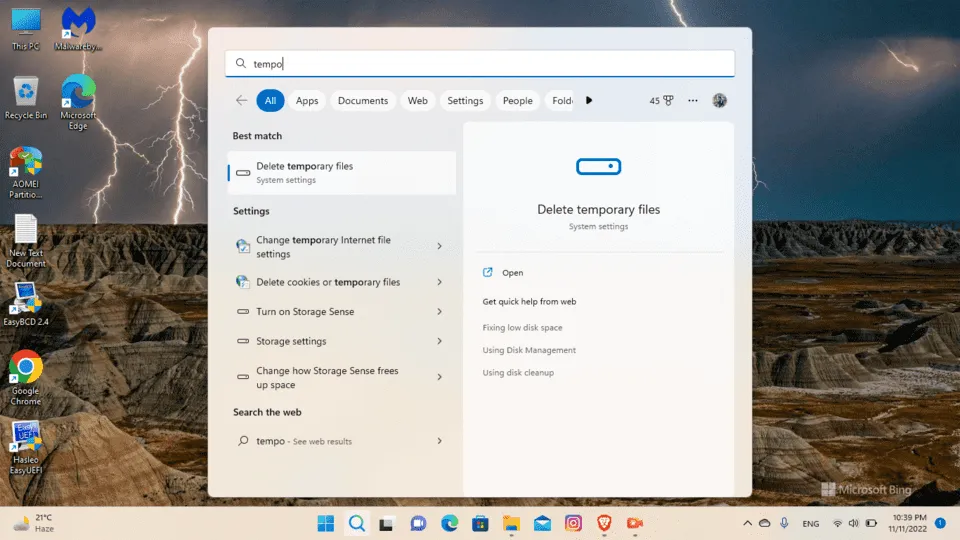
- Open Start, type Disk Cleanup, and open it.
- Select the Windows drive, normally C:.
- Choose Clean up system files, select the drive again, and wait for the scan.
- Select Previous Windows installation(s).
- Choose OK > Delete Files.
Disk Cleanup and Settings remove the same rollback files. Run only one method. Microsoft lists Disk Cleanup as the Windows 10 fallback in its drive-space instructions.
Why the Previous Installation Option Is Missing
The option is usually absent for one of these reasons:
- Windows already removed it. The normal rollback period has expired.
- The PC had a routine cumulative update. Monthly updates do not create a full Windows.old folder.
- Cleanup already ran. Settings, Disk Cleanup, or an administrator may have removed the files.
- The upgrade did not keep a rollback copy. A clean installation does not provide an earlier system to restore.
Open File Explorer and look for C:\Windows.old. If the folder is absent, there is nothing left to delete. If it exists but neither cleanup tool lists it, restart Windows and run Disk Cleanup as an administrator.
Avoid taking ownership of the folder and deleting it file by file; protected files can remain and the space calculation may be inaccurate.
What Changes After You Remove It
Deleting Windows.old does not uninstall your current Windows version, remove your current personal files, or erase installed applications. It removes the earlier system copy and any files that exist only inside that old profile.
The amount recovered varies by PC. Use the size shown beside Previous Windows installation(s) as the reliable estimate. If the drive is still nearly full afterward, use the C: drive cleanup guide to find other large files instead of repeating this process.
See Windows file management tips for safer ways to organize large files and reduce clutter after removing Windows.old.
Frequently Asked Questions
Is it safe to delete the previous version of Windows?
Yes, after you confirm the current version is stable and your files are present. The cleanup option is built into Windows, but removing it ends the built-in rollback path.
Can I restore Windows.old after deleting it?
No supported Windows tool recreates it. You would need a separate system backup or installation media to return to an earlier version.
Why is Windows.old still present after cleanup?
Restart the PC and check again. If it remains, run Disk Cleanup, choose Clean up system files, and remove Previous Windows installation(s). Do not delete protected subfolders manually.
Does deleting Windows.old remove my current files?
No. It does not remove files from your current user profile. Files stored only inside the old profile are deleted, so inspect and back up that folder first.
How long does Windows keep the previous version?
Microsoft normally makes the previous installation available for about 10 days after an upgrade. Windows can remove it earlier if you choose the cleanup option.
Remove It Only When the Upgrade Is Stable
Use Settings > System > Storage > Temporary files for the quickest supported cleanup. Disk Cleanup is a practical fallback when the option does not appear in Settings.
Once the previous installation is removed, the recovered space is available to the current system, but the Windows.old rollback is gone. Verify the upgrade and back up needed files before selecting Remove files.