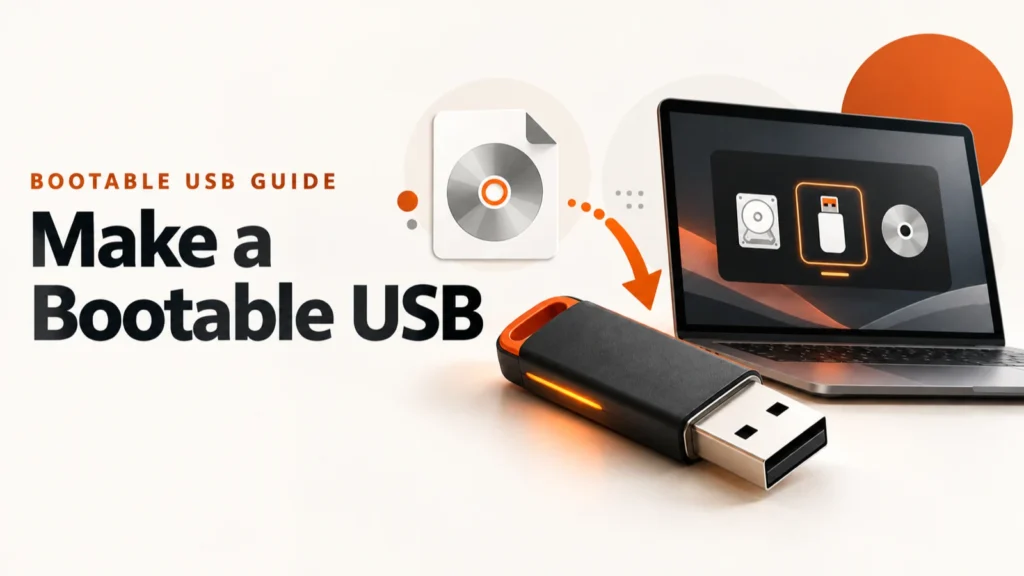
Free bootable USB software has sorted itself out over the last few years: a handful of tools are actively maintained, they do genuinely different jobs, and picking the wrong one is why a drive boots on one machine and not another.
A bootable USB is also the first tool you will need when a PC is stuck on a blue screen of death.
This is not a ranking. It is a practical guide to five maintained tools, what each is actually for, and how to tell which one your particular ISO needs.
Installing Windows: Rufus, or Microsoft’s own Media Creation Tool if you would rather not use a third-party tool. Several ISOs on one stick: Ventoy. A Linux distro or a Raspberry Pi image: balenaEtcher. A live Linux drive that keeps your files between reboots: Universal USB Installer. All five are free.
A live USB can also help you copy files off a PC that will not start; see our Windows data recovery guide.
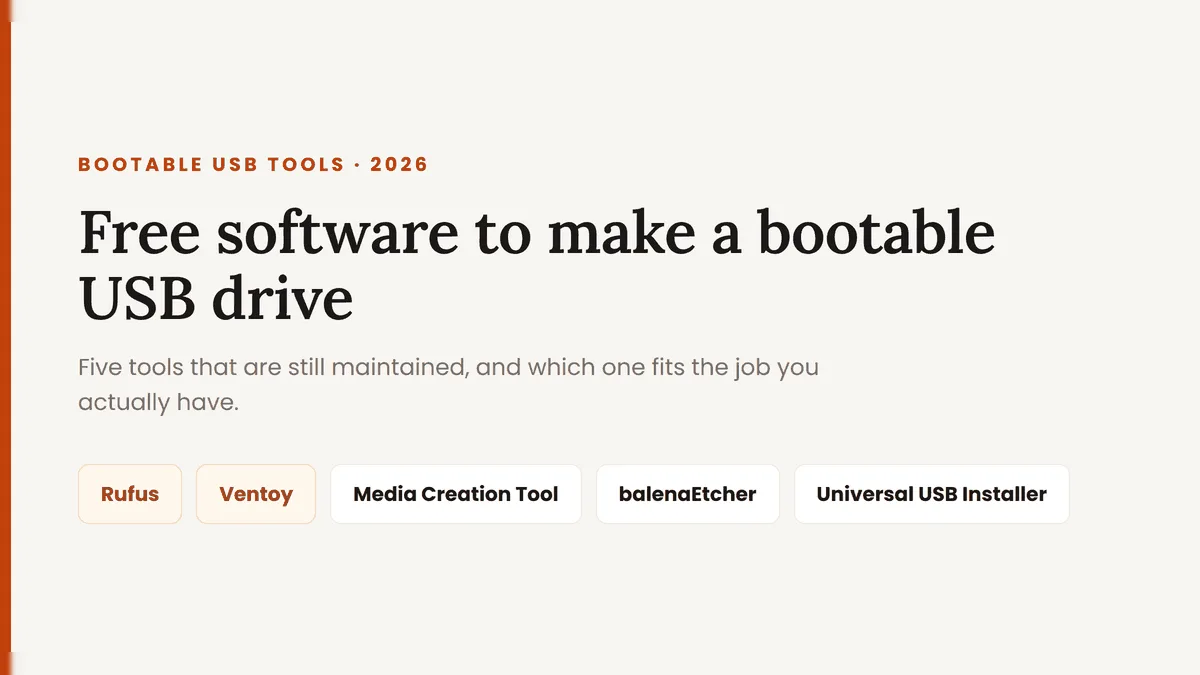
Table of Contents
ToggleWhat a bootable USB drive actually is
A bootable drive is not a drive with an ISO copied onto it. Your firmware has to find something it recognises before Windows or Linux exists to help — so the drive needs the right partition scheme, the right filesystem, and boot files written where the firmware looks for them.
That is three separate decisions, and they are where things go wrong. Most modern Windows PCs use UEFI with a GPT disk, while genuinely older hardware may still need legacy BIOS with MBR. FAT32 cannot hold a file bigger than 4 GB, and a modern Windows ISO may contain one that is — which is precisely the problem these tools exist to solve.
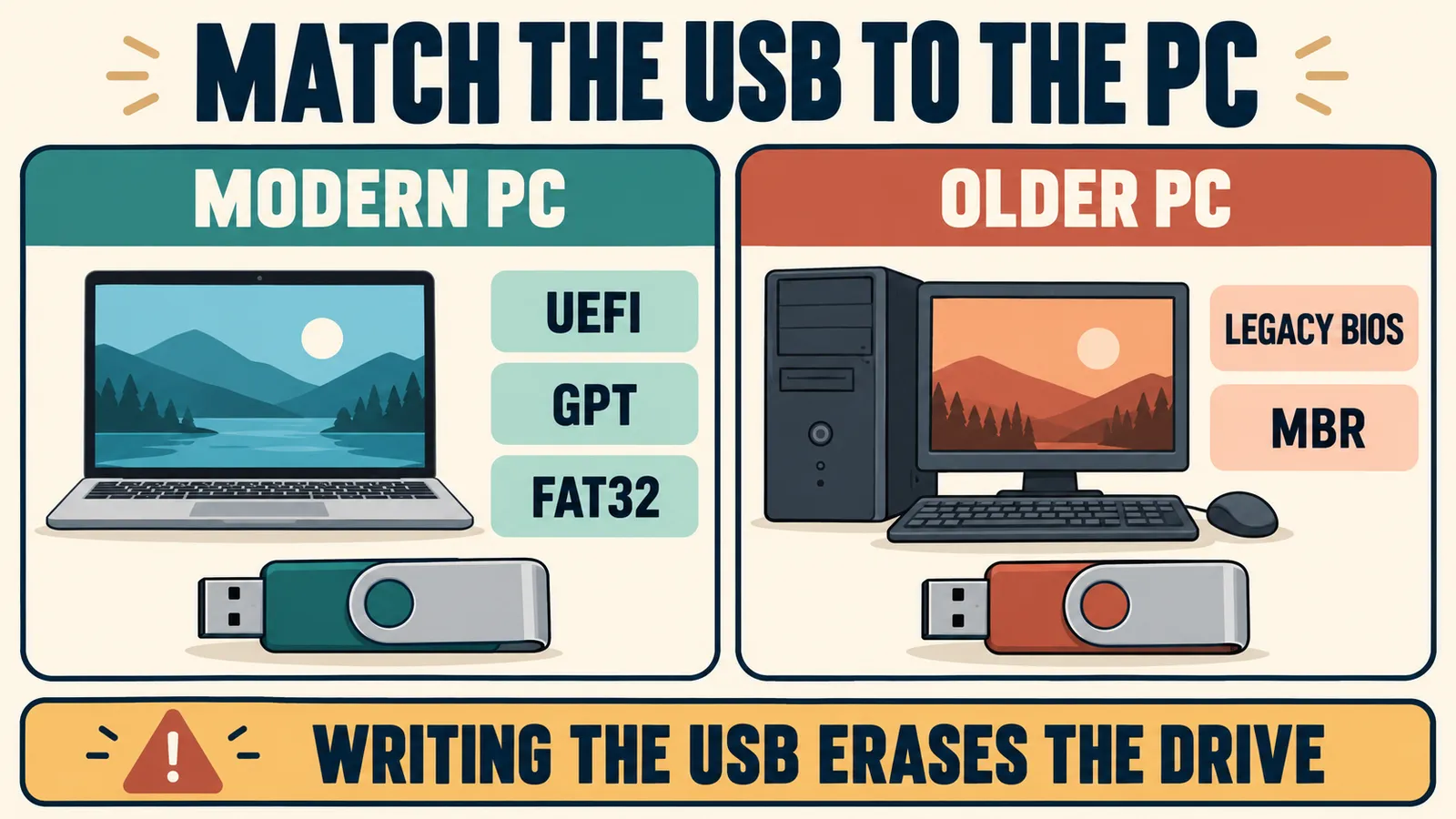
Drag an ISO onto a USB stick and you have a USB stick with a file on it. Nothing has been written to the boot sector, and the firmware has no reason to look at the drive at all.
Every tool below is doing the same underlying job: unpacking that image and laying it down in a form the firmware will start.
Three questions that pick the tool for you
Before comparing features, answer these. They narrow five options to one almost every time.
- What are you writing? A Windows installer and a Linux image need different handling, and not every tool does both.
- One image, or several? If you keep rebuilding the same stick, you want the tool that stops you rebuilding it.
- Which firmware does the target PC use? Most modern PCs use UEFI, but some older systems still need a legacy-BIOS layout. Check System Information or the firmware settings instead of guessing from age alone.
If the machine is old enough to need a legacy layout, see which computer hardware upgrades are still worth making.

1. Rufus — the default for Windows ISOs
Rufus is a 1.9 MB download that needs Windows 8 or later, is released under GPL v3, and comes in a portable build if you would rather not install anything. Version 4.15 landed on 30 June 2026.
For writing a Windows installer it is the tool almost everyone should use: it picks sensible defaults for partition scheme and filesystem, and works around the 4 GB FAT32 limit without asking you to think about it.
The Windows User Experience dialog
When you write a Windows 11 ISO, Rufus offers a dialog it calls Windows User Experience, with tick boxes to remove the TPM 2.0 requirement, the Secure Boot requirement, the RAM minimum, and the mandatory Microsoft account at setup. For anyone with a working PC that Microsoft has declared unsupported, this is the reason Rufus gets recommended over everything else.
Worth understanding what it is doing. The Rufus project is clear that it did not invent these bypasses: they are mechanisms Microsoft added to the installer, which Rufus surfaces rather than reverse-engineers. It does not patch Windows binaries.
Because the bypasses are Microsoft’s own, Microsoft can remove them in a later build — and has. The Rufus FAQ carries an entry for exactly that situation. If you are planning an install on unsupported hardware, check the option is still there before you commit to the plan.
Before any reinstall, make sure your files are covered by a 3-2-1 data backup plan.
2. Ventoy — several ISOs on one stick
Ventoy works differently from everything else here, and once it clicks it is hard to go back. You install it to the drive once. After that you copy ISO files on by drag and drop, like ordinary files, and at boot Ventoy shows a menu of everything on the stick. No reformatting between images.
Version 1.1.18 arrived on 9 October 2026. It supports legacy BIOS plus IA32, x86_64 and ARM64 UEFI, handles ISOs larger than 4 GB, and lists over 1,400 tested images across Windows, WinPE, Linux, ChromeOS, Unix and VMware. The drive also stays usable as normal storage, so the rest of its space is not wasted.
A single Ventoy stick holding a Windows installer, a Linux live image and a rescue tool covers most of what you would otherwise rebuild a drive for, twice a year, badly, under time pressure. If you fix other people’s computers, build this one first.
For other startup and system errors, see our guide to diagnosing common Windows errors.
3. Microsoft Media Creation Tool — the official route
If you would rather not put a third-party tool anywhere near your install media, Microsoft publishes its own on the Windows 11 download page.
There are three options there and they are easy to confuse: the Installation Assistant upgrades the PC you are sitting at, Create Windows 11 Installation Media writes a bootable USB, and the third simply downloads the ISO for you to write with something else.
The middle option is what you want for a clean install. Microsoft asks for a blank USB drive of at least 8 GB, an internet connection and a matching system language. The Media Creation Tool creates x64 installation media; Microsoft provides a separate Windows 11 Arm64 ISO download for compatible Arm-based PCs. The page currently serves the Windows 11 2026 Update, version 26H2.
Microsoft’s own note is blunt: any content on the selected flash drive will be deleted. Other tools here can also format, repartition or overwrite the target depending on the workflow. Back up the USB first and confirm the correct drive before you start.
If the PC you are reinstalling still runs Windows 10, start here instead.
4. balenaEtcher — for disk images, not Windows
balenaEtcher is the friendliest tool on this list: pick an image, pick a drive, flash. It runs on Windows 10 and later, macOS 10.10 and later, and most Linux distributions, and it is free and open source. For a Raspberry Pi image or a Linux distro it is the shortest path from download to booting.
If you want a full image of your current drive rather than a fresh install, see these Macrium Reflect Free alternatives.
Balena’s own site puts it plainly: Windows images are “not bootable without extra treatment that etcher is not designed to do”.
If you flash a Windows ISO with it, you will get a drive that either refuses to boot or reports a missing partition table. Use Rufus.
One footnote for older machines: if you are running Windows 7, Windows 8 or a 32-bit system, version 7.9.0 is the last release that will work for you.
5. Universal USB Installer — persistent Linux live drives
Universal USB Installer now has two maintained tracks. UUI Py 1.0.0.1, updated on 20 August 2026, runs natively on Windows 10 or 11 and modern Linux, while the Classic 2.0.3.9 build remains available for Windows 7 through 11.
Choose UUI Py if you want cross-platform multiboot management, batch ISO additions or a QEMU test boot without restarting. Choose Classic for its established persistence workflow: a supported live Linux drive can remember changes between reboots, with persistence files up to 40 GB using exFAT. Both can work with legacy BIOS and UEFI, depending on the selected ISO and boot configuration.
The project warns that choosing Prepare this Device may wipe every volume and partition on the selected disk, including hidden ones. On a spare USB stick that is fine. Pointed at the wrong disk it is not, so confirm the target before clicking.
What happened to UNetbootin and RMPrepUSB
Older guides still recommend both, but neither is the right pick today.
UNetbootin is still there at version 702 and still works for what it was built for, which is Linux live USBs.
But its own homepage says that ISO files for non-Linux operating systems use a different boot mechanism and should not be expected to work — and a Windows installer is what most people arriving here actually want.
For Linux, Ventoy and Universal USB Installer both do more.
RMPrepUSB was a genuinely powerful tool for people who wanted to hand-tune a boot drive. It has gone quiet, and recommending an unmaintained utility that writes to partition tables is not a good trade for the small number of readers who would use its advanced features.
To test a bootable image without a USB stick at all, try it in a virtual machine.
You might not need any of them
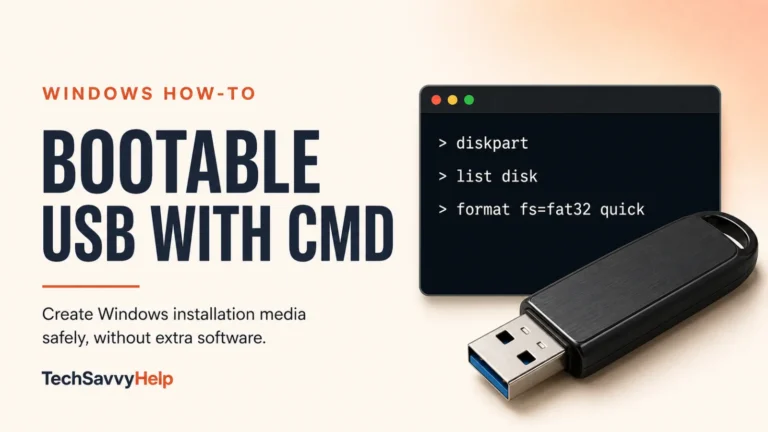
Windows can build a bootable installer on its own with DiskPart from Command Prompt. It is more steps and less forgiving, but it installs nothing, it works on a locked-down machine where you cannot run downloaded executables, and it is genuinely useful to understand once, because it makes the rest of this obvious.
If you are creating recovery media because a PC will not boot, continue with the Operating System Not Found guide or the targeted steps for error code 0xc0000225.
If Windows setup stops with “Installation failed in the FIRST_BOOT phase”, see how to fix the FIRST_BOOT SYSPREP error.
The manual DiskPart route, step by step, if you would rather not install a tool.
Common mistakes to avoid
- Not checking the target drive. These workflows can format, repartition or overwrite the selected device. Back it up and confirm the drive before clicking Create or Start.
- Formatting FAT32 by hand for a modern Windows ISO. An install file may exceed 4 GB and the copy will fail partway. Let the tool choose the filesystem.
- Downloading from a mirror or aggregator site. Every tool here has its own official page, and repackaged installers are a well-worn route for bundled adware.
Building a new machine? Our PC building guide covers when you will need that install drive.
Worth having something in place before you go downloading installers.
Where to download each one
Go to the source, not to a download portal:
- Rufus — rufus.ie
- Ventoy — ventoy.net
- Media Creation Tool — Microsoft’s Windows 11 download page
- balenaEtcher — etcher.balena.io
- Universal USB Installer — pendrivelinux.com
Bootable USB Frequently Asked Questions
Which tool should I use to install Windows 11?
Rufus if you want control or need the option to remove the TPM and Secure Boot requirements. Microsoft’s Media Creation Tool if you would rather stay entirely official. Both produce a working installer; Rufus gives you more choices along the way.
Can balenaEtcher make a Windows installation USB?
No. Balena states on its own site that Windows images are not bootable without extra treatment Etcher is not designed to do. Use Rufus, Ventoy or the Media Creation Tool instead.
Do I need to format the USB drive first?
No. Every tool here formats the drive itself as part of writing it, and that erases everything already on it. There is no benefit to formatting first and no way to keep existing files.
What size USB drive do I need?
Microsoft asks for 8 GB or more for Windows 11, and Universal USB Installer wants the same. A 16 GB drive gives you room to spare. For Ventoy it depends entirely on how many ISOs you plan to keep on it.
Is it safe to remove the Windows 11 requirements with Rufus?
Rufus is open source under GPL v3 and the options use mechanisms Microsoft itself put in the installer, rather than anything Rufus patched in.
What is not guaranteed is that they keep working — Microsoft has removed them before, and the Rufus FAQ covers what to do when the option disappears. Going ahead on unsupported hardware is a decision worth making deliberately.
Picking one and getting on with it
For a typical Windows installer, start with Rufus. If you regularly carry several installers or rescue images, use Ventoy so you can add and remove ISO files without rebuilding the drive each time.
The only step that really matters is the one before you click start: confirm which drive you are about to erase. Everything after that is the tool’s job.