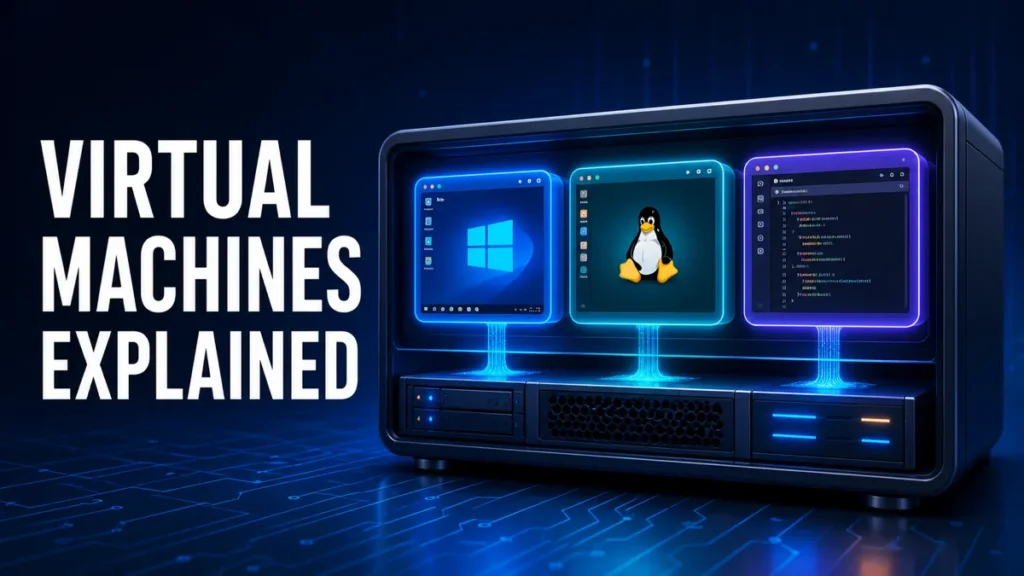
A virtual machine (VM) is a software-based computer that runs inside your physical computer. It has its own operating system, apps, storage, memory, and network connection.
A hypervisor shares the host computer’s hardware with the VM. This lets you test software, learn Linux, run some older applications, or create a clean development environment without replacing your main operating system.
A virtual machine runs a separate operating system inside your current computer. It is useful for testing, learning, development, and legacy software, but it shares the host’s processor, memory, storage, and network connection.
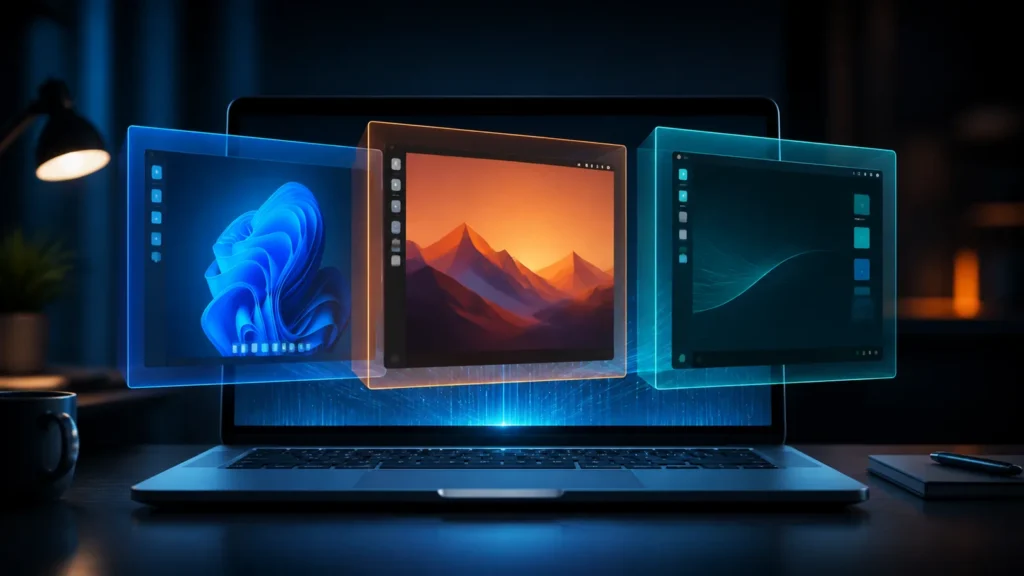
Table of Contents
ToggleVirtual Machines Explained: How a VM Works
The physical computer and its main operating system are called the host. The operating system inside the VM is the guest. The virtualization layer controlling both is the hypervisor.
When you create a VM, you assign virtual processor cores, memory, storage, networking, and optional access to USB devices or shared folders. The guest sees these as normal hardware.
A virtual disk is usually stored as one or more files on the host. Several VMs can run together if the host has enough resources, but every guest still depends on the same physical machine.
Which Virtual Machine Software Should You Choose?
Choose a hypervisor based on your host operating system, processor architecture, Windows edition, and intended workload. Compatibility matters more than selecting the tool with the longest feature list.
Oracle VirtualBox is a practical starting point for personal projects. VMware Workstation Pro and Fusion Pro suit more advanced desktop labs. Hyper-V is built into supported Windows Pro, Enterprise, and Education editions, while QEMU with KVM is a strong Linux option.
Popular Virtual Machine Software by Platform
These are sensible starting points. Always confirm current host, guest, processor, and licence support on the vendor’s website before installing.
Windows
VirtualBox works on Windows Home and is approachable for learners. VMware Workstation Pro suits development and advanced networking. Hyper-V is available in supported Pro, Enterprise, and Education editions.
macOS
Parallels Desktop offers polished Windows integration. VMware Fusion Pro is a capable free-for-all-use option. UTM is useful for Linux guests and architecture experimentation.
Linux
QEMU with KVM provides native performance and control. GNOME Boxes offers a simpler interface, while VirtualBox remains familiar across platforms.
What Are Virtual Machines Good For?
VMs are most valuable when you need a complete operating system that is separate from your everyday setup.
- Learn Linux: explore a distribution without repartitioning your drive.
- Test software: reproduce problems in a clean environment.
- Build development environments: keep project tools and dependencies isolated.
- Run legacy applications: use some older software without keeping an outdated host system.
- Create IT labs: practise administration and networking with several controlled machines.
Unsupported guest systems should stay offline whenever possible. Do not expose intentionally vulnerable lab machines directly to the internet.
Difference Between Linux, Unix, Mac and Windows
Compare operating systems before choosing a guest for your first VM.
Can a Virtual Machine Protect You From Malware?
A VM can reduce risk by placing software in a separate environment, but it does not make suspicious software safe.
Malware inside a VM may still steal information entered in the guest, attack network devices, access shared folders or clipboards, use passed-through USB devices, or exploit an unpatched hypervisor.
For higher-risk testing, disable shared folders, clipboard sharing, drag-and-drop, unnecessary USB access, and bridged networking. Keep the host and hypervisor updated, use an isolated network, and never sign in to personal accounts.
A snapshot is not a security guarantee or a full backup. Deleting or restoring a VM cannot reverse information already transmitted or damage done to files and devices the guest could reach.
Virtual Machines vs Containers and Dual Boot
A VM includes a complete guest operating system with its own kernel and virtual hardware. A container packages an application and its dependencies while sharing the host operating system’s kernel.
Choose a VM when you need a different operating system, desktop interface, older OS, or control over virtual hardware. Choose containers for lightweight application isolation and fast deployment.
Dual boot runs one operating system at a time directly on the hardware. It can provide better performance, while a VM is more convenient because the host and guest run together.
Use virtual desktops when you only need separate workspaces, not another operating system.
How Much RAM, Storage, and CPU Does a VM Need?
Resource needs depend on the guest operating system and what you plan to run. A lightweight Linux desktop may work with 2GB to 4GB of virtual RAM, while a modern Windows guest usually benefits from more.
A host with 8GB of total RAM has limited room for a modern desktop VM. A 16GB system is more flexible for one general-purpose guest, while several demanding VMs may require 32GB or more.
Do not assign every processor core or nearly all memory to the guest. Leave enough for the host, browser, security software, and background processes. An SSD also improves VM installation, startup, and updates.

Start conservatively and increase resources only when the guest needs them. If the host begins swapping memory to disk, both systems can become slow.
How to Create Your First Virtual Machine
- Check virtualization support. Confirm that hardware virtualization is enabled in UEFI or BIOS.
- Choose a compatible hypervisor. Match it to the host operating system and processor architecture.
- Download the guest ISO. Use the operating-system vendor’s official website.
- Create the VM. Assign conservative amounts of RAM, processor cores, and virtual disk space.
- Install and update the guest. Add the hypervisor’s guest tools, then install security updates.
- Create a clean snapshot. Use it as a temporary rollback point, while keeping separate backups of important files.
Shut down the guest normally. Force-powering off a VM can corrupt its virtual disk just as an unexpected power loss can damage a physical computer.
Are Virtual Machines Worth Using?
Virtual machines are worth using when you have a specific need for a complete, separate operating system. They offer flexibility, repeatability, and useful separation in exchange for memory, storage, processor overhead, and another OS to maintain.
They are less suitable for modern gaming, heavy video editing, or tasks needing unrestricted graphics-card access. For those workloads, running directly on compatible hardware usually performs better.
Start with one VM and a recoverable setup. For official technical details, see Microsoft’s Hyper-V overview.
Frequently Asked Questions
Is running a VM the same as dual booting?
No. Dual boot runs one operating system at a time directly on the hardware. A VM runs a guest operating system while the host remains active.
Do I need a powerful computer to run a VM?
Not always. One lightweight guest can run on modest hardware, but the host must retain enough memory, storage, and processor capacity for its own work.
Can a virus inside a VM infect the host?
It is possible. Shared folders, clipboards, USB passthrough, network access, and software vulnerabilities can create paths outside the guest.
Is a VM snapshot the same as a backup?
No. A snapshot depends on the VM files and is designed for short-term rollback. Keep separate backups of anything important.
The Bottom Line
A virtual machine is a practical way to run another operating system without replacing your main setup. Choose compatible software, assign resources conservatively, limit sharing when isolation matters, and keep real backups outside the guest.