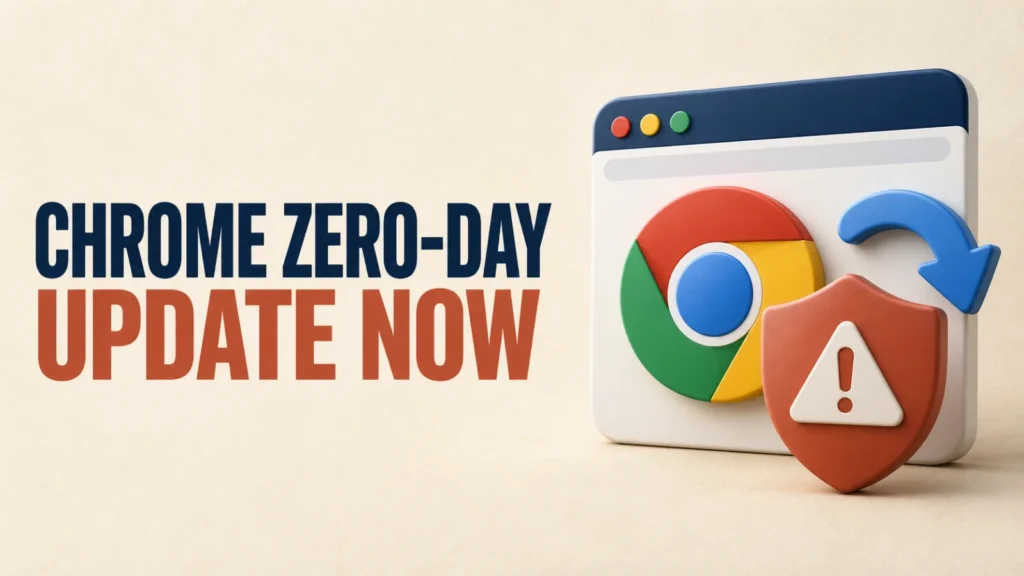
Chrome zero-day CVE-2026-85046 is an actively exploited security flaw that Google has now fixed. It affects Chrome’s V8 JavaScript engine, which processes code used by many websites.
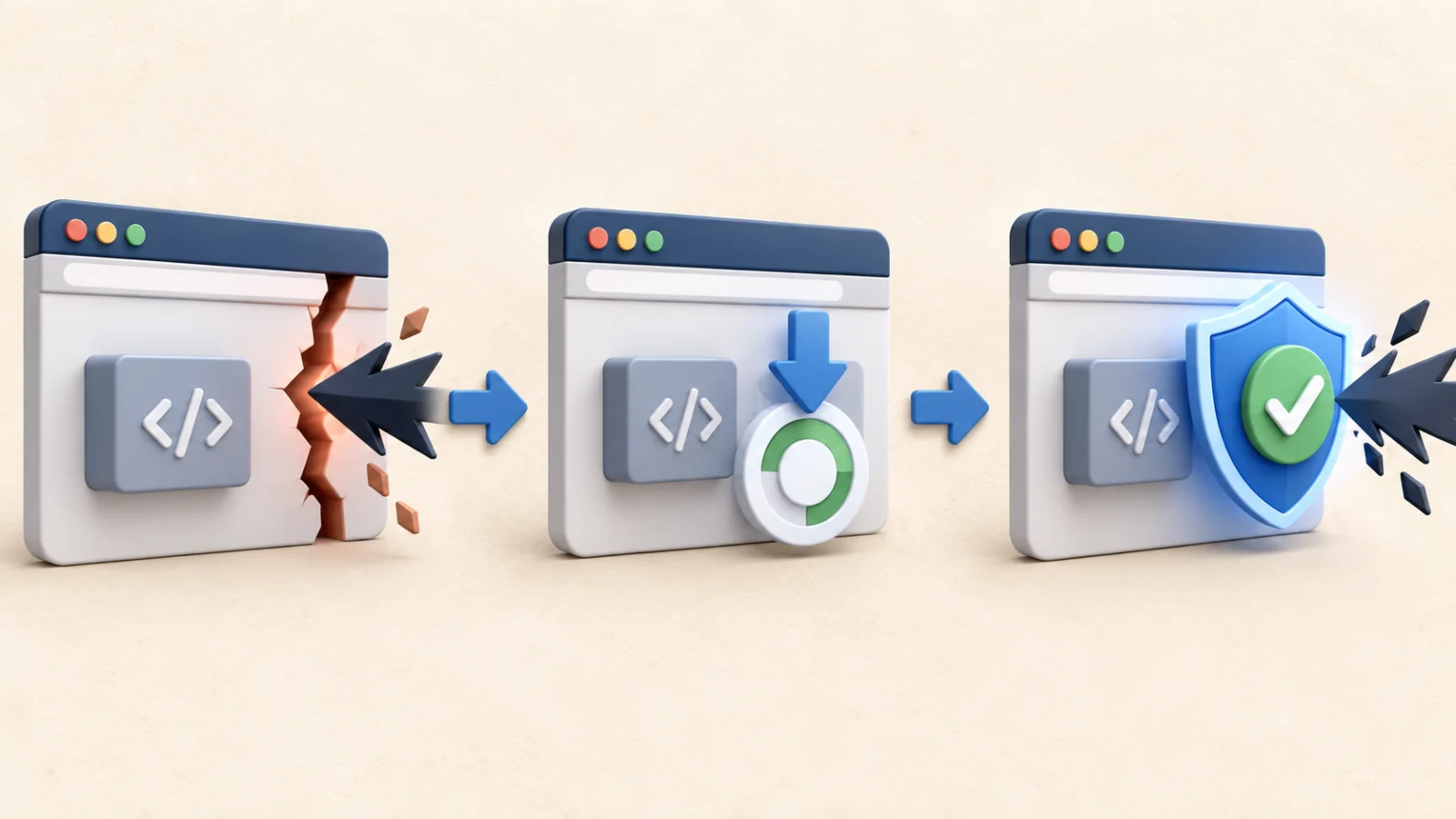
If Chrome has been open for several days, update it now and relaunch the browser. Do not wait for a warning or assume that a downloaded update has already been applied.
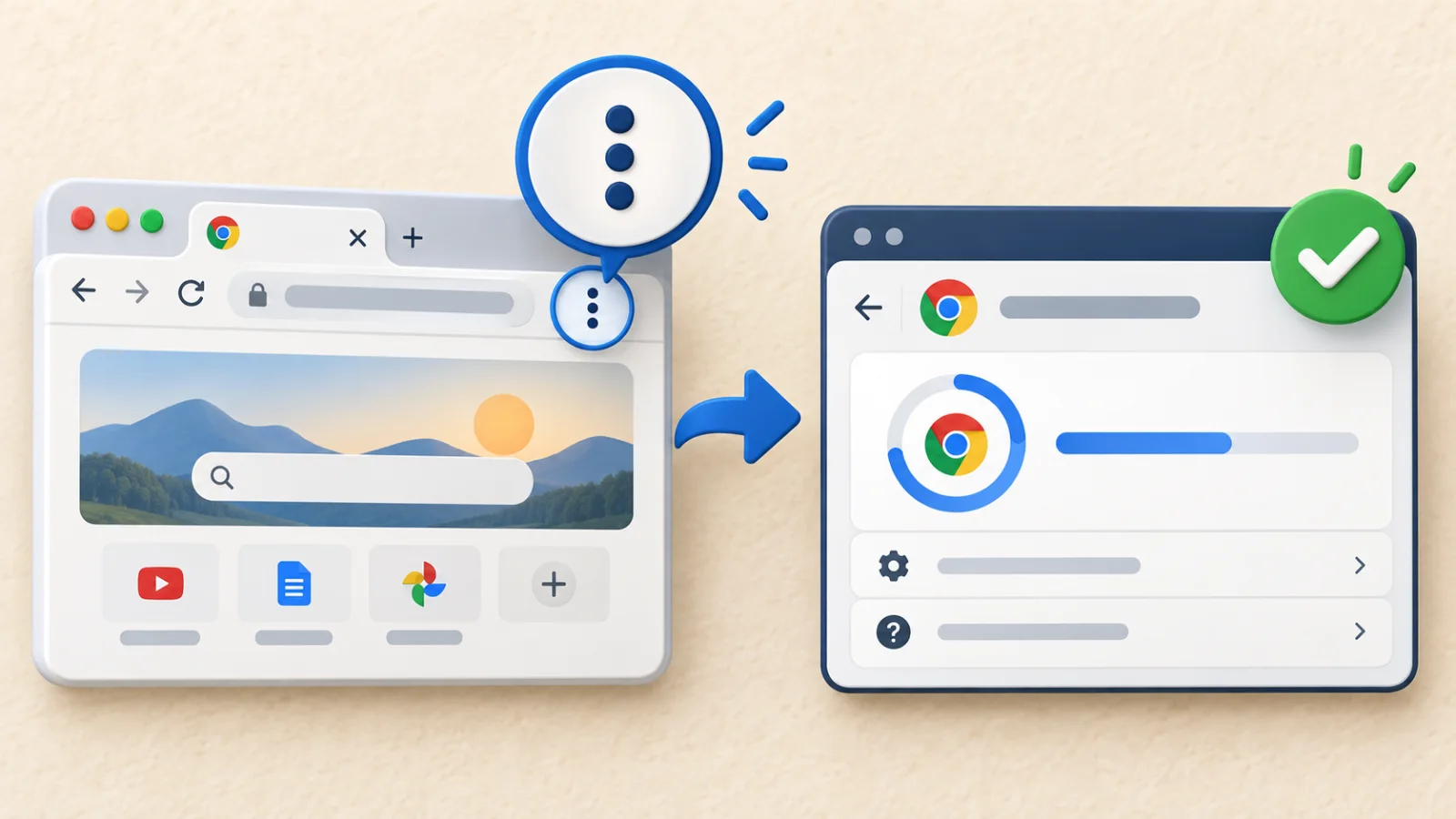
Open Chrome’s three-dot menu and select Help > About Google Chrome. Allow Chrome to install the newest available update, then select Relaunch.
The first fixed desktop builds were 152.0.7977.82/.83 for Windows and macOS and 152.0.7977.82 for Linux. A newer version is also safe; use the latest version Chrome offers.
Table of Contents
ToggleWhat Is Chrome Zero-Day CVE-2026-85046?
The Chrome zero-day CVE-2026-85046 is a high-severity type-confusion vulnerability in V8. Google said an exploit for it existed in the wild when the company published its 3 September 2026 Stable Channel update.
“In the wild” means attackers were already using an exploit outside a controlled research setting. Google has restricted detailed bug information while users and other affected projects receive fixes, so avoid claims about an exact attack chain that Google has not disclosed.
Which Chrome Versions Fix CVE-2026-85046?
For Chrome zero-day CVE-2026-85046, Google’s advisory lists these first patched desktop versions:
- Windows and macOS: Chrome 152.0.7977.82 or 152.0.7977.83
- Linux: Chrome 152.0.7977.82
- Android: Chrome 152.0.7977.82 received the corresponding desktop security fixes unless Google noted otherwise
Chrome has continued receiving releases since that advisory. The practical test is whether About Google Chrome reports that Chrome is up to date after a relaunch, not whether your number exactly matches the original minimum.
How to Update Chrome and Check Your Version
- Open Google Chrome.
- Select the three-dot menu in the upper-right corner.
- Choose Help > About Google Chrome.
- Wait while Chrome checks for and installs the available update.
- Select Relaunch to finish applying it.
- Return to About Google Chrome and confirm that it says Chrome is up to date.
Google’s official Chrome update instructions note that normal updates happen in the background, but restarting the browser is required to apply a pending update.
How to Update Chrome on Android
- Open the Google Play Store.
- Tap your profile picture, then Manage apps & device.
- Under available updates, find Chrome and tap Update.
- Open Chrome, go to Settings > About Chrome, and check the displayed version.
If the update is not offered immediately, keep Play Store automatic updates enabled and check again. Rollouts can take place over several days.
What to Do If Chrome Will Not Update
First, save important work and restart Chrome. Then reopen About Google Chrome. On a managed work or school computer, an administrator may control browser updates.
Linux users should update Chrome through their distribution’s package manager. If an update repeatedly fails on a personal Windows or Mac computer, use Google’s official installer rather than downloading Chrome from an unofficial software site.
Until Chrome is updated and relaunched, reduce unnecessary browsing and avoid opening unfamiliar links or attachments. Incognito mode, antivirus software, and clearing browser history do not replace the security patch.
Add another layer of local privacy when other people can access your computer.
Frequently Asked Questions
Was CVE-2026-85046 actively exploited?
Yes. Google said it was aware that an exploit for CVE-2026-85046 existed in the wild.
What is the safe Chrome version?
The first fixed desktop versions were 152.0.7977.82/.83 on Windows and macOS and 152.0.7977.82 on Linux. Install the newest version available now.
Does Chrome update automatically?
Chrome normally downloads updates automatically, but you must relaunch the browser to apply a pending update.
Does Incognito mode protect against this flaw?
No. Incognito mode limits locally saved browsing data; it does not patch vulnerabilities in the browser engine.
Bottom Line
The Chrome zero-day CVE-2026-85046 was actively exploited, so this is not an update to postpone. Open About Google Chrome, install the newest version offered, relaunch, and confirm the browser reports that it is up to date.