The best free video editing software gives you professional tools with no watermark and no subscription. DaVinci Resolve is the top all-round choice with a full feature set and 4K export, CapCut and Clipchamp are great for beginners and social clips, and Shotcut and OpenShot are simple open-source options. This guide compares the best free video editors and helps you pick the right one for your needs.
For other free apps worth installing, see our lists of free Windows software and free PDF editors.
Table of Contents
ToggleYou do not need to pay to edit videos well, because today’s free video editing software is genuinely powerful.
The right choice depends on your skill level, your computer, and the kind of videos you make.
This guide compares the best free options, explains what each does well, and helps you choose the one that fits.
What Makes Good Free Video Editing Software?
A few qualities separate the best free tools from the frustrating ones.
- No watermark on your finished videos
- Support for the resolution you need, such as 1080p or 4K
- An interface that matches your skill level
- Enough features for your projects, from simple cuts to effects
- Good performance on your computer
Judging tools against these points helps you find free video editing software that fits your needs rather than the flashiest name.
DaVinci Resolve: The Best Free Video Editing Software Overall
DaVinci Resolve is widely seen as the best free video editing software for serious work. See the official DaVinci Resolve product page for full system requirements and release notes.
Its free version includes professional editing, colour grading, audio, and visual effects tools.
It exports in 4K with no watermark, which is rare among free editors. 4K files get large, so see how to send large files when you need to share one.
The trade-off is that it is more advanced and needs a reasonably powerful PC.
CapCut: Best for Beginners and Social Media
CapCut is a fast, friendly editor popular for social media clips.
It offers templates, effects, and easy captions that suit short videos.
The free version exports up to 1080p, while 4K requires a paid plan.
It is a great starting point if you want quick, polished results.
Clipchamp: Simple Editing Built Into Windows
Clipchamp is a simple editor built into Windows 11, so many people already have it.
Its drag-and-drop design makes basic edits very easy.
Like CapCut, the free version caps exports at 1080p.
It is ideal for quick edits without installing anything extra.
Shotcut: The Best Open-Source Option
Shotcut is a free, open-source editor that works on Windows, Mac, and Linux.
It exports in 4K on the free tier with no watermark.
It supports a wide range of formats and a solid set of editing tools.
The interface takes a little learning but rewards you with real flexibility.
Video editing needs a snappy PC. Speed yours up with these free tips.

OpenShot: Best for a Simple Interface
OpenShot is a free, open-source editor known for its clean, simple layout.
It handles cuts, transitions, and titles without overwhelming you.
It exports in 4K on the free tier and runs on Windows, Mac, and Linux.
It is a good choice for beginners who want open-source software.
iMovie: Free and Easy on Mac and iPhone
iMovie is Apple’s free editor for Mac, iPhone, and iPad.
It is very easy to use, with simple themes and drag-and-drop editing.
It works only on Apple devices, but it is polished and completely free.
For Apple users who want simple edits, it is an obvious first choice.
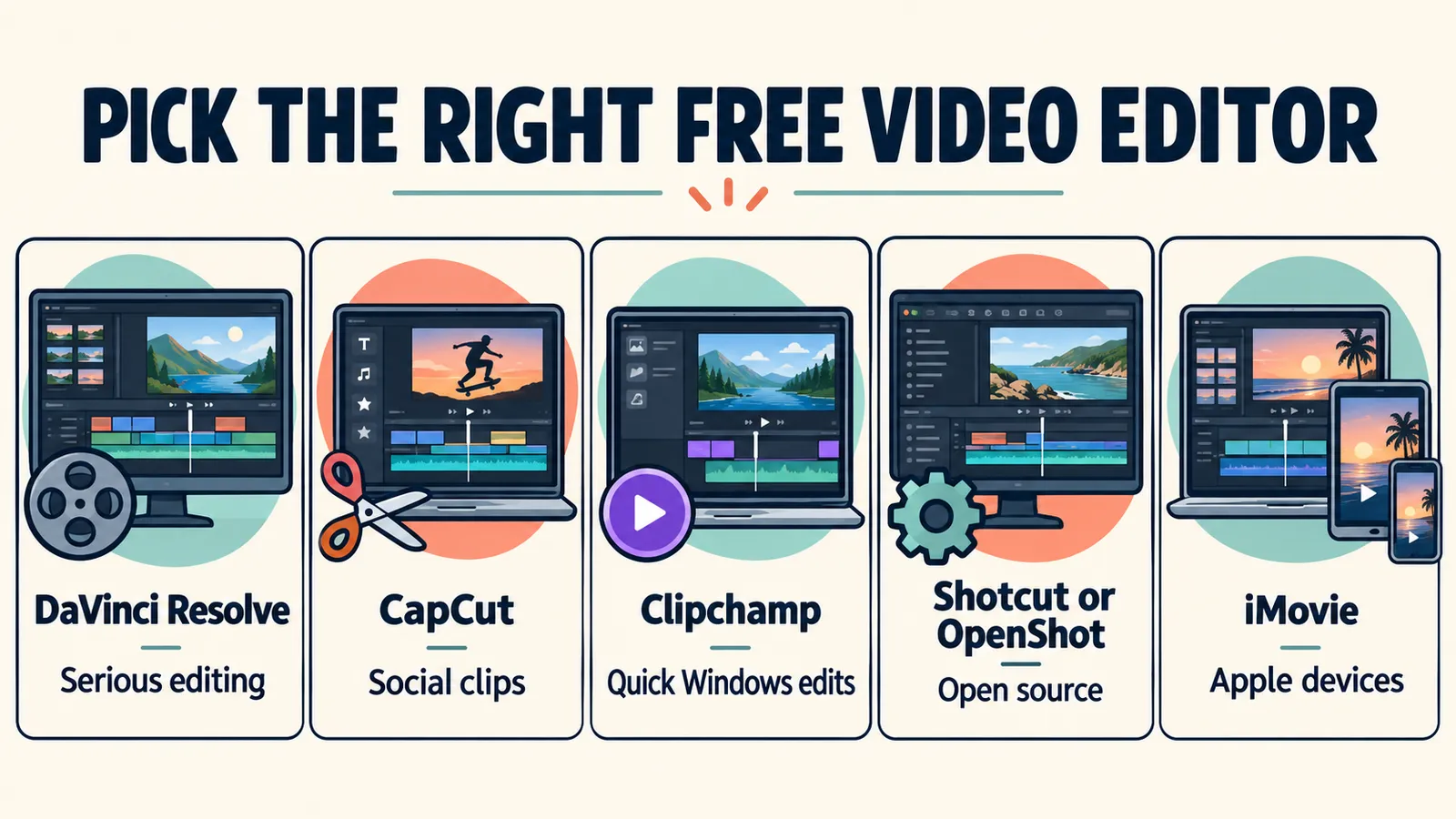
Comparing the Best Free Video Editors
Each tool suits a different kind of user and project.
- DaVinci Resolve — best overall, pro features, 4K, no watermark
- CapCut — best for beginners and social clips, free up to 1080p
- Clipchamp — built into Windows, simple, free up to 1080p
- Shotcut — best open-source, 4K free, no watermark
- OpenShot — simple interface, 4K free, open-source
- iMovie — free and easy for Apple devices
Matching a tool to your needs is the fastest way to choose the right free video editing software.
Which Free Video Editor Should You Choose?
The best pick depends on your goals and hardware.
For serious projects on a capable PC, DaVinci Resolve is the strongest free choice.
For quick social videos, CapCut or Clipchamp are fast and friendly.
For open-source software on any system, Shotcut or OpenShot works well.
Finished a big video? Here is how to share it without hitting attachment limits.
Do Free Video Editors Add a Watermark?
A watermark is a logo stamped on your finished video, and it is worth avoiding.
DaVinci Resolve, Shotcut, OpenShot, and iMovie export with no watermark.
Some other free tools add one unless you upgrade, so always check first.
Sticking to the options in this guide keeps your videos clean.
System Requirements for Video Editing
Video editing asks more of your computer than most everyday tasks.
A recent processor, plenty of memory, and an SSD all help editing run smoothly.
Advanced tools like DaVinci Resolve benefit from a good graphics card.
Simpler editors like Clipchamp and OpenShot run on more modest hardware.
Understanding Video Resolution and Export
Resolution decides how sharp your finished video looks.
1080p is fine for most social media and online sharing.
4K gives extra detail for larger screens, but the files are much bigger.
Export at the resolution your audience will actually watch on.
Editing Video on a Phone
You can edit video well on a phone, not just a computer.
CapCut and iMovie have excellent mobile apps for quick edits.
They let you trim, add music, and share directly to social platforms.
For detailed projects, a computer still gives more space and control.
Adding Music and Sound Safely
Good audio makes a video feel professional.
Many editors include royalty-free music you can use freely.
Be careful using copyrighted songs, which can get videos muted or removed online.
Stick to licensed or royalty-free tracks to stay safe.
Common File Formats to Know
A few common formats cover most video editing needs.
MP4 is the most widely used and works almost everywhere.
MOV is common on Apple devices and high-quality recordings.
Export to MP4 for the widest compatibility when sharing your video.
Speeding Up Slow Video Editing
If editing feels sluggish, a few steps help.
Close other programs to free up memory while you edit.
Edit lower-resolution proxy files, then export in full quality.
Make sure your PC meets the tool’s requirements, and consider an SSD upgrade.
Free Video Editing on Windows vs Mac
Your operating system shapes which free editors you can use.
On Windows, Clipchamp is built in, and DaVinci Resolve, Shotcut, and OpenShot all work well.
On Mac, iMovie is free and easy, and DaVinci Resolve runs there too.
Most of the best free options are cross-platform, so you have plenty of choice either way.
When to Consider Paid Software
Free tools are enough for most people, but paid versions suit some needs.
Consider paying if you need 4K export in CapCut or Clipchamp.
Professionals may want advanced collaboration or cloud features.
For everyone else, the free options in this guide are more than capable.
Free Video Editing Software for Gaming Content
Game clips and let’s-play videos have grown hugely popular, and free tools handle them well.
DaVinci Resolve and Shotcut cope with long recordings and high frame rates.
CapCut is great for quick highlight clips for social media.
Just make sure your PC can handle both recording and editing smoothly.
Editing Family Videos and Memories
Free editors are perfect for turning family clips into keepsakes.
iMovie and Clipchamp make it easy to combine photos and videos with music.
Add simple titles and transitions for a polished result.
These projects are a fun, gentle way to learn editing.
Frequently Asked Questions
What is the best free video editing software?
DaVinci Resolve is the best free option overall, with professional tools and 4K export at no cost and no watermark. CapCut and Clipchamp are better for quick, beginner-friendly social videos.
Is there free video editing software with no watermark?
Yes. DaVinci Resolve, Shotcut, OpenShot, and iMovie all export with no watermark. Some other free tools add one unless you upgrade, so always check before you rely on them.
What is the easiest free video editor for beginners?
CapCut, Clipchamp, and iMovie are the easiest to start with. They use simple drag-and-drop editing and templates, so you can make polished videos without any experience.
Can free video editors export in 4K?
Yes. DaVinci Resolve, Shotcut, and OpenShot export in 4K for free. CapCut and Clipchamp cap free exports at 1080p, with 4K available on their paid plans.
Do I need a powerful PC to edit video?
It depends on the tool. Advanced editors like DaVinci Resolve run best on a capable PC with plenty of memory and a good graphics card. Simpler tools like Clipchamp and OpenShot run on modest hardware.
Is free video editing software safe to download?
Yes, as long as you download from the official website of each tool. Avoid third-party sites that may bundle unwanted software, and stick to the trusted options in this guide.