11 Essential Free Windows Software Apps for Every New Laptop

Anwar AlamAnwar AlamMay 9, 202212 min read0 comments
11 essential free Windows software apps for every new laptop
Quick Answer

A few well-chosen free apps make a new Windows laptop far more useful — covering browsing, security, media, PDFs, backups, and productivity. This guide lists 11 essential free apps to install first.

A new Windows laptop can handle everyday tasks out of the box, but a small set of carefully chosen apps makes it far more useful. The best free Windows software should solve a real problem, come from a trustworthy source, and avoid unnecessary advertising or bundled extras.

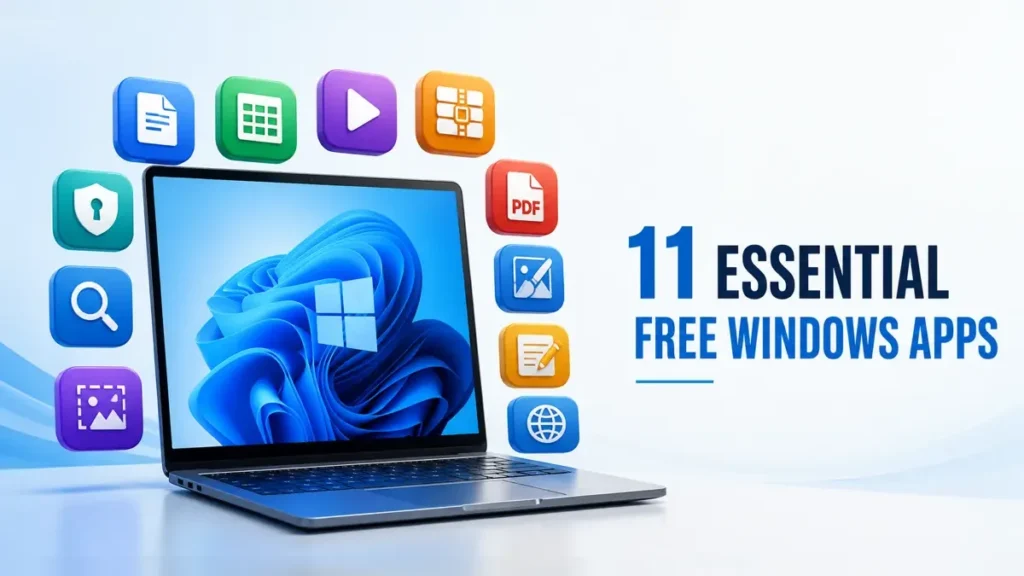
This updated guide recommends 11 genuinely useful apps for Windows 11 and supported Windows 10 systems. The list covers productivity, media playback, file compression, password security, search, screenshots, PDFs, image editing, note-taking, and web browsing. Every recommendation links to its official website so you can avoid misleading download pages.

Quick answer: Start with Microsoft PowerToys, 7-Zip, VLC, LibreOffice, Bitwarden, Everything, ShareX, SumatraPDF, GIMP, Notepad++, and Mozilla Firefox. You do not need every app immediately—install the tools that match the way you use your laptop.

Microsoft PowerToys — Best for adding practical Windows productivity tools.
7-Zip — Best for opening and creating compressed archives.
VLC media player — Best for playing video and audio formats.
LibreOffice — Best free office suite for documents and spreadsheets.
Bitwarden — Best for storing and generating strong passwords.
Everything — Best for finding local files by name almost instantly.
ShareX — Best for screenshots, screen recording, and annotation.
SumatraPDF — Best lightweight reader for PDFs and eBooks.
GIMP — Best free editor for detailed image work.
Notepad++ — Best lightweight text and code editor.
Mozilla Firefox — Best independent browser alternative with strong privacy controls.

All 11 apps are available from official sources. Some offer optional paid services or donations, but the core Windows software recommended here can be used without purchasing a license.

1. Microsoft PowerToys: The Best Windows Productivity Upgrade

Microsoft PowerToys is a free, open-source collection of utilities maintained by Microsoft. It is the first app to consider if you want more control without replacing familiar Windows features.

Useful tools include FancyZones for arranging windows, PowerRename for renaming many files, Keyboard Manager for remapping keys, Text Extractor for copying text from images, and File Explorer add-ons for extra previews. You can enable only the modules you need.

Microsoft currently supports PowerToys on 64-bit Windows 11 and Windows 10 version 2004 or later, using x64 or ARM64 hardware. Install it through the Microsoft Store, WinGet, or Microsoft’s official GitHub releases.

Best for: productivity, window management, batch file tasks, and useful Windows shortcuts.
Official source: https://learn.microsoft.com/windows/powertoys/install

2. 7-Zip: Free File Compression Without Advertising

7-Zip is a small, open-source archive manager that opens common formats such as ZIP, RAR, TAR, and ISO. It can also create highly compressed 7z archives and standard ZIP files.

Windows can handle basic ZIP archives on its own, but 7-Zip is more useful when you receive less common archive types, want password-protected archives, or need better compression controls. Its interface looks dated, yet the program remains fast and straightforward.

Download only from the official 7-Zip website. Third-party download portals sometimes wrap free installers in unwanted software.

Best for: compressed downloads, backup archives, and password-protected file packages.
Official source: https://www.7-zip.org/

3. VLC Media Player: Play Almost Any Video or Audio File

VLC is a free, open-source media player from the VideoLAN project. It handles a wide range of audio, video, disc, and streaming formats without requiring separate codec packs.

The app is especially useful when Windows Media Player or another built-in app refuses to open a file. VLC also supports subtitles, playback-speed controls, audio tracks, basic conversion, and network streams. Its advanced menus can feel busy, but normal playback is simple.

Avoid unofficial VLC download buttons and codec bundles. The genuine installer comes from VideoLAN.

Best for: local movies, music, subtitles, unusual media formats, and network playback.
Official source: https://www.videolan.org/vlc/

4. LibreOffice: A Complete Free Office Suite

LibreOffice provides Writer for documents, Calc for spreadsheets, Impress for presentations, and several supporting tools. It is free and open source, works offline, and can open or save many Microsoft Office formats.

It is a strong choice for students, home users, and small organizations that do not need Microsoft 365 collaboration features. Complex Office files may not preserve every font, macro, animation, or layout perfectly, so verify important documents before sharing them.

Choose the current Windows release from LibreOffice’s official download page. Avoid sites offering modified office-suite installers.

Best for: documents, spreadsheets, presentations, and offline school or office work.
Official source: https://www.libreoffice.org/download/download-libreoffice/

5. Bitwarden: Secure Password Management Across Devices

Bitwarden’s free plan supports unlimited saved logins and use across an unlimited number of devices. The Windows desktop app is useful, but most people should also install the official browser extension so passwords can be filled where they are used.

Create a long, unique master password and store your recovery information safely. Bitwarden cannot simply reveal a forgotten master password, so losing it can lock you out of the vault. Enable two-step login for additional protection.

A password manager reduces password reuse, but it does not protect a compromised or unlocked computer. Keep Windows updated and secure the device itself.

Best for: unique passwords, secure notes, passkeys, and cross-device access.
Official source: https://bitwarden.com/download/

6. Everything: Find Files by Name Almost Instantly

Everything by voidtools is a lightweight Windows search utility designed to locate files and folders by name. After it creates its index, results usually appear while you type.

It is most useful for people with large internal drives or many project folders. Everything searches filenames rather than understanding the contents of every document, so use Windows Search or an app-specific search when you need to find words inside files.

The official website offers installer and portable builds. Most modern laptops should use the 64-bit installer unless there is a specific reason to choose another version.

Best for: quickly locating downloads, documents, photos, and project files.
Official source: https://www.voidtools.com/

Related guide

How to Fix a Slow Computer

Keep your new laptop running fast.

7. ShareX: Powerful Screenshots, Recording, and Annotation

ShareX is a free, open-source Windows tool for screenshots, scrolling captures, GIFs, screen recording, OCR, color picking, annotation, and automated workflows. It contains no advertisements.

The app can upload captures to online services, but uploading is optional. Privacy-conscious users should configure after-capture actions to save files locally and should review destination settings before sharing anything sensitive.

ShareX has more options than the Windows Snipping Tool, which is helpful for tutorials and support work but may overwhelm someone who only needs an occasional screenshot.

Best for: tutorials, bug reports, annotated screenshots, OCR, and short recordings.
Official source: https://getsharex.com/

8. SumatraPDF: A Fast, Lightweight Document Reader

SumatraPDF is a compact, open-source reader for PDF, EPUB, MOBI, CBZ, CBR, DjVu, XPS, CHM, and several image formats. It launches quickly and offers installer and portable versions.

Choose SumatraPDF when you mainly read documents and want a simple program with no subscription. It is not a full PDF editor, so it is the wrong choice if you need advanced form creation, document conversion, redaction, or complex editing.

The official project states that it has no advertising or bundled software.

Best for: reading PDFs, eBooks, technical manuals, and comics on modest hardware.
Official source: https://www.sumatrapdfreader.org/free-pdf-reader

9. GIMP: Free Advanced Image Editing

GIMP is a free, open-source image editor for photo correction, layers, masks, selections, drawing, and graphics work. It is far more capable than a basic crop-and-resize tool, although its workflow differs from Adobe Photoshop.

Use GIMP when you need detailed control over an image and do not want a subscription. For quick screenshots or simple annotations, ShareX or Windows Photos may be faster. New users should expect a learning curve and should download plugins only from sources they trust.

Best for: photo editing, layered graphics, image repair, and web artwork.
Official source: https://www.gimp.org/downloads/

10. Notepad++: A Better Editor for Text and Code

Notepad++ is a free, open-source text and source-code editor for Windows. It supports tabs, search and replace across files, syntax highlighting, line numbers, macros, and many programming or configuration-file formats.

It is useful even if you are not a developer. Notepad++ can inspect log files, remove unwanted formatting from copied text, compare structured content, and edit configuration files more comfortably than basic Notepad.

Plugins add features, but every extra plugin increases maintenance and security responsibility. Install only what you actually need.

Best for: plain text, code, logs, configuration files, and advanced search and replace.
Official source: https://notepad-plus-plus.org/downloads/

11. Mozilla Firefox: An Independent Browser Alternative

Mozilla Firefox is a free, open-source browser available for Windows. It offers tracking-protection controls, browser extensions, synchronization, picture-in-picture video, reader view, and a useful alternative rendering engine to Chromium-based browsers.

Microsoft Edge is already included with Windows and may be enough for many people. Firefox earns a place on this list because having a second reputable browser helps with compatibility testing, troubleshooting, privacy preferences, and occasions when a website behaves incorrectly in the primary browser.

Install extensions carefully: a browser add-on can read sensitive page data if you grant broad permissions.

Best for: private browsing controls, browser choice, web compatibility, and cross-device synchronization.
Official source: https://www.mozilla.org/firefox/windows/

Bonus: LocalSend — Transfer Files Privately Between Devices

LocalSend is a free, open-source app for transferring files between Windows, Android, iPhone, macOS, and Linux devices connected to the same local network. It does not require an account or cloud storage, making it a convenient choice for moving photos, documents, and other files between your laptop and phone.

Both devices must be on the same trusted network and have LocalSend open. Confirm the receiving device before accepting a transfer, especially on shared Wi-Fi. Download it only from the official website or the store links provided there.

Best for: private cross-device file transfers without cables, accounts, or cloud uploads.
Official source: https://localsend.org/

LocalSend free Windows software interface for private file transfers
LocalSend transfers files between nearby devices over the local network. Source: LocalSend project, Apache 2.0.

How to Choose Which Free Windows Software to Install

Do not install every recommendation simply because it is free. Begin with the task you cannot complete comfortably using Windows alone. VLC is useful when media files fail to play; 7-Zip is useful when archive support is limited; Bitwarden solves password reuse; and LibreOffice helps when you need offline document tools.

Check four things before installing an app: the official source, the license or free-plan limits, supported Windows versions, and whether the app runs continuously in the background. Too many startup applications can slow sign-in and consume memory.

For a new general-purpose laptop, a sensible first group is PowerToys, 7-Zip, VLC, Bitwarden, and SumatraPDF. Add the other apps only when their purpose matches your work. If storage is limited, choose portable builds where officially supported and remove tools you stop using.

Install Free must have software Safely

Download software from the developer’s official website, Microsoft Store listing, or verified GitHub repository. Search advertisements can imitate download buttons, so confirm the domain before opening an installer.

Keep Microsoft Defender SmartScreen enabled. Before approving a User Account Control prompt, check that the publisher name matches the software developer. Decline unrelated browser extensions, cleaners, driver updaters, or trial programs offered by a third-party installer.

After installation, allow automatic security updates where available. Windows 10 reached the end of standard support on October 14, 2025, so a compatible PC should use Windows 11 or an applicable supported Windows 10 program. Software alone cannot compensate for an unsupported operating system.

Continue reading the related Windows guides below to discover specialized utilities and practical file-organization advice.

Final Recommendation

The best free Windows software is not the longest collection of downloads. It is a small, dependable toolkit that removes friction without filling your laptop with background processes.

Start with the applications that solve immediate needs. PowerToys improves Windows itself, 7-Zip handles archives, VLC plays difficult media, LibreOffice covers office work, and Bitwarden helps protect accounts. Everything, ShareX, SumatraPDF, GIMP, Notepad++, and Firefox are excellent additions when their specialized features become useful.

Bookmark each official source instead of relying on advertisements or third-party download sites. Review installed apps every few months and remove anything you no longer use. That simple habit keeps a new Windows laptop safer, cleaner, and easier to manage.

Free Windows Software Checklist for a New Laptop

Before installing free Windows software, decide which tasks your new laptop cannot handle comfortably with its built-in tools. Start with one or two essential programs, test them, and add more only when a genuine need appears. This keeps storage use, startup activity, and background processes under control.

Always obtain free Windows software from the developer’s official website, a verified Microsoft Store listing, or the project’s official repository. Check the publisher name before approving an installer, reject unrelated bundled offers, and leave Microsoft Defender SmartScreen enabled. Reliable free Windows software should explain its license, system requirements, update method, and any limits clearly.

After installation, review whether the free Windows software starts automatically and disable unnecessary startup behavior. Allow trusted applications to receive security updates, but avoid unofficial update tools. If an app is no longer useful, uninstall it instead of allowing unused free Windows software to accumulate.

For most new laptops, the best free Windows software setup begins with a password manager, archive utility, media player, and only the productivity tools you actually use. Keep installers and download bookmarks organized so you can find the official source again. Choosing free Windows software carefully is safer and more useful than installing a large collection on the first day.

i
Pro tip

→ READ NEXTHidden Windows 11 Tips and TricksGet more from your new laptop.

Frequently Asked Questions

Is free Windows software safe?Free software can be safe when it comes from a reputable developer and an official source. Verify the domain, publisher signature, update history, permissions, and license before installation.

Do I need a third-party antivirus?
Microsoft Defender is built into supported Windows versions and is sufficient for many careful home users. A second real-time antivirus can cause conflicts, so do not run multiple real-time security suites together. Can these apps run on Windows 10?
Many still support Windows 10, but requirements differ by application. Windows 10 standard support ended on October 14, 2025; check both Microsoft’s support status and each developer’s current requirements. Are free and open-source the same thing?
No. Free describes price, while open source describes access to source code and licensing rights. An application can be free but closed source, or open source with paid services. Should I use portable or installed versions?
Portable versions are convenient for USB drives or limited-permission PCs, but installed versions usually integrate better with Windows and update more automatically. Use only official portable builds. What should I avoid installing on a new laptop?
Avoid registry cleaners, unofficial driver updaters, cracked software, codec packs, and installers from download portals that add unrelated programs. Windows already provides built-in maintenance and security tools.

Facebook
X
LinkedIn

Get the Weekly Fix

One email a week. Real fixes, no fluff.

Subscription Form

Join the discussion

Leave a Reply

Your email address will not be published. Required fields are marked *