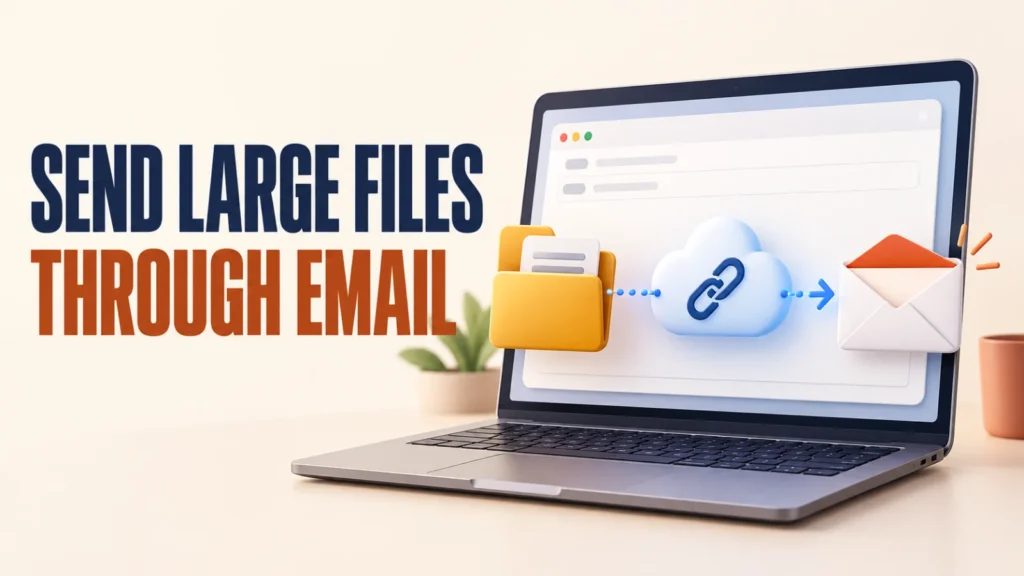
To send large files through email, share a cloud link when the attachment exceeds your provider’s limit. Personal Gmail converts files over 25MB to a Google Drive link; in Outlook, choose the OneDrive upload-and-share option. You can also compress files into a ZIP, use a transfer service like WeTransfer, or reduce the file size first. This guide covers 8 easy ways that work.
Trying to send large files through email often ends in an error, because email was never designed for big attachments.
Attachment limits vary by provider and account; personal Gmail allows up to 25MB. A video or photo folder can easily exceed the limit.
The good news is there are several simple ways around this, and this guide covers each one step by step.
Table of Contents
ToggleWhy You Cannot Send Large Files Through Email Directly
Email has built-in size limits that stop very large attachments.
Personal Gmail limits attachments to 25MB; limits for other services and work accounts can differ.
These limits exist to keep email fast and reliable for everyone.
When a file is too big, the answer is to share it a different way rather than attach it.
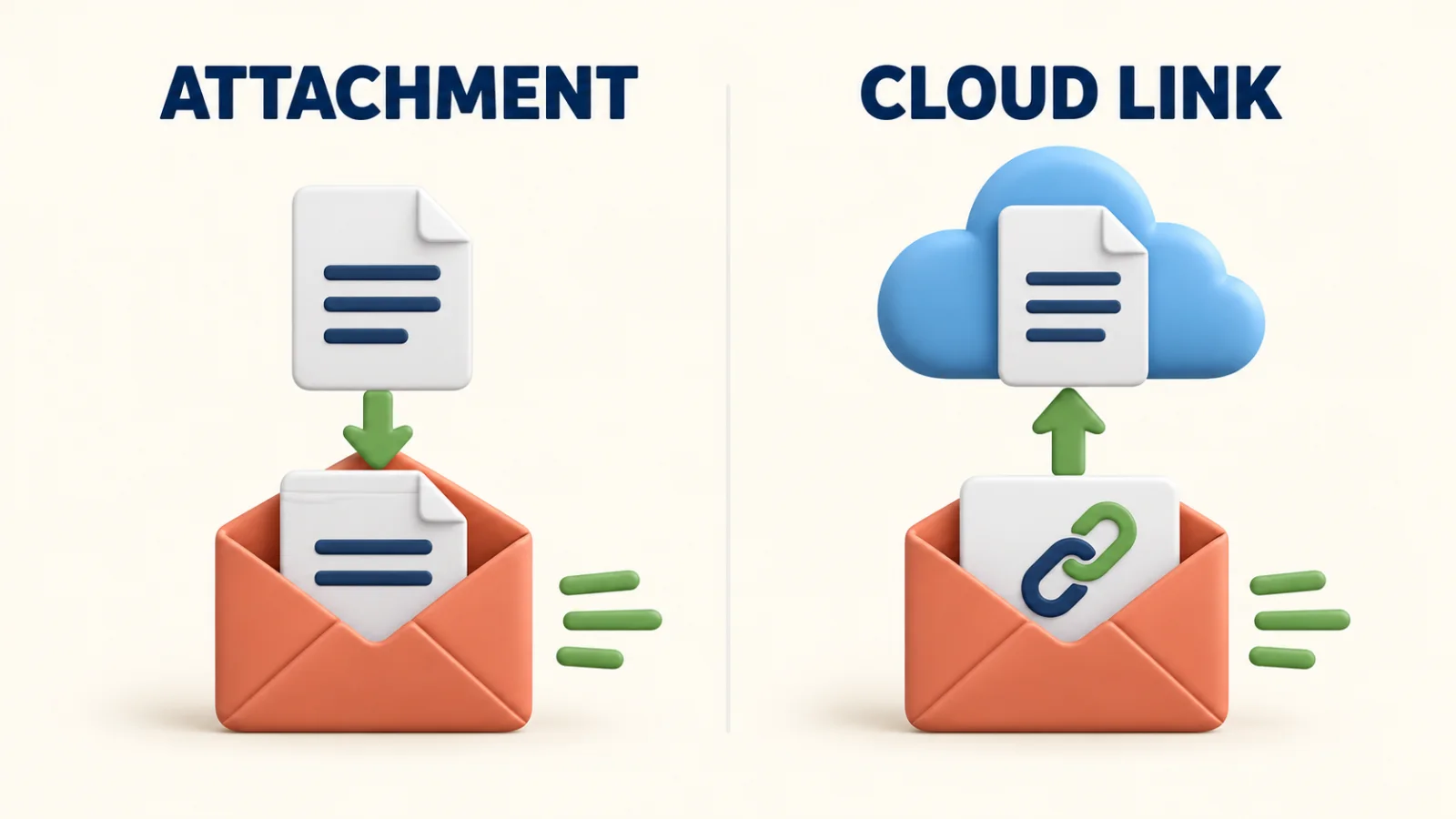
Method 1: Share a Google Drive Link in Gmail
Gmail makes it easy to send large files through email using Google Drive.
- Write your email in Gmail as usual
- Click the Google Drive icon at the bottom, or attach a file over 25MB
- Gmail uploads the file to Drive automatically
- Send the email, which now contains a shareable link
The recipient clicks the link to view or download the file.
This handles files far larger than any attachment limit.
Method 2: Share a OneDrive Link in Outlook
Outlook can share a large file through Microsoft OneDrive.
- Start a new email in Outlook
- Attach your large file
- Choose to upload and share it with OneDrive when prompted
- Send the email with the link included
The recipient gets a link to open the file in OneDrive.
This is ideal if you already use Microsoft 365 or Outlook.
Method 3: Use a File Transfer Service
Transfer services like WeTransfer let you send large files through email by delivering a download link.
Upload your file on the service’s website and enter the recipient’s email.
If you choose an email transfer, the service sends the recipient a download link.
Free transfer allowances change. Check WeTransfer’s current free limits before uploading.
Method 4: Compress Files Into a ZIP
Compressing files into a ZIP can shrink them enough to attach, and bundles many files into one.
- Select the files or folder you want to send
- Right-click and choose Compress to ZIP file, or Send to, Compressed folder
- Wait for the ZIP to be created
- Attach the ZIP to your email if it is now under the limit
Compression works best on documents, and less on photos or video that are already compressed.
Windows’ built-in ZIP option does not encrypt files. For a password-protected archive, use a trusted tool that supports encryption.
Practical ways to protect sensitive files before you share them.
Method 5: Reduce the File Size First
Sometimes shrinking the file is enough to send it normally.
Compress a PDF using a free online or built-in tool.
Resize large photos to a smaller resolution before sending.
For video, export at a lower resolution or use a shorter clip.
Method 6: Use Your Cloud Storage Directly
You can send large files through email by sharing them straight from cloud storage instead of attaching them.
Upload the file to Google Drive, OneDrive, or Dropbox.
Right-click it and choose to copy a shareable link.
Paste that link into your email, and the recipient opens the file from the cloud.
Method 7: Split a Large File Into Parts
For a very large file, you can split it into smaller pieces.
A tool like 7-Zip can split a file into parts that each fit under the limit.
Send the parts across one or more emails.
The recipient uses the same tool to join them back together.
Method 8: Use a Dedicated Large-File Email Service
Some email providers and add-ons are built to handle bigger attachments.
They store the file in the cloud and send a link behind the scenes.
This lets you attach large files as if they were normal.
Check the size limit and privacy terms before relying on one.
Work through common PC issues with step-by-step checks.
Which Method Should You Choose to Send Large Files Through Email?
The best method depends on your file size and who you’re sending it to.
For most files, sharing a Google Drive or OneDrive link is the simplest choice, since Gmail can insert a Drive link and Outlook lets you choose a OneDrive link.
For a one-off large file to someone outside your organization, a transfer service like WeTransfer is quicker to set up. For several documents that need to stay together, a ZIP file keeps them bundled and may even shrink small enough to attach directly.
Quick Comparison
- Within your provider’s limit — attach the file normally
- Over your provider’s limit — share a Google Drive or OneDrive link
- One-off file to anyone — use a transfer service like WeTransfer
- Several files that belong together — compress into a ZIP
- Sensitive files — use an encrypted archive or restricted cloud link
Keeping Large Files Secure
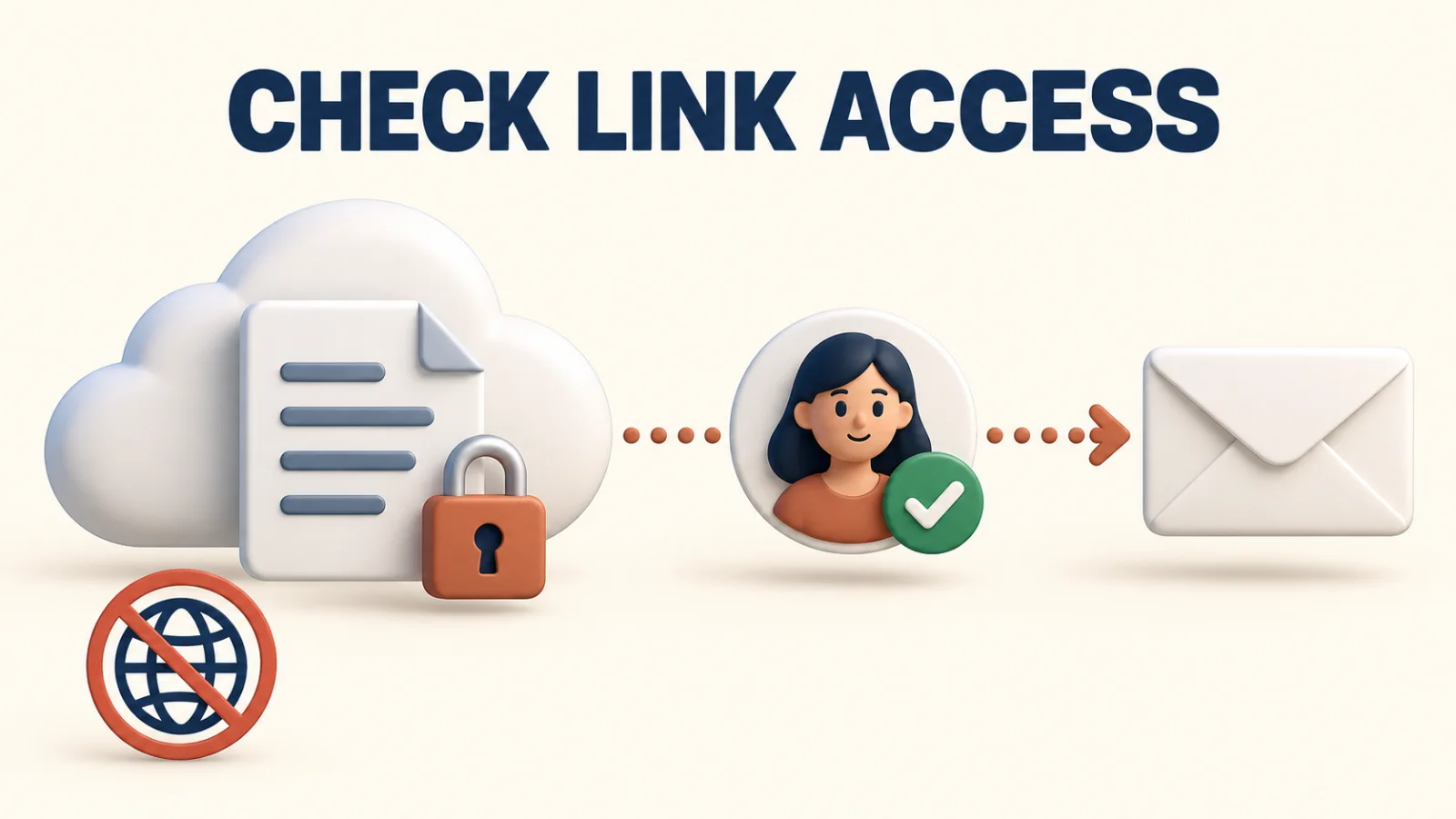
Restrict private cloud links to specific recipients and set an expiry where available, and double-check the recipient’s address before you share it. For sensitive files, an archive encrypted with a trusted tool adds another layer; send its password through a different channel.
Common Mistakes to Avoid
The most common slip is trying to attach a file well over the limit, which simply bounces back. The second is leaving a cloud link set to public when it should be restricted. The third is forgetting that the recipient’s inbox has its own size limit, even if yours does not.
Sending to Multiple People
Upload the file once, then send the same cloud link to everyone instead of attaching it to each email. This avoids repeating a large upload and lets you control who can view or edit the file from the sharing settings.
Sending From a Phone
The same link-sharing methods work from a phone. In Gmail, use a Drive link for an oversized file; in Outlook, choose to share from OneDrive. A file transfer app works well for a one-off large file on the go.
If a Shared Link Won't Open
Check that the sharing setting allows the recipient’s account, or anyone with the link. Confirm the file finished uploading before you shared it, and re-copy the link if the first one was cut off when you sent it.
Frequently Asked Questions
How do I send large files through email?
Instead of attaching a big file, share a cloud link. Gmail can insert a Drive link for oversized attachments; Outlook lets you upload to OneDrive and share a link. You can also use a service like WeTransfer or compress the files into a ZIP.
What is the email attachment size limit?
Limits vary by provider and account. Personal Gmail allows attachments up to 25MB. For anything larger, share a cloud link or use a file transfer service instead.
How do I email a file that is too big?
Upload it to Google Drive, OneDrive, or Dropbox and share the link in your email. Gmail can convert an oversized attachment to a Drive link; Outlook lets you select a OneDrive link.
Can I compress a file to email it?
Yes. Compressing files into a ZIP can shrink documents enough to attach and bundles many files into one. It helps less with photos or video, which are already compressed.
Is it safe to send large files with a cloud link?
It can be. Restrict the link to the intended recipient and use an expiry if your service supports it. For sensitive files, use an encrypted archive and send its password separately.
What is the best free way to send large files?
Sharing a Google Drive or OneDrive link is free and simple. For a one-off transfer, compare the service’s current free size and transfer limits before uploading.