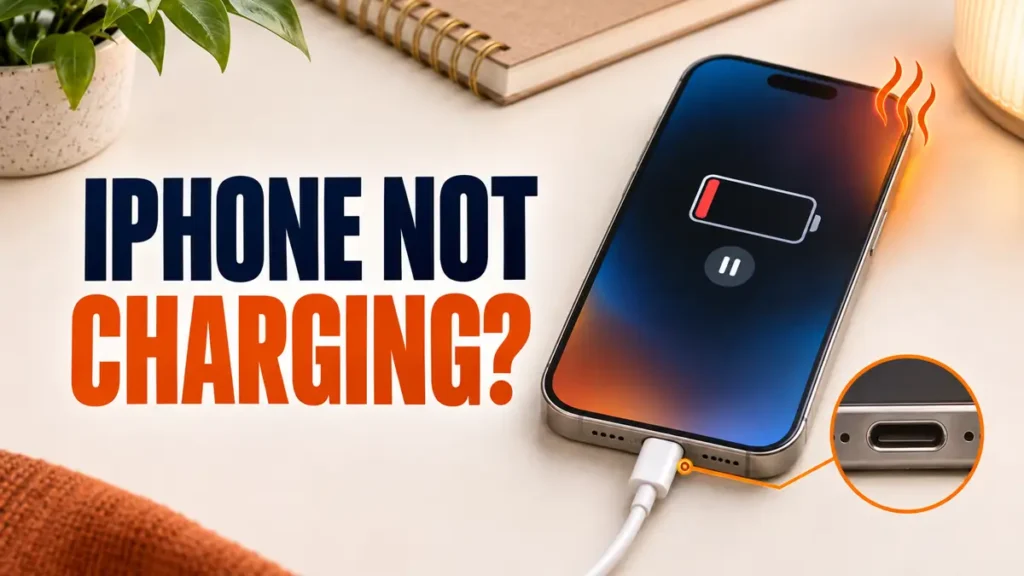
An iPhone not charging is often doing exactly what it was designed to do. iPhones pause charging when they are too hot, stop at a charge limit you may not remember setting, and block charging when they detect liquid in the port.
Start by checking which situation you are in, then work through the fixes. They follow Apple’s own troubleshooting order.
If charging stops at 80%, check Settings > Battery > Charging for a Charge Limit, or let a warm iPhone cool down. If it does not charge at all, use a wall outlet, swap the cable and adapter, inspect the port for debris and arrange safe cleaning if debris is packed inside, restart the iPhone and charge for 30 minutes. A liquid alert means unplug and let it dry, and never use rice.

Table of Contents
ToggleFix 1: Check for a Charge Limit
Apple’s Charge Limit guide explains two features that stop charging early on purpose:
- iPhone 15 and later: go to Settings > Battery > Charging and choose a limit of 80, 85, 90, 95 or 100%. Set it to 100% to charge fully.
- iPhone 14 and earlier: go to Settings > Battery > Battery Health & Charging. Optimized Battery Charging can hold the charge at 80% overnight.
When Optimized Battery Charging is holding the charge, touch and hold the Lock Screen notification and tap Charge Now.
Fix 2: Let a Hot or Cold iPhone Recover
If you see Charging On Hold, Apple says charging will resume when the iPhone returns to normal temperature. Move it out of direct sunlight or a hot car, take it out of a thick case, and lock the screen while it cools.
Apple also notes that software may limit charging above 80% when battery temperatures are too high, and that charging above 35°C can permanently shorten battery life.
Fix 3: Use a Wall Outlet and the Right Adapter
Computer USB ports and weak adapters may not deliver enough power. Plug the adapter straight into a wall outlet, and use an Apple adapter or a certified USB-C power adapter. For fast charging, Apple says iPhone 12 and later need a USB-C Power Delivery adapter rated at least 20W; iPhone 8 through iPhone 11 can fast-charge with an 18W or higher USB-C adapter.
Fix 4: Try Another Cable and Adapter
Apple suggests flipping the cable connector, unplugging and reconnecting it, then trying a different cable and a different adapter. Gently move the cable to check for a loose connection. Stop using any cable with frayed or bent ends.
Fix 5: Clean the Charging Port Safely
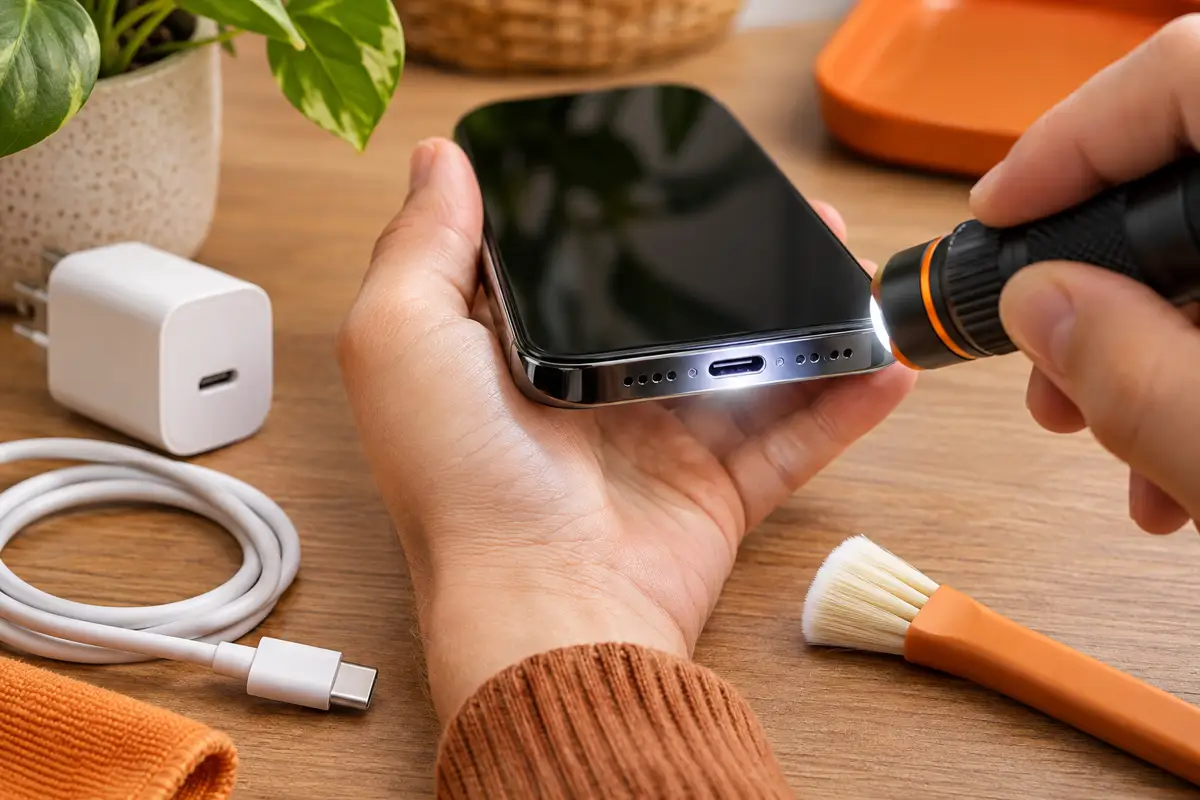
- Unplug all cables and turn the iPhone off.
- Shine a torch into the port and look for lint or dust.
- Do not insert pins, toothpicks, cotton buds, brushes or other objects into the connector. If debris is packed inside or the cable still feels loose, ask Apple or an authorised service provider to inspect the port.
- Do not use compressed air, pins or toothpicks.
- Reconnect the cable firmly and try again.
These steps follow Apple’s battery and charging troubleshooting page. Pocket lint packed into the port is one of the most common reasons a cable feels loose and charging cuts in and out.
Fix 6: Handle a Liquid-Detection Alert
If the iPhone says liquid was detected in the port, Apple’s liquid-detection guide says to:
- Unplug the cable at both ends.
- Tap the iPhone gently against your hand, connector facing down.
- Leave it somewhere dry with airflow for at least 30 minutes, and up to a day.
- Use a Qi wireless charger meanwhile if the back of the phone is dry.
Do not put the iPhone in rice, use a hair dryer or compressed air, or push cotton buds into the port. Apple warns that rice grains can damage the phone, and charging while wet can corrode the pins.
Fix 7: Restart and Charge for 30 Minutes
Restart the iPhone, connect it to a wall charger and leave it for half an hour. Apple advises charging for half an hour before checking again. If it still does not respond, force restart it and charge for another 30 minutes.
Fix 8: Check Wireless Charging Setup
Remove thick or metal cases, place the iPhone face up in the centre of the pad, and plug the pad into a wall outlet. Unplug any cable first, because wired charging takes priority over wireless.
Fix 9: Update iOS
Go to Settings > General > Software Update and install any update. If charging problems started right after a major update, see our iOS 27 problems and fixes guide.
Fix 10: Check Battery Health or Get Service
Open Settings > Battery and look at Battery Health. A worn battery, or an iPhone that still will not charge after every fix, needs Apple or an authorised service provider. Apple says plainly that a device that still will not power on or charge may need service.
iPhone Not Charging With Some Cables Only?
An accessory is not supported message usually means a damaged or uncertified cable. Use Apple or MFi-certified Lightning cables, or good-quality USB-C cables for iPhone 15 and later. Android users with similar problems can see Android phone charging slowly.
Habits that keep your battery healthy for longer.
Frequently Asked Questions
Why is my iPhone not charging past 80%?
Usually a Charge Limit, Optimized Battery Charging, or high temperature. Check Settings > Battery > Charging, or let the iPhone cool down.
What does Charging On Hold mean on iPhone?
The iPhone is too hot or too cold to charge safely. Charging resumes automatically when it returns to normal temperature.
Should I put a wet iPhone in rice?
No. Apple advises against rice because small grains can damage the phone. Tap out the liquid and let it dry in a place with airflow.
Why is my iPhone not charging when plugged in?
Common causes are lint in the port, a damaged cable, a weak adapter or a computer USB port. Clean the port, swap the cable and adapter, and use a wall outlet.