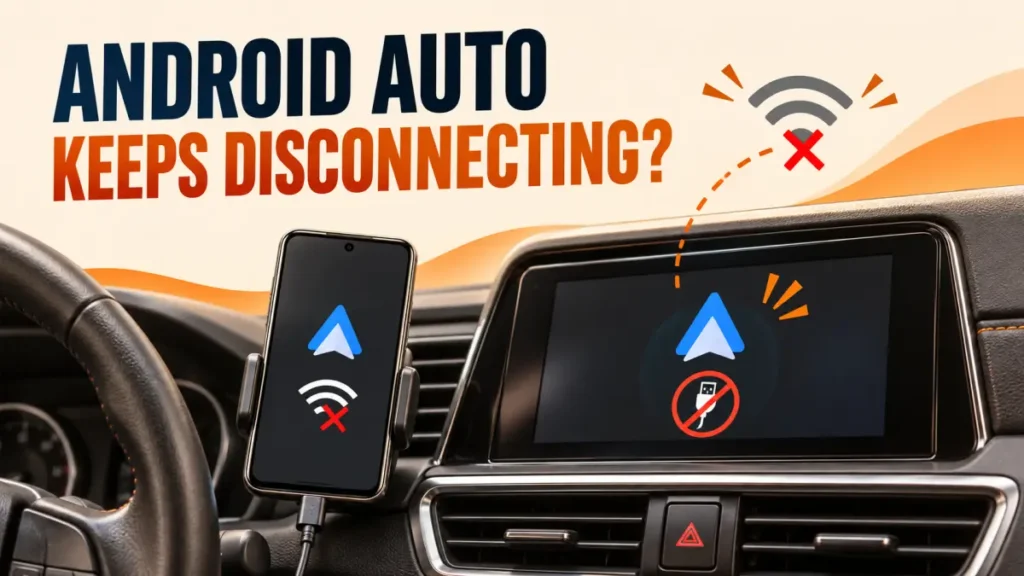
Android Auto keeps disconnecting for most people because of the USB cable, not the phone. Google’s own help page says that if Android Auto worked before and has stopped, replacing the cable will likely fix it. Wireless drop-outs, battery saving and recent phone updates are the next most common causes.
Start with the cable and work down the list.
Use a short, good-quality USB cable under 1 metre, ideally the one that came with your phone, plugged straight into the car with no hub. Restart the phone and the car’s screen. Then forget all cars in Android Auto settings and reconnect, set Android Auto’s battery use to Unrestricted, and update the car receiver’s firmware if it is an aftermarket unit.
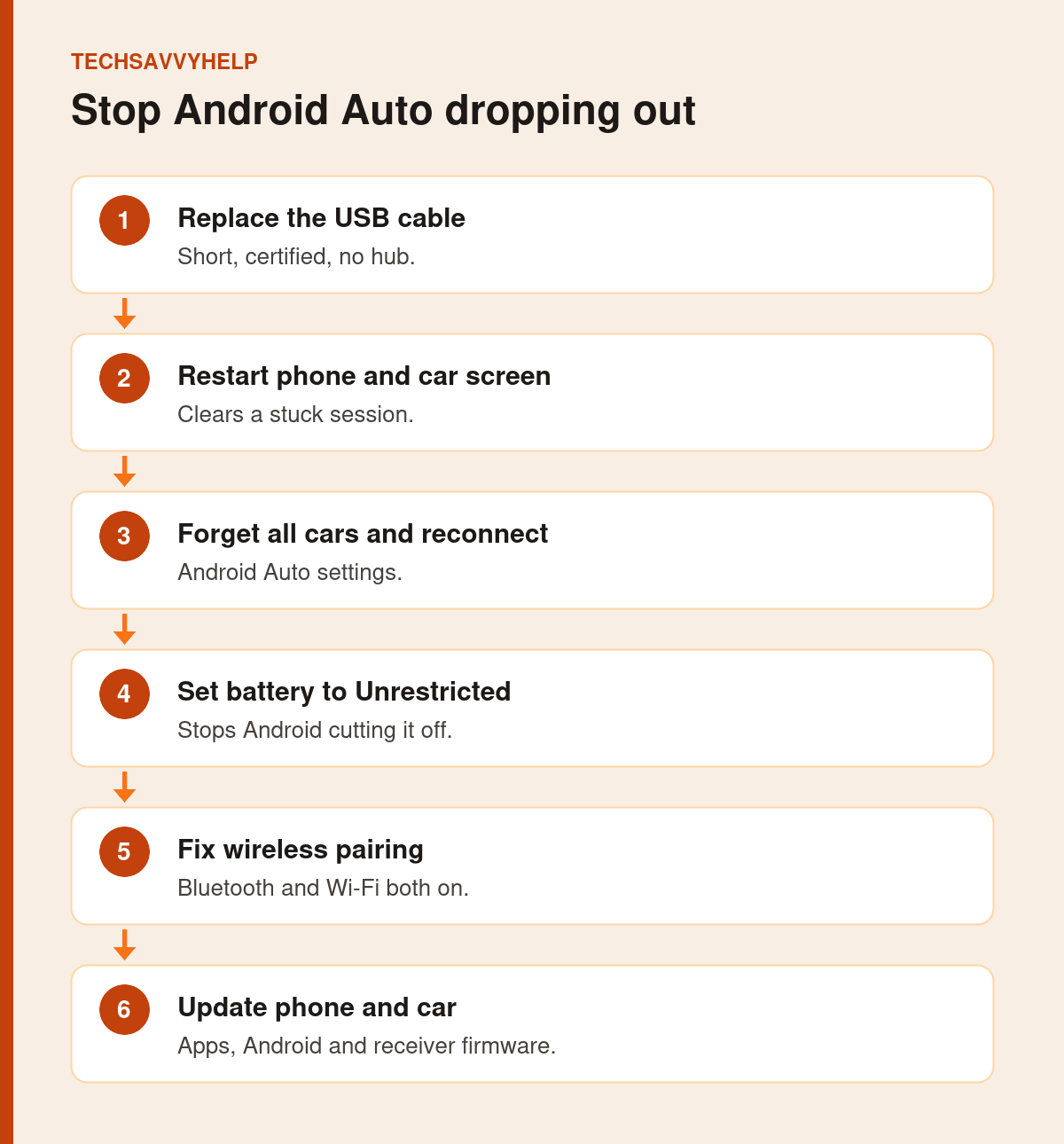
Table of Contents
ToggleFix 1: Replace the USB Cable
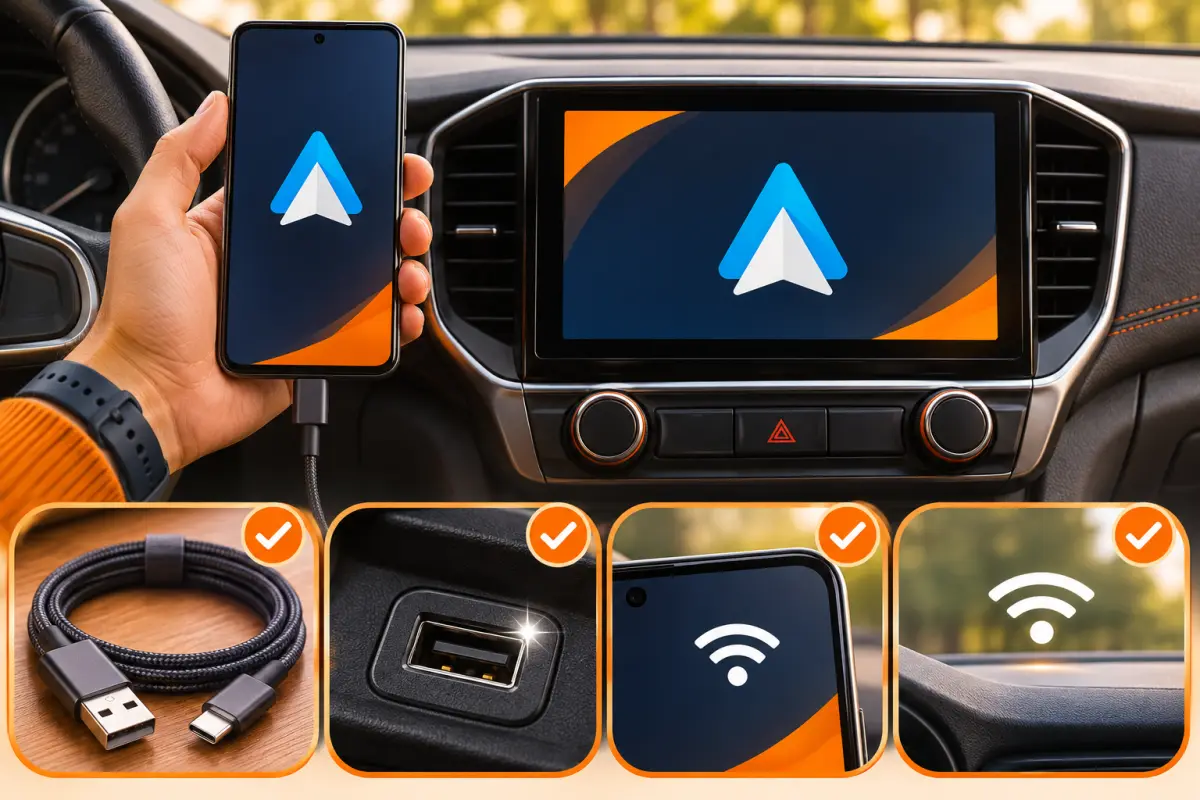
Google’s Android Auto help page recommends a cable under 3 feet (1 metre), no USB hubs or extensions, and ideally the cable that came with your phone. If you buy one, choose a cable certified to USB-IF standards. Worn cables cause exactly this symptom: it connects, then drops when you hit a bump.
Fix 2: Restart the Phone and the Car Screen
Restart your phone, then restart the car’s infotainment system. On many cars, switching the engine off, opening the door and waiting a minute does this. Also check Android Auto is still switched on in the car’s settings.
Fix 3: Forget the Car and Reconnect
- Unplug your phone from the car.
- Open Settings > Connected devices > Connection preferences > Android Auto. On Samsung, search Settings for Android Auto.
- Tap Previously connected cars, open the menu and tap Forget all cars.
- Plug the phone back in and set it up again.
Fix 4: Stop Battery Saving From Closing Android Auto
Open Settings > Apps > Android Auto > Battery (or App battery usage) and choose Unrestricted. Do the same for Google Maps if navigation keeps stopping. Battery saver modes can close apps in the background mid-drive.
Fix 5: Clear Android Auto's Cache
Go to Settings > Apps > Android Auto > Storage and tap Clear cache. This keeps your settings. Only use Clear storage if nothing else works, as you will need to set Android Auto up again.
Fix 6: If Wireless Android Auto Keeps Disconnecting
Wireless Android Auto uses Bluetooth to connect and Wi-Fi to carry the screen, so keep both switched on. Remove the car from your phone’s Bluetooth list and pair again. Turn off any VPN or Wi-Fi hotspot on the phone while driving, as they can take over the Wi-Fi link.
Fix 7: Check Phone Security Settings After Updates
Digital Trends reported in March 2026 that Pixel and Galaxy users saw Android Auto problems after recent updates, and some suspected Android 16’s Advanced Protection, which can limit USB data while the phone is locked. Google has not confirmed this. Try unlocking the phone before you plug it in, and if you use Advanced Protection, check its USB setting.
Fix 8: Update the Phone, Apps and Car
Install system updates and update Android Auto, Google Maps and Google Play services from the Play Store. For aftermarket receivers such as Pioneer or Kenwood, Google suggests checking the maker’s site for firmware updates.
Phone getting hot on the dashboard? Heat can make phones drop connections. See our guide to an Android phone overheating.
Frequently Asked Questions
Why does Android Auto keep disconnecting?
Most often a worn or low-quality USB cable. Battery saving, a stuck car pairing, wireless interference and recent phone updates are other causes.
What cable is best for Android Auto?
Google recommends a cable under 1 metre, with no hubs or extensions, ideally the one that came with your phone or one certified to USB-IF standards.
How do I reset Android Auto?
Use Forget all cars in Android Auto settings, then clear its cache in Settings, Apps, Android Auto, Storage, and reconnect.
Why does wireless Android Auto drop out?
It needs both Bluetooth and Wi-Fi. A VPN, hotspot or old pairing can break the link. Re-pair the car and keep both switched on.